Change value of many fields
The action sets (overwrites) the values of several form fields at once, assigning them the values of columns retrieved from a selected data source. If a filter is configured for the data source, the query is further restricted according to its condition.
Basic configuration
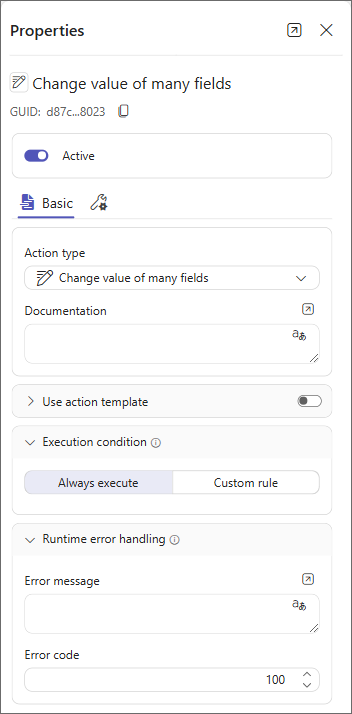
The Basic tab of the Properties panel contains settings common to every action in an automation: the Active switch, the Action type field, the Documentation field, the Use action template switch (when enabled, the action takes its configuration from the selected action template defined in the process), the Execution condition section (determines whether the action always runs or only when a custom rule is met), and the Runtime error handling section (the message and numeric error code returned when the action fails to execute). Because these settings are not unique to the Change value of many fields action, they are described in detail in the Actions chapter.
Advanced configuration
The Advanced tab contains fields specific to this particular action: Data source, Filter, and Fields mapping.
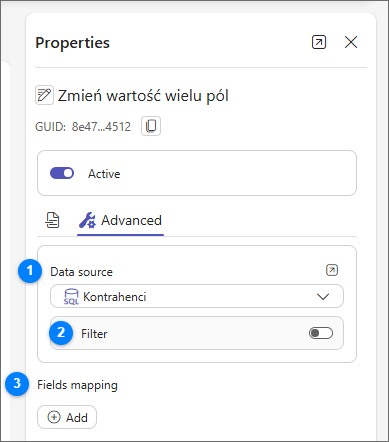
1. Data source
The data source the values assigned to the form fields are retrieved from. The Preview icon next to the field label opens the configuration of the selected data source. Either a data source or a connection can be selected in this field. When a data source is selected, the Filter switch (described below) is available; when a connection is selected, the Query field appears, in which the query retrieving the data is defined.
2. Filter
A switch that becomes visible only after a data source is selected and is off by default. Turning it on reveals a business rule field that allows you to further narrow down the data row retrieved from the source — for example, to limit the result to the record linked to the current workflow instance. The rule is built the same way as in other business-rule-based fields — clicking the fx icon opens the rule designer.
3. Fields mapping
A table linking form fields to columns of the selected data source. Each row consists of a Field (the form field whose value will be overwritten) and a Column (the data source column the new value is retrieved from) — the list of available columns loads automatically once a data source is selected. The Add button adds another mapping row, and the trash icon removes an existing row.
For more information, see The "Change value of single field" and "Change values of multiple fields" actions on our technical blog.