History
History is a Designer Studio side panel section that presents the list of configuration changes made in the current editing session, i.e. changes that have not been published yet. It lets you check what was changed and when before publishing, and follow the effect of undoing and redoing changes.
Purpose
Every change made in Designer Studio – e.g. creating a rule, editing a form field, adding a permission, or creating a transition path – is recorded as a separate operation in the editing session. These changes are not visible to end users in the Portal until they are published with the Publish changes button. The History section shows all such operations in the order in which they were made, so you can:
- review the list of changes before publishing,
- check which changes have been undone and can still be redone,
- find out which changes were withdrawn as a result of a conflict with a configuration published by another user.
The editing session is preserved between Designer Studio launches – when you open the application again, the list contains all previously unpublished changes together with the date they were made.
Opening the section
You can open the History section in two ways:
- by clicking the History icon on the icon bar of the side panel – both in the application working window and on the Designer Studio home page,
- by clicking the Show history button in the Configuration conflict window (see Conflicts with other users' configuration).
The section remains open in the side panel while you navigate between configuration elements, so you can follow subsequent changes as they happen.
List of changes
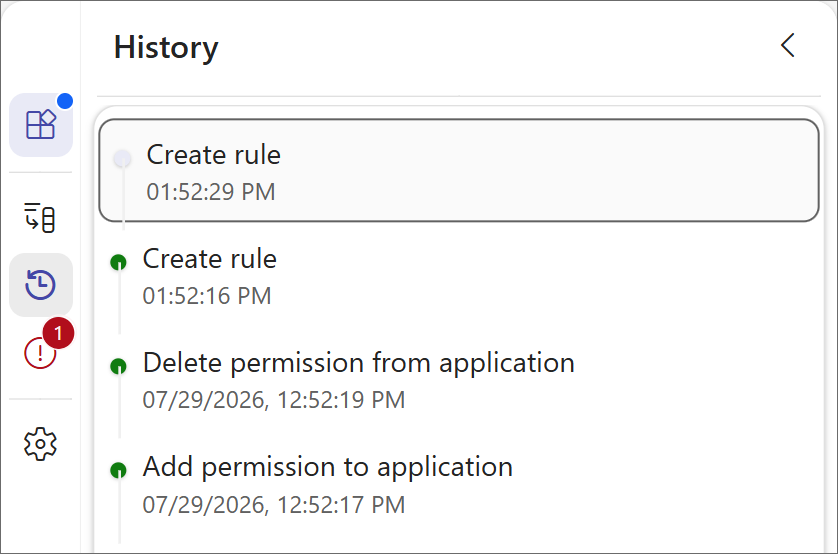
Each item on the list corresponds to one operation and contains:
- the name of the operation, e.g. Create rule, Edit form field, Create transition path, Add permission to application,
- the time of the change – for changes made on the current day, only the time is displayed; for earlier changes, the date and time are displayed.
The newest changes are at the top of the list. The colored marker next to an item indicates its state:
| Marker | Meaning |
|---|---|
| Green | The change is applied and will be included when publishing. |
| Gray (item highlighted with a background) | The change has been undone – it will not be published, but it can still be redone. |
If no changes have been made in the current editing session yet, the section displays the message No changes.
Undoing and redoing changes
Use the buttons on the top bar to undo and redo changes:
- Undo last action
 – withdraws the most recent applied change. The change remains visible on the list in the History section, but its marker turns gray,
- Redo last action
 – restores the most recently undone change. The button is active only when the list contains a change that can be redone.
Changes are undone and redone one at a time, in the reverse order in which they were made. After each operation, a short message with its name is displayed, e.g. Undo: Create rule or Redo: Create rule.
Making a new change after undoing changes removes all undone items from the list – they can no longer be redone.
You can discard all unpublished changes at once with the Cancel edit button on the top bar. Before the changes are discarded, you are asked to confirm.
Conflicts with other users' configuration
Several users can edit the configuration of the same application at the same time – each of them works in their own editing session. If another user publishes changes that conflict with the changes made in the current session, Designer Studio displays the Configuration conflict window with information that a configuration published by another user caused a conflict with the current editing session.
In such a case, the system automatically undoes the change that caused the conflict and all later changes in the current session. The Show history button in the window opens the History section, where you can review the undone changes – the item where the conflict started is highlighted on the list.
Changes undone as a result of a conflict cannot be redone with the Redo last action button. You can continue working, but to include the undone changes in the final version of the configuration, you must enter them again – the list in the History section helps you determine which changes they were.
Legacy Designer Studio offered a process History of changes that permanently recorded the author and date of each modification. The History section in Designer Studio serves a different purpose – it presents only the changes of the current, unpublished editing session and is linked to the undo and redo mechanism.