API definitions
API definitions allow building a simple REST API that – in the context of a selected process – integrates an external system with WEBCON. The API definitions panel is located in the process Definitions section.
API definitions list

The list shows the Name, Documentation, Endpoint URL, and Operation mode columns, so the key facts about each definition are visible without opening its configuration. Three buttons are available:
- Add API definition – creates a new definition (immediately, with no naming dialog) and opens its configuration.
- Add group – allows grouping definitions for better organization.
- Download OpenAPI – see the OpenAPI documentation section below.
If a definition's configuration contains an error, a warning icon is displayed next to its row, with a message describing the error, e.g. "API definition endpoint URL is empty.".
Options menu
Each definition has an icon that opens its configuration in full view, as well as an Options menu with the following commands:

- Open configuration in full view and Open configuration in the side panel – two equivalent ways to open the same configuration, differing only in how it is displayed.
- Add API definition – quickly adds another definition from the menu.
- Delete API definition – deletes the definition immediately with no confirmation prompt. This option should be used with care.
Basic information
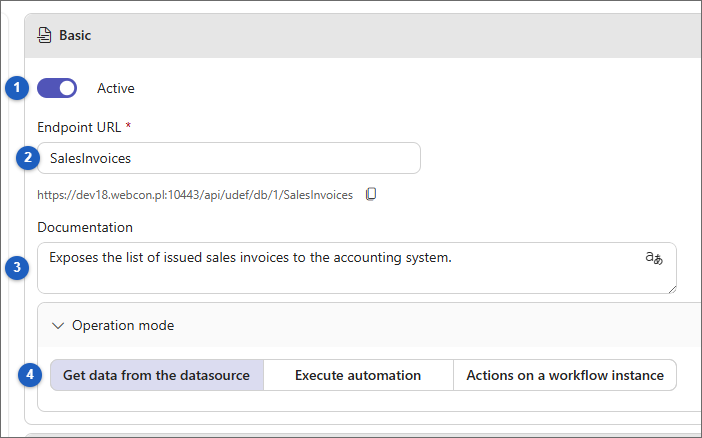
- Active – turning this off keeps the configuration but makes the endpoint unavailable to the calling system.
- Endpoint URL – a required field that defines the last segment of the address the definition will be reachable at. Below the field, the full generated address is shown (e.g.
https://{portal}/api/udef/db/{dbId}/MyPath), along with a copy button. The address can consist of several segments separated by/; segment names may contain digits but cannot consist of digits only. In Actions on a workflow instance mode, for the data-retrieval operation, an extra segment carrying the workflow instance identifier is appended to the address (e.g..../MyPath/123). - Documentation – an optional description of the definition, shown in the generated process documentation. The icon in the corner of the field opens Translations.
- Operation mode – determines what the endpoint does when called; see Operation mode below.
Above these fields, the panel header shows an editable Name for the definition and its GUID with a copy button.
Operation mode
Operation mode determines exactly what the endpoint does when called, and which settings appear in the Properties section:
- Get data from the datasource (GET) – returns data from the selected application data source.
- Execute automation (POST) – runs the automation defined in the Automation section.
- Actions on a workflow instance (GET / PATCH / POST) – allows retrieving instance data, saving data, starting a new workflow instance, or performing a path transition.
Authentication and permissions
Before the endpoint can be called, the calling system must authenticate:

- API application authentication (Oauth2) – token-based authentication based on a defined public-access application. Such an application is configured in Portal Integrations.
- User authentication in Webcon Portal (Cookie) – authentication using the cookies of a logged-in Portal user, with no extra configuration. Useful, for example, when calling from JavaScript code embedded in a form or dashboard. The info icon next to this option displays a caveat: cookie-based authentication is not available for requests other than GET when CSRF protection is enabled in the system configuration.
- Include in MCP server tools – exposes the definition as a tool an AI model can call through the MCP server. Enabling this option automatically checks and locks API application authentication (Oauth2) – exposing a definition as an MCP tool requires application-based authentication:

Regardless of the chosen authentication method, the user in whose context the endpoint is called must hold at least the Application access permission. If the called API performs operations on process instances, the appropriate process- or instance-level permissions are also required (for example, to register a new instance or modify an existing one) – instance-level permissions alone, without application access, are not enough.
Access restrictions
The collapsible Access restrictions section allows defining an additional condition that controls whether the endpoint is available:

The rule field offers syntax suggestions while typing. If the rule returns POSITIVE, TRUE, or 1, access to the endpoint is granted; otherwise the request is blocked and the caller receives an HTTP 403 error. If no rule is defined, access to the endpoint depends solely on the user's permissions (or the token's scope) described above. Access restrictions are particularly useful with cookie-based authentication, where – without an additional condition – any user logged into the Portal could call the endpoint.
Getting data from the datasource
The following fields appear in the Properties section when Operation mode is set to Get data from the datasource:

The Selected data source field allows picking an application data source (WEBCON category) or a source from the Users and groups category. Until a source is selected, the Input parameters section stays unavailable.
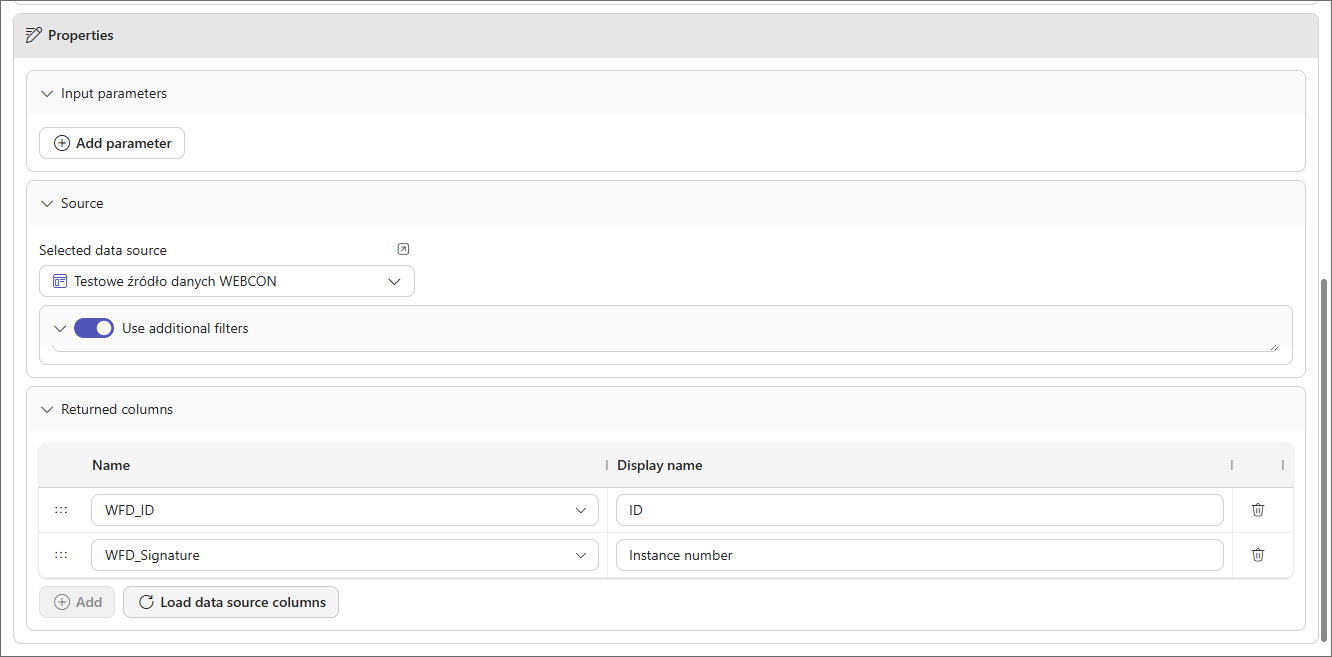
Once a data source is selected, the following become available:
- Input parameters – the Add parameter button allows defining parameters passed in from outside via the query string, which can then be used in the filter below.
- Use additional filters – enabling this reveals a rule field that narrows down the returned data (with the same syntax suggestions as in Access restrictions). By default, the endpoint returns at most 1000 rows. If the exposed data source has child sources defined per company, the built-in
businessEntityparameter – accepting an ID, GUID, or company code – retrieves data from a specific child source. - Returned columns – defines the columns included in the response. The Add button allows adding columns manually, while Load data source columns automatically loads the full list of columns available in the selected source. Column names in the response match the values entered in the Display name field.
The call result is returned as JSON, with the data in an array under the Data node. If the exposed source is a WEBCON source (from the WEBCON category), the returned data is further restricted according to the calling user's permissions to the individual instances in that source. If the source configuration has data access in the context of the system account enabled (or the source is of another type that does not take user permissions into account), access to the data is not restricted by permissions.
Executing an automation
When Operation mode is Execute automation, the Properties section consists of four sections, also visible in the configuration structure tree:
- Input parameters – parameters through which external data is passed into the automation.
- Local parameters – auxiliary variables of the automation, available only within the automation.
- Output parameters – parameters whose values are returned as the call result.
- Automation – the editor of the automation run when the endpoint is called.
Each parameter section contains the Add parameter button, which allows defining a new parameter.

The Automation section embeds the exact same editor as process automations – the Start and End blocks, the Definition / Error handling switch, and identical mechanics for building a sequence of actions and operators. An automation called from the API always runs without an instance context – neither it nor any nested automations can reference values from a specific workflow instance. It can, however, register a new workflow instance, update an existing one by its identifier, or perform a path transition on specified instances.
External data is passed into the automation through the input parameters – values must be passed either in the request body as JSON (node names must match the parameter names) or in the query string. If data is provided in both places, the query string values are ignored. The call result is returned as JSON, with the data corresponding to the automation's output parameters placed under the Data node.
If an error occurs while the automation runs, the automation defined in the Error handling view runs by default, and the caller receives a response with an error code. Errors caused by business logic (e.g. a failed validation) return an HTTP 409 code, while errors caused by an incorrect configuration return HTTP 400. Using the Break with error block with a code in the 400–409 range returns exactly that code; a code outside this range results in an HTTP 409 error.
Actions on a workflow instance
In the current version of Web Studio, the configuration of this mode may not be available in the Properties section. The description below presents the intended scope of the mode's settings.
The Actions on a workflow instance operation mode covers four groups of settings, corresponding to four kinds of operations performed at the same address, depending on the HTTP method used:
- Data retrieval (GET) – returns selected instance values: form fields, item lists, comments, and attachment collections. The data scope is configured as a mapping to the Name field used in the response. The call requires an instance identifier in the address (e.g.
.../MyPath/123). - Request data (instance write, PATCH) – updates instance values based on data passed in the request body – for example, form fields, item list rows, a comment, or attachments to add.
- Workflow start (POST) – starts a new instance, taking into account the workflow, form type, starting path, and company. As with the instance write operation, the request body can also carry data mapped onto the new instance's form fields, item list rows, comment, or attachments.
- Path transition (PATCH) – performs the specified path transition on an existing instance; it requires an extra address segment identifying the path, and the request body can carry additional data to set on the instance.
As with the data-retrieval mode above, the result of a read operation is returned as JSON under the Data node.
OpenAPI documentation
The Download OpenAPI button on the definitions list generates and downloads a file with the OpenAPI specification (in JSON format) covering every endpoint defined for the process – including the configured authentication methods. The file downloads directly, with no additional dialog. This format makes it easier to share, document, and test the API, keeping it consistent with widely adopted system-integration practices.