Action templates
Action templates make it possible to quickly reuse an action's configuration across a single process. Editing a template automatically updates the configuration of every action that uses it. Action templates are available under Definitions > Action templates.
Action templates list
The list view contains a Search field and a grid with the Name, Documentation, and Action type columns. Hovering over a row reveals the Open configuration in full view icon and the Options menu. If the process does not contain any templates yet, the list shows the "No action templates available" message.

- Add action template – button that creates a new template. The template is created immediately and its configuration opens in full view.
- Add group – button that creates a group for better organization of templates.
Creating an action template
A new template defaults to the Change value of single field action type. The first configuration step is therefore usually changing the Action type field to the correct type, using a picker with a category tree:

The categories in the tree correspond to the full catalog of Actions available in Web Studio.
In the desktop version of Studio, an action template can also be created from the Actions tab on a step. In the current Web Studio this way of creating a template is not available. The Action templates node under Definitions is the only place to create a template.
Configuring an action template
Selecting a template on the list shows its configuration in the Properties panel. The panel header contains an editable template name and a GUID. The first item of the configuration is the Active toggle, followed by two tabs: Basic and Advanced.
Basic tab
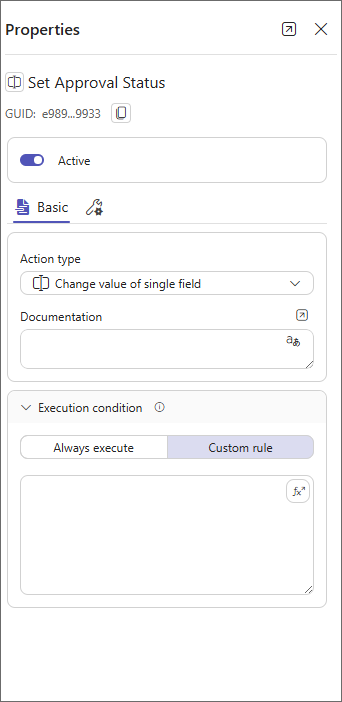
The Basic tab contains fields shared by every action type:
- Action type — the action type the template represents; chosen from the category tree described above,
- Documentation — an optional description of the template, with support for translations,
- Execution condition — determines whether an action using this template runs; two modes are available:
- Always execute — the action runs unconditionally,
- Custom rule — the action only runs when the rule returns POSITIVE, TRUE, or 1; the rule expression is edited in the same editor used for Business rules.
Advanced tab
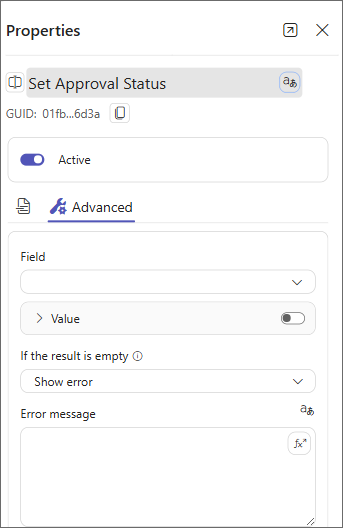
The content of the Advanced tab depends on the selected Action type — it is identical to the configuration panel of a regular action of that type. The screenshot above shows an example for the Change value of single field type:
- the Field field,
- the Value section with a toggle,
- the If the result is empty field — set to Show error by default,
- the Error message field — the default message text is "No value has been obtained."
The full field reference for each action type is documented under the corresponding action.
Full view and side panel
A template's configuration can be edited in two equivalent ways, selected from the template's Options menu:
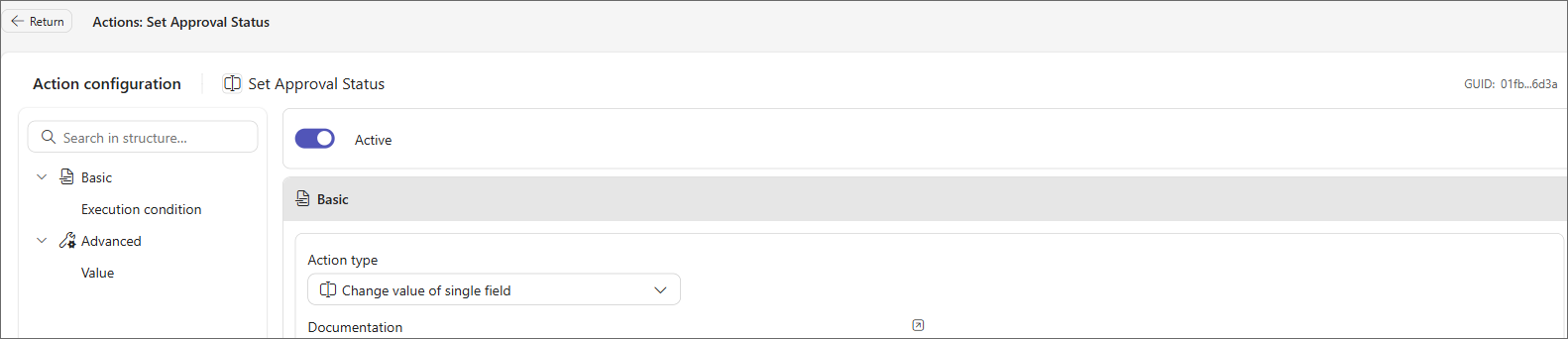
- Open configuration in full view — opens the configuration at full screen width, under the Action configuration header, with a structure tree on the left that includes a Search in structure… field; the tree contains the Basic and Advanced nodes (for the Change value of single field type, with the Execution condition and Value items),
- Open configuration in the side panel — opens a condensed version in the docked Properties panel.
Both options lead to the same content — they differ only in how it is displayed. The full view can also be opened with the Open configuration in full view icon in the template's row.
The template's Options menu also contains:
- Add action template — creates another new template,
- Delete action template — deletes the template without an additional confirmation.
Deleting a template happens immediately, with no confirmation dialog.
Grouping action templates
The Add group button creates a folder for organizing templates in the list. The group's Options menu contains three commands:
- Open configuration in the side panel — opens the group's Properties panel with a GUID field and a Description field,
- Add action template — creates a new template directly inside the group,
- Delete group — deletes the group, also without an additional confirmation.

Using a template when configuring an action
The action picker window, opened while configuring an automation, contains a Templates tab alongside the Operators, Actions, and Automations tabs — intended for choosing an existing action template instead of configuring an action from scratch.
Consistent with the concept known from the desktop version of Studio, selecting a template should automatically populate the new action's configuration — including the Execution condition field — based on the template's settings, while still allowing those settings to be edited individually for that action without breaking the link to the template.
More information about action templates can be found in this article on the WEBCON technical blog.