Performance indicators
Performance indicators are used to flexibly calculate task execution statistics. The value of an indicator is expressed as the time in minutes that elapsed between the start and the end of the calculation. The start and end points of an indicator are set using the Start performance indicator, Stop performance indicator, and Cancel performance indicator actions.
Performance indicator list

- Search field – filters the list of indicators and groups by name.
- Add performance indicator – creates a new indicator named "New performance indicator". The indicator is created immediately and its configuration opens in full view.
- Add group – creates a group used to organize the list. The group is created immediately and the Properties panel opens, where the group name can be changed (in the panel header) and a Description can be added. The group's GUID is displayed next to the name, together with a copy button.
- Grid with the Name, Documentation, and Expected value columns – lists the defined indicators. The expected value is displayed in a short format, e.g. "2d" stands for 2 days. Indicators assigned to a group are displayed as child nodes of the expandable group row.
Each indicator has an icon that opens its configuration in full view, as well as an Options menu with the following commands:
- Open configuration in full view,
- Open configuration in the side panel,
- Add performance indicator,
- Move to group – available when at least one group exists in the process. The submenu lists the process groups and, for an indicator that is already assigned to a group, also the <No group> item, which moves the indicator out of the group,
- Delete performance indicator.
The Options menu of a group contains the Open configuration in the side panel, Add performance indicator (the new indicator is created immediately in this group), and Delete group commands.
Performance indicator configuration
The indicator configuration can be opened in two variants: in full view or in the Properties side panel. Both variants provide the same fields. The full view additionally contains a structure tree with the Search in structure... field, which allows quick navigation to a selected section.
The indicator name is edited directly in the configuration header. The name cannot be empty. The header also displays the indicator's GUID with a copy button (in the full view – in the top right corner).
The General, Expected value, and Operating mode sections are always visible. The Working time in a working day section appears only for the Count by working days operating mode, and the Indicator calculation rule section – only for the Count by business rule mode.
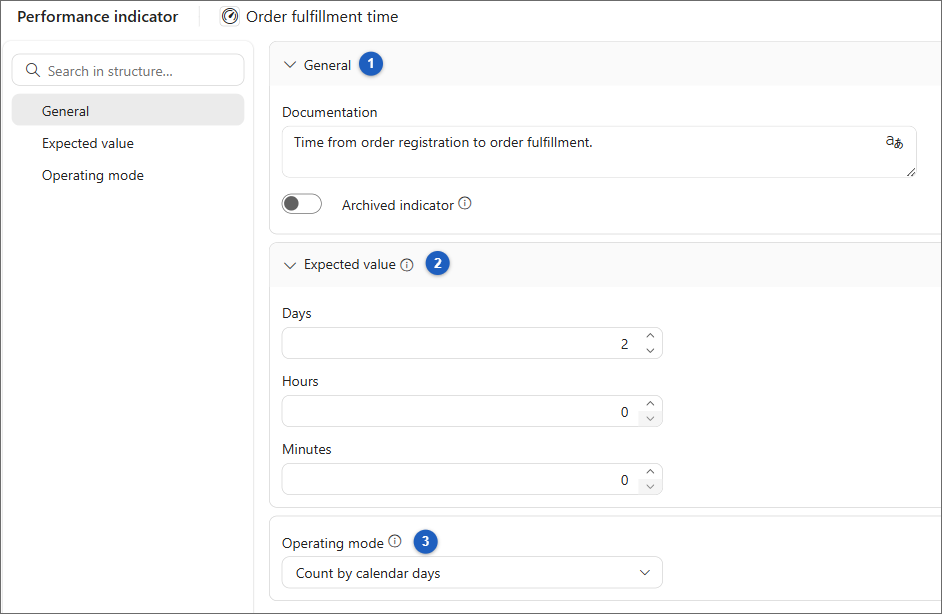
1. General
The section contains the Documentation field for an optional description of the indicator (the field supports translations into other interface languages) and the Archived indicator switch (off by default).
Marking an indicator as archived means that it will no longer be calculated, even if the actions that start and stop the indicator calculation (Start performance indicator and Stop performance indicator) are configured. An archived indicator is also not available in application dashboards and cannot be selected in the configuration of newly created actions. It is, however, still visible in the history of the workflow instance and on the information panel of the form, if it has been calculated before.
2. Expected value
The expected value is defined in three fields (each set to 0 by default):
- Days – from 0 to 99,
- Hours – from 0 to 23,
- Minutes – from 0 to 59.
Exceeding the expected value is signaled with a red color in graphical reports presenting the value of the indicator. The expected value is also available as a variable in rule builders.
3. Operating mode
This parameter defines how the indicator value is calculated, i.e. the time (in minutes) that elapsed from the execution of the Start performance indicator action to the execution of the Stop performance indicator action. Available options:
- Count by calendar days (default option) – the indicator is calculated directly as the difference between the start and end dates of the calculation. Weekends, the working days calendar, and working time are not taken into account. 1 day is exactly 24 hours.
- Count by working days – the indicator is calculated as the difference between the start and end dates of the calculation, taking into account the Working days calendar defined in the system and the settings of the Working time in a working day section. Days off defined in the calendar do not increase the indicator value. On working days, the value increases by the number of hours resulting from the working time in a working day and from the moment the calculation is stopped. This means that the length of a working day can be different for each indicator and can be between 0 and 24 hours.
- Count by business rule – the indicator value is calculated by the rule defined in the Indicator calculation rule section. The rule is evaluated when the Stop performance indicator action is executed, and the value it returns is the final value of the indicator. In this mode, it is not possible to estimate the current value of an indicator whose calculation has not finished yet. Therefore, graphical controls on the form and dashboards presenting the current indicator value will not display it until the calculation is finished.
4. Working time in a working day
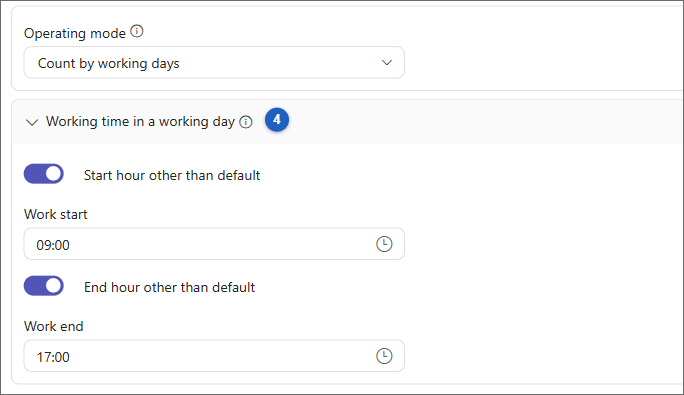
The section is visible only for the Count by working days operating mode and is used to define the working hours within a working day:
- Start hour other than default – turning on the switch displays the Work start field set to 09:00, which can be changed,
- End hour other than default – turning on the switch displays the Work end field set to 17:00, which can be changed.
Hours are entered in the HH:MM format or selected using the button with the clock icon. The work end hour must be after the work start hour.
If the indicator calculation was started using the Start performance indicator action, the indicator value is increased by the configured time for each working day in which the calculation was active – until the calculation is stopped using the Stop performance indicator action. If the calculation is stopped in the middle of a working day, the indicator value is increased by the difference between the configured work start hour and the moment the calculation was stopped.
5. Indicator calculation rule
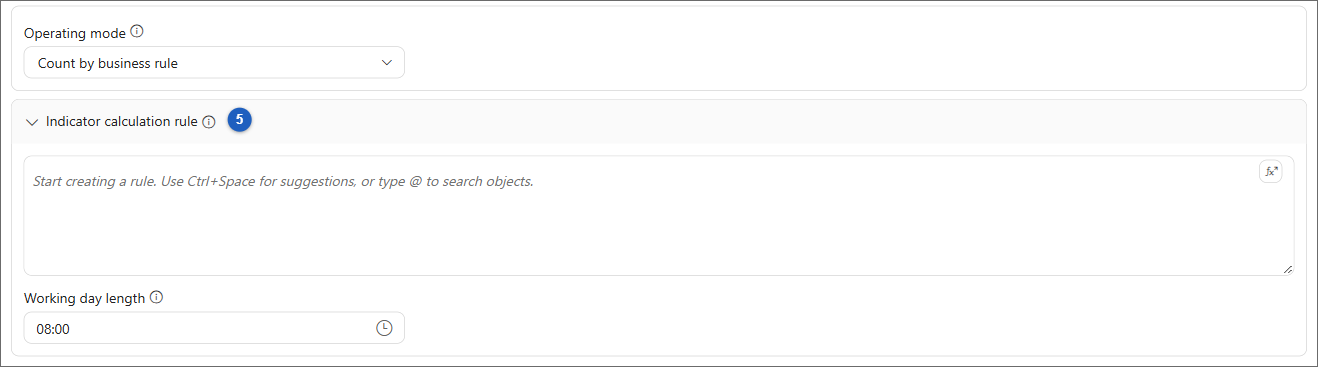
The section is visible only for the Count by business rule operating mode. The rule is used to calculate the final value of the indicator (expressed in minutes) by using any business rule expression. The rule is evaluated when the Stop performance indicator action is executed.
The rule is created directly in the editor field or in the full-screen editor, opened with the button in the top right corner of the field. In this mode, the rule is required – an indicator without an assigned rule is reported as a configuration error.
There are additional variables to aid in calculating the indicator value. They are available in the rule editor on the Values tab, in the Performance indicators node:
- Start value – the value of the indicator at the beginning of the calculation. It can be different than 0 and depends on the Start performance indicator action configuration.
- Start date – date and time (according to the database time) of the Start performance indicator action execution.
- Previous stop date – date and time (according to the database time) when the counter was previously stopped, if it was stopped before and its calculation was started again. If the Stop performance indicator action is executed for the first time, this variable is empty.

The Working day length field (08:00 by default) is used to specify the length of a working day when the indicator is calculated based on a business rule. The setting affects how indicator values are presented in the user interface (reports, dashboards, form) – a value displayed as 1 working day corresponds exactly to the number of hours and minutes defined here. The allowed range is from 00:01 to 24:00.
Additional info with examples of use can be found in our Performance indicators article on the Community site.