Variables
Variables let you refer in the configuration to data that is known only at runtime – for example form field values, information about the workflow instance, the currently logged-in user or the current date. Variables are inserted in the rule and expression editors of Designer Studio, and when a rule, action or expression is executed, they are replaced with the corresponding values.
Editors that use variables
Variables are available wherever Designer Studio lets you configure a dynamically calculated value. Depending on the place, one of two editors is used:
- Rule editor – opened, for example, when configuring the default value of a form field or the Visibility on form controlled by a rule, Editability controlled by a rule and Requiredness controlled by a rule options (the Conditions tab of the Form field configuration panel). A rule is built from operations, functions, values and objects.
- Text expression editor – opened for text fields that can contain variables, for example the Link to instructions field in the Workflow configuration panel. Variables are combined with plain text there.
Both editors open in the Designer Studio workspace. Above the editing area there is a Return button and a path showing the edited element (e.g. Field: Person or group › Default value rule). On the right there is a side panel listing the elements that can be inserted into the expression. You can hide the panel with the Close the side panel  button and show it again with the Open the side panel
 button in the upper-right corner of the editing area.
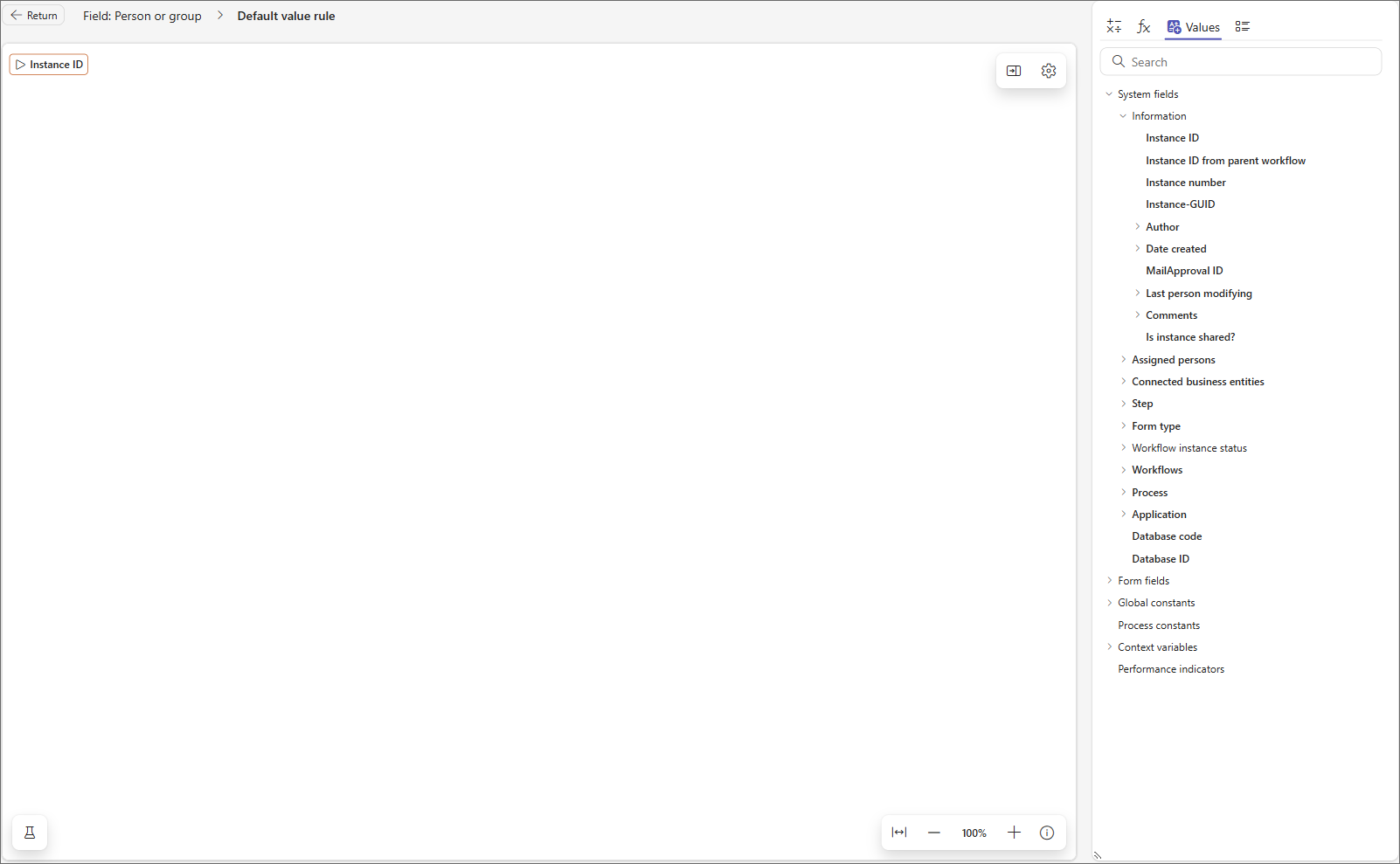
The rule editor additionally offers:
- the Configuration
 button – opens the Rule configuration panel showing the Return type of the rule (e.g. Text value),
- the Testing
 button in the lower-left corner – displays a bar in which you can enter the Element ID of a workflow instance and test the rule in its context (Test button) or preview the result (Preview button),
- zoom buttons in the lower-right corner – let you control the zoom level of the rule editing area: Fit to screen, Zoom out and Zoom in. Clicking the current zoom value (Set 100%) restores 100% zoom. You can also use the keyboard shortcut Ctrl + Scroll to adjust the zoom to your needs.
Editor side panel
The elements that can be inserted are grouped on the side panel tabs. Above the element tree there is a Search field that lets you quickly find a variable by name.
| Tab | Content |
|---|---|
| Operations | Arithmetic and logical operations and comparisons. The tab is available only in the rule editor. |
| Functions | Process and global business rules, integrations and built-in functions. |
| Values | Variables – system fields and form fields, constants, context variables and performance indicators. The content of this tab is described in Variable groups. |
| Objects | Identifiers of configuration objects – form fields, applications, processes, form types, workflows, steps, data sources and business entities. The content of this tab is described in Objects. |
The list of available variables is built dynamically based on the context in which the editor was opened. For example, the Form fields group contains only the form fields of the process to which the edited configuration belongs.
Inserting variables
To insert a variable into an expression, expand the appropriate group in the side panel and then:
- double-click the variable – it is inserted at the cursor position, or
- drag the variable to the editing area and drop it in the chosen place.
Many items in the variable tree have expandable variants (e.g. Author › Name, Login, E-mail). Inserting the parent item uses its default variant, while inserting a variant lets you specify the exact format of the returned value.
In the rule editor you can also use suggestions – as stated in the hint displayed in the empty editing area, Ctrl + Space displays a list of suggestions and typing @ lets you search for objects.
In the text expression editor, you can also type a variable manually in its text form, e.g. {WFD_ID} or {CURRENTUSER}. After saving and reopening the editor, such a tag is recognized and displayed as a variable block.
Typing variables manually also works in a form rule for which JavaScript mode is selected in the Edit mode field of the Rule configuration panel – the typed tag is converted into a variable block immediately.
In the rule editor in Form rule mode, a manually typed tag such as {WFD_ID} is treated as a plain text value and is not converted into a variable block – not even after saving and reopening the editor. In this mode, insert variables from the side panel or with suggestions (Ctrl + Space).
Appearance of variables
Inserted variables are displayed as blocks. Each block contains the ▷ icon and the name of the variable. If a variant of the variable was selected, its name is displayed on a colored badge on the right side of the block – e.g. the Current user block with the Login badge returns the login of the logged-in user, and the Global constants block with the VAT rate badge returns the value of that constant.

The color of a block indicates the group the variable comes from:
| Block color | Variable origin |
|---|---|
| Orange | System fields, constants, context variables and other items of the Values tab |
| Dark (black badge) | Form fields |
In the text expression editor, variable blocks are interleaved with plain text, which makes it easy to build values composed of several elements, such as URLs or message contents.
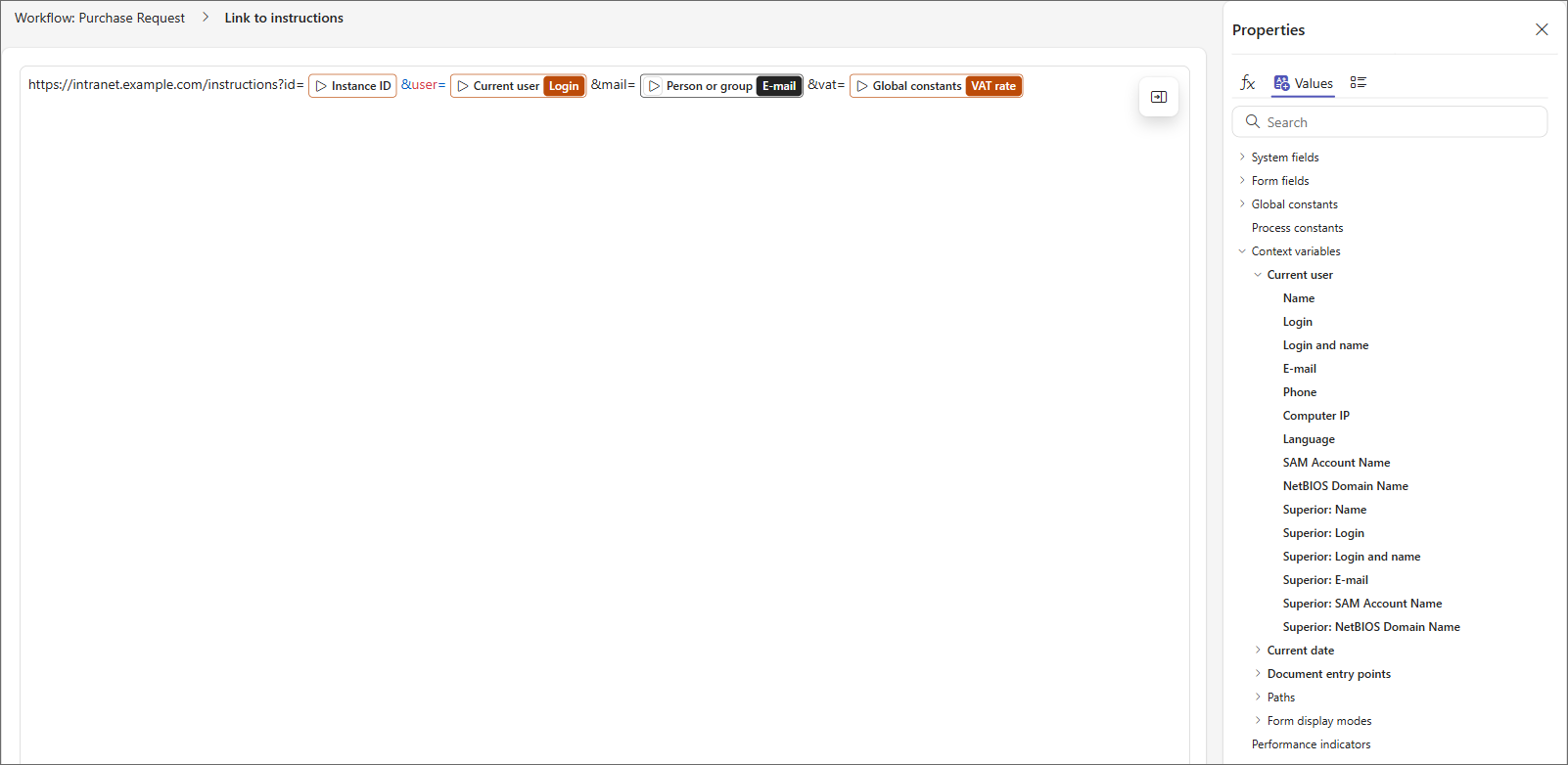
Variable blocks are also displayed in the property panel fields that contain expressions – for example in the Signature calculation formula field in the Signature section of the Workflow configuration panel.
Variable groups
The Values tab of the side panel divides variables into the following groups:
| Group | Content |
|---|---|
| System fields | Information about the current workflow instance – including its ID, instance number, author, creation date, comments, assigned persons, connected business entity, and the step, form type, workflow, process and application in which the instance is located. |
| Form fields | Form fields defined in the process. The available variants depend on the form field type. |
| Global constants | Constants defined for the whole system. |
| Process constants | Constants defined in the process (Definitions › Constants). |
| Context variables | Information about the execution context: the current user, the current date, the document entry point, transition paths and location, and the form display mode. |
| Performance indicators | Performance indicators defined in the process (Definitions › Performance indicators). |
Groups that contain no items in the given context (e.g. Process constants in a process without constants) are displayed without the option to expand them.

The following sections list the variables available in each group. The Tag column shows the text form of the variable, which you can type manually in the editor. GUID stands for the unique identifier of the specified configuration element (e.g. a form field or a constant).
System fields
Information
| Variable | Tag | Description |
|---|---|---|
| Instance ID | {WFD_ID} | Identifier of the workflow instance. |
| Instance ID from parent workflow | {WFD_WFDID} | Identifier of the parent instance (for subinstances). |
| Instance number | {WFD_Signature} | Instance number (signature) of the workflow instance. |
| Instance-GUID | {WFD_GUID} | Unique GUID of the workflow instance. |
| Author › Name | {N:WFD_CreatedBy} | Display name of the instance author. |
| Author › Login | {I:WFD_CreatedBy} | Login of the instance author (default variant of the Author item). |
| Author › E-mail | {AUTOREMAIL} | E-mail address of the instance author. |
| Author › Login without domain | {AUTHOR} | Login of the instance author without the domain name. |
| Date created | {ISO:WFD_TSInsert} | Creation date of the instance. The available variants are described in Date variable variants. |
| MailApproval ID | {MAILAPPROVALID} | Identifier used when approving an instance via e-mail (MailApproval). |
| Last person modifying › Name | {N:WFDUPDATEDBY} | Display name of the person who last modified the instance. |
| Last person modifying › Login | {I:WFDUPDATEDBY} | Login of the person who last modified the instance (default variant). |
| Last person modifying › Login and name | {WFDUPDATEDBY} | Login and display name of the person who last modified the instance, in the login#name format. |
| Comments › All comments | {WFCOMMENT} | All comments on the instance in the “author (date): content;” format. |
| Comments › Last comment text | {WFLASTCOMMENT_TEXT} | Content of the last comment. |
| Comments › Last comment author | {N:WFLASTCOMMENT_AUTHOR} | Author of the last comment. |
| Comments › Last comment date | {ISO:WFLASTCOMMENT_DATE} | Date of the last comment. The same variants as for date variables are available. |
| Is instance shared? | {ISINSTANCESHARED} | Indicates whether the workflow instance has been shared. |
Date variable variants
Variables that return a date (e.g. Date created, Last comment date and Date and time form fields) have variants that let you specify the result format or retrieve a single date component. In the tags below, X stands for the source date, e.g. WFD_TSInsert for the instance creation date or the GUID of a form field.
| Variant | Tag | Description |
|---|---|---|
| ISO (Date) | {ISO:X} | Date in the ISO format (default variant). |
| date acc. browser settings (text) | {L:X} | Date formatted according to the regional settings of the browser, returned as text. |
| year | {DY:X} | Year. |
| month | {DM:X} | Month number. |
| day | {DD:X} | Day of the month. |
| hour | {DH:X} | Hour. |
| minute | {DMin:X} | Minute. |
| seconds | {DSec:X} | Second. |
| [User time zone] date acc. browser settings (text) | {UTZL:X} | Date converted to the user time zone and formatted according to the browser settings. |
| [User time zone] year | {UTZDY:X} | Year in the user time zone. |
| [User time zone] month | {UTZDM:X} | Month number in the user time zone. |
| [User time zone] day | {UTZDD:X} | Day of the month in the user time zone. |
| [User time zone] hour | {UTZDH:X} | Hour in the user time zone. |
| [User time zone] minute | {UTZDMin:X} | Minute in the user time zone. |
| [User time zone] seconds | {UTZDSec:X} | Second in the user time zone. |
Assigned persons
| Variable | Tag | Description |
|---|---|---|
| Directly › Logins separated by semicolon | {I:ASSIGNEDPERSONFULL} | Logins of the persons to whom the instance is assigned (default variant). |
| Directly › Names separated by semicolon | {N:ASSIGNEDPERSONFULL} | Display names of the persons to whom the instance is assigned. |
| Directly › Login and name | {ASSIGNEDPERSONFULL} | Logins and names of the assigned persons in the login1#name1;login2#name2 format. |
| CC › Logins separated by semicolon | {I:ASSIGNEDPERSONDWFULL} | Logins of the persons to whom the instance is assigned as CC. |
| CC › Names separated by semicolon | {N:ASSIGNEDPERSONDWFULL} | Display names of the persons to whom the instance is assigned as CC. |
| CC › Login and name | {ASSIGNEDPERSONDWFULL} | Logins and names of the CC persons in the login1#name1;login2#name2 format. |
Connected business entities
These variables return the data of the business entity connected with the workflow instance. The default variant of the Connected business entities item is the business entity name.
| Variable | Tag |
|---|---|
| Name | {COM_NAME} |
| Code | {COM_CODE} |
| ID | {COM_ID} |
| TAX ID | {COM_NIP} |
| REGON | {COM_REGON} |
| First line of full name | {COM_FULLNAME1} |
| Second line of full name | {COM_FULLNAME2} |
| First line of address | {COM_ADDRES1} |
| Second line of address | {COM_ADDRES2} |
| Third line of address | {COM_ADDRES3} |
| Description | {COM_DESCRIPTION} |
| Phone | {COM_PHONE} |
| Logo's URL | {COM_LOGOURL} |
Step, form type, workflow, process and application
These variables return information about the step, form type, workflow, process and application in which the workflow instance is located.
| Subgroup | Variable | Tag |
|---|---|---|
| Step | Name (default variant) | {STP_Name} |
| ID | {STP_ID} | |
| Description | {STP_Description} | |
| Form type | Name | {DTYPE_Name} |
| Acronym | {DTYPE_Acronym} | |
| ID (default variant) | {DTYPE_ID} | |
| Description | {DTYPE_Description} | |
| Workflows | Name (default variant) | {WF_Name} |
| Acronym | {WF_Acronym} | |
| ID | {WF_ID} | |
| Process | Name (default variant) | {DEF_Name} |
| Acronym | {DEF_Acronym} | |
| ID | {DEF_ID} | |
| Description | {DEF_Description} | |
| Application | Name (default variant) | {APP_Name} |
| ID | {APP_ID} |
Workflow instance status and database information
| Variable | Tag | Description |
|---|---|---|
| Workflow instance status › Finished positively | {WSTSPOSFINISHED} | Value representing the status of a positively finished instance – to compare with the instance status in rules and conditions. |
| Workflow instance status › Finished negatively | {WSTSNEGFINISHED} | Value representing the status of a negatively finished instance. |
| Workflow instance status › Ongoing | {WSTSINPROGRESS} | Value representing the status of an instance that is still in the workflow. |
| Database code | {DBCODE} | Code of the content database in which the instance is stored. |
| Database ID | {DBID} | Identifier of the content database in which the instance is stored. |
Form fields
The Form fields group contains the form fields of the process in whose context the editor was opened. In tags, form fields are identified by their GUID, and the available variants depend on the form field type:
| Form field type | Variant | Tag | Description |
|---|---|---|---|
| Integer number | – | {GUID} | Value of the form field. |
| Floating-point number | number (default) | {FD:GUID} | Numeric value (default variant). |
| comma-separated (text) | {FC:GUID} | Value with a comma as the decimal separator, returned as text. | |
| dot-separated (number) | {FDOT:GUID} | Value with a dot as the decimal separator. | |
| Multiple lines of text | text (default) | {GUID} | Value of the form field (default variant). |
| text without formatting | {SNT:GUID} | Value of the form field without text formatting. | |
| Date and time | date variants | {ISO:GUID}, {L:GUID}, {DY:GUID}… | Variants described in Date variable variants. |
| Choice field | ID and Name | {GUID} | Value in the ID#Name format (default variant). |
| ID | {I:GUID} | Identifier of the selected value (the part before #). | |
| Name | {N:GUID} | Display name of the selected value (the part after #). | |
| Person or group | Name | {N:GUID} | Display name of the specified person. |
| Login | {I:GUID} | Login of the specified person. | |
| Login and name | {GUID} | Login and display name in the login#name format (default variant). | |
{PM:GUID} | E-mail address of the specified person. | ||
| SAM Account Name | {USA:GUID} | SAM account name (sAMAccountName) of the specified person. | |
| NetBIOS Domain Name | {UD:GUID} | NetBIOS domain name of the specified person. | |
| Superior: Name | {UMN:GUID} | Display name of the superior of the specified person. | |
| Superior: Login | {UMI:GUID} | Login of the superior. | |
| Superior: E-mail | {UMM:GUID} | E-mail address of the superior. | |
| Superior: SAM Account Name | {UMSA:GUID} | SAM account name of the superior. | |
| Superior: NetBIOS Domain Name | {UMD:GUID} | NetBIOS domain name of the superior. |
Values in item list columns are referenced by variables with the S prefix – including {S:ID} (column value), {SI:ID} and {SN:ID} (identifier or name of the value in choice columns), {SFD:ID} and {SFC:ID} (numeric value with a dot or a comma) and {SL:ID} (localized value). They are available, among others, when configuring calculated columns of an item list.
Constants
The Global constants and Process constants groups contain constants defined at the system level and in the process, respectively. An inserted constant is displayed as a block with the group name and a badge with the constant name (e.g. Global constants | VAT rate).
| Group | Tag | Description |
|---|---|---|
| Global constants | {EGV:GUID} | Value of the global constant with the specified GUID. |
| Process constants | {EPV:GUID} | Value of the process constant with the specified GUID. |
The value of a constant can depend on the environment (DEV, TEST, PROD) – at runtime, the value specific to the environment on which the configuration is executed is returned.
Context variables
Current user
These variables return information about the user in whose context the rule or action is executed. The default variant of the Current user item is the display name.
| Variable | Tag | Description |
|---|---|---|
| Name | {N:CURRENTUSER} | Display name of the user. |
| Login | {I:CURRENTUSER} | Login of the user. |
| Login and name | {CURRENTUSER} | Login and display name in the login#name format. |
{USERMAIL} | E-mail address of the user. | |
| Phone | {USERPHONE} | Phone number of the user. |
| Computer IP | {USERIP} | IP address of the user's computer (an empty value is returned if it cannot be determined). |
| Language | {USERLAN} | Language of the user. |
| SAM Account Name | {USERSAMACCOUNTNAME} | SAM account name of the user. |
| NetBIOS Domain Name | {USERDOMAIN} | NetBIOS domain name of the user. |
| Superior: Name | {N:USERMANAGERFULL} | Display name of the user's superior. |
| Superior: Login | {I:USERMANAGERFULL} | Login of the superior. |
| Superior: Login and name | {USERMANAGERFULL} | Login and display name of the superior in the login#name format. |
| Superior: E-mail | {USERMANAGEREMAIL} | E-mail address of the superior. |
| Superior: SAM Account Name | {USERMANAGERSAMACCOUNTNAME} | SAM account name of the superior. |
| Superior: NetBIOS Domain Name | {USERMANAGERDOMAIN} | NetBIOS domain name of the superior. |
Current date
| Variable | Tag | Description |
|---|---|---|
| date acc. browser settings (text) | {LDATECURRENT} | Current date formatted according to the browser settings. |
| time acc. browser settings (text) | {LDATETIMECURRENT} | Current date and time formatted according to the browser settings. |
| ISO (Date) | {ISODATECURRENT} | Current date in the ISO format (default variant of the Current date item). |
| [User time zone] Standard | {UTZDATECURRENT} | Current date in the user time zone. |
| With yyyy-MM-dd HH:mm time format | {CURRENTDATETIME} | Current date and time in the yyyy-MM-dd HH:mm format. |
| [User time zone] With yyyy-MM-dd HH:mm time format | {UTZCURRENTDATETIME} | Current date and time in the user time zone. |
| yyyy-MM-dd format | {CURRENTDATE} | Current date in the yyyy-MM-dd format. The variant contains the Year ({DY:CURRENTDATE}), Month ({DM:CURRENTDATE}) and Day ({DD:CURRENTDATE}) items. |
| [User time zone] yyyy-MM-dd format | {UTZCURRENTDATE} | Current date in the yyyy-MM-dd format in the user time zone. The variant contains the Year ({DY:UTZCURRENTDATE}), Month ({DM:UTZCURRENTDATE}) and Day ({DD:UTZCURRENTDATE}) items. |
Document entry points, paths and location
| Variable | Tag | Description |
|---|---|---|
| Document entry points › ID | {I:PR} | Identifier of the document entry point from which the instance is modified (default variant). |
| Document entry points › Name | {N:PR} | Name of the document entry point. |
| Paths › Default path | {DEFAULTPATH} | Identifier of the default path available for the instance. |
| Paths › Current path › ID and Name | {CURRENT_PATH} | Transition path taken by the instance, in the ID#Name format. |
| Paths › Current path › ID | {I:CURRENT_PATH} | Identifier of the current transition path (default variant). |
| Paths › Current path › Name | {N:CURRENT_PATH} | Name of the current transition path. |
| Paths › Current location › Latitude and longitude | {CURRENT_LOCATION} | Latitude and longitude of the user's device. |
| Paths › Current location › Latitude | {CURRENT_LOCATION_LATITUDE} | Latitude. |
| Paths › Current location › Longitude | {CURRENT_LOCATION_LONGITUDE} | Longitude. |
| Paths › Current location › Was the exact location retrieved? | {CURRENT_LOCATION_TRUSTED} | Indicates whether the location was retrieved from a GPS device. |
Location data is available when moving along a path for which the Location required option is enabled. The option is described in Transition path configuration.
Form display modes
These variables return a logical value (true/false) and let you make rules depend on how the form is displayed.
| Variable | Tag | Description |
|---|---|---|
| Is admin mode active? | {ISADMINMODE} | Checks whether the form is displayed in admin mode. |
| Is this a mobile device? | {ISMOBILE} | Checks whether the form is displayed on a mobile device. |
| Is share mode active? | {ISSHAREMODE} | Checks whether the form is displayed in share mode. |
| Do I have permission to edit? | {ISCANEDITMODE} | Checks whether the user has permission to edit the instance. |
| Is this a new instance? | {ISNEW} | Checks whether the instance is being registered (has not been saved yet). |
Objects
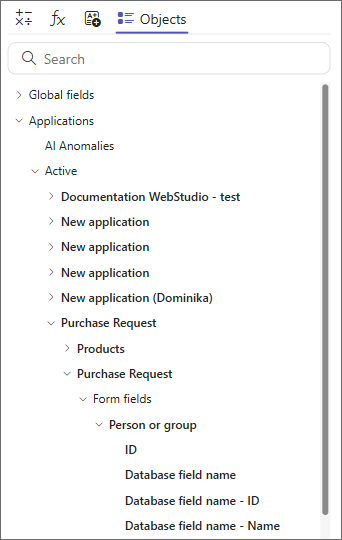
The Objects tab contains identifiers of configuration objects that can be used, for example, in SQL queries, rules and conditions referring to a specific process, step or form field. Objects are identified by a GUID that is the same in all environments – thanks to this, references remain valid after an application is moved with the import and export mechanism.
| Group | Content | Example tags |
|---|---|---|
| System fields | Names of the fields in which the system fields of an instance are stored (e.g. instance number, instance ID, instance GUID). The group is available only in selected contexts, e.g. in the text expression editor. | {SYSCOL:WFD_Signature}, {SYSCOL:WFD_ID} |
| Global fields | Global form fields with the ID and Database field name variants; for choice fields also Database field name - ID and Database field name - Name. | {WFCON:GUID}, {WFCONCOL:GUID}, {WFCONCOL_ID:GUID}, {WFCONCOL_NAME:GUID} |
| Applications | Tree of application groups, applications and processes. Within a process, the Form fields, Form types and Workflows nodes are available, and within a workflow – Global menu and the steps with their identifiers, Menu and Workflow paths. | {AP:GUID} (application), {DF:GUID} (process), {DT:GUID} (form type), {WF:GUID} (workflow), {ST:GUID} (step), {STCOL:GUID}, {STCOL_NAME:GUID}, {PH:GUID} (transition path) |
| Data sources | Data sources defined in the system. | {DS:GUID} |
| Business entity | Business entities defined in the system. | {COM:GUID} |
Application and process nodes are loaded when expanded, so displaying the content of extensive processes may take a moment.
Special variables
The following variables are supported only in selected places of the system and do not appear in the general tree of the Values tab.
Signature definition
Variables used in the Signature calculation formula field (the Signature section of the Workflow configuration panel). For predefined patterns, the formula is created automatically and displayed as blocks; you can define your own formula after selecting the Custom signature option.
| Tag | Description |
|---|---|
{NUMBER}, {NUMBER:number} | Continuous numbering; the number specifies the zero-padding length (max. 20). |
{NUMBERINYEAR}, {NUMBERINYEAR:number} | Numbering within the current year. |
{NUMBERINMONTH}, {NUMBERINMONTH:number} | Monthly numbering within the current year. |
{NUMBERINMONTHANDLOGIN}, {NUMBERINMONTHANDLOGIN:number} | Monthly numbering within the year and login. |
{NIY:ID}, {NIY:ID:number} | Numbering within the year based on the specified form field. |
{NIM:ID}, {NIM:ID:number} | Monthly numbering within the year based on the specified form field. |
{WFDID} | Instance ID – a numbering tag (e.g. {NUMBER}) must be used before this tag. |
{YEAR}, {MONTH} | Current year and month. |
{LOGIN} | User login. |
You can also use process, form type, workflow and step variables in the signature formula, e.g. {DEF_Acronym}, {DTYPE_Acronym}, {WF_Name}, {STP_Name}.
Hyperlinks
| Tag | Description |
|---|---|
{START} | Link for registering a new instance. |
{OPEN} | Link for opening an existing instance. |
{PORTALADDRESS} | Portal address, which lets you dynamically build links to reports or dashboards. |
Actions and flow control
| Tag | Place of use | Description |
|---|---|---|
{EMAILLINKPATHS} | Action sending a custom e-mail | Adds links to all transition paths visible on the step to the message content. |
{BTN:ID} | Action sending a custom e-mail | Adds a link that lets the recipient move the instance along the specified path. |
{NEXTSTEP} | Flow control step | ID of the next step. |
{PH:ID} | Flow control step | ID of the specified transition path. |
External parameters
| Tag | Description |
|---|---|
{R:name} | Value of a parameter passed in the request address. It is not supported in actions (except for the hyperlink action) or when generating documents and printouts. |
{AD:name} | Value of a parameter from the user profile in Active Directory. The parameter name is not case-sensitive. |
Variables used in HTML and PDF printout templates are described in Creating HTML and PDF templates.
Archival variables
Archival variables are still supported, but it is recommended to use their newer equivalents, available in the editor side panel.
| Archival variable | Recommended equivalent |
|---|---|
{USERLOGIN}, {USERLOGINNAME} | {I:CURRENTUSER} |
{USERNAME} | {N:CURRENTUSER} |
{USERMANAGER} | {I:USERMANAGERFULL} |
{EAN} | {BARCODE1D} |
{EAN2} | {BARCODE2D} |
{AUTOR} | {I:WFD_CreatedBy} |
{ASSIGNEDPERSON} | {I:ASSIGNEDPERSONFULL} |
{ASSIGNEDPERSONNAME} | {N:ASSIGNEDPERSONFULL} |
{ASSIGNEDPERSONDW} | {I:ASSIGNEDPERSONDWFULL} |
{ASSIGNEDPERSONDWNAME} | {N:ASSIGNEDPERSONDWFULL} |
{WFDAKRONIM} | {DEF_Acronym} |
{WFDTYPEAKRONIM} | {DTYPE_Acronym} |