MSSQL connection
A connection defines a reusable connection string to an external database. Any number of data source definitions can use the same connection — updating the connection automatically affects every data source built on top of it, without having to change each one individually.

The structure tree on the left lets you jump to each section: Basic, Common, DEV, TEST, PROD, Shared in applications, and Connection owners.
Basic

The Basic section contains:
- Connection type — the connection type, chosen once when the connection is first created (e.g. MSSQL database). Once the connection exists, this field becomes read-only — its type cannot be changed afterwards.
- Description — a free-text description entered by the user, making the connection easier to recognize in the connection list.
Common
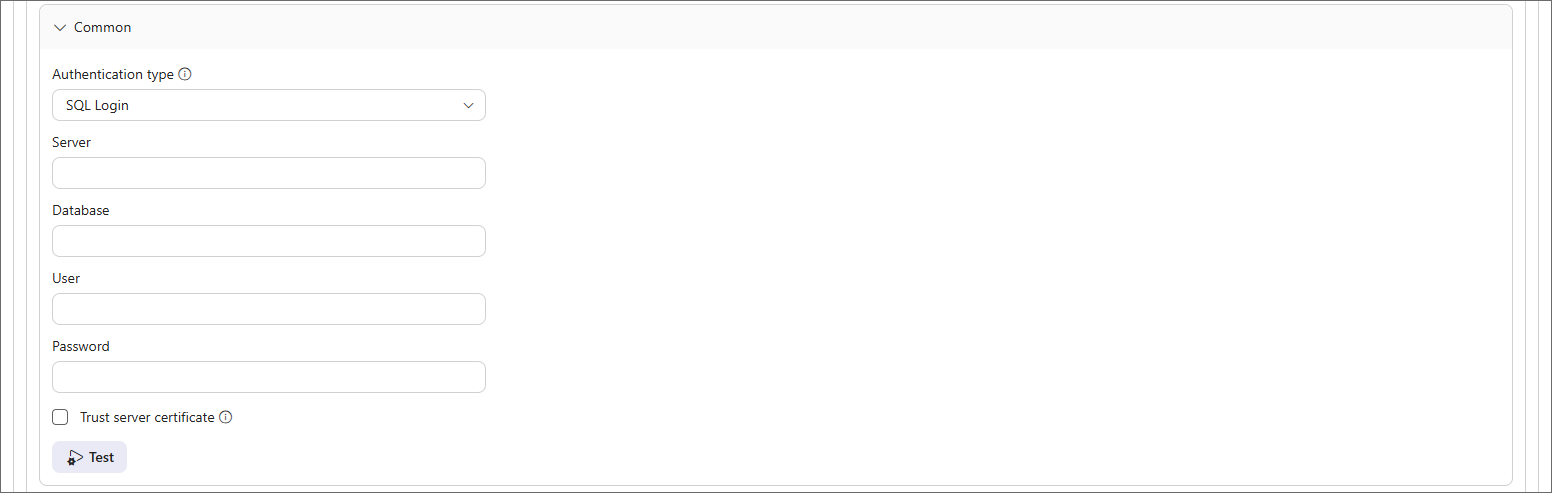
The Common section holds the default connection parameters, used by every environment unless a specific environment (DEV/TEST/PROD) has its own independent override enabled:
- Authentication type — the method used to authenticate against the MS SQL server (see the table below).
- Server — the SQL server address. If the server hosts several instances, both the server and the instance must be specified.
- Database — the database the query will run against.
- User and Password — sign-in credentials, used by authentication methods that require a login and password.
- Trust server certificate — if checked, communication between SQL Server and WEBCON will be encrypted without certificate validation.
- Test — lets you verify that the configured connection works.
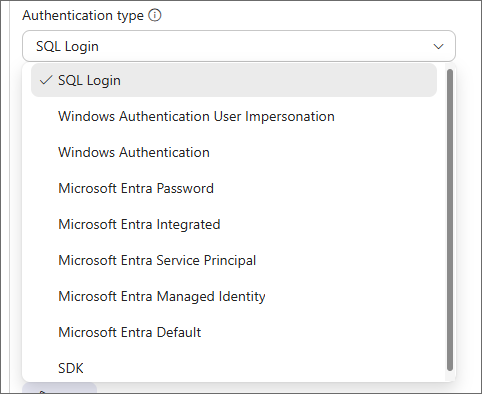
Authentication type accepts one of nine values:
| Value | Meaning |
|---|---|
| SQL Login | Authenticates using the SQL Server login — requires the login and password of the SQL user |
| Windows Authentication User Impersonation | Authenticates using a specified Windows user account — requires the username and password |
| Windows Authentication | Authenticates using a Windows user account — the account used depends on the context in which the connection runs |
| Microsoft Entra Password | Authenticates via Microsoft Entra using a username and password |
| Microsoft Entra Integrated | Authenticates via Microsoft Entra using integrated Windows authentication (IWA) |
| Microsoft Entra Service Principal | Authenticates via Microsoft Entra using a Client ID and Client secret |
| Microsoft Entra Managed Identity | Authenticates via Microsoft Entra using a system-assigned or user-assigned managed identity |
| Microsoft Entra Default | Authenticates via Microsoft Entra using non-password and non-interactive mechanisms, including managed identities, Visual Studio Code, Visual Studio, and the Azure Command-Line Interface (CLI) |
| SDK | Authenticates using an SDK plugin |
With Windows Authentication User Impersonation, the username can be provided in one of three formats: only the username (the current domain name is used), NT format (e.g. webcon\user), or UPN format (e.g. user@webcon.com).
With Windows Authentication, the Application Pool Account is used when the connection is used in the context of the Portal (e.g. a choice field on a form powered by a data source that uses this connection), and the Service Account is used when it is used in the context of the WEBCON Service (e.g. in the configuration of a cyclical action).
The set of fields displayed in the section depends on the selected authentication type:
| Authentication type | Displayed fields |
|---|---|
| SQL Login | Server, Database, User, Password, Trust server certificate |
| Windows Authentication User Impersonation | Server, Database, User, Password, Trust server certificate |
| Windows Authentication | Server, Database, Trust server certificate |
| Microsoft Entra Password | Server, Database, User, Password, Trust server certificate |
| Microsoft Entra Integrated | Server, Database, User (optional), Trust server certificate |
| Microsoft Entra Service Principal | Server, Database, Client Id, Client secret, Trust server certificate |
| Microsoft Entra Managed Identity | Server, Database, User (optional), Trust server certificate |
| Microsoft Entra Default | Server, Database, Trust server certificate |
| SDK | The required SDK add-on field — the other fields are not displayed |
The Test button is available for every authentication type except SDK.
DEV / TEST / PROD
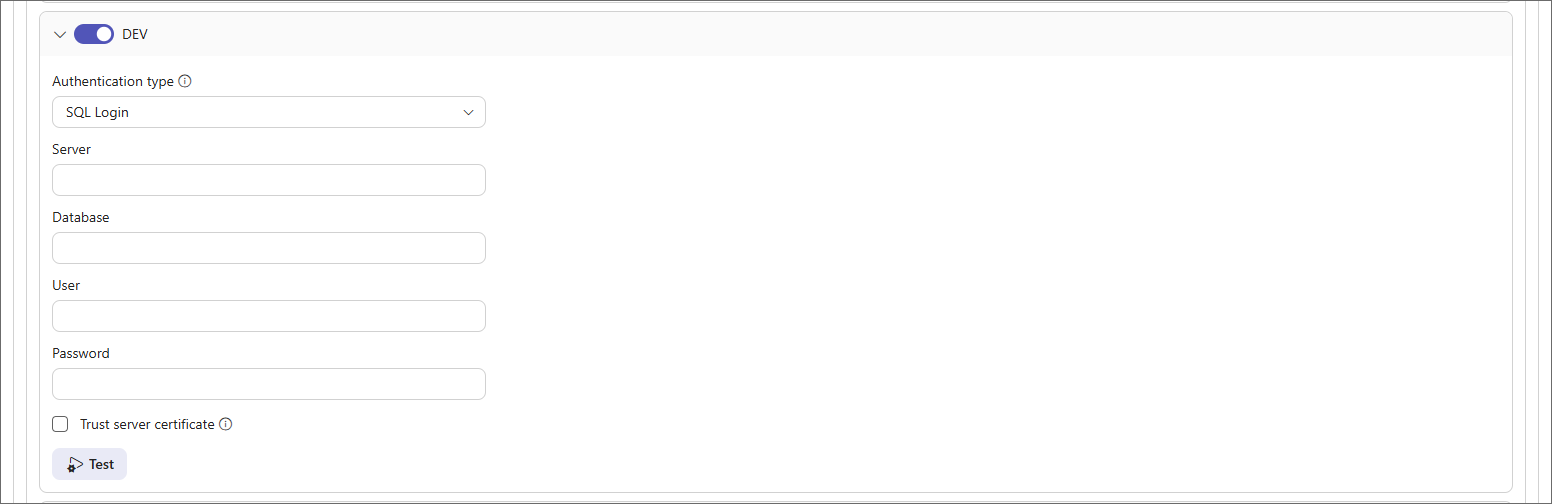
Each of the three environments (DEV, TEST, PROD) has its own switch that breaks inheritance from the Common section:
- When the switch is off — the environment inherits its connection parameters from Common.
- When the switch is on — the environment reveals the exact same field set as Common (Authentication type, Server, Database, User, Password, Trust server certificate, Test), to be filled in independently of the common values.
Shared in applications
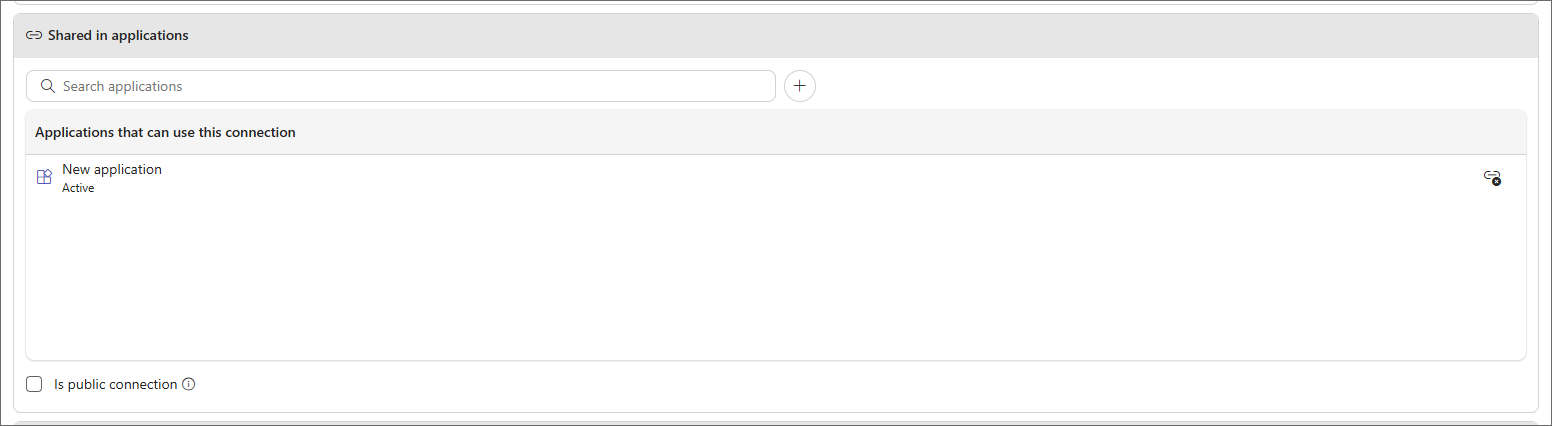
The Shared in applications section shows which applications currently use this connection. The Search applications field together with the Attach to application button lets you link the connection to another application; the Applications that can use this connection table lists the applications already linked to it, along with their status and an icon for detaching the link.
The Is public connection checkbox at the bottom of this section makes the connection available to every application in the system, so it can be used by processes running in any application — without having to link it to each one individually.
Connection owners

The Connection owners field defines which users are allowed to edit the connection's configuration and share it with further applications. Other Designer Studio users — who are neither owners of the connection nor system administrators — can still use the connection in applications it's shared with, but cannot edit its configuration.