Application import and export
The import and export mechanism allows you to move applications created in Designer Studio between WEBCON platform environments, e.g. from a development environment to a test environment and then to production. The application configuration is saved in a package file with the .bpx extension, which can then be imported into another environment using a dedicated wizard.
Purpose
Export creates a package containing the configuration of the selected application or process together with the elements related to them. The package may include, among others:
- presentation elements of the application, such as the application page, navigation menu and Start buttons,
- definitions of the application processes together with their workflows and forms,
- global fields, constants and rules used by the exported processes,
- definitions of data sources and connections used by the exported processes,
- privilege settings for the applications and processes, as well as data of the business entities these privileges refer to.
Import reads the package, compares its content with the configuration of the target environment and applies the changes to it. Configuration elements are identified by their GUIDs, which remain the same in all environments. As a result, re-importing a package with the same application updates the existing elements instead of creating duplicates.
Elements added manually in the target environment (e.g. a new workflow step) have no counterpart in the source environment. They may be deleted during the next import of a package with this application, which is why changes to imported applications should be made in the source environment and transferred using the export-import mechanism.
Exporting an application or process
Export can be started in two ways:
-
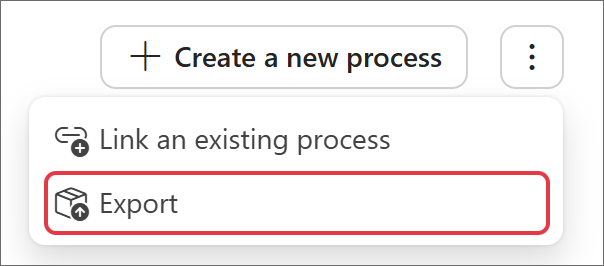
Exporting the entire application – in the header of the application page, click the Options (⋮) button and select the Export command.
-
Exporting a single process – on the Processes in application tab, hover over the process name and click the Export icon displayed next to it. In this case, the wizard selects only the chosen process for export by default, and the package name is based on the process name.

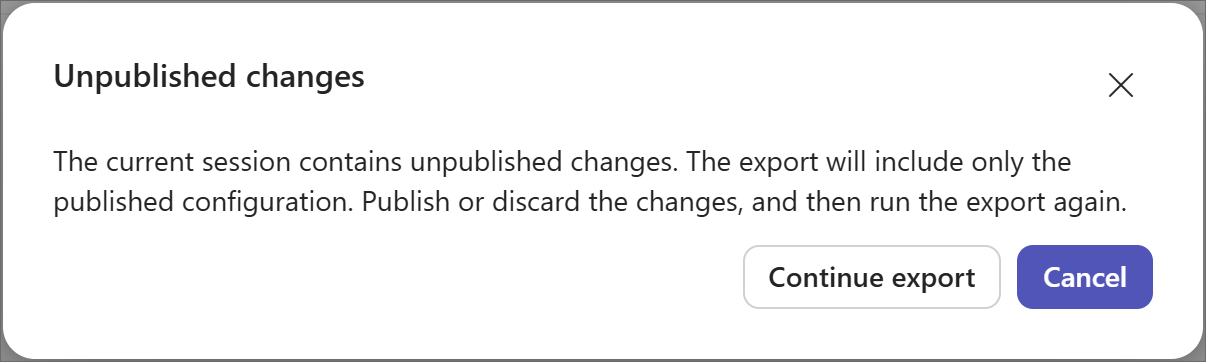
If the current editing session contains unpublished changes, the Unpublished changes window is displayed before the wizard starts. The export package contains only the published configuration, so to include the latest changes in it, click Cancel, publish or discard the changes, and then run the export again. The Continue export button starts the wizard without the unpublished changes.
The export procedure is described in detail in the Export wizard article.
Importing an application
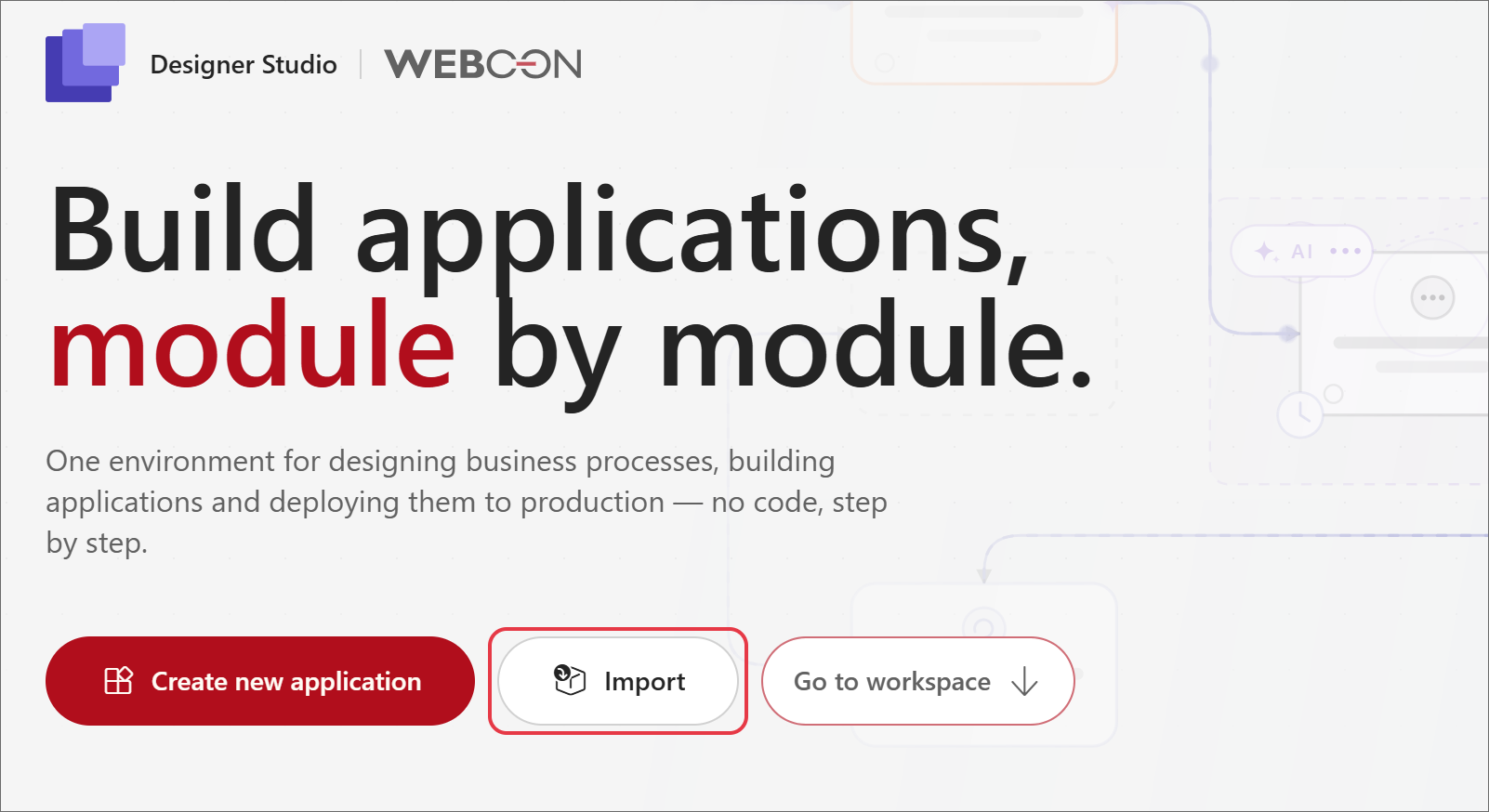
Import is started from the Designer Studio home page – using the Import button in the main section. Clicking it opens a file selection window in which you should select a previously exported .bpx package. Once the file is loaded, the import wizard is displayed.
The import procedure is described in detail in the Import wizard article.
Working with the wizards
Both wizards guide the user through consecutive steps shown in the list on the left side of the window. The Next and Back buttons are used to move between the steps, while steps performed automatically by the system (e.g. environment analysis) are skipped once they are completed.
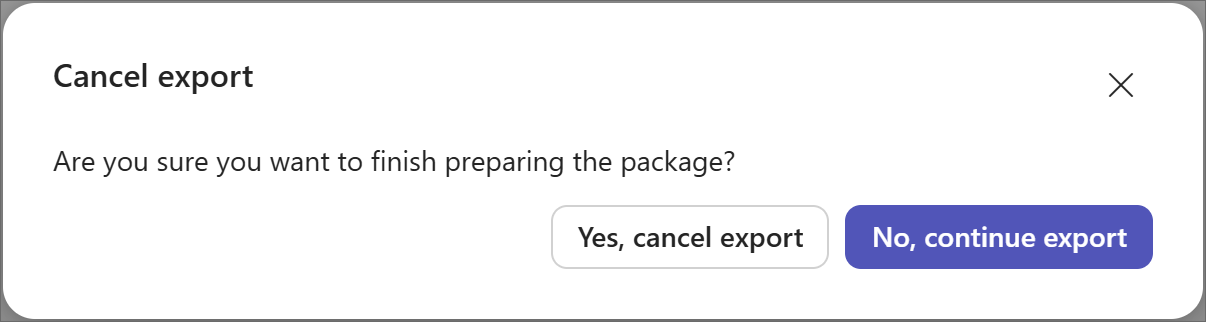
While an export or import is in progress, the remaining Designer Studio features are unavailable, which is indicated by the Navigation blocked message displayed above the wizard. To return to working with applications before the operation is completed, click the Cancel export (or Cancel import) button and confirm the decision in the displayed window.

Other users working in Designer Studio at that time see the Configuration export in progress (or Configuration import in progress) message with information on who is performing the operation and since when. Changes made during an export may not be included in the package, and changes made during an import may not be saved.

Important information
- A package can be imported only if the configuration database version of the target environment matches the version from which the package was exported. Version compatibility is checked in the first step of the import wizard.
- An application import cannot be easily reverted. Data sources, global fields and privileges, among others, may be created or modified together with the application, and the changes are published immediately after the import is completed. Before importing into a production environment, it is recommended to verify the package in a test environment.
After a process is imported, the Process modified by export-import mechanism option is automatically selected in its configuration (the Configuration tab of the process, Export import section). When you attempt to modify such a process manually, a warning is displayed – this protects target environments against accidental changes made outside the export-import mechanism. For more information on this option, see the Process configuration article.
Global elements (e.g. data sources or global constants) are transferred together with the processes that use them – they cannot be exported independently. WEBCON groups used in the process configuration are transferred without their member lists, which have to be completed in the target environment.
Application import can also be automated using the public API of the WEBCON platform, e.g. as part of a deployment process between environments.
Additional information on the import and export mechanism can be found on the KB technical blog in the following articles:
- Importing and exporting applications in WEBCON BPS
- Importing and exporting the contents of dictionary processes
- Ability to transfer BPS groups using the export-import mechanism
- Export/Import of global elements associated with a process
- Importing applications using the public API
- Securing imported processes against manual modification