Process configuration
Settings that apply to the whole process – regardless of how many workflows and form types it contains – are available on the process page, opened by expanding the Processes node. The process page lets you manage the process's structure and settings in one place. This article covers in detail the Configuration tab, which gathers the settings that apply to the whole process.
The Configuration tab is a single, scrollable form in which groups of settings are laid out one below another. On the left there is a navigation tree with a Search in structure... field, letting you jump straight to a given group of settings instead of scrolling through the whole form.
Configuration tab
Below, the options, parameters and settings available on this tab are described in detail, grouped by the section they belong to.
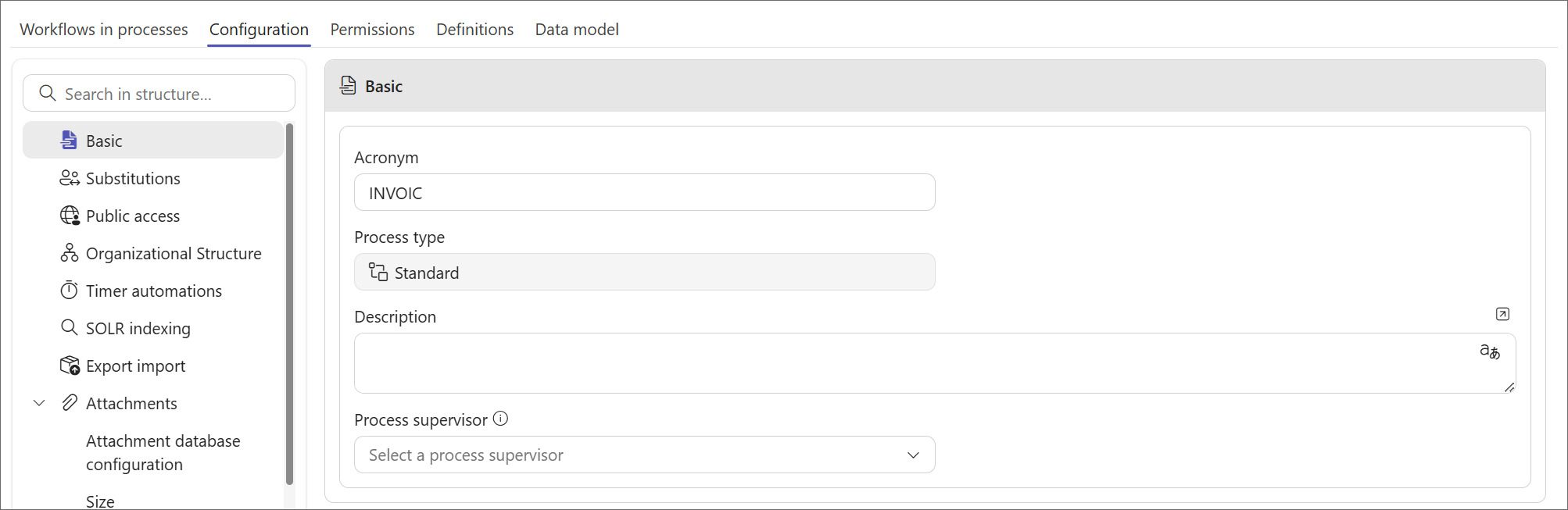
Basic
This section holds the basic information describing the process.
| Field | Description |
|---|---|
| Acronym | A short form of the process name, used among other things in the numbering of workflow instances. |
| Process type | The template the process was created from (e.g. Standard). Read-only field. |
| Description | A free-text description of the process. The field has a Translations button for entering the description in other interface languages, and a  button that opens the field in a full-size window. |
| Process supervisor | The person responsible for the process. Their login is shown on the item's form in the status panel. If the field is left empty, the process will have no assigned supervisor. |
Substitutions
This section controls whether substitutions and task delegation can be used in the process.
| Field | Description |
|---|---|
| Allow to work on behalf of another user | Enables defining substitutions of the Work on behalf of the substituted person with full access type – the substitute then works in the process with the same permissions as the substituted person, and every operation they perform is signed with the substituted person's name, as if that person had performed it. |
| Use automatic task delegation | Creates a matching task for the substitute for every active task of the substituted person. |
| Task remains accessible to substitute after substitution ends | Once a substitution ends or is removed, the substitute keeps read-only access to the item; otherwise access is removed entirely. |
| Keep notifying substitutes with standard emails | Controls whether e-mail notifications are sent for newly created substitute tasks. Notifications are only sent when the transition has Send standard e-mail or Send standard PUSH notification in the mobile app enabled. |
| Notify substitute of tasks assigned before substitution started | Also sends e-mail notifications for tasks created before the substitution period began, provided Keep notifying substitutes with standard emails is enabled and the transition has Send standard e-mail or Send standard PUSH notification in the mobile app enabled. |
The last three options become available only after Allow to work on behalf of another user and Use automatic task delegation are enabled.
Public access
This section lets you share workflow items and tasks with people outside the organization, based on their e-mail address and a dedicated link.
This feature is licensed under the Single-Use Access License. Before enabling it, make sure the installation has this license type assigned, together with a sufficient number of Credits.
| Field | Description |
|---|---|
| Enable task and instance sharing for people outside the organization | Lets you share workflow items with any person, including someone outside the organization with no account in the system, based on their e-mail address and a dedicated link. The link can be generated using dedicated actions or directly from the form, by clicking the share button shown in the menu (its visibility for individual steps is configured in the step's form settings or in the standard areas of the Form field matrix). When the button is visible, any user with edit rights to the item can share it outside the organization. |
| Require identity verification (security code sent via email) | The person the share was generated for must confirm access with a code sent to their e-mail address and enter it when signing in to the shared item. Each shared item requires its own separate code. |
| Permissions level | The access level of the shared item: Read only or Edit. |
| Default sharing expiration time (in days) | The number of days after which the sharing of an item or task automatically expires. The value must be a whole number (e.g. 1, 7, 30) – fractional values (e.g. 0.5) are not supported and are not converted to hours. |
The remaining three fields appear only after Enable task and instance sharing for people outside the organization is turned on.
Organizational structure, timer automations, SOLR indexing, and export-import
| Field | Description |
|---|---|
| Company structure source | Determines the source the system reads organizational hierarchy and superior–subordinate relationships from. The system uses it to determine a user's superior, which affects, among other things, the assignment of Forward to superior tasks, the behaviour of variables that determine the superior in the Person or group form field, and other mechanisms that rely on the organizational structure. |
| Make subordinates' tasks and workflow instances accessible | Lets people higher up in the reporting structure view and edit their subordinates' items and tasks (to the extent the subordinates themselves can), and lets them assign a subordinate's task to themselves or someone else in order to complete it. |
| Stop automations triggered by the timer | Stops all automations triggered by a timer configured on the process's workflow steps. |
| Disable SOLR indexing for this process | Disables indexing of the process data in the SOLR database – form field values of the workflow items belonging to the process are not added to the SOLR index. As a result, form field values are not available in the main Portal search, activities related to the process items (e.g. data updates, moving along a path, adding or deleting an item) are neither recorded nor shown in the Recent activities report on the application page, and reports using the SOLR source return no data for this process. |
| Process modified by export-import mechanism | Forces all configuration changes to the process to go through the export-import mechanism; a manual modification attempt shows a warning. The option is set automatically after a process definition is imported. |
Attachments
This group covers four subsections related to how the process handles attachments.
| Subsection | Field | Description |
|---|---|---|
| Attachment database configuration | Basic / Advanced mode | Switches between a simple and an extended way of configuring the attachment database. |
| Attachment database | The database attachments for the process are stored in. If none is selected, attachments go to the main database. | |
| Size | Set maximum attachment file size for process | Once enabled, lets you set the maximum file size users may attach to process items, overriding the global system limit. |
| Indexing | Index attachment content in search database | Indexes attachment content in the SOLR search database, making the files attached to process items searchable. Text from documents with a text layer (e.g. .txt, .docx, suitable .pdf files) is placed in the SOLR index and appears in search results. Worth turning off when a process's attachment content should not appear in search results, or when its attachments are very large and would needlessly inflate the index. |
| Attachment categories | Allow selecting the attachment category | Lets attachments be assigned a category to help classify them. Enabling it exposes the detailed configuration described in the Attachment category subsection below. |
Attachment category
Once Allow selecting the attachment category is enabled in the Attachments section, additional configuration becomes available, determining where the category list comes from and how it is presented. Some fields, including Filters and Sort values by displayed name, appear only after a data source is selected.
| Field | Description |
|---|---|
| Data source | The data source the list of available attachment categories is read from. |
| Filters | Once enabled, lets you narrow down the values read from the data source using a filter expression. |
| Configuration | A table mapping data source columns to the columns shown in the category list. The ID and Name rows are required – they determine which data source column acts as the identifier and which as the category name. The Add new row button adds further, optional columns shown in the list. Each row specifies a Source column and a Display text (with translation support and a Unicode checkbox). Additional rows can be removed with the trash-can button and reordered by dragging the handle next to them. |
| Sort values by displayed name | Sorts the category list alphabetically by the Name column. The option is selected by default. |
| Allow empty tags in the data source | Also shows data source rows whose identifier column value is empty. |
| Support multilingual names | Shows category names in the interface language currently in use, if the data source provides names translated into multiple languages. |
| Empty item name | The text shown in the list for the option that lets no category be selected. |
| Default value | Once enabled, lets you specify, with an expression, a default category set automatically when a new attachment is added. |
Notifications
This group covers four subsections related to the e-mail and push notifications sent within the process.
| Subsection | Field | Description |
|---|---|---|
| Standard e-mail settings | Subject | The subject line of the e-mail sent together with a task. |
| Subject of CC task | The subject line of the e-mail sent to people in the CC field. | |
| Message template | The e-mail body template used for tasks in the process (defaults to <Global template>). | |
| Use different CC tasks template | Lets you specify a separate message template for CC tasks. | |
| E-mail signature | Sign e-mails digitally | Enables signing of the standard e-mail messages sent within the process. Signing of custom messages is enabled in the action configuration. |
| Certificates | The certificate used to sign messages (defaults to Default); the list shows the available certificates with their serial number, issuer, and expiry date. The certificate selected here overrides the global setting in the context of the process. The field appears once Sign e-mails digitally is enabled. | |
| Email notification sending rules | Users who will not receive email notifications | A list of users excluded from e-mail notifications in this process. |
| Deployment mode | Redirect all e-mail notifications | Once deployment mode is enabled and a recipient e-mail address is given, every e-mail sent within the process is sent to that address (or addresses) instead – useful for testing on a deployment environment. |
| Redirect all push notifications | Once deployment mode is enabled and a user login is given, every push notification sent within the process is delivered to that user's device with the mobile app installed. |
Data sources and constants, task handling mode, calendar
| Field | Description |
|---|---|
| Environment | The environment (Auto, DEV, TEST, PROD) the process uses for its data sources and constants. Auto selects the environment automatically, based on the environment set when the workflow database was created. |
| Assign tasks for groups directly to group members | Determines how tasks created for groups are assigned. When enabled, a task is assigned directly to every member of the group and stays active until it is completed, even if a user stops being a member of that group. When disabled, the task stays assigned to the group as a whole – a user loses it the moment they leave the group, and the task is considered completed by the system as soon as any member of the group completes it. The option affects every place in the process configuration where rules for creating and assigning tasks are defined (including transition configuration and task-creation actions) – with one exception: substitutions with automatic task delegation. Substitute tasks are only created when the original task is assigned directly to a user, not when it is assigned to a group. |
| Working mode | The process's work calendar: All days of the week or According to the working days calendar. |
Element distinguishers
This section lets you configure the list of distinguishers – system fields or form fields – shown on the task list in the compact view, in the Outlook add-in, in search results, and in mass notifications.
By default the list contains the distinguishers Signature, Form type, Step, Author, Modification date and time, and Modified by. Each entry can be changed using its dropdown list, removed with the trash-can button, or dragged to a different position in the list using the handle next to it. The Add distinguisher button adds another entry. The list can hold up to 6 distinguishers – once the limit is reached, the Add distinguisher button becomes inactive.
GDPR settings
| Field | Description |
|---|---|
| Process is a personal data dictionary | Marks the process as a personal data dictionary – a source of personal data used by other processes. |
The link between a personal data dictionary and a specific process that consumes and stores a copy of that data is configured separately for each form field marked as storing personal data. This link makes it possible to trace which dictionary item a form field took its value from, so actions that delete or modify (anonymize) personal data can locate every place the data was drawn from it.
Archive
Archiving is a licensed feature – before configuring it, make sure the installation holds the appropriate license.
| Field | Description |
|---|---|
| Archive database | The database workflow items are moved to by an archiving action run in Move to archive database mode. If the installation does not yet have an archive database, one can be created from the installer, in the System Management Tools, in the Database creation step, or during an advanced installation, in the Archive database creation step. |
| Network location | The network path .zip packages of archived documents are created in, when archiving in Move to external network location mode. A missing or invalid path causes an error when the archiving action is invoked. |
| Attachment archiving mode | Which attachment versions are archived in Move to external network location and Move to archive database mode: All attachments versions (historical versions are archived as well), or Only the newest attachments version (historical versions are removed). |
Additional privileges
| Field | Description |
|---|---|
| Designer Desk edit in Portal | The people or groups allowed to view or edit the process configuration from WEBCON Portal, once Portal edit mode is enabled. For users with this permission to be able to edit the process, they must also be assigned named Designer Desk access licenses. |
| Full history access | When unchecked, full access to an item's history is available to administrators, auditors, users holding permissions that give access to all workflow instances (at the process or workflow level), and users granted permissions by actions. Checking it grants full history access to every user who holds access permissions to the item. |
| Available via WEBCON for Microsoft Word Add-In | Exposes the process and its form fields in the Word add-in. Once checked, lets document templates be built using the process's form fields. |
| Available via WEBCON for Microsoft Outlook Add-In | Exposes the process in the Outlook Classic add-in. Once checked, lets its items be started and reviewed directly in the Outlook Classic application. |
Licensing
| Field | Description |
|---|---|
| Single-Use Access License | Lets users holding a Single-Use Access license use the process. |
| Single Solution License | Lets the process be assigned to users holding a Single-Solution Access license. For a user to be able to work in the process, this process must also be assigned to them in the license configuration. A process marked with this option can contain at most two workflows. |