Related processes
A related process is a process whose definition belongs to another application (the parent application) and which has additionally been made available in the current application. Linking lets you use the same process in many applications at once – without creating a copy and without maintaining several independent configurations.
The process linking functionality is particularly useful when:
- it is necessary to build a summary application that gives users Start buttons, reports, and dashboards for processes coming from several applications in one place, e.g. cost invoices, purchase requests, and leave requests,
- a process created in one department's application, e.g. leave requests, should also be available in another department's application.
Characteristics of related processes
- A related process is not a copy – its workflows, forms, and form fields are identical to those existing in the parent application. A change made to the configuration of a related process changes its original definition and is visible in all applications where the process is used.
- The process configuration is available in the parent application – the Go to process configuration button
 , displayed when you hover over the process in the selection tree, opens the process in the context of the application it belongs to.
- A process can be detached, but not deleted – from the application it is linked to, a process can only be detached. Detaching does not remove the process from its parent application.
- You can only link processes from applications in which you have at least application administrator permissions. The selection list does not show the processes of the current application or processes already linked with it.
- Linking and detaching a process are configuration changes – as such, they are recorded in the editing session history as Attach process and Detach process, and become visible to users only after you click Publish changes.
- API definitions of related processes are not exposed by the application's MCP server – the MCP server tools are created solely on the basis of API definitions of processes that belong to the application.
On the application tile on the Designer Studio home page, the number of related processes is shown next to the number of the application's processes, e.g. 1 process +2 linked.
Linking a process with an application
To link an existing process with an application:
-
In the application tree, in the Related processes node, click Link an existing process. (The same command is available in the Options (⋮) menu in the application header.)
-
In the window that opens, find the process – expand the application group, and then the application the process belongs to. The Search field filters the list by group, application, and process names.
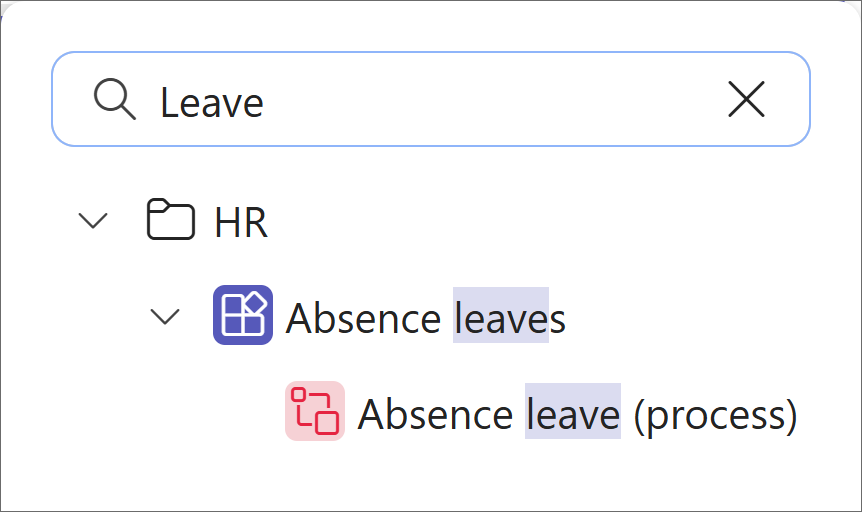
-
Click the name of the process. The process is linked with the application right away and shown in the Related processes node.
-
Click Publish changes to make the link visible to users.
Related processes in the application view
Related processes are shown in two places of the application view:
- in the application tree – in the Related processes node, below the application's processes,
- on the Processes in application tab – in a separate Related processes section, below the processes that belong to the application.
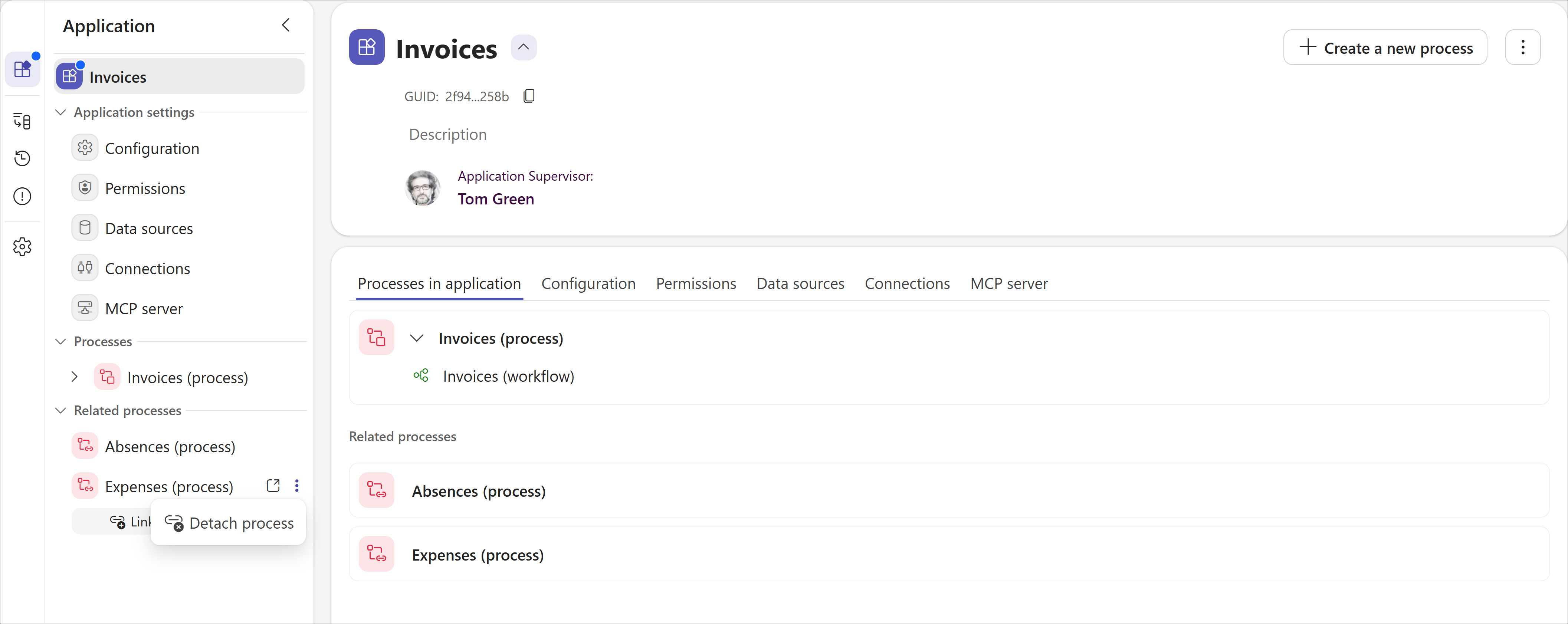
When you hover over a related process, the following buttons are displayed:
| Button | Application tree | Processes in application tab | Action |
|---|---|---|---|
| Go to process configuration | ✓ | ✓ | Opens the process configuration in its parent application. |
| Options (⋮) | ✓ | – | Expands a menu with the Detach process command. |
| Detach process | – | ✓ | Detaches the process from the current application. |
Instead of the Go to process configuration button, a related process may show a warning icon with one of the following messages:
- Configuration is not available in Designer Studio – the configuration of such a process cannot be opened in Designer Studio. To change it, use Legacy Designer Studio.
- You do not have permission to access this process – the current user does not have permissions to the process configuration.
A process for which one of these messages is displayed can still be detached from the application.
Detaching a process
To detach a related process:
- In the application tree, in the Related processes node, hover over the process name, click the Options (⋮) button, and select Detach process. Alternatively, click the Detach process button next to the process name on the Processes in application tab.
- Click Publish changes.
The process is detached right away – without an additional confirmation. An accidental detachment can be reverted with the Undo last action button in the top bar of Designer Studio.
Additional information on linking processes can be found in the article Wiązanie istniejących procesów w ramach aplikacji available on the technical blog.