WEBCON data source
A data source defines what data is loaded and made available within a WEBCON application — for example, to populate a choice list on a form or to feed a report. The data source configuration screen in Designer Studio lets you set its basic parameters, the scope of returned data, filters, columns, and who the source is shared with and in which applications.
Some data source types (e.g. SQL-based ones) rely on a separately defined connection — see the MSSQL connection page.
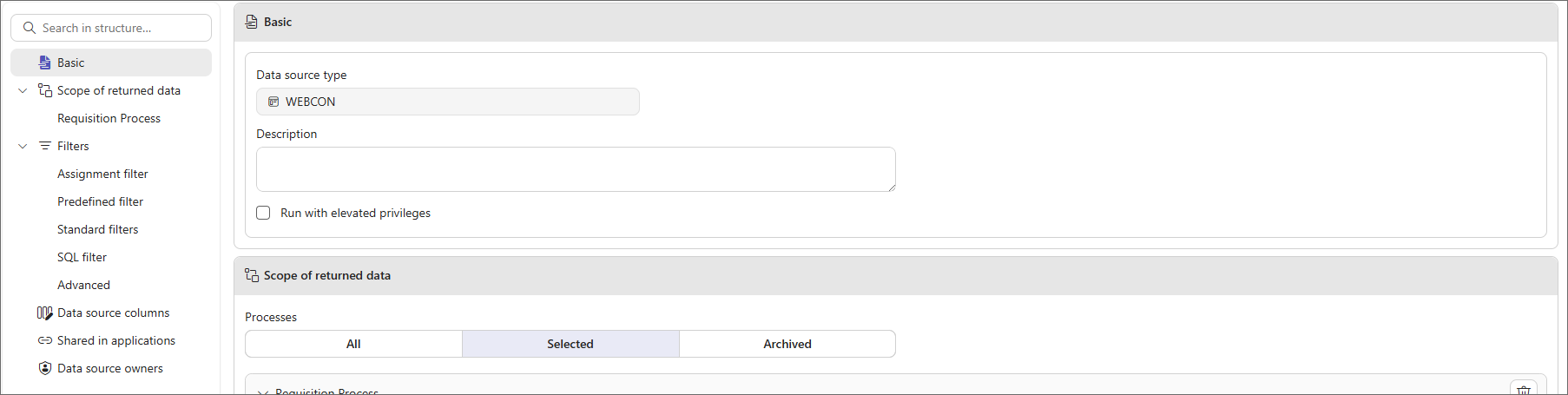
The structure tree on the left lets you jump straight to any configuration section: Basic, Scope of returned data, Filters (with five sub-sections), Data source columns, Shared in applications, and Data source owners.
Basic

The Basic section contains:
- Data source type — the data source type, chosen once when the data source is first created (in this case WEBCON, i.e. data from WEBCON processes). When you create a new data source, the following types are available: WEBCON, Fixed values list, MSSQL database, Oracle database, REST Web Service, and Custom. Once the source exists, this field becomes read-only — its type cannot be changed afterwards.
- Description — a free-text description entered by the user, making the source easier to recognize in the data source list.
- Run with elevated privileges — a checkbox that lets the source load data using the system account's permissions, regardless of the permissions of the user currently using the source.
Scope of returned data
The Scope of returned data section determines which processes the source's data is drawn from. The Processes field accepts one of three values:
| Value | Meaning |
|---|---|
| All | The source returns data from every process in the application |
| Selected | The source returns data only from the explicitly selected processes |
| Archived | The source returns data from archived processes |
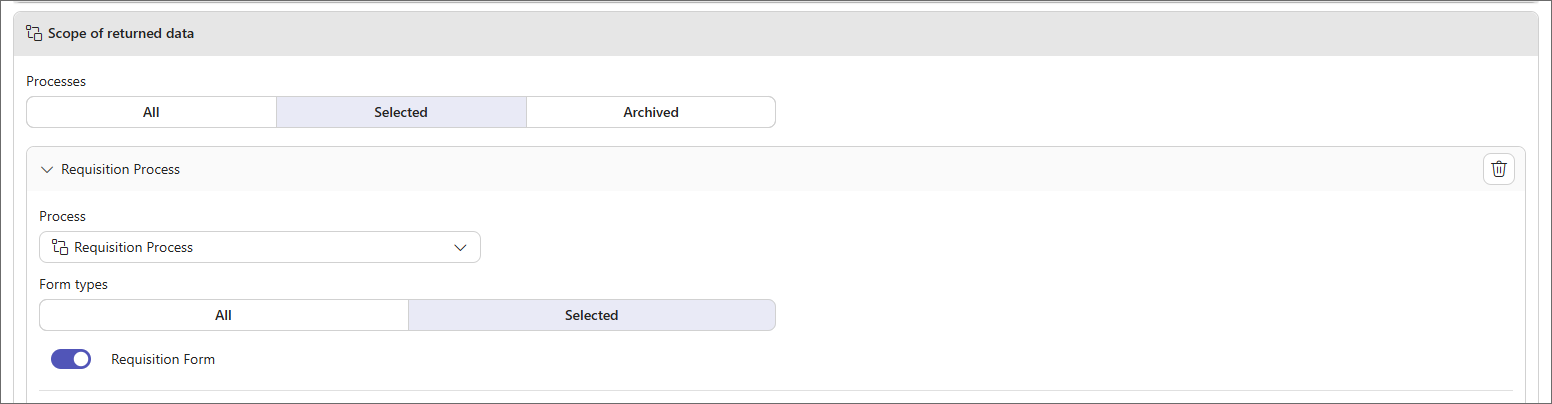
Choosing Selected reveals one or more configuration cards, one per included process — additional processes are added with the Add button, and each card can be removed using the trash icon in its top-right corner. Each card lets you narrow that process's scope precisely:
- Process — which process the data should be drawn from.
- Form types — All includes data from every form type in that process; choosing Selected shows a list of switches, one per form type present in the process, letting you turn on only the ones you want included.
- Workflows — works the same way as form types: All includes data from every workflow in the process, while Selected shows a list of switches so you can include only specific workflows.
Turning on the switch for a specific workflow reveals an additional Steps field beneath it, letting you narrow the scope even further — down to individual steps of that workflow:
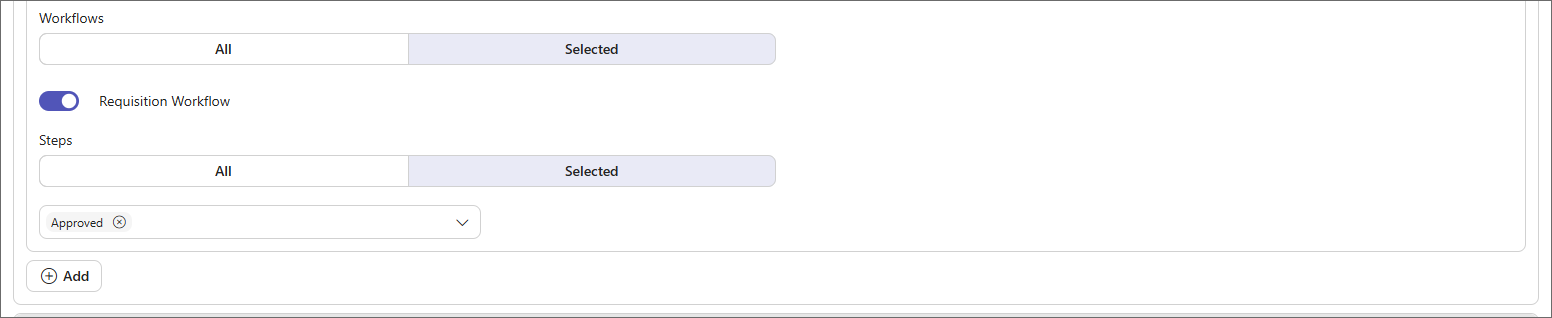
- Steps — All includes data from every step of that workflow; choosing Selected reveals a picker where you can select one or more specific steps of that workflow.
Filters
The Filters section lets you narrow down the data returned by the source in several independent ways.
Assignment filter
The Assignment filter limits the data visible in the report based on the relationship between a given item and the current user — for example, to items the user created, items where they have tasks, or items where they have previously worked on tasks. Selecting All disables this restriction entirely — every item then becomes available in the report, regardless of the user's tasks.
The Assignment filter accepts one of seven values:
| Value | Meaning |
|---|---|
| All | No restriction — all items are available, regardless of the user's tasks |
| Active tasks | Items where the user has active tasks — the kinds of tasks are set with the additional toggles (see below) |
| All active | All active items |
| All where I participated | Items the user took part in |
| All created by me | Items created by the user |
| All active created by me | Active items created by the user |
| All where I participated or were created by me | Items the user took part in or created |
Regardless of the selected value, two toggles are available:
- On time — includes tasks that are still within their deadline,
- Time exceeded — includes tasks whose deadline has already passed.
Choosing Active tasks additionally shows toggles that define which tasks are included: Assigned tasks and Flagged (on by default), and CC tasks, No restriction, and Postponed (off by default).
Predefined filter
The Predefined filter limits the data visible in the report to items created or modified within a specific time range, or to a fixed number of most recent items. The default value is All, meaning no additional filtering is applied.
| Value | Meaning |
|---|---|
| All | No additional filtering |
| Created today | Only items created today |
| Created this month | Only items created in the current month |
| Created this year | Only items created in the current year |
| Modified today | Only items modified today |
| Last 10 | The 10 most recent items |
| Last 100 | The 100 most recent items |
| Last 1000 | The 1000 most recent items |
Standard filters
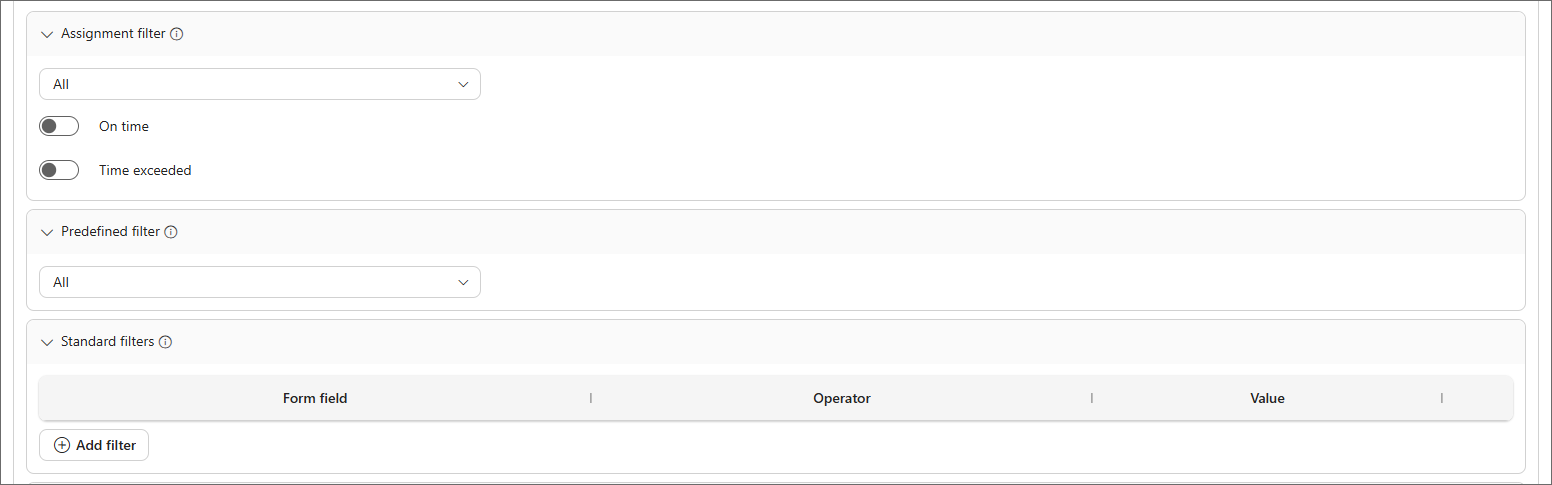
Standard filters let you restrict the data to items matching the conditions defined in the Form field / Operator / Value table — for example, showing only items whose Total price field exceeds a given value. A new condition is added with the Add filter button.
For Date or Date and time attributes, an ISO format is required (e.g. 2023-11-29). For floating-point number attributes, a period must be used as the decimal separator (e.g. 1234.56).
SQL filter
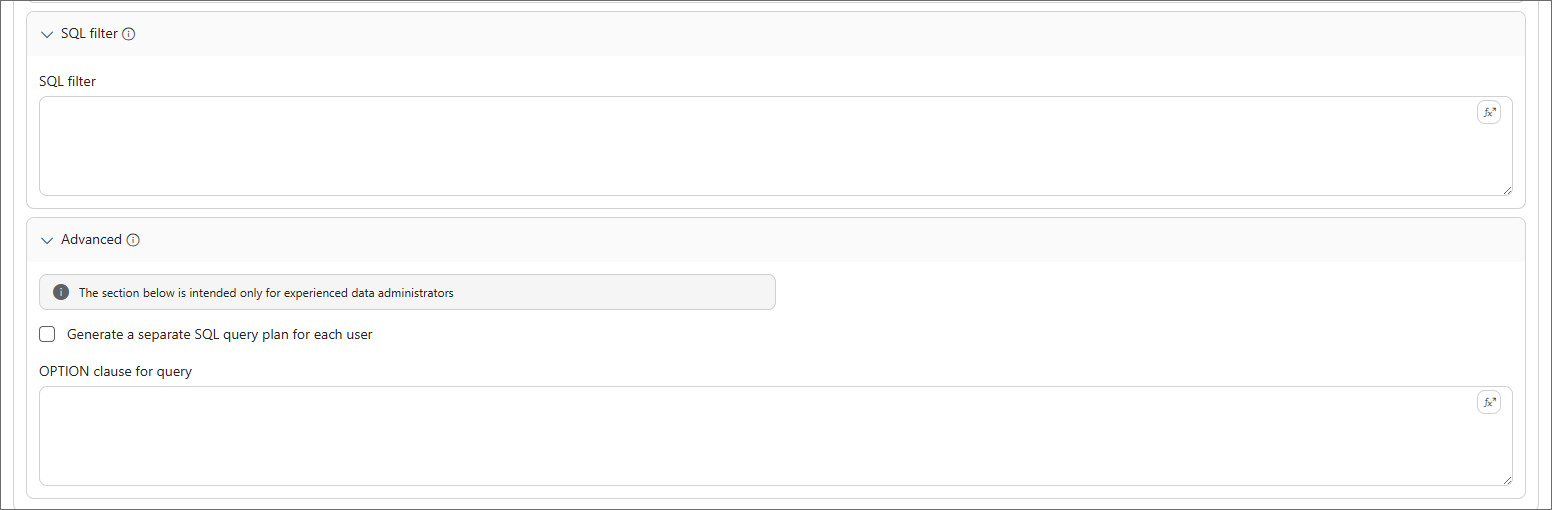
The SQL filter lets you define an additional SQL condition that restricts the data visible in the report. The condition must be entered after the AND keyword (e.g. AND YEAR(GETDATE())=2019). The filter can reference attribute values by entering their corresponding database column names.
The fx icon in the top-right corner of the field (Open the expression editor) opens a full-screen filter editor with a Properties panel. Double-clicking an item in the panel inserts it into the filter. The panel contains three groups:
- System — the source's system columns; their database name is inserted (e.g.
WFD_ID), - Process — the form fields of the selected process,
- Available query variables — variables whose markers are replaced with the corresponding values when the query is executed.
| Variable | Inserted marker |
|---|---|
| Unicode prefix | ##unicodeprefix## |
| URL address | ##contextweburl## |
| Current user login | ##currentloginname## |
| Security token | ##currentsecuritytoken## |
| Context element ID | ##contextelementid## |
| Employee security token | ##employeetoken## |
The Available query variables panel is also available in the editor of the OPTION clause for query field.
Advanced
The Advanced section contains parameters that affect how the SQL query against the WEBCON database is executed:
- Generate a separate SQL query plan for each user — a checkbox; when it is selected, every SQL query of the source includes the current user's identifier, so SQL Server generates a separate query plan for each user. When it is cleared, one plan shared by all users is used for the source.
- OPTION clause for query — if the field is filled in, an
OPTION (…)clause containing the entered text is appended to the query — for example, enteringRECOMPILEappendsOPTION (RECOMPILE). If the field is empty, noOPTIONclause is appended to the query.
This section is intended only for experienced data administrators — depending on the selected option and the data structure in the database, these settings can have either a positive or a negative impact on the performance of this source's queries, as well as of other reports.
Data source columns

The Data source columns section lists the columns returned by the source. By default it contains two system columns: [System] ID and [System] Signature. The list can be extended with three buttons:
| Button | Action |
|---|---|
| Add columns | Adds the selected columns (attributes) to the list returned by the source |
| Add default columns | Adds the standard, default set of columns |
| Add calculated column | Adds a new column whose value is calculated from a defined formula |
Shared in applications
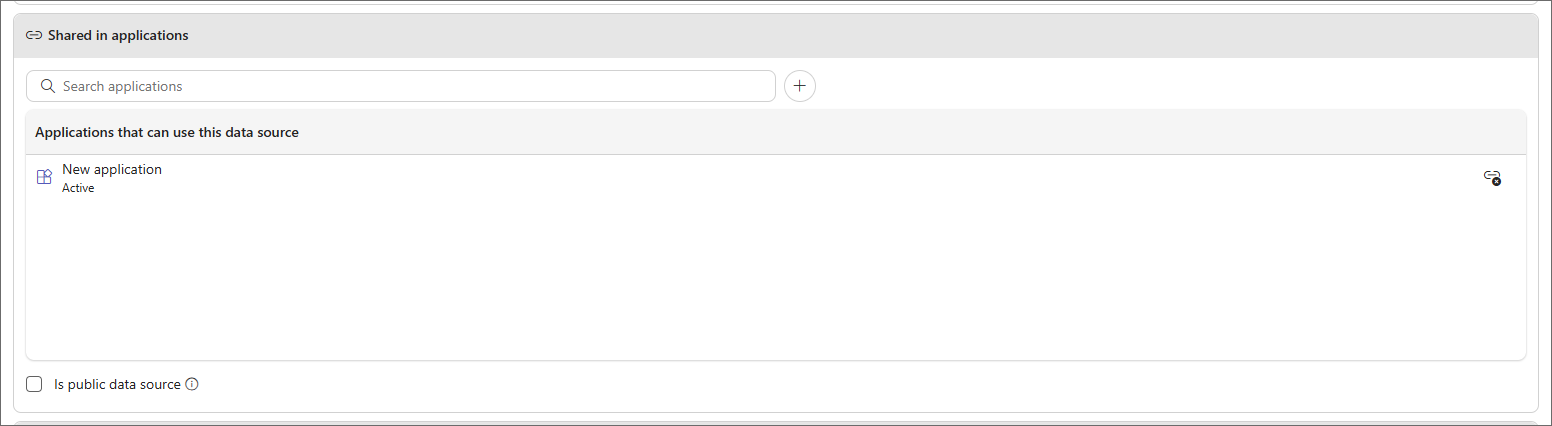
The Shared in applications section shows which applications currently use this data source. The Search applications field together with the + button lets you link the source to another application; the Applications that can use this data source table lists the applications already linked to it, along with their status and an icon for removing the link.
The Is public data source checkbox at the bottom of this section shares the data source with every application in the system, allowing it to be used by processes running in any application — without having to link the source to each one individually.
Data source owners

The Data source owners field defines which users are allowed to edit the source's configuration and share it with further applications. Other Designer Studio users — who are neither owners of the source nor system administrators — can still use the source in applications it's shared with, but cannot edit its configuration.
For more general background on managing data sources (in the context of Legacy Designer Studio), see this WEBCON technical blog article.