MSSQL data source
A MSSQL database data source loads data based on a SQL query — run either through a previously defined connection to an external database, or directly against WEBCON's own internal database, with no separate connection required.
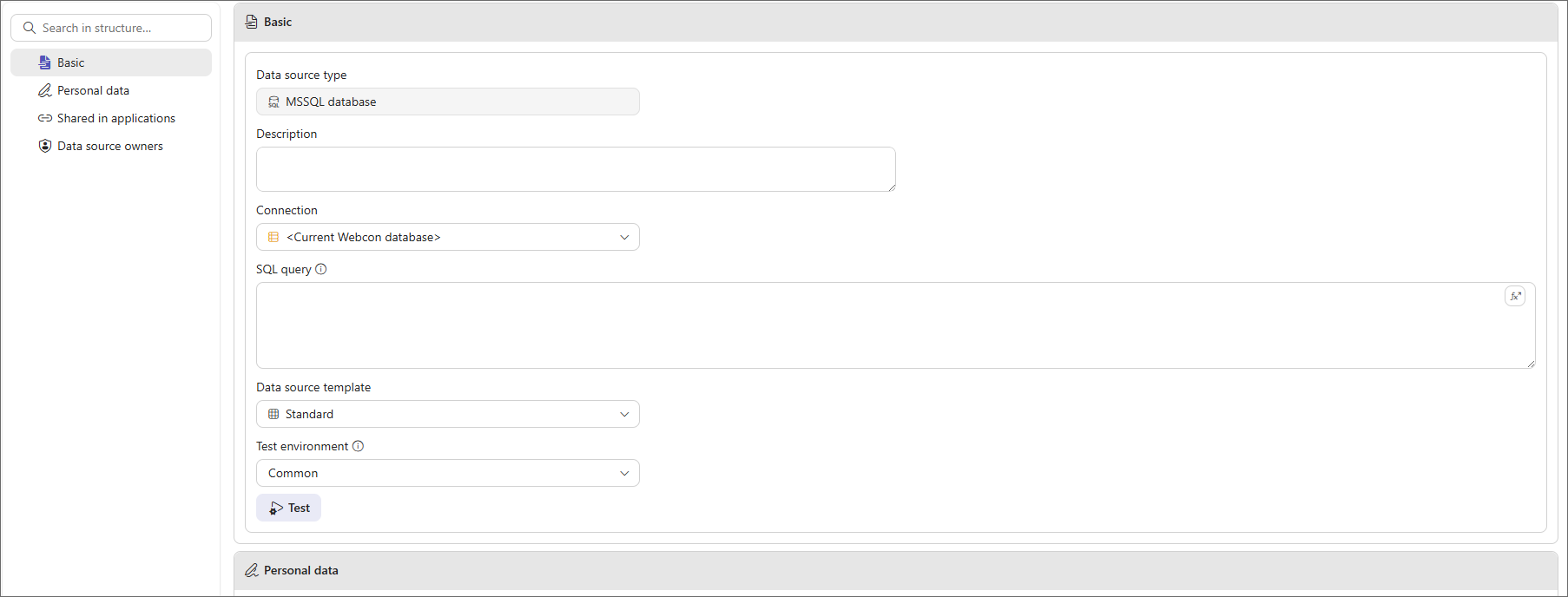
The structure tree on the left lets you jump to each section: Basic, Personal data, Shared in applications, and Data source owners.
Basic
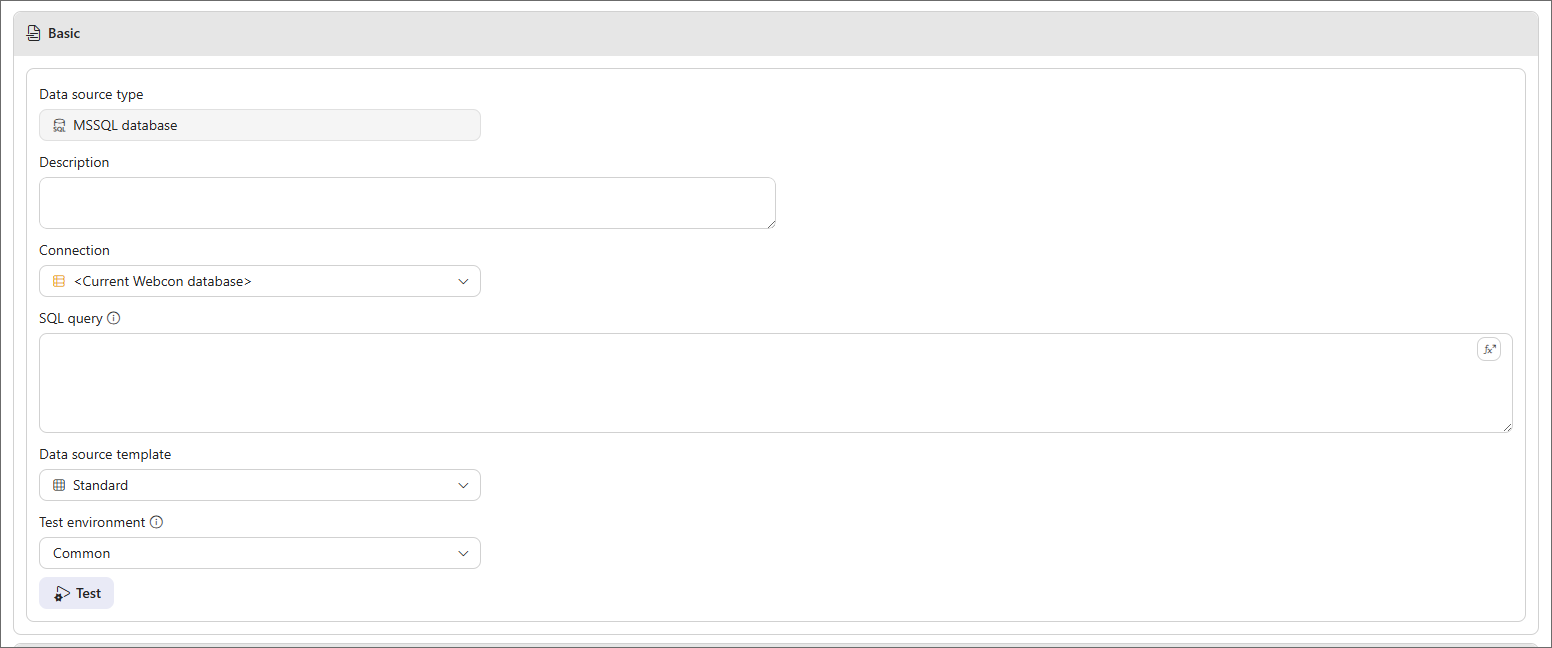
The Basic section contains:
- Data source type — the data source type, chosen once when the data source is first created (in this case MSSQL database). Once the data source exists, this field becomes read-only — its type cannot be changed afterwards.
- Description — a free-text description entered by the user, making the data source easier to recognize in the data source list.
- Connection — this field requires an explicit selection; it has no value set automatically by default.
- SQL query — the SQL query text that returns the data source's data (details below).
- Data source template — determines whether the source is a regular data source (Standard) or one prepared for use with leave data or the company structure, in which case the query must return specific columns (details below).
- Test environment — the environment in which the query test runs when the Test button is clicked.
- Test — runs the query and returns its result or an error message.
Connection
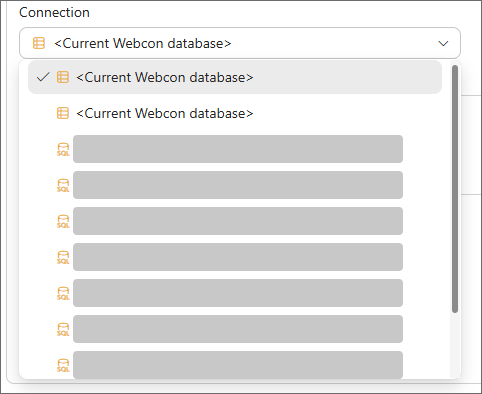
The Connection field lets you choose which database the SQL query will run against:
<Current Webcon database>— a built-in option that runs the query directly against WEBCON's own internal database, with no separate connection to define.- any connection previously defined on the MSSQL connection page — the list includes every available connection.
SQL query
The SQL query can run in several different contexts — for example, retrieving data, testing, retrieving the list of columns, or searching the data source from a choice attribute. To support these contexts, the query is wrapped in an additional subquery, and an ORDER BY clause (if present in the query) is moved outside that subquery.
This results in the following syntax constraints:
- The query should return data in the form
SELECT column1, column2, ... FROM table_name. - Calling a stored procedure inside the query is not possible.
- Using the
ROW_NUMBER()function is not possible. - All columns must be named (e.g.
SELECT column1, CAST(25.65 AS int) AS column2 FROM table_name). - Using an
ORDER BYclause requires referencing the defined column aliases (e.g.SELECT column1 AS Id, CAST(25.65 AS int) AS column2 FROM table_name ORDER BY Id). - Using
WITH query AS (SELECT column1, column2, ...) ...syntax is not possible. - When an
IFexpression is used, the data will not be grouped or filtered.
For more complex queries, the recommended solution is to prepare a view or table-valued function and return the data in that form.
The fx icon in the top-right corner of the query field (Open the expression editor) opens a dedicated full-screen SQL query editor.
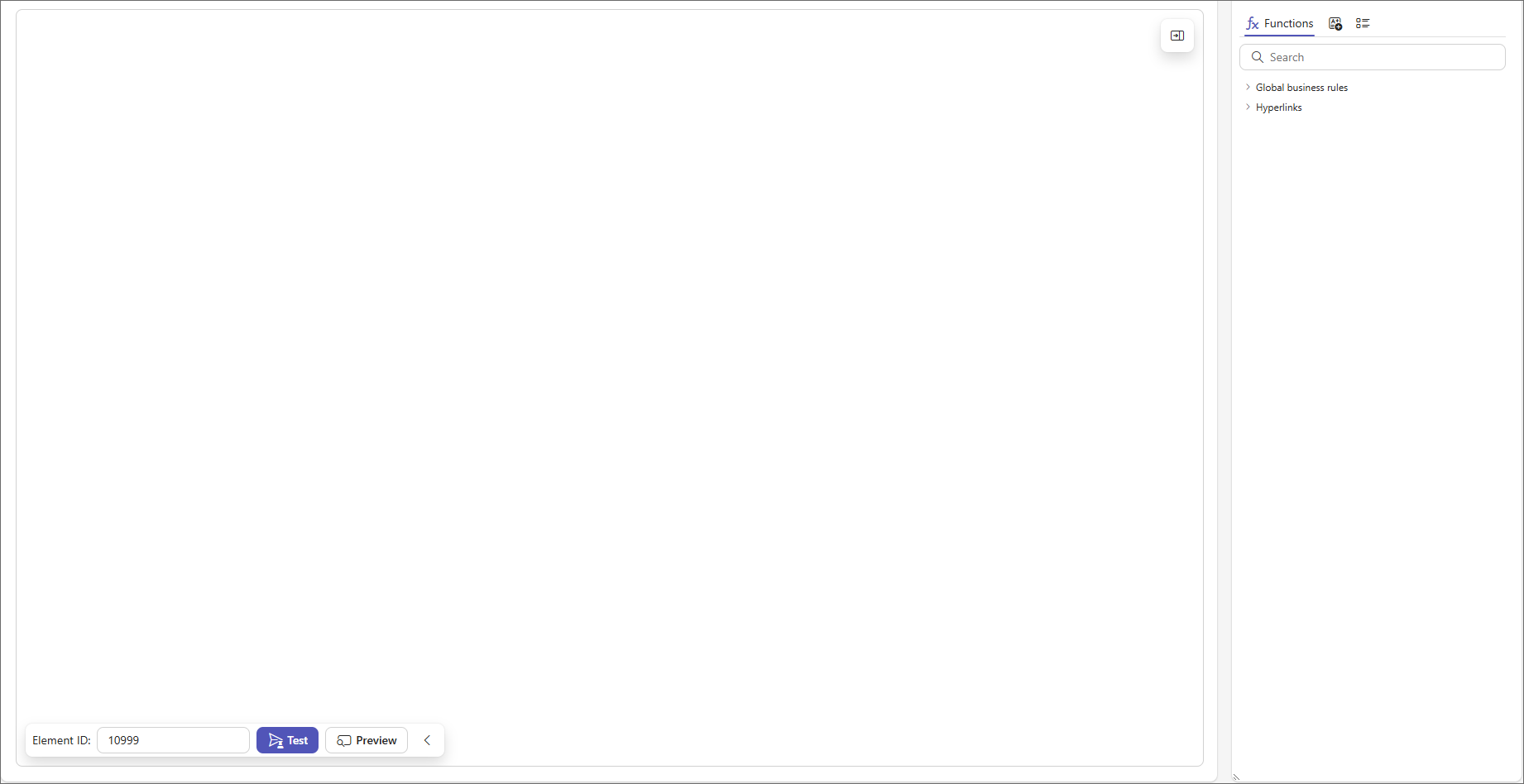
The right-hand side of the editor offers a Functions panel, letting you search for and insert dynamic values into the query — grouped into the Global business rules and Hyperlinks categories.
At the bottom of the editor, the Testing button expands a bar with the Element ID field and the Test and Preview buttons. It lets you check how the query behaves without leaving the editor. If the query is executed in the context of an element, enter that element's ID in the Element ID field — it is passed to the query during the test.
Data source template
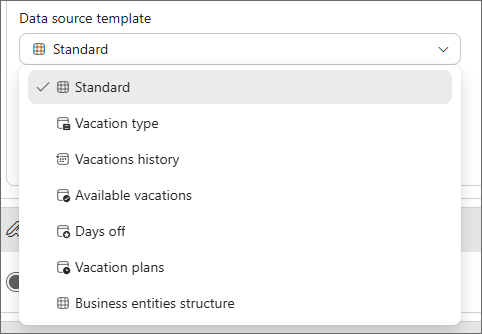
Choosing a template other than Standard requires the query to return the columns defined for that template. Once such a template is selected, a help icon listing the required columns appears next to the field name. The Data source template field accepts one of seven values:
| Value | Meaning |
|---|---|
| Standard | A regular data source — the query does not have to return any specific columns |
| Vacation type | Types of available leaves report |
| Vacations history | Leave history report |
| Available vacations | Available holiday leave report |
| Days off | User's days off report |
| Vacation plans | Planned leaves report |
| Business entities structure | Report on users information and company structure |
Required columns
The tables below list the columns the query must return for each template — required columns are marked in the Required column. Dates are passed as numbers in the YYYYMMDD format (e.g. 20120123).
Vacation type
| Column | Type | Required | Description |
|---|---|---|---|
VACType_ID | String | yes | Leave type ID |
VACType_ColorID | Decimal | yes | Color ID for type — a number from 1 to 6; the available colors are shown in the template's help |
VACType_Name | String | yes | Leave type name |
VACType_Description | String | no | Description |
VACType_TakeAvailableDays | Boolean | no | Defines if the planned leave decreases the number of available days off |
Vacations history
| Column | Type | Required | Description |
|---|---|---|---|
VAC_UserID | String | yes | User ID |
VAC_From | Decimal | yes | Number that represents the leave start date |
VAC_To | Decimal | yes | Number that represents the leave end date |
VAC_VACTypeID | String | yes | Leave type ID (from the Vacation type data source template) |
Available vacations
| Column | Type | Required | Description |
|---|---|---|---|
USR_UserID | String | yes | User ID |
USR_CurrentYear | Decimal | yes | Number representing the year (e.g. 2012) |
USR_DaysAvailableLastYear | Decimal | yes | Number of days off remaining from the previous year |
USR_DaysAvailableCurYear | Decimal | yes | Entitled number of days off available in the current year |
USR_DaysUsed | Decimal | no | Number of days off used in the current year. If the column is not defined, its value in the vacation summary is calculated based on leave submissions |
USR_DaysAvailable | Decimal | no | Current number of days off available in the current year. If the column is not defined, its value in the vacation summary is calculated based on other columns |
Days off
| Column | Type | Required | Description |
|---|---|---|---|
UFD_UserID | String | no | User ID |
UFD_Date | Decimal | yes | Number that represents the date |
Vacation plans
| Column | Type | Required | Description |
|---|---|---|---|
PLN_UserID | String | yes | User ID |
PLN_From | Int32 | yes | Number that represents the leave start date |
PLN_To | Int32 | yes | Number that represents the leave end date |
PLN_WFID | Int32 | no | Leave plan ID |
Business entities structure
| Column | Type | Required | Description |
|---|---|---|---|
CSTR_UserID | String | yes | User identifier. Values in this column must be unique |
CSTR_Login | String | yes | The user's login (described as "BPS ID" in the template's help). Values in this column must be unique |
CSTR_Name | String | yes | User name |
CSTR_Superior | String | yes | Unique superior identifier — a value from the CSTR_UserID column (null if the user does not have a superior) |
CSTR_Company | String | no | Company name |
CSTR_Email | String | no | Email address |
Personal data

The Personal data section lets you designate the data source as a source of personal data for other processes (for example, a personal data dictionary):
- Data source contains personal data — a switch that marks the current source as a source of personal data. The relation between the personal data dictionary and a process that uses it and stores copies of the data is configured additionally on every form field marked as containing personal data. Thanks to this, the system knows which dictionary element the field obtained its value from, and actions that delete or anonymize personal data can locate every place where data from a specific element was used.
- Personal data identifier column — a field displayed once the switch is turned on, and required to complete the configuration. It lets you choose the column of the source that will serve as the unique identifier of a person. It is recommended that this column contains unique, numerical database identifiers.
To learn more about personal data, read the article available on the WEBCON Community website.
Shared in applications
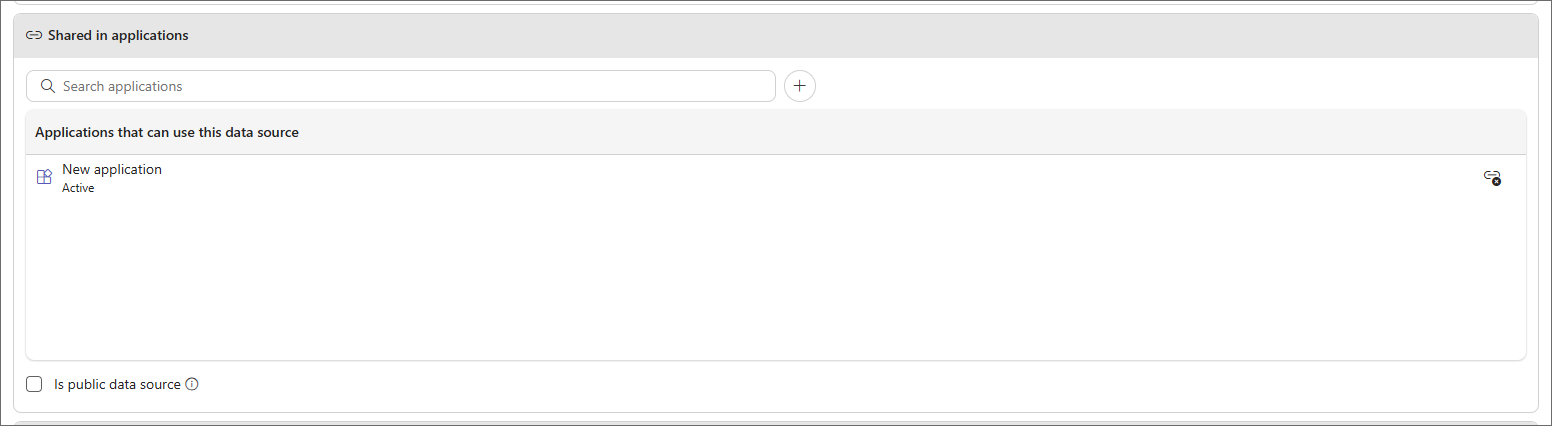
The Shared in applications section shows which applications currently use this data source. The Search applications field together with the Attach to application button lets you link the data source to another application; the Applications that can use this data source table lists the applications already linked to it, along with their status and an icon for detaching the link.
The Is public data source checkbox at the bottom of this section makes the data source available to every application in the system, so it can be used by processes running in any application — without having to link it to each one individually.
Data source owners

The Data source owners field defines which users are allowed to edit the data source's configuration and share it with further applications. Other Designer Studio users — who are neither owners of the data source nor system administrators — can still use the data source in applications it's shared with, but cannot edit its configuration.