Constants
Process constants are values defined separately for each process that can be used anywhere the variables tree is available – e.g. in business rules, form rules, or form field default values. The Constants panel is located in the process Definitions section.
A reference to a constant can be inserted from the variables tree into an expression by double-clicking the constant or by dragging and dropping it in the desired place of the expression.
A constant can be defined so that its value differs between environments (DEV/TEST/PROD) – this removes the need to manually change these values when migrating between environments. Process constants only work within the process they were defined for, while Global constants are shared across the entire system.
List of constants
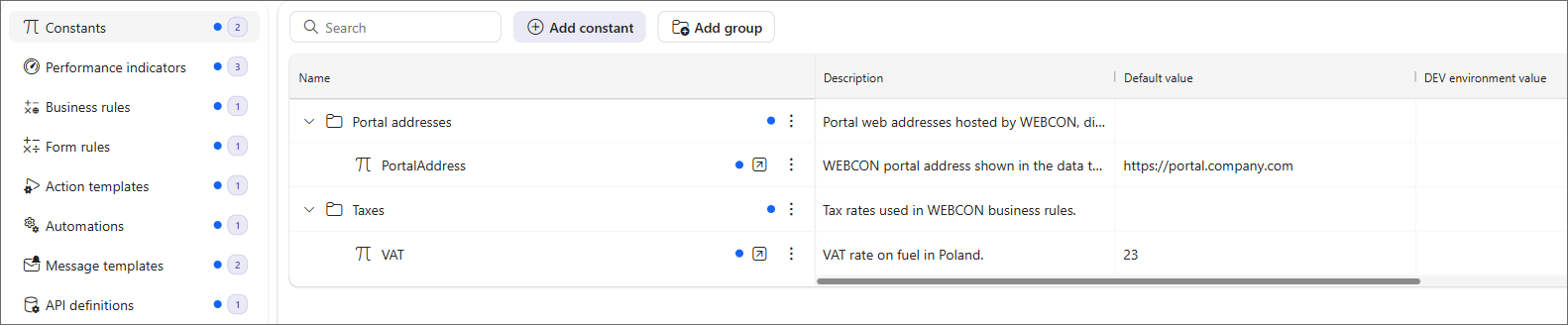
The Constants panel contains:
- the Search field – filters the list of constants and groups,
- the Add constant and Add group buttons – described in the Creating and configuring a Constant and Grouping Constants sections,
- a grid with the Name, Description, Default value, DEV environment value, TEST environment value, and PROD environment value columns – lists the defined constants and groups. Constants assigned to a group are displayed as child nodes of the expandable group row.
Options menu
Each constant has an icon that opens its configuration in full view, as well as an Options menu with the following commands:
- Open configuration in full view,
- Open configuration in the side panel,
- Add constant,
- Move to group – available when at least one group exists in the process,
- Delete constant.
The Options menu of a group contains the Open configuration in the side panel, Add constant, and Delete group commands.
Creating and configuring a Constant
A new constant is created with the Add constant button in the Constants panel. Its configuration can be opened in two variants – with the Open configuration in full view command (or the icon next to the constant's row) or with the Open configuration in the side panel command. Both commands are available in the constant's Options menu, and both variants expose the same fields. The full view additionally contains a structure tree with the Search in structure… field, which allows quick navigation to a selected configuration section.
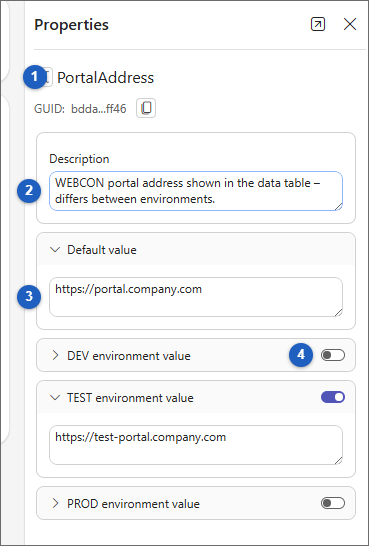
- Name of the constant – editable in the panel header; its GUID is shown next to it with a copy button.
- Description – an optional description of the constant's purpose.
- Default value – the value the constant takes on every environment, unless an override is defined for that environment.
- DEV / TEST / PROD environment value switches – turning on the switch for a given environment reveals a field where a value that applies only to that environment can be entered; environments with the switch off use the default value.
Grouping Constants
For better organization, constants can be grouped. A group is created with the Add group button in the Constants panel – a new node appears directly in the list, where it can be given a Name and an optional Description (visible in the group's Properties panel).
An existing constant is assigned to a group with the Move to group command in that constant's Options menu – the target group is selected from the submenu. Constants assigned to a group are displayed as its child nodes – as in the screenshot of the Constants panel above, where the constant PortalAddress sits inside the group Portal addresses.
A data table displays a web address that differs between the test (TEST) and production (PROD) environments. By defining a constant with an overridden value for the TEST environment, the address changes automatically everywhere it is used when migrating between environments – with no manual editing required.
Using in form fields
If a constant's value is placed into a form field via a default value or an action, the acceptable format of the constant depends on the target form field's type:
| Form field type | Acceptable format of the constant's value |
|---|---|
| Integer | Numbers only – leading and trailing spaces and newlines are removed. |
| Floating-point value | Numbers and a decimal point (.) as the separator – leading and trailing spaces and newlines are removed. |
| Single line of text | Unicode characters, spaces, and newlines (newlines are not displayed in the form field). |
| Multiple lines of text | Unicode characters, spaces, and newlines. |
| Date and time | YYYY-MM-DD or MM-DD-YYYY format regardless of language; the separator can be a hyphen (-), full stop (.), or forward slash (/), including mixed within one date. |
Using in arithmetic operations
Arithmetic operations on numeric constants require the TEXT TO DECIMAL function available in business rules – by default, constant values are treated as text, so adding two constants without this function concatenates their text, and multiplying them results in an error. TEXT TO DECIMAL also allows handling a comma (,) as the decimal separator. Constant values can also be processed with the TRIM and STRING REPLACE functions.
The examples below show this behavior on a constant VAT with the value 23:
-
Adding constants with no conversion results in the rule joining the strings –
VAT + VATreturns the text2323, not the number46:
-
Using TEXT TO DECIMAL lets the rule sum the values as numbers – the result is
46:
-
Multiplying constants with no conversion results in a configuration error (text values cannot be multiplied):

-
Using TEXT TO DECIMAL lets the rule multiply the values as numbers – the result is
529: