Usage list
The Usage list is a Designer Studio side panel section that presents all places in the configuration where a selected element – e.g. a process, form field, rule, or constant – is used. It lets you assess the impact of a planned change or deletion before you make it, and quickly navigate to each place where the element is used.
Purpose
Application configuration elements are interconnected – a form field can be used in rules, actions, and automations, a business rule can be called on many transition paths, and a process can be referenced in the configuration of other processes. The usage list answers the question "where is this element used?" without having to browse the configuration manually. It is especially useful:
- before changing how an element works (e.g. the return type of a rule or the format of a form field) – to check which places the change will affect,
- before deleting an element – to know which places in the configuration need to be adjusted first,
- when analyzing or taking over an application built by someone else – to understand the dependencies between its elements.
Displaying the usage list
The usage list is available in the application working window – on the icon bar of the side panel, below the Application section icon. The section itself does not search for usages – it presents them for the element on which the command to show usages was selected. Until an element is selected, the section displays the hint To display usages, choose the "Usages" option on a configuration element.
To display the usages of an element, use the Show usages command available for the given configuration element, e.g.:
- the Show usages button
 in the process header, next to the GUID,
- the Show usages command in the Options (⋮) menu of a form field on the process Data model tab,
- the Show usages command in the rule menu on the rule list and in the rule configuration panel (see Business rules and Form rules),
- the Show usages command in the rule parameter menu.
After the command is selected, the side panel automatically switches to the Usage list section and loads the list for the selected element. Selecting another element replaces the content of the list.
List content
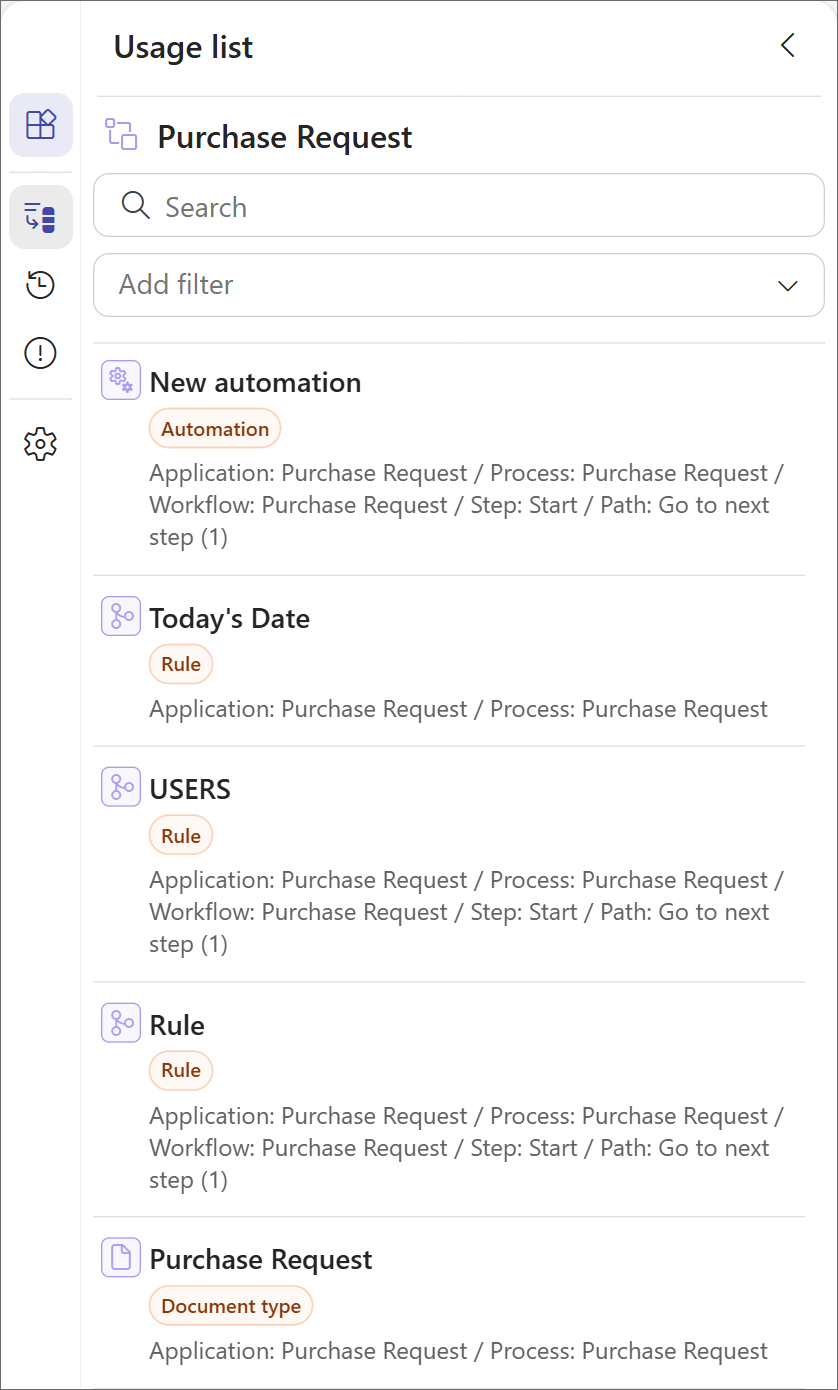
The top of the section shows the icon and name of the element whose usages are presented, followed by the Search field and the Add filter list (described in Searching and filtering).
Below is the usage list. Each place of usage is presented as a separate card containing:
- the icon and name of the object that uses the element (e.g. the name of a rule, automation, form field, or workflow),
- a badge with the type of that object, e.g. Rule, Automation, Form field, Workflow, Document type, Application,
- a path indicating where the object is located in the application structure, e.g. Application: Purchase Request / Process: Purchase Request / Workflow: Purchase Request / Step: Start / Path: Go to next step (1). The path helps you distinguish objects with the same name, e.g. two rules used on different transition paths.
While the paths are being loaded, a gray placeholder may briefly be shown in place of the card.
You can adjust the width of the side panel by dragging its right edge. With long paths, widening the panel makes the list easier to read.
Navigating to a place of usage
Clicking a card opens the configuration of the object in which the element is used (e.g. the rule editor or the configuration of an automation or form field) in the main working area. The card corresponding to the currently opened place is highlighted on the list.
The Usage list section remains open in the side panel, so you can review all places of usage one after another without searching again. To return to the application tree, click the Application section icon on the icon bar.
Some objects do not have a configuration preview in Designer Studio yet. Clicking such a card does not navigate anywhere – instead, a window with the message Configuration preview is unavailable is displayed. You can check the configuration of such an object in Legacy Designer Studio using the path shown on the card.
Searching and filtering
When there are many usages, you can narrow down the list:
- with the Search field – the list is limited to cards whose object name contains the entered phrase. The search does not cover paths or object types – to narrow down the list to objects of a specific type, use the filter,
- with the Add filter list – lets you select one or more object types to be displayed. The list of types is built from the current content of the usage list, so it contains only the types that actually appear on it. The selected types are displayed in the filter field as tags that can be removed one by one or all at once.
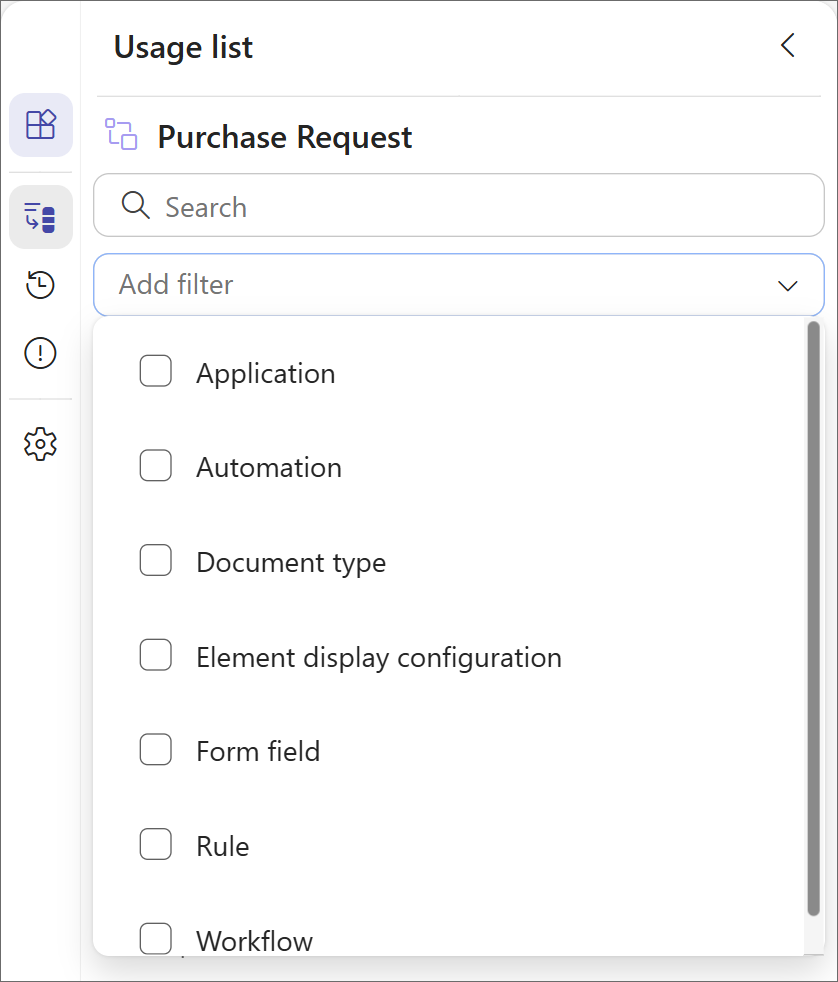
Both filtering methods can be combined. If no card meets the criteria, the section displays the message No matching usages.
Usages of an element when trying to delete it
You cannot delete an element that is used in the configuration – or an element whose child element is used (e.g. a process whose form field is used in another process). When you try to delete such an element, Designer Studio displays the Cannot delete object window with the message The selected object or one of its child elements is in use.
The Show usages button in this window opens the Usage list section with the places that prevent the deletion. In this mode, an additional Usage scope filter is available above the list:
| Option | Meaning |
|---|---|
| All | Presents all usages that prevent the deletion – both of the element itself and of its child elements. This option is selected by default. |
| Direct | Presents only the places where the deleted element itself is used. |
| Child objects | Presents only the places where child elements of the deleted element are used. The card additionally indicates the child element that the usage concerns. |
Once all the indicated references have been removed or changed, the element can be deleted.
In Legacy Designer Studio, the equivalent feature presented usages as a tree in a separate window. In Designer Studio, the usage list is always available in the side panel and lets you navigate directly to the configuration of the listed places.