Configuration errors
Configuration errors is a Designer Studio side panel section that presents errors detected in the configuration of elements changed in the current editing session – e.g. incompletely defined rules, actions without required settings, or missing references to data sources. A configuration that contains errors cannot be published, so the section shows which elements need to be corrected and lets you navigate to them quickly.
Purpose
Designer Studio verifies the configuration continuously while you edit it – you do not need to run a check manually. The verification covers configuration elements changed in the current editing session, in all applications edited in it. When a change leaves an element in a state that would prevent it from working correctly, the element is added to the error list and remains there until the configuration is corrected.
As a result, errors are detected as soon as they appear, not only when the application is running in the Portal. The section is available both in the application working window and on the Designer Studio home page.
Error counter
If the configuration contains errors, the Configuration errors icon on the icon bar of the side panel displays a red badge with the number of elements that contain errors (when there are more than 99 elements, 99+ is displayed). When you hover over the icon, a tooltip with the number of incorrect elements is displayed, e.g. Configuration errors: 2.
The badge is visible regardless of which side panel section is currently open, so you are informed about a new error immediately after making a change. While the configuration is being checked, the section icon may briefly be replaced with a loading indicator.
Error list
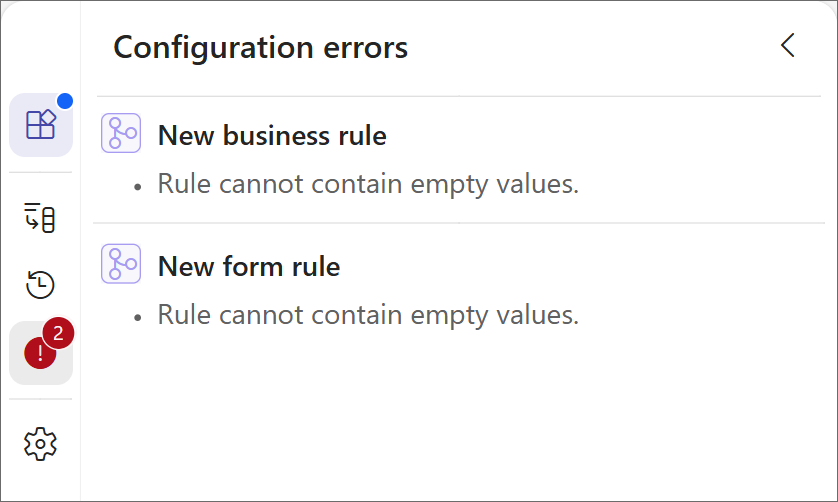
Each element in which errors were detected is presented on the list as a separate card containing:
- the element type icon and its name – if the element has no name, its type is displayed, e.g. Rule, Path, Step, Timer, Attachments config, or AI Agent,
- a list of messages describing all errors detected in the element.
Example messages:
| Message | Cause |
|---|---|
| Rule cannot contain empty values. | The rule (business or form rule) has not been defined, or it contains an operation or function with an argument that has not been filled in. |
| Rule has to take a form field as an argument. | The rule uses a function that requires a form field, but a different value has been passed as its argument. |
| A data source must be selected. | An element that uses a data source has no data source selected. |
| Please choose a connection | An action or another element that requires a connection has no connection selected. |
| Query cannot be empty | No SQL query has been entered in an element that requires one. |
| Validation rule has not been defined. | A validation action has no rule defined to be checked. |
Correcting errors
Clicking a card opens the configuration of the element that the error concerns (e.g. the rule editor) in the main working area. The card corresponding to the currently opened element is highlighted on the list, and the Configuration errors section remains open in the side panel – so you can correct one element after another without reopening the list.
Once the configuration is corrected, the element automatically disappears from the list and the number on the badge decreases. The error also disappears when the change that caused it is withdrawn with the Undo last action button (see History).
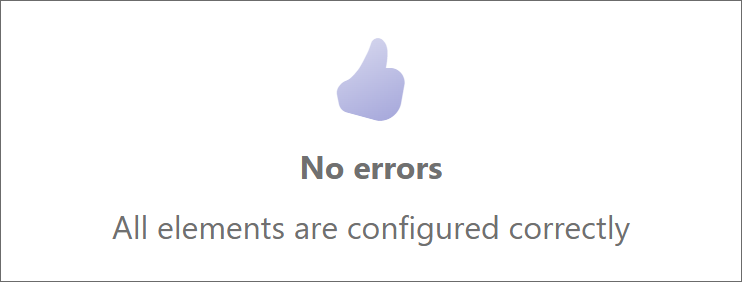
When the configuration contains no errors, the section displays the message No errors with information that all elements are configured correctly.
Errors and publishing changes
Before publishing changes, Designer Studio checks whether the configuration contains errors. If the configuration contains errors when you click the Publish changes button, the changes are not published – instead, the Cannot publish changes window is displayed with the message The configuration contains errors that prevent the changes from being published. The window contains the following buttons:
- Show errors – closes the window and opens the Configuration errors section in the side panel,
- Close – closes the window without taking any further action.
To publish the changes, correct all elements shown on the error list (or undo the changes that caused the errors), and then click Publish changes again.
It is worth checking the Configuration errors section regularly, e.g. after you finish configuring each element. Correcting an error right after it appears is usually easier than analyzing many errors just before publishing.
In Legacy Designer Studio, the configuration was checked manually with the Verify process feature, which generated a report for the entire process. In Designer Studio, the verification is performed automatically during editing, and the detected errors block publishing changes.