Form fields
Form fields are used to present and collect data on the form. In Designer Studio, you add and manage them in the Form fields panel, available from the form designer.
Form fields panel
The Form fields panel is located in the workflow form designer, on the Form tab, on the left side of the screen. It contains a Search box (1) and two tabs: Add (2) and Defined (3).
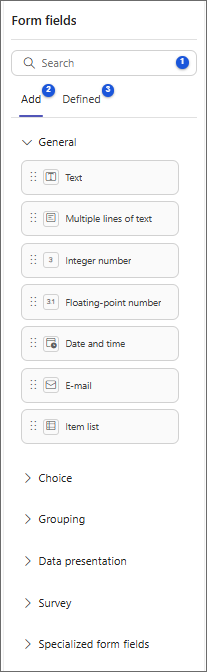
To place a form field on the form, drag it from the panel to the desired location in the form designer.
Search
The Search box filters the list shown in the active tab based on the typed text – form field types on the Add tab, or existing form fields on the Defined tab.
Add
The Add tab lists the form field types that can be added to the form. The types are grouped into collapsible categories:
| Category | Contents |
|---|---|
| General | Basic field types: Text, Multiple lines of text, Integer number, Floating-point number, Date and time, E-mail, and Item list. |
| Choice | Value selection fields: Person or group, Choice field, Choice tree, and Yes / No choice. |
| Grouping | Elements that organize the form layout: Group and Tab panel. |
| Data presentation | Fields that present data: Data row, Data grid, Chart, and Widget. |
| Survey | Survey fields: Rating scale and Answer choice. |
| Specialized form fields | Specialized fields: Image, Handwritten signature, HTML, Google Map, and OAuth2 authentication. |
In the screenshot above, the General category is expanded as an example.
Defined
The Defined tab lists form fields that already exist and can be placed on the form. They are grouped by origin into collapsible groups:
| Group | Contents |
|---|---|
| Process | Form fields created in the given process. |
| System | Built-in system form fields, such as Workflow phases or Business entity. |
| Global | Shared (global) form fields, configured once and reused across multiple processes. |
In the screenshot below, the System and Global groups are expanded as an example.

Form field on the form in Portal
A form field configured in Designer Studio is displayed as a field on the form in Portal.
