Global form fields
Global form fields are form fields shared by many processes. You define them once and then place them on the forms of any process – they inherit their configuration from the global definition, which makes it easier to move form fields between processes and environments.
Defining global form fields
Global form fields are defined in the Global definitions area, in the Global form fields node. The list contains all defined global form fields, and the icon next to each name shows the field type. The Search box filters the list based on the typed text.
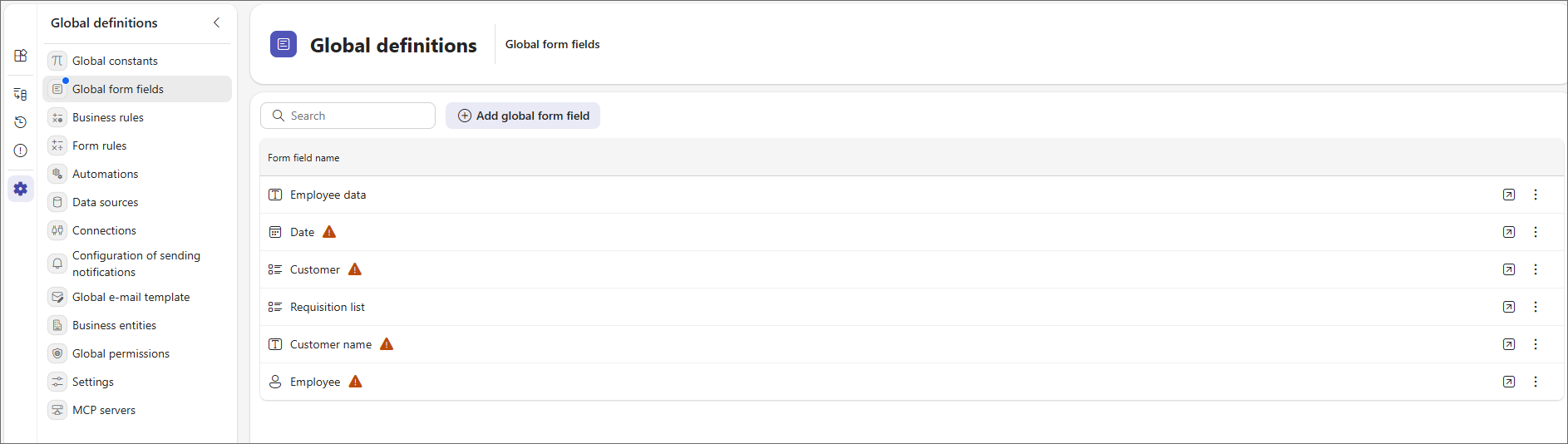
To add a global form field, click Add global form field and select its type:
| Type | Description |
|---|---|
| Text | Global counterpart of the Text form field. |
| Choice list | Global counterpart of the Choice field form field. |
| Date and time | Global counterpart of the Date and time form field. |
| Person | Global counterpart of the Person or group form field. |
Clicking a form field in the list opens its configuration in the Properties panel on the right. The icon at the end of the row opens the configuration in full view, and the row menu contains the Open configuration in full view, Open configuration in the side panel, Add global form field, and Delete form field commands.
The configuration of a global form field consists of the same sections as the configuration of a standard form field: Basic, Properties, Conditions, and Advanced. The Field type box shows the type with a "global" suffix, e.g. Text - global. The Conditions section of the global definition contains only the default value and value change subsections – visibility, editability, and requiredness are configured in the process where the form field is used.
Form fields marked with a warning icon in the list have their configuration available only in Legacy Designer Studio – it can be viewed and edited only in the Legacy Designer Studio application.
Adding a global form field to the form
A defined global form field is placed on the form in the workflow form designer. On the Defined tab of the Form fields panel, expand the Global group and drag the selected form field to the desired location on the form. The group contains the global form fields that have not yet been used in the given process. For more information about the panel, see the Form fields panel description.

For each process, you can add:
| Global form field type | Maximum number per process |
|---|---|
| Text | 10 |
| Choice list | 10 |
| Date and time | 5 |
Global form fields are stored in different columns of the content database than standard form fields, e.g. a global Text form field is stored in the WFD_AttText1Glob column, while a standard one is stored in the WFD_AttText1 column.
Configuration inheritance
A global form field used in a process inherits its configuration from the global definition. In the Basic section of its configuration, the Global attribute box shows the definition the form field comes from, and the Global attribute inheritance group lets you break the inheritance.

- Break configuration inheritance – when selected, the form field in the process stops inheriting its configuration from the global definition and can be configured independently. When not selected, the configuration is controlled by the global form field, and changes to the definition are propagated to the form field in the process.