OAuth2 authentication
This attribute lets the user log into the OAuth2 authentication provider configured for the field, by clicking the button displayed as part of the field on the form. Clicking it opens a new window showing the provider's page, where the user logs in and authorizes WEBCON BPS to use the provider's API data. Once the process completes, the field reports a successful login, the login button becomes locked, and its tooltip shows how much time remains before the token expires.
Properties
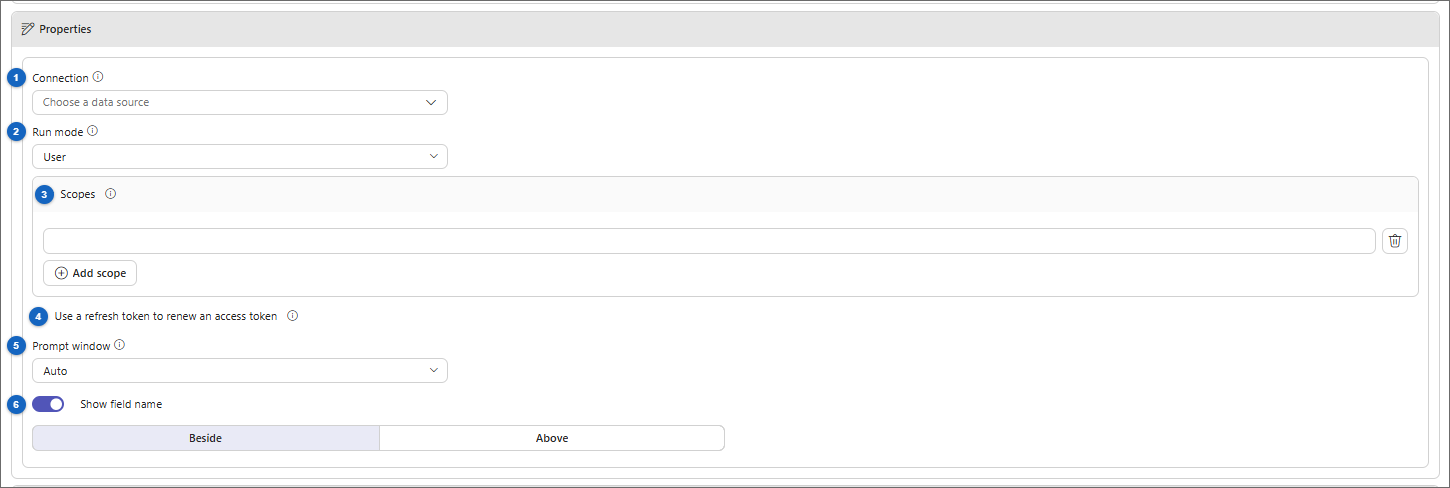
1. Connection
This field selects the REST connection the attribute is tied to – it must be a connection with the OAuth2 User → API authentication type selected. The attribute triggers the user authentication flow according to that connection's settings, and the resulting access token is then used by actions and data sources that share the same connection.
2. Run mode
This drop-down lets you choose one of three operation modes:
| Option | Description |
|---|---|
| User | The attribute displays a control that lets the user log into the configured provider and shows the appropriate status once logged in – from form rules or JavaScript, only triggering the authentication flow via the Authenticate rule is possible, with no way to retrieve the access token |
| JavaScript | The attribute's control is not displayed on the form – all form rules and JavaScript still work, including the GetToken rule, which lets you programmatically retrieve the access token obtained during authentication |
| User + JavaScript | This mode combines the functionality of both modes above |
3. Scopes
The list of scopes defined in the attribute configuration overrides the scopes set in the connection configuration – the two lists are not merged. When defining scopes, include every scope required for the REST actions or REST data sources sharing this connection to work correctly – if several actions require different scopes, enter the sum of all of them.
If authentication on the selected REST connection is defined based on a template, additional scopes required to retrieve user data are added to the configured list during authentication – for the Google Identity template these are profile, email, openid, and for Microsoft identity platform – profile, email, openid, User.Read.
Multiple OAuth2 authentication attributes can exist on a form at the same time, but if they use the same Connection, they must also use identical Scopes. If different scopes are needed, create or clone a separate connection for the additional attributes.
If a form contains more than one OAuth2 authentication attribute using the same Connection, all attributes associated with that Connection are refreshed after authentication.
4. Use a refresh token to renew an access token
Access tokens have a limited validity period – once it expires, the user must log into the external provider again. A refresh token lets WEBCON BPS obtain a new access token without involving the user – to do so, the system sends an additional access_type parameter with the value offline.
5. Prompt window
This drop-down affects the value of the prompt parameter sent during user authentication to the credential provider's authorization address – its actual behavior depends on how the specific provider implements this functionality, and it may not support all of the options below.
| Option | prompt parameter value |
|---|---|
| Auto | empty value |
| Consent screen | consent |
| Account selection screen | select_account |
| Consent + Account selection | consent select_account |
6. Show field name
This switch controls whether the field's name is displayed on the form – enabling it activates a choice of name position: Beside or Above.