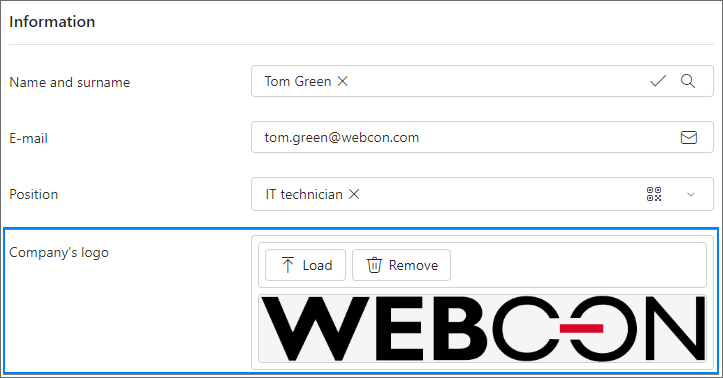
Image
The Image field allows you to add a logo or picture to the form, e.g. an employee's photo. You can add a picture in one of three ways: by selecting a file from disk, by dragging it onto the picture field (drag-and-drop), or by pasting it from the clipboard with the "Ctrl + V" keyboard shortcut.
Properties
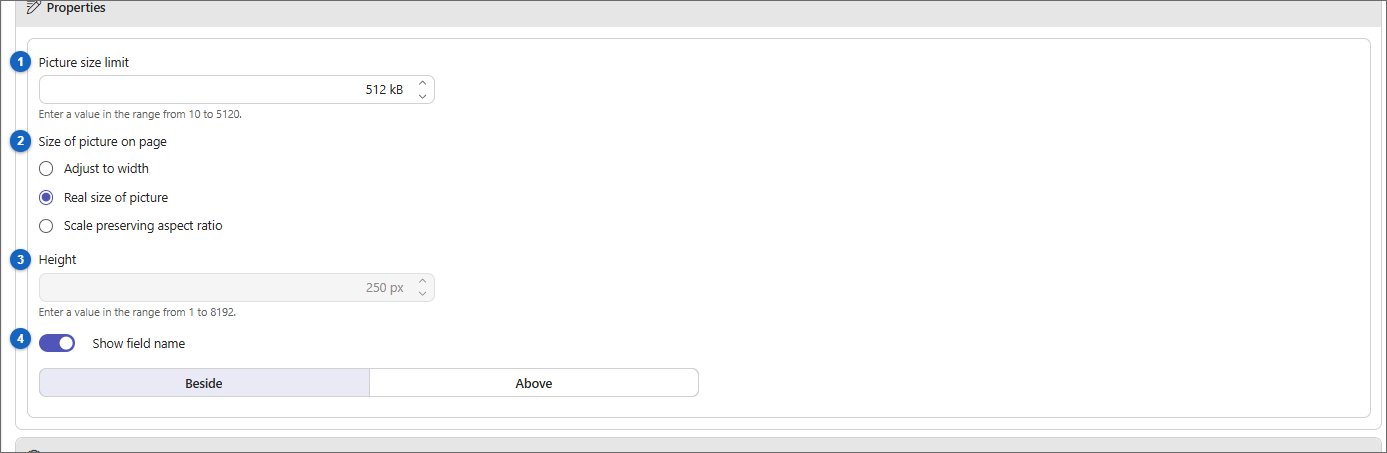
1. Picture size limit
The maximum size of a picture that can be added, expressed in kB. The default is 512 kB, with an allowed range of 10 to 5120 kB.
2. Size of picture on page
Defines how the picture is displayed on the form: Adjust to width, Real size of picture (the default option), or Scale preserving aspect ratio.
3. Height
The target height of the picture in pixels, in the range of 1 to 8192. This field is only active when Scale preserving aspect ratio is selected in the Size of picture on page field.
4. Show field name
A switch (on by default) that controls whether the field name is displayed on the form. When enabled, you can also choose the position of the name relative to the picture: Beside (the default option) or Above.
For more information about the Image form field, read the Picture form field article on the WEBCON Community website.
Example