HTML
The HTML attribute lets you place custom elements written in HTML markup on the form – such as buttons, custom choice fields, or a custom presentation of form data. Its configuration lets you define the code independently for edit mode and for read-only mode – the attribute supports any HTML tags, though the most effective approach is to use it together with JavaScript-mode form rules.
The application designer takes full responsibility for the functionality, performance, and security of the embedded HTML code – incorrect code can affect the appearance and behavior of other form elements, as well as its readability on mobile devices.
Additional information on the HTML attribute is available on the following WEBCON Community pages:
Properties
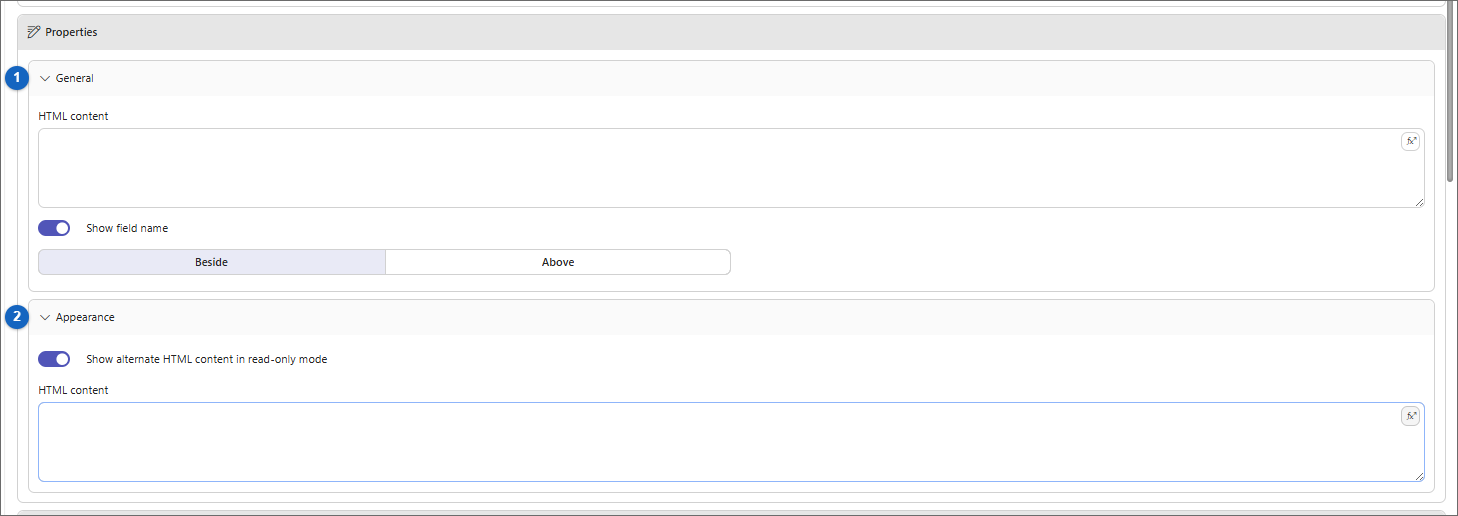
1. General
-
HTML content – lets you enter the HTML code displayed on the form in edit mode. An example code that adds a button:
<div style="text-align: right;"><button style="background-color:#ffb74d;" onclick="">Button text</button></div> -
Show field name – a switch that lets you specify whether the field name is displayed. Checking it activates a choice of where the name is placed:
Option Description Beside The field name is displayed next to the HTML content Above The field name is displayed above the HTML content
2. Appearance
-
Show alternate HTML content in read-only mode – a switch that lets you display different content when the attribute is marked as read-only. Checking it activates a second HTML content field, where you can define the HTML code displayed in read-only mode.
If this field is left empty and the attribute is set to read-only, the HTML attribute is not displayed on the form.
Usage example
Adding a custom button:
