System configuration
System configuration is the area of Designer Studio where the administrator defines settings that apply to the entire WEBCON platform, regardless of applications and processes. These include the global parameters of the environment, user synchronization with a directory service, interface languages, the ways users sign in, Portal security, and the settings of AI-based features.
What it is for
The settings available in this area affect the operation of the whole system rather than a single application. They allow you to:
- define the basic parameters of the environment, such as substitution handling, integrations with external services, or mobile application security,
- configure retrieving users and groups from Microsoft Entra ID, Active Directory, or an LDAP server, and the schedule of this synchronization,
- manage interface language packs and set the system language,
- specify the authentication providers users sign in to Designer Studio and Portal with,
- adjust Portal security to the security requirements of your organization,
- select the AI engine and specify the availability of AI features in the system.
Changes made in System configuration apply to all users and applications in the given environment. Some of them (e.g. deactivating an authentication provider or changing the logout behaviour) may prevent users from signing in to the system, so before saving them, make sure the new configuration is correct.
Where to find it
To open System configuration, click the System configuration button in the top-right corner of the Designer Studio home page. This displays a view consisting of a side panel and a working area that shows the configuration of the selected node.
The System configuration side panel lists the configuration nodes. You can collapse the panel with the arrow next to its name and change its width by dragging the right edge of the panel. To return to the home page, click the Designer Studio logo in the top bar.
Working with the settings
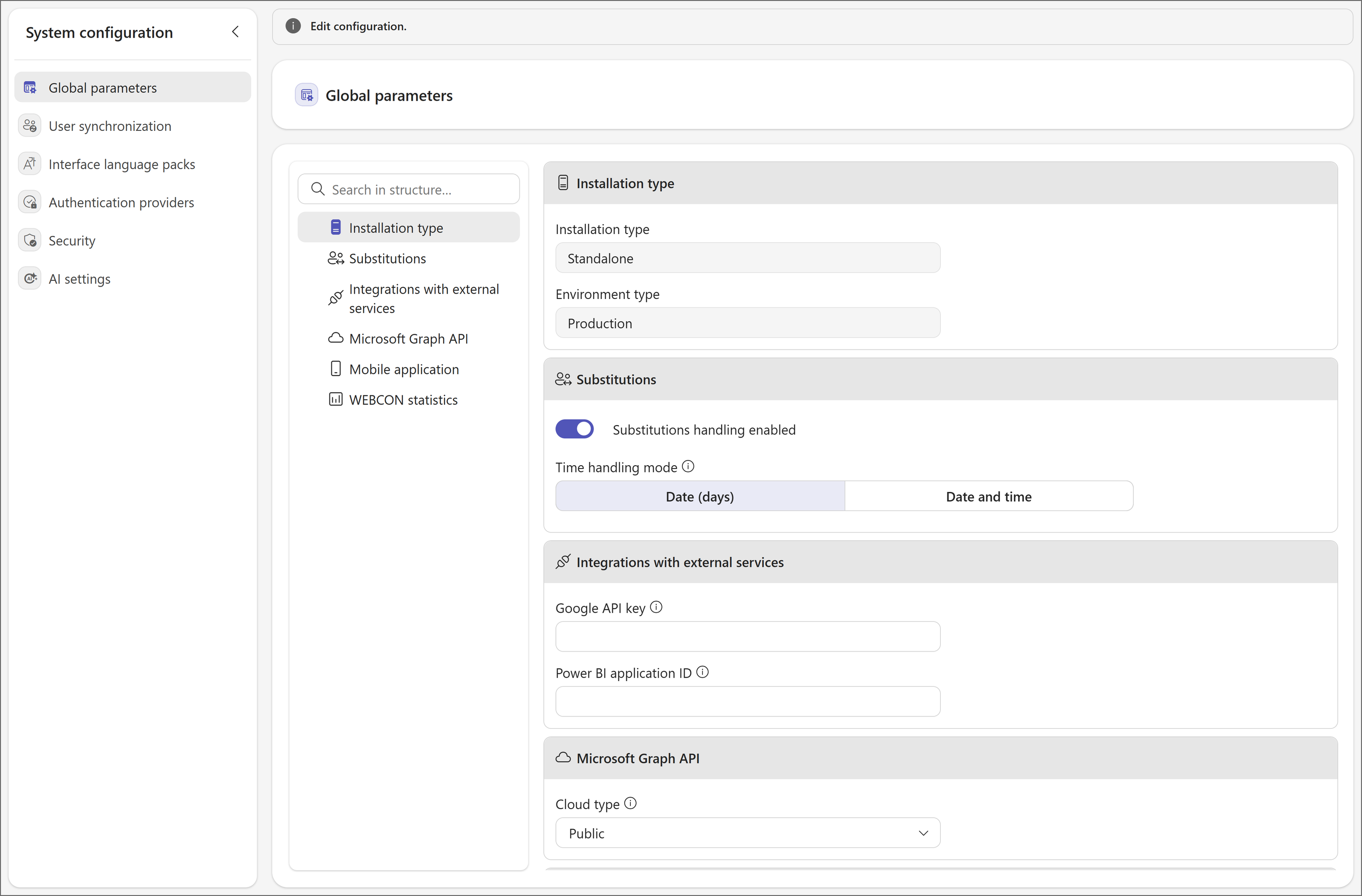
Screens with an extensive configuration (e.g. Global parameters, User synchronization, Security, and AI settings) are divided into sections. On the left side of the working area, a structure tree is displayed that lets you quickly go to a selected section – clicking its name scrolls the view to the right place. The Search in structure... field above the tree lets you find a section by name.
The Edit configuration. message is displayed above the working area, indicating that settings can be changed directly on the screen. After you change any setting, the message is replaced with the You have unsaved changes. bar with the following buttons:
- Save – saves the changes made to the system configuration,
- Cancel – discards the changes and restores the last saved configuration.

The Save button is inactive when the form contains errors, e.g. when a required field has not been filled in (required fields are marked with an asterisk, and empty ones with a red border and the Field is required message).
Many fields have an information icon (ⓘ). Clicking it displays a tooltip describing how the given setting works.
Configuration nodes
System configuration is divided into the following nodes:
| Node | Description |
|---|---|
| Global parameters | Basic parameters of the environment: installation type, substitutions, integrations with external services (Google Maps, Power BI), the Microsoft Graph API cloud type, mobile application settings, and WEBCON statistics. |
| User synchronization | Configuration of retrieving users and groups from an external source, mapping of additional properties, the synchronization schedule, and running synchronization manually. |
| Interface language packs | The system language, the notification language for new users, and the list of language packs available in Portal. |
| Authentication providers | Configuration of the ways to sign in to Designer Studio and Portal: Admin Access, Windows Active Directory, Microsoft Entra ID, ADFS, SAML2, and OpenID Connect. |
| Security | Trusted domains, additional response headers, CSRF protection, logout behaviour, token and cookie lifetime, and additional authentication methods. |
| AI settings | Selection of the AI engine and the availability of AI features: the AI assistant in Designer Desk, AI Concierge in Portal, and translations. |
System configuration settings correspond to the System configuration node in Legacy Designer Studio. Some of the settings available in Legacy Designer Studio (e.g. service configuration, HotFolders, or HotMailBoxes) are not available in System configuration in Designer Studio.