Global parameters
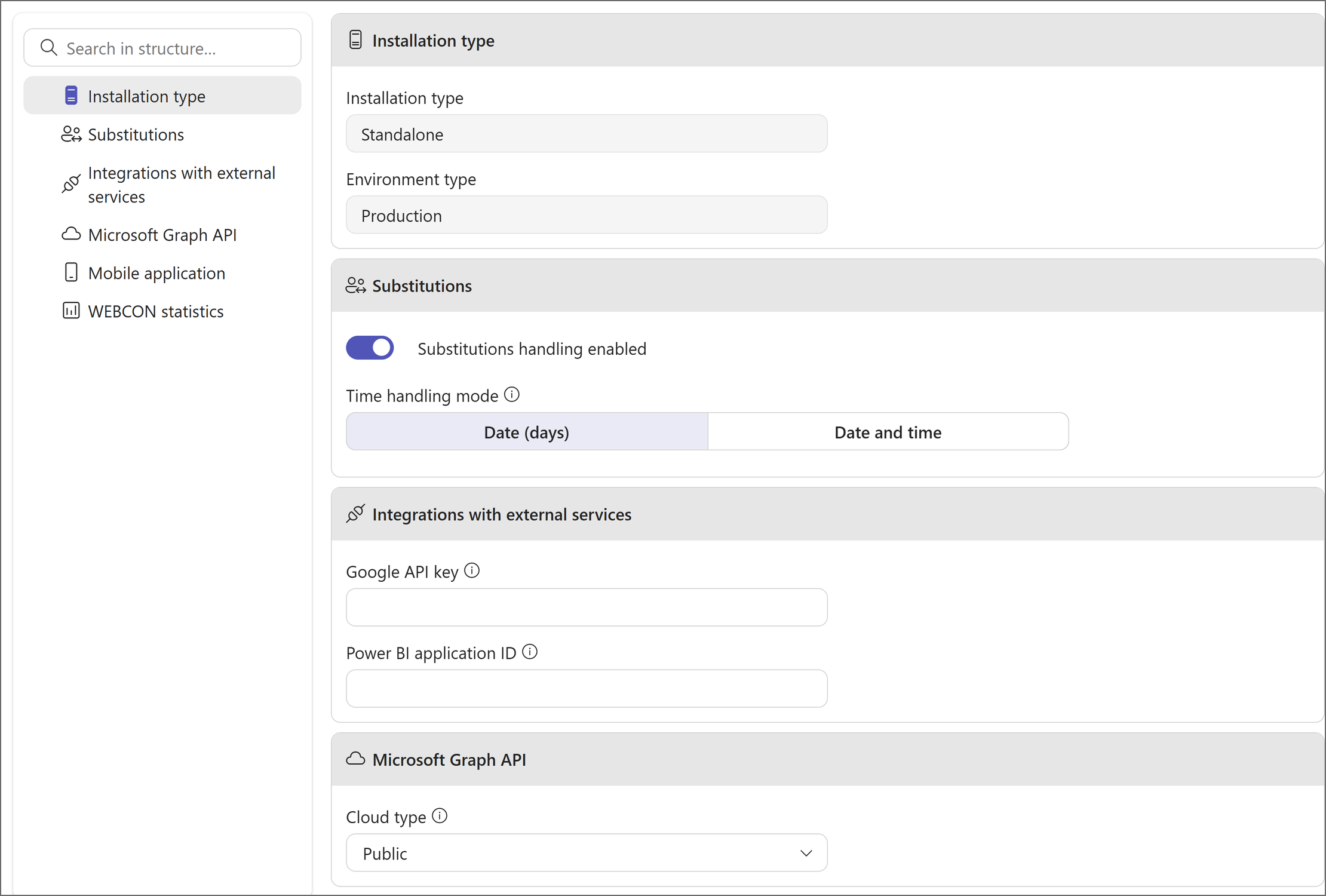
The Global parameters node contains basic settings that apply to the entire WEBCON system. The settings are grouped into sections visible in the structure tree on the left side of the working area: Installation type, Substitutions, Integrations with external services, Microsoft Graph API, Mobile application, and WEBCON statistics.
Installation type
This section is informational – its fields are read-only and show the parameters specified during system installation.
| Field | Description |
|---|---|
| Installation type | The type of the WEBCON platform installation, e.g. Standalone. |
| Environment type | The type of environment the system runs on, e.g. Production. The environment type corresponds to the environment badge displayed in the Designer Studio top bar. |
Substitutions
This section lets you enable the substitution mechanism, which allows users to specify people who take over their tasks during their absence.
- Substitutions handling enabled – the switch enables or disables substitution handling in the system. When the switch is off, the remaining settings of the section are inactive.
- Time handling mode – specifies how the validity period of substitutions is displayed and handled:
| Option | Description |
|---|---|
| Date (days) | Substitutions are defined with an accuracy of one day. |
| Date and time | Substitutions are defined with an accuracy of a date and an hour. |
In Legacy Designer Studio, switching to the day mode irreversibly converted the dates of existing substitutions to day-based dates. Take this effect into account before changing the time handling mode in an environment where substitutions have already been defined.
Integrations with external services
This section contains the application identifiers required to work with external services.
Google API key
The key is required for the Google Maps form field to work correctly. To obtain a Google API key, follow Google's instructions and then enter the obtained key in this field.
Power BI application ID
For Power BI reports embedded in Portal to work correctly, a valid Application ID must be provided. To obtain it, register Portal in Microsoft Entra ID – using the Power BI App Registration Tool or directly in the Azure portal. During registration:
- enter an address in the form
<portal address>/powerbiredirectas the Redirect URL, e.g.https://webcon.com/WEBCONBPS/powerbiredirect, - enable Access tokens in the Authentication configuration of the registered application.
Full instructions for registering the application are available in the Microsoft documentation.
Microsoft Graph API
The Cloud type field specifies the type of the Microsoft cloud the system connects to. The selected cloud type determines the Microsoft Graph API parameters used when integrating WEBCON with Microsoft Cloud services, which includes:
- authentication using Microsoft Entra ID,
- user and group synchronization,
- integration with Exchange Online (e-mail notifications, administrative notifications, HotMailBoxes, MailApproval, dedicated actions),
- integration with OneDrive,
- built-in Microsoft Graph authentication.
| Option | Authentication service URL | Microsoft Graph API URL |
|---|---|---|
| Public | https://login.microsoftonline.com | https://graph.microsoft.com |
| Government Community Cloud | https://login.microsoftonline.com | https://graph.microsoft.com |
| Government Community Cloud High | https://login.microsoftonline.us | https://graph.microsoft.us |
Mobile application
Security level
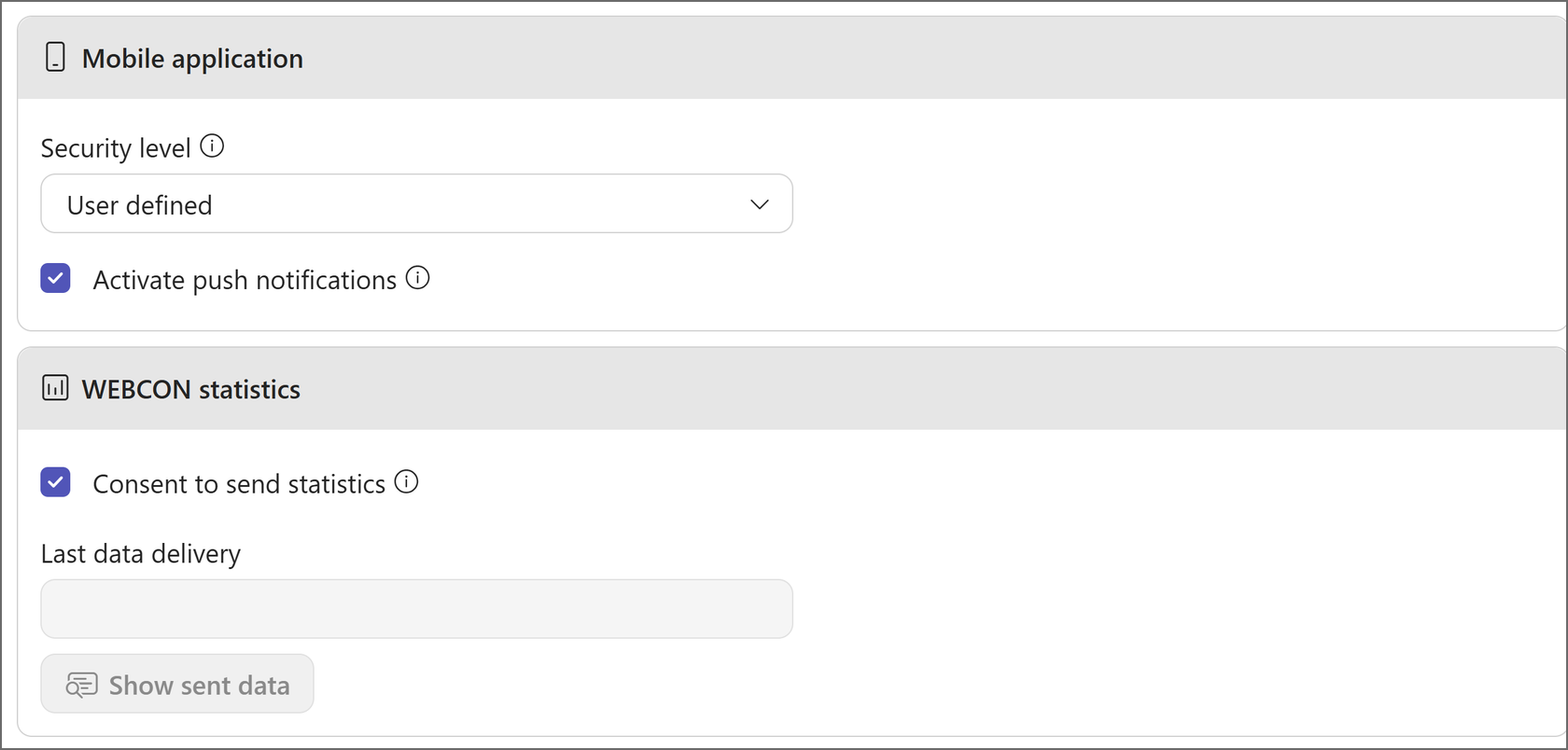
The parameter specifies the minimum security level of the WEBCON application on a mobile device:
| Option | Description |
|---|---|
| User defined | The security level of the application is not imposed and depends on the configuration set by the application user (no security is possible). |
| Application must be secured with a PIN code | To use the application on a mobile device, a PIN code must be entered when starting it. |
Activate push notifications
The checkbox enables PUSH notifications for mobile devices. When it is selected, WEBCON WorkFlow Service sends PUSH notifications to the mobile devices on which the user has configured notifications for their profile. Notifications are sent when the number of tasks assigned to the user changes (e.g. when a new task is created).
For a service to handle PUSH notifications, the Basic functionality service role must be enabled for it in the service configuration.
PUSH notifications for iOS require WEBCON WorkFlow Service to run on a server with Windows Server 2016 or later.
WEBCON statistics
This section lets you manage the automatic sending of statistical data on the use of platform features within the given installation to WEBCON. The data is used for analytical purposes – to improve products and optimize the solutions used.
| Element | Description |
|---|---|
| Consent to send statistics | Enables sending statistical data (selected by default). The data is sent periodically in an aggregated form that does not allow identifying end users and their devices, names of configuration elements, or file contents. |
| Last data delivery | The date and time the data was last sent to WEBCON (read-only). |
| Show sent data | Displays a summary of the data sent to WEBCON. The button is active once data has been sent. |
With the Freemium Edition license, sending statistical data is always enabled and the Consent to send statistics field cannot be edited.