User synchronization
The User synchronization node lets you configure retrieving users and groups from an external directory service to the WEBCON system. Synchronized users and groups can then be used in applications, e.g. as task assignees or in permission configuration.
The screen consists of the Users and groups synchronization header and the configuration sections: Synchronization source, Credentials, Mapping, Schedule, and Advanced. The look of the sections depends on the synchronization source – the description below applies to the Microsoft Entra ID source.
Running synchronization
The header shows the Next synchronization date field – the date of the next synchronization resulting from the schedule (if the schedule contains no start times, Not scheduled is displayed).
You can run synchronization manually at any time with the Synchronize button. It expands a menu with two groups of commands: Run now and Run in debug mode.
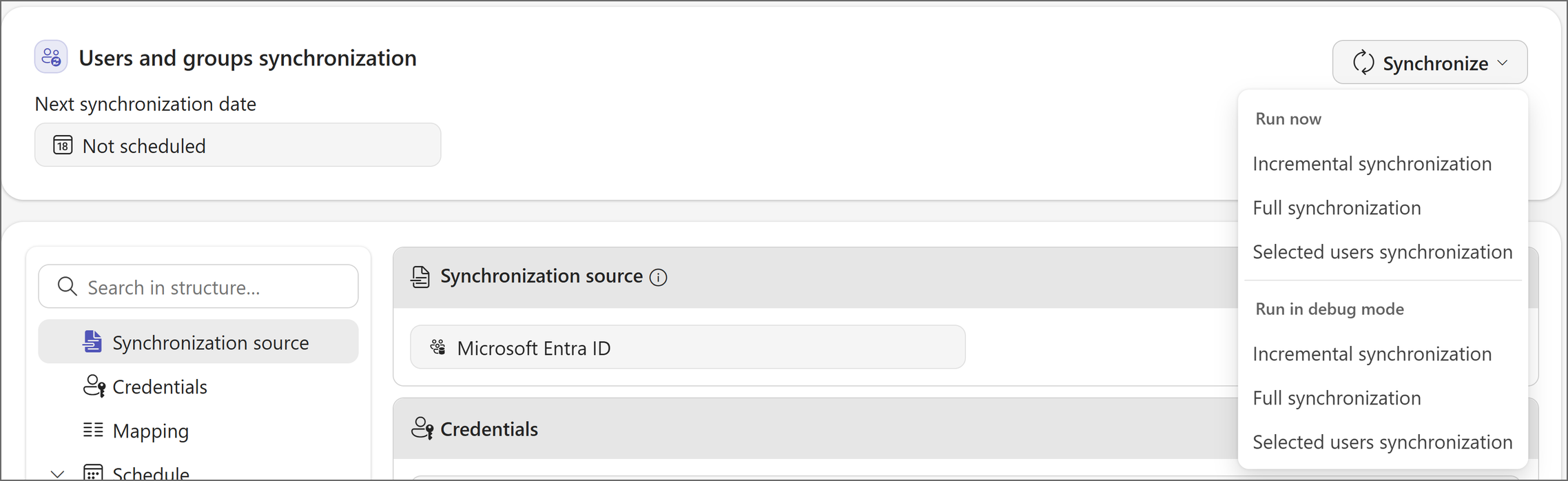
| Command | Description |
|---|---|
| Incremental synchronization | Data about groups and users is updated incrementally – only the data of objects whose properties have changed since the last synchronization is updated. Incremental synchronization also updates the state of added or deleted objects. For performance reasons, this mode is recommended as the default. |
| Full synchronization | Complete data about all groups and users is retrieved and updated, regardless of whether it has changed since the last synchronization. Full synchronization can take much longer than incremental synchronization, so it should be run only when justified. |
| Selected users synchronization | Synchronizes a single user specified in the Synchronization window. |
The commands in the Run in debug mode group work the same way, but additional diagnostic information is written to the log during synchronization. Debug mode lets you analyze the synchronization in detail and should be used for diagnostic purposes only, as it may extend the synchronization time.
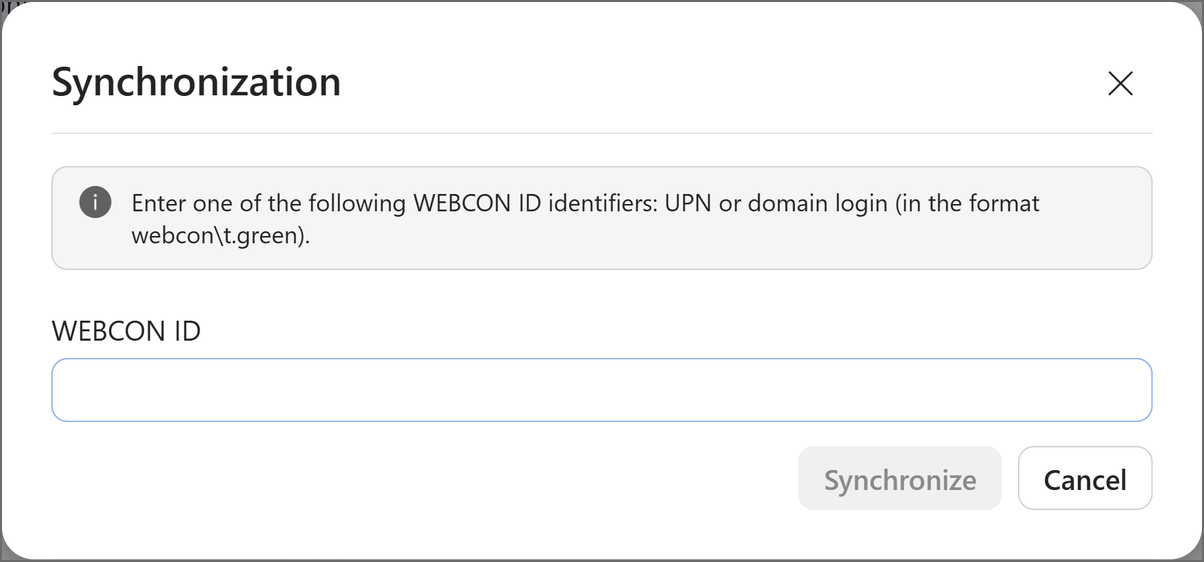
When you select Selected users synchronization, the Synchronization window opens. In the WEBCON ID field, enter one of the user identifiers: UPN or domain login (in the format webcon\t.green), and then click Synchronize.
Synchronization source
The field shows the source users and groups are retrieved from. The source is selected during system installation and cannot be changed in Designer Studio – use the WEBCON installer for this purpose.
| Source | Description |
|---|---|
| Local Active Directory | The standard Active Directory service, also called "on-premises" Active Directory. |
| Microsoft Entra ID | The directory service maintained in the Microsoft Azure environment. |
| LDAP server | A custom LDAP service. |
| None | External users are not synchronized. |
Additional information on changing the synchronization source can be found in the article Changing the user synchronization provider available on the technical blog.
Credentials
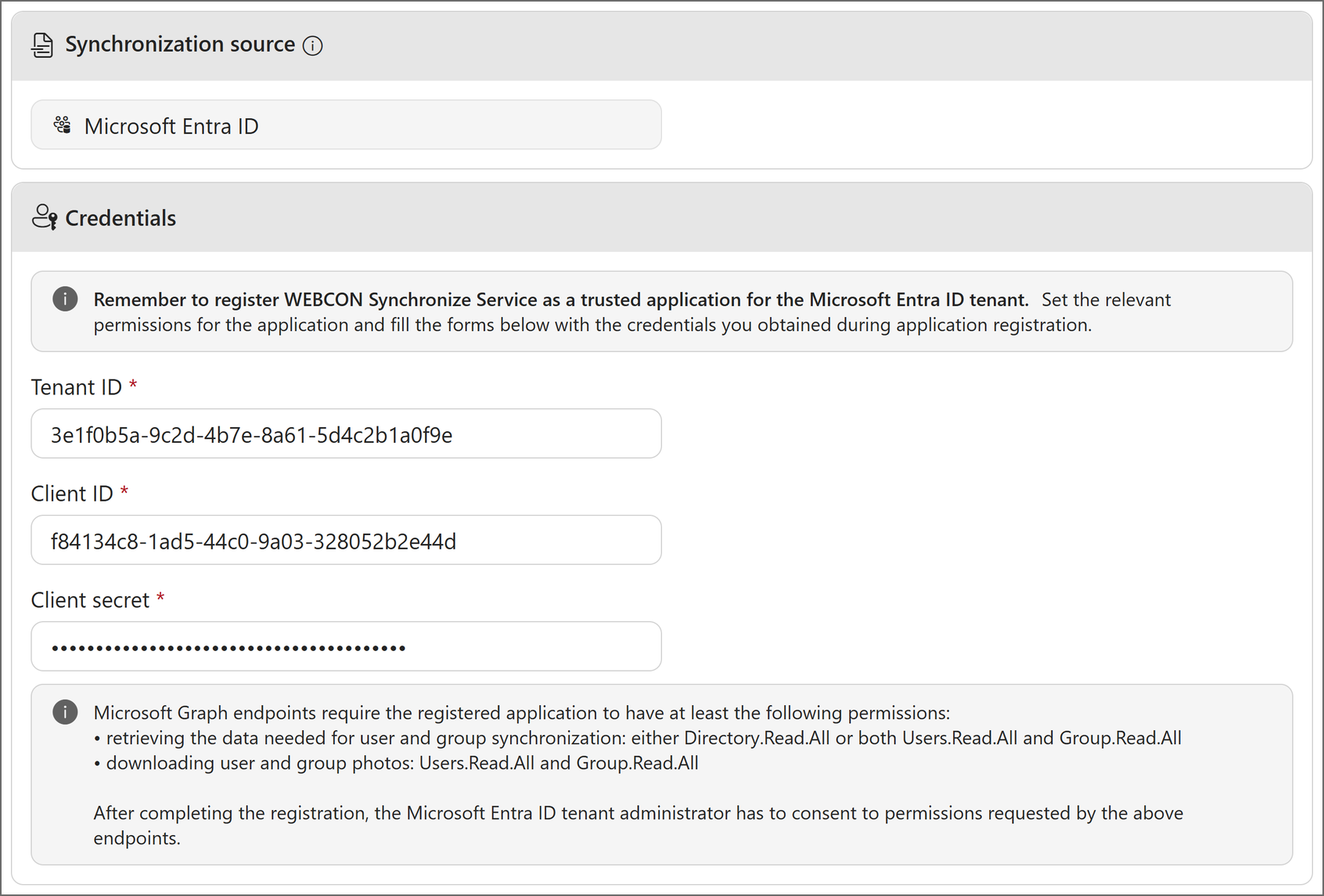
This section contains the data WEBCON Synchronization Service uses to connect to Microsoft Entra ID. Before entering it, register WEBCON Synchronization Service as a trusted application in the Microsoft Entra ID tenant configuration and grant it the appropriate permissions.
| Field | Description |
|---|---|
| Tenant ID | The identifier of the Microsoft Entra ID tenant in which the application is registered. |
| Client ID | The identifier of the application registered in Microsoft Entra ID. |
| Client secret | The client secret passed together with the Client ID. It is used to authenticate the application and has a limited validity period. |
Microsoft Graph endpoints require the registered application to have at least the following permissions:
- retrieving the data needed for user and group synchronization: either Directory.Read.All or both Users.Read.All and Group.Read.All,
- downloading user and group photos: Users.Read.All and Group.Read.All.
After completing the registration, the Microsoft Entra ID tenant administrator has to consent to the permissions requested by the above endpoints.
Mapping
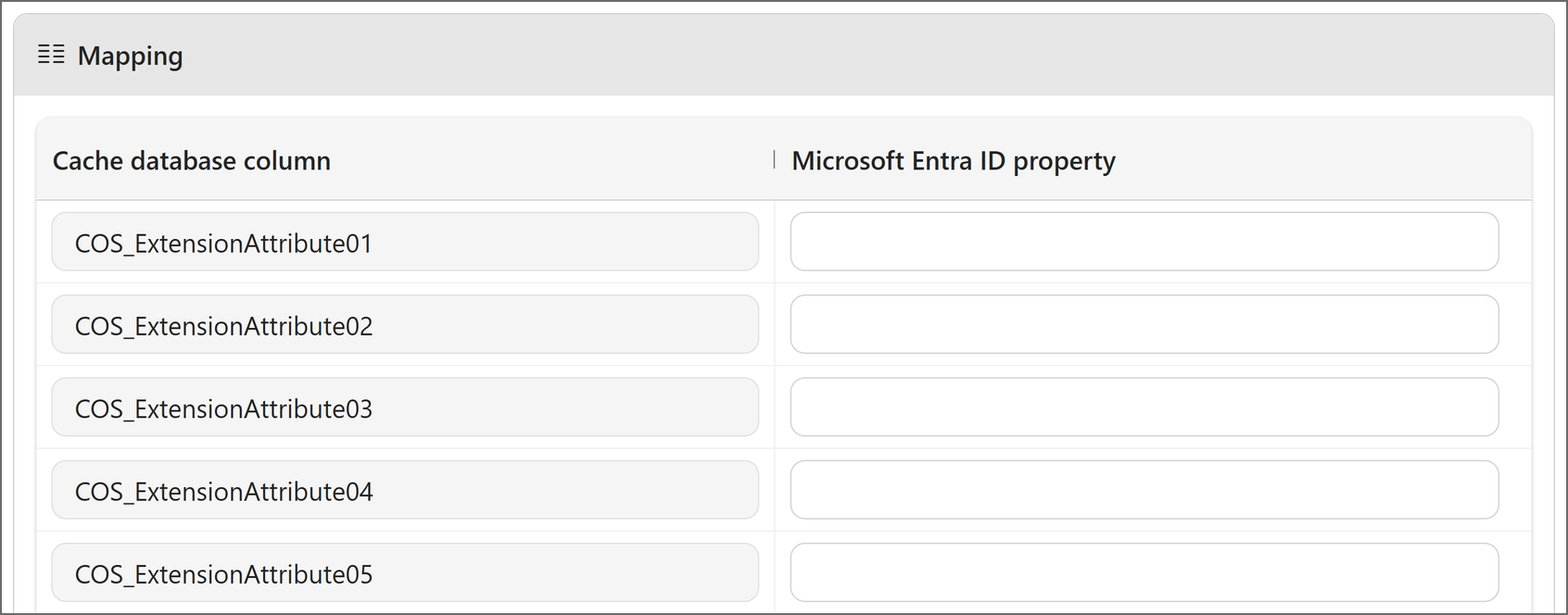
This section lets you store additional properties of synchronized users in the WEBCON database. The list contains 30 cache database columns (from COS_ExtensionAttribute01 to COS_ExtensionAttribute30). For a selected column, enter the name of the object property whose value is to be stored in it in the Microsoft Entra ID property field.
Schedule
This section lets you specify the times when synchronization runs automatically. To keep the data on the WEBCON platform up to date, synchronization should run several times a day. All times must be given in the database time zone.
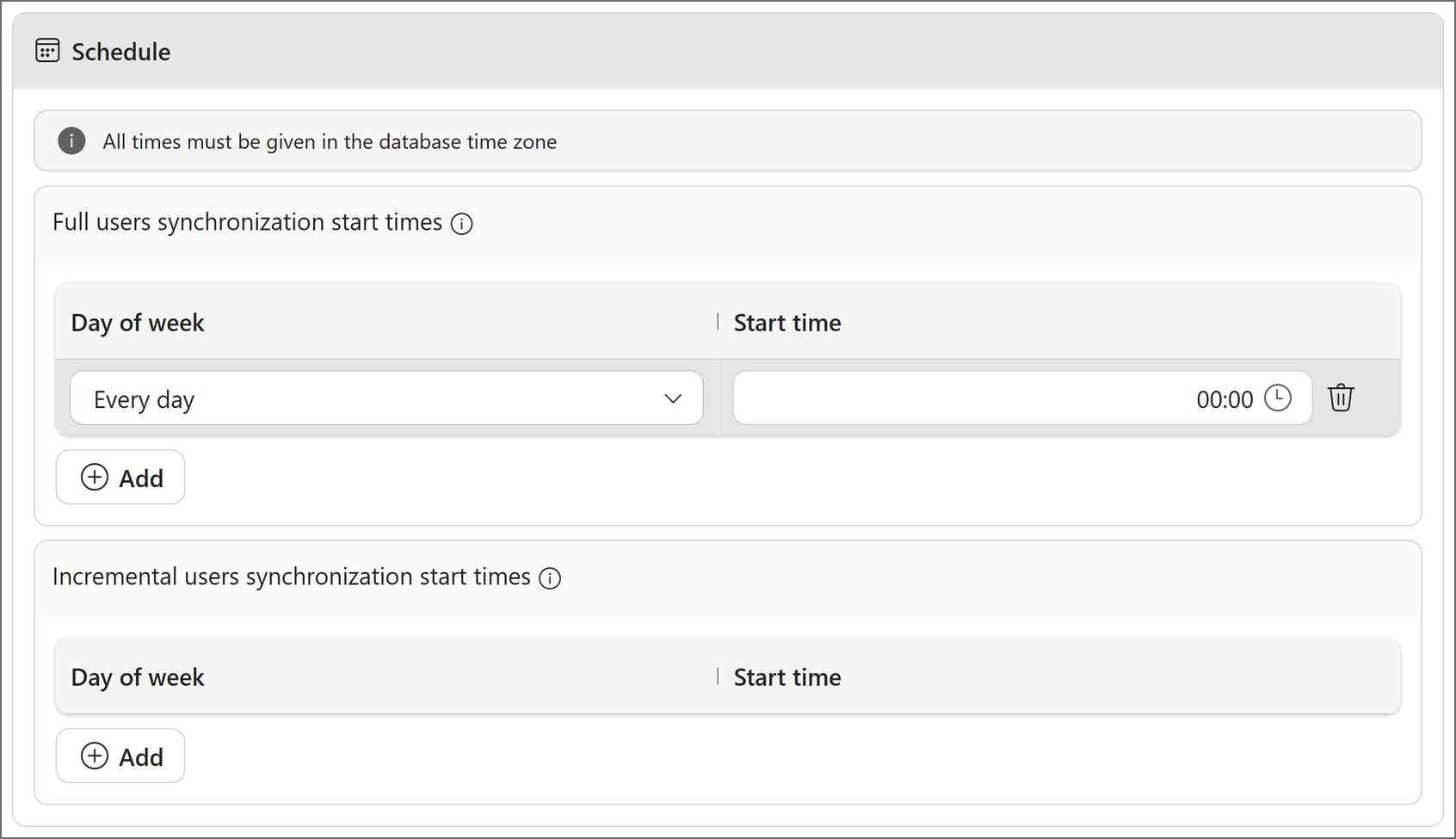
The schedule consists of two lists:
- Full users synchronization start times – start times of full synchronization,
- Incremental users synchronization start times – start times of incremental synchronization (the mode recommended as the default).
To add a start time, click Add, and then in the new row select the Day of week (Every day or a specific day) and specify the Start time. To delete a start time, click the trash icon at the end of the row.
Advanced
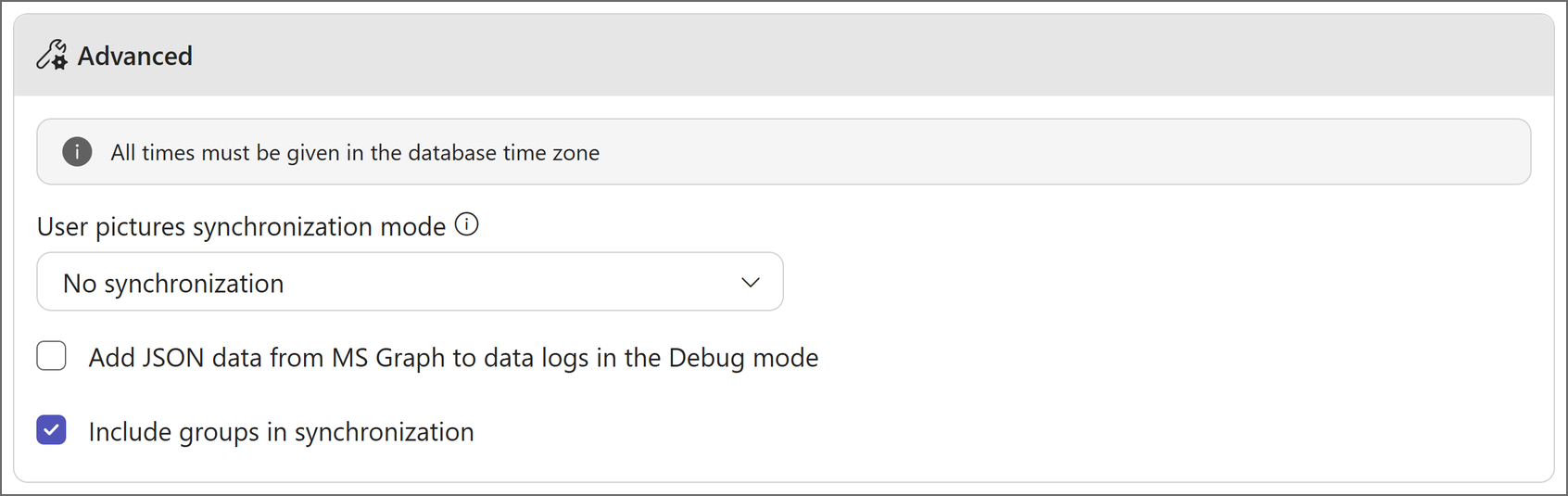
User pictures synchronization mode
The field specifies whether and when user profile pictures are synchronized. Synchronization covers only the pictures of users for whom changes were detected during synchronization.
| Option | Description |
|---|---|
| No synchronization | User synchronization does not include picture synchronization. |
| After user synchronization | Pictures are synchronized immediately after user synchronization is completed. |
| Schedule | Pictures are synchronized at scheduled times. When this option is selected, a list of start times for picture synchronization is displayed, in which times are defined the same way as in the Schedule section. |
Additional options
- Add JSON data from MS Graph to data logs in the Debug mode – when selected, JSON data retrieved from Microsoft Graph is added to the logs of synchronization run in debug mode, which makes it easier to analyze and identify potential problems.
- Include groups in synchronization – when selected, synchronization covers groups in addition to users.
Additional information on integration with Microsoft Entra ID can be found in the article Integration with Microsoft Entra ID available on the technical blog.