Security
The Security node lets you configure Portal security and the lifetime of tokens and cookies, and specify additional authentication methods for users. The available settings let you adjust Portal behaviour to the security requirements of your organization.
The settings are divided into three sections visible in the structure tree: Communication security, Access, and Additional authentication methods.
Communication security
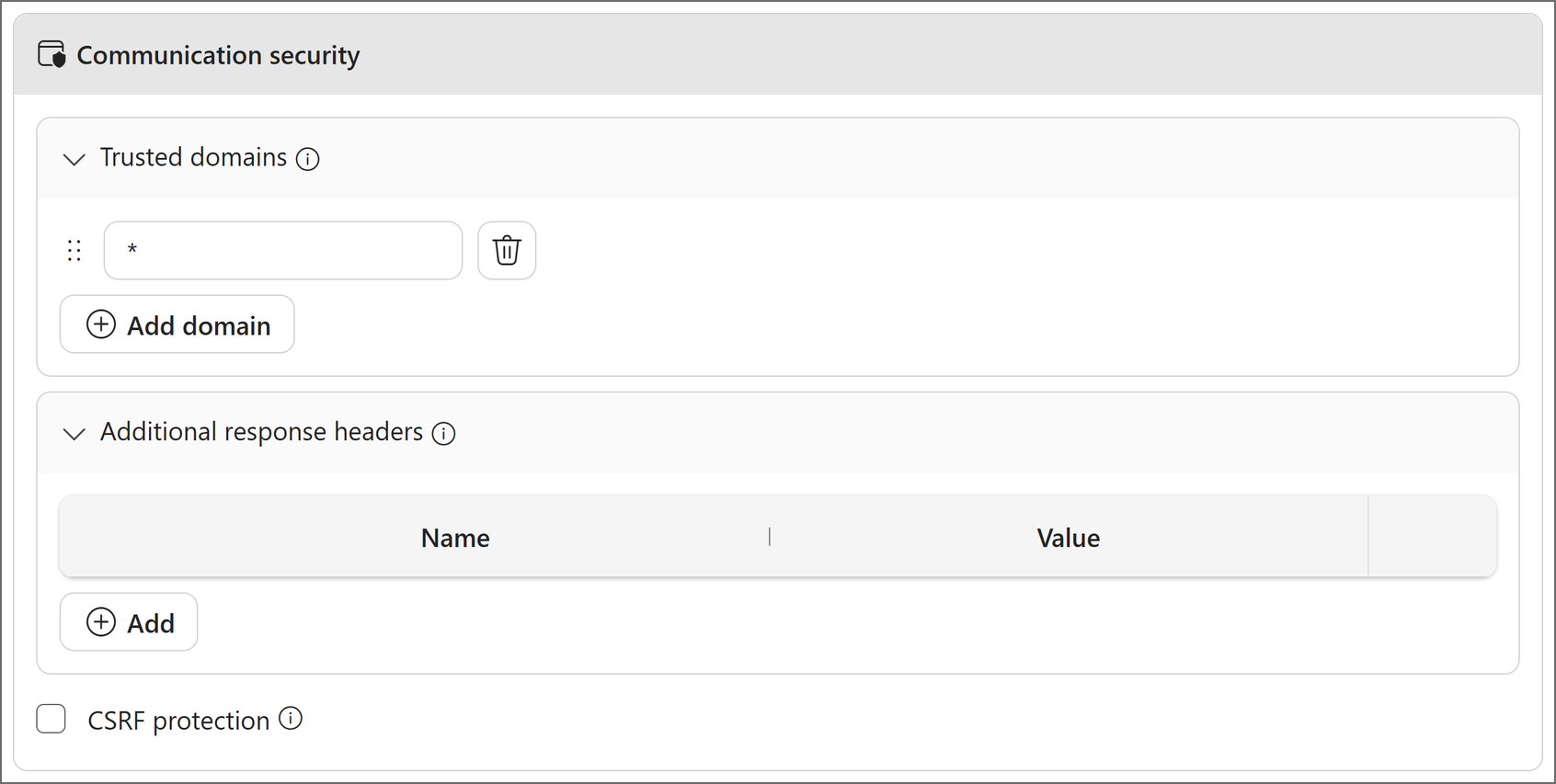
Trusted domains
The list of trusted domains in whose websites Portal elements can be embedded. Portal elements embedded in websites from domains outside this list are not displayed in the browser. To add a domain, click Add domain; to remove one, click the trash icon next to it. You can change the order of domains by dragging them by the handle on the left.
To embed Portal in Microsoft Teams and Microsoft Outlook, add the following entries to the trusted domains:
https://*.office365.comhttps://*.office.comhttps://*.microsoft.com
If the Content-Security-Policy header is configured with the frame-ancestors directive, the list of trusted domains is added to the domains defined in that header. The exception is the * entry, which in that case no longer applies.
The feature does not work in Internet Explorer – Portal elements are always displayed in it, even if the website domain is not on the list of trusted domains.
Additional response headers
The table lets you define additional HTTP headers added to every Portal response, which allows you to adjust its behaviour to specific security requirements. To add a header, click Add and fill in its Name and Value. The Content-Security-Policy header is merged with the trusted domain values.
Additional information on HTTP headers can be found in the article HTTP headers in WEBCON available on the technical blog.
CSRF protection
Selecting the checkbox enables protection against the Cross Site Request Forgery (CSRF, XSRF) vulnerability. The mechanism verifies the Origin and Referer headers in POST requests made from the user's browser. Correctly configured protection secures all endpoints where users are authenticated based on cookies provided by the browser; in endpoints where authentication is token-based, checking these headers is skipped.
Access
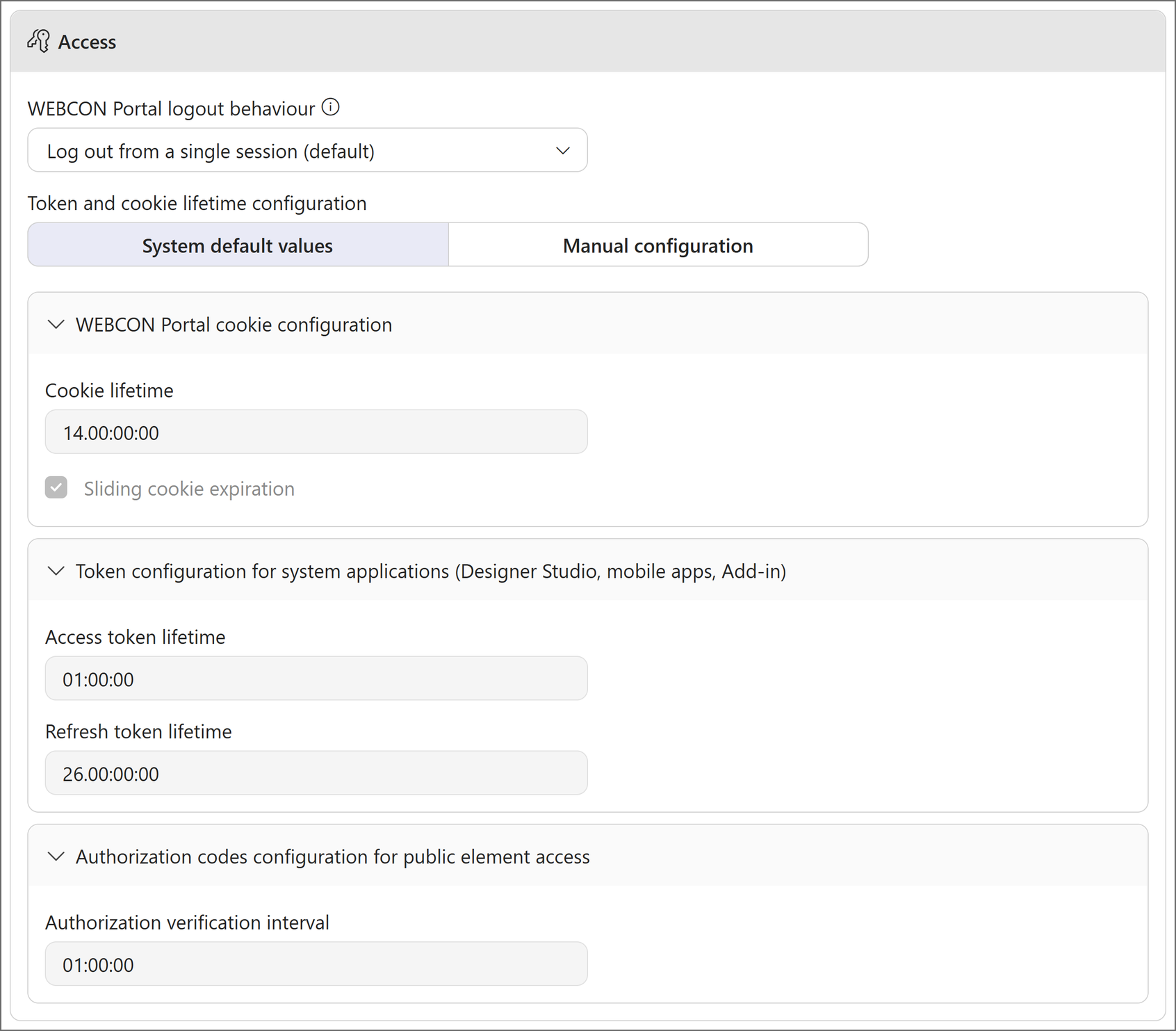
WEBCON Portal logout behaviour
The field specifies which logout options users have in the Portal user menu:
| Option | Description |
|---|---|
| Log out from a single session (default) | The user menu contains the Log out button that signs the user out of the current session. |
| Log out from all sessions | The user menu contains the Log out button (signing out of the current session) and the Log out everywhere button (signing out of all user sessions on all devices). |
| Force logging out from all sessions | The user menu contains only the Log out everywhere button that signs the user out of all sessions on all devices. |
Additional information on signing out of all sessions can be found in the article Log out everywhere available on the technical blog.
Token and cookie lifetime configuration
The switch lets you choose whether the lifetime of tokens and cookies is determined by the system or manually:
| Option | Description |
|---|---|
| System default values | Predefined system values apply – the fields in the sections below are read-only and show the default values. |
| Manual configuration | User-defined values apply – the fields in the sections below become editable. |
All times are entered in the dd.hh:mm:ss format (days.hours:minutes:seconds).
| Section | Field | Description | Default value |
|---|---|---|---|
| WEBCON Portal cookie configuration | Cookie lifetime | The validity period of Portal cookies. | 14 days (14.00:00:00) |
| Sliding cookie expiration | Automatic extension of cookie validity. If selected, when Portal is accessed after half of the cookie lifetime has passed, a new cookie is issued, valid for the period specified in the Cookie lifetime field. If not selected, the cookie lifetime is not extended. | selected | |
| Token configuration for system applications (Designer Studio, mobile apps, Add-in) | Access token lifetime | The validity period of the access token. | 1 hour (01:00:00) |
| Refresh token lifetime | The validity period of the refresh token. | 26 days (26.00:00:00) | |
| Authorization codes configuration for public element access | Authorization verification interval | The time after which access to an element opened via a received public link must be authorized again. | 1 hour (01:00:00) |
Additional information on authorization codes for public element access can be found in the article Coming soon: public link available on the technical blog.
Additional authentication methods
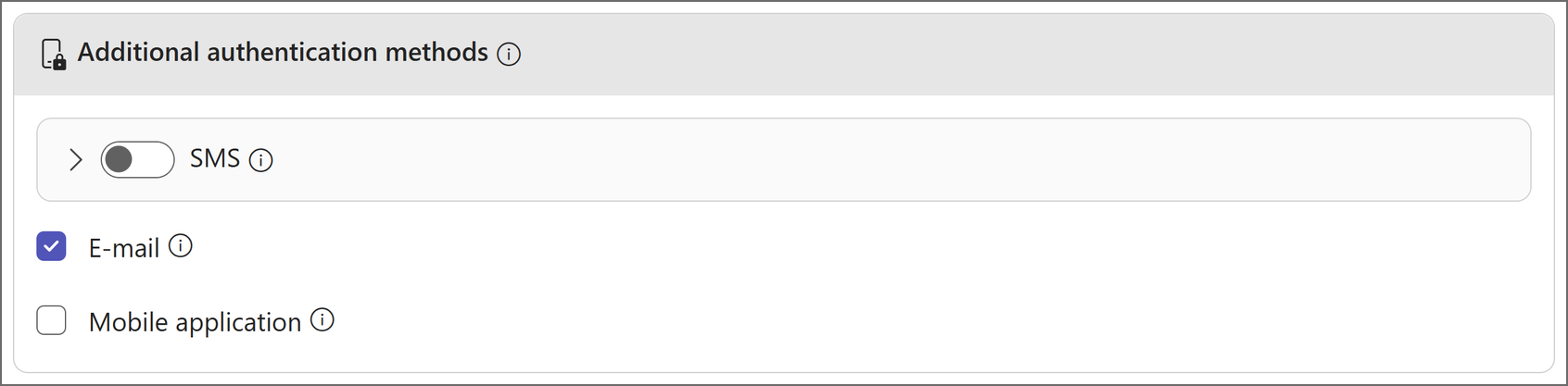
This section lets you specify the additional authentication methods available to users when additional authentication is enabled in the process configuration (authentication of path transitions or of access to confidential form data). At least one method must be active.
| Method | Description |
|---|---|
| SMS | A one-time authorization code is sent to the phone number of the user performing an action that requires additional authentication. The phone number is defined in the user profile – if it is not provided, authentication through this channel is not possible. The user enters the code in a form window to confirm their identity and continue working. |
| A one-time authorization code is sent to the e-mail address of the user performing an action that requires additional authentication. The user enters the code in a form window to confirm their identity and continue working. | |
| Mobile application | A PUSH notification asking to confirm the user's identity is sent to the device with the mobile application installed. The device must have the latest version of the mobile application installed and must be added to trusted devices (trusted devices are configured in the user profile). |
SMS gateway
SMS codes are sent through an SMS gateway configured in Azure Communication Services. After turning on the SMS switch and expanding its section, provide the gateway details:
| Field | Description |
|---|---|
| Endpoint | The endpoint address of the Azure Communication Services resource. |
| Access key | The access key used to authenticate the connection to Azure Communication Services. |
| Sender | The phone number or alphanumeric sender ID configured in Azure Communication Services. The phone number must be in the E.164 format. The alphanumeric ID can contain up to 11 letters or digits (including at least one letter) and cannot contain spaces. |
All gateway fields are required – until they are filled in, error messages are displayed above them and the changes cannot be saved.
Additional information on SMS notifications can be found in the article Configuring SMS notifications in WEBCON available on the technical blog.