Authentication providers
The Authentication providers node lets you configure the ways users sign in to Designer Studio and Portal. Each provider corresponds to one authentication service (e.g. Microsoft Entra ID or an external identity provider supporting the SAML 2.0 protocol) and can be activated independently for Designer Studio and for Portal.
Provider list
The left side of the working area shows the list of provider types: Admin Access, Windows Active Directory, Microsoft Entra ID, ADFS, SAML2, and OpenID Connect. The number next to the type name indicates how many providers of that type have been defined. After you select a type, the list of its providers is displayed on the right.
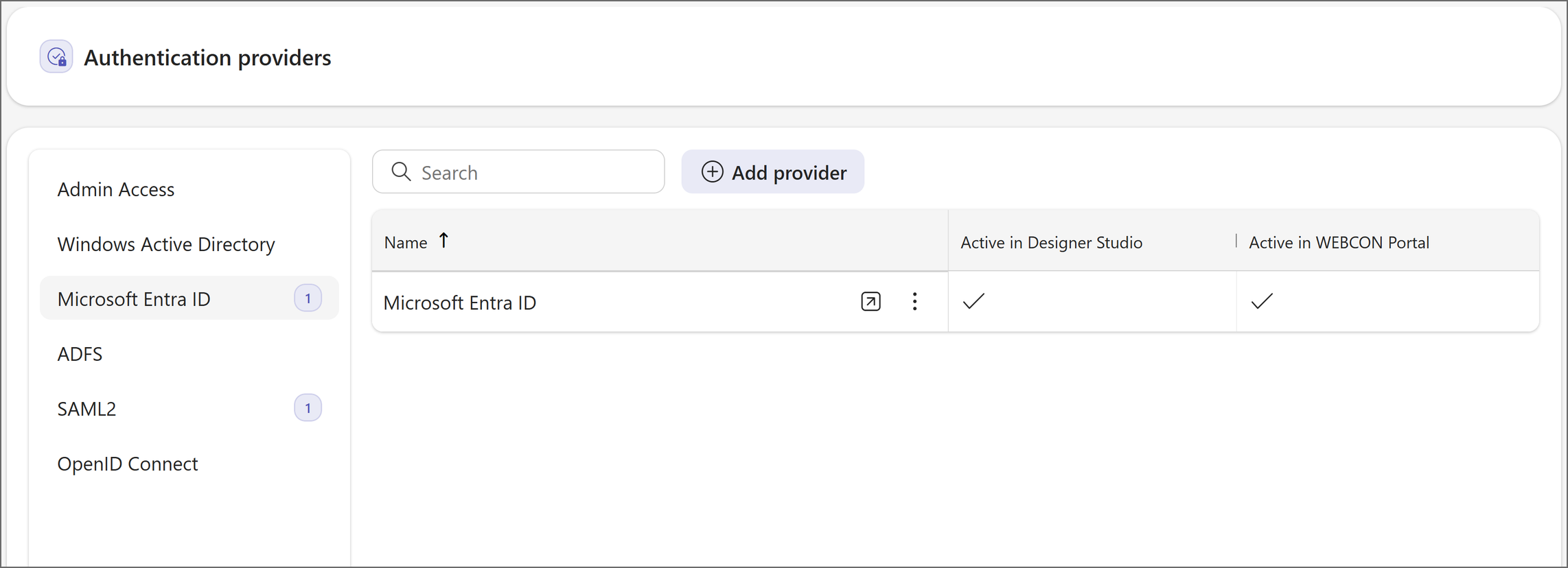
| Element | Description |
|---|---|
| Search | A field that lets you filter providers by name. |
| Add provider | Adds a new provider of the selected type. The button is active for the types that allow defining multiple providers: Microsoft Entra ID, SAML2, and OpenID Connect. The Admin Access, Windows Active Directory, and ADFS providers are built into the system. |
| Name | The provider name. Next to it, the Open configuration in full view and Options (⋮) buttons are available. |
| Active in Designer Studio | Indicates that the provider is available when signing in to Designer Studio. |
| Active in WEBCON Portal | Indicates that the provider is available when signing in to Portal. |
Provider configuration
Clicking Open configuration in full view (or Add provider) opens the provider configuration view. Its header shows the provider type, the provider name, and the GUID (with a button that copies it to the clipboard). You can change the provider name by clicking it in the header – this is the name displayed to users on the sign-in screen when they choose a provider. To return to the list, click Return.
Regardless of the type, the provider configuration contains the following elements:
| Field | Description |
|---|---|
| Active in Designer Studio | Turning the switch on makes the provider active and available for selection when signing in to Designer Studio. |
| Active in WEBCON Portal | Turning the switch on makes the provider active and available for selection when signing in to Portal. |
| Scheme | The unique identifier of the authentication provider. It can only contain letters and numbers. For built-in providers (e.g. Admin Access, Windows Active Directory, ADFS), it is read-only. |
| Logout redirect URL | The address the user is redirected to after signing out of the application. The field is optional – if left empty, the user is redirected to the Portal sign-out page. |
| Don't use proxy | Specifies whether outgoing network connections from Portal to the authentication provider bypass the proxy server defined in the system. If the option is off but no proxy server is defined in the system configuration, connections to the provider are made without a proxy. |
For providers that require it, example values are displayed below the fields (e.g. Example: https://app.company.com), and the information icon next to the Configuration section name contains tips on the configuration on the identity provider side.
Admin Access
The provider lets you sign in to Designer Studio with the global administrator account right after the system installation is completed (it cannot be activated for Portal). This makes it easy to configure system settings and complete the environment configuration – keep in mind, however, that in this case the global administrator does not have permissions to modify processes and applications.
The provider credentials are defined during system installation. The provider uses the BpsAdmin scheme, and its configuration contains the Active switch and the Scheme field (read-only). Signing in with this provider is also recommended in emergency situations.
Windows Active Directory
The provider verifies user credentials in the context of the Windows environment, using the Active Directory directory service. The configuration contains the Active in Designer Studio and Active in WEBCON Portal switches and the Scheme field with the value Ntlm (read-only).
Microsoft Entra ID
The provider authenticates users with the Microsoft Entra ID identity service, enabling access to resources in the Microsoft Azure cloud.
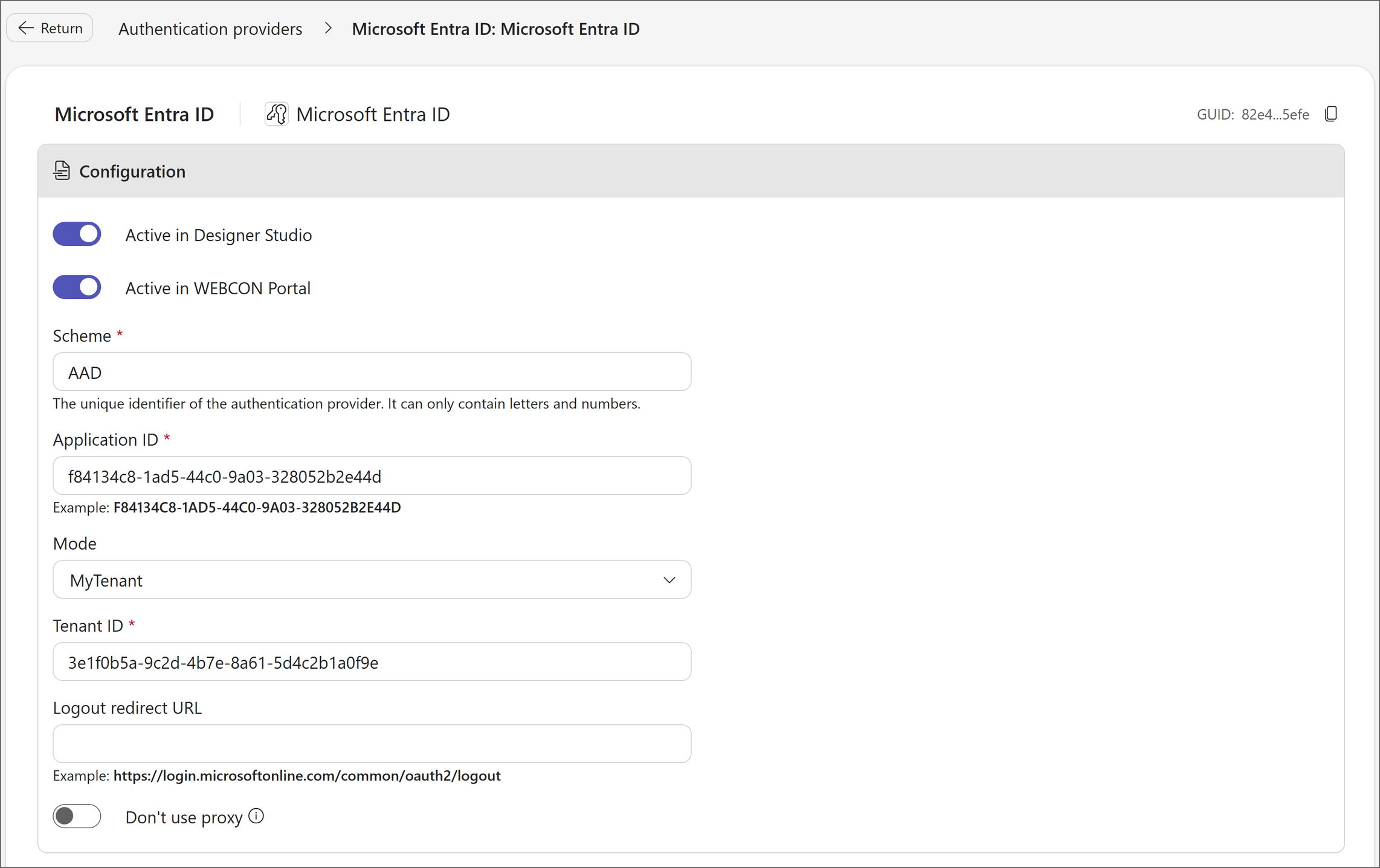
| Field | Description |
|---|---|
| Application ID | The unique identifier of the application obtained after registering it in Microsoft Entra ID (e.g. F84134C8-1AD5-44C0-9A03-328052B2E44D). It is used to uniquely identify the application during authentication. |
| Mode | The scope of tenants within which authentication takes place – see the table below. |
| Tenant ID | The identifier of the Microsoft Entra ID tenant in which the application is registered. It lets Microsoft Entra ID unambiguously determine which tenant an authentication request belongs to. |
| Mode | Description |
|---|---|
| MyTenant | Authentication takes place only within one specified Microsoft Entra ID tenant. |
| MultiTenant | The application supports multiple Microsoft Entra ID tenants, and authentication can take place in the context of any of them. |
Additional information on integration with Microsoft Entra ID can be found in the article Integration with Microsoft Entra ID available on the technical blog.
ADFS
Active Directory Federation Services (ADFS) is a service that enables single sign-on (SSO) in an environment combining on-premises Active Directory with external applications or cloud resources. Configuring the provider requires creating a relying party trust between Portal and AD FS.
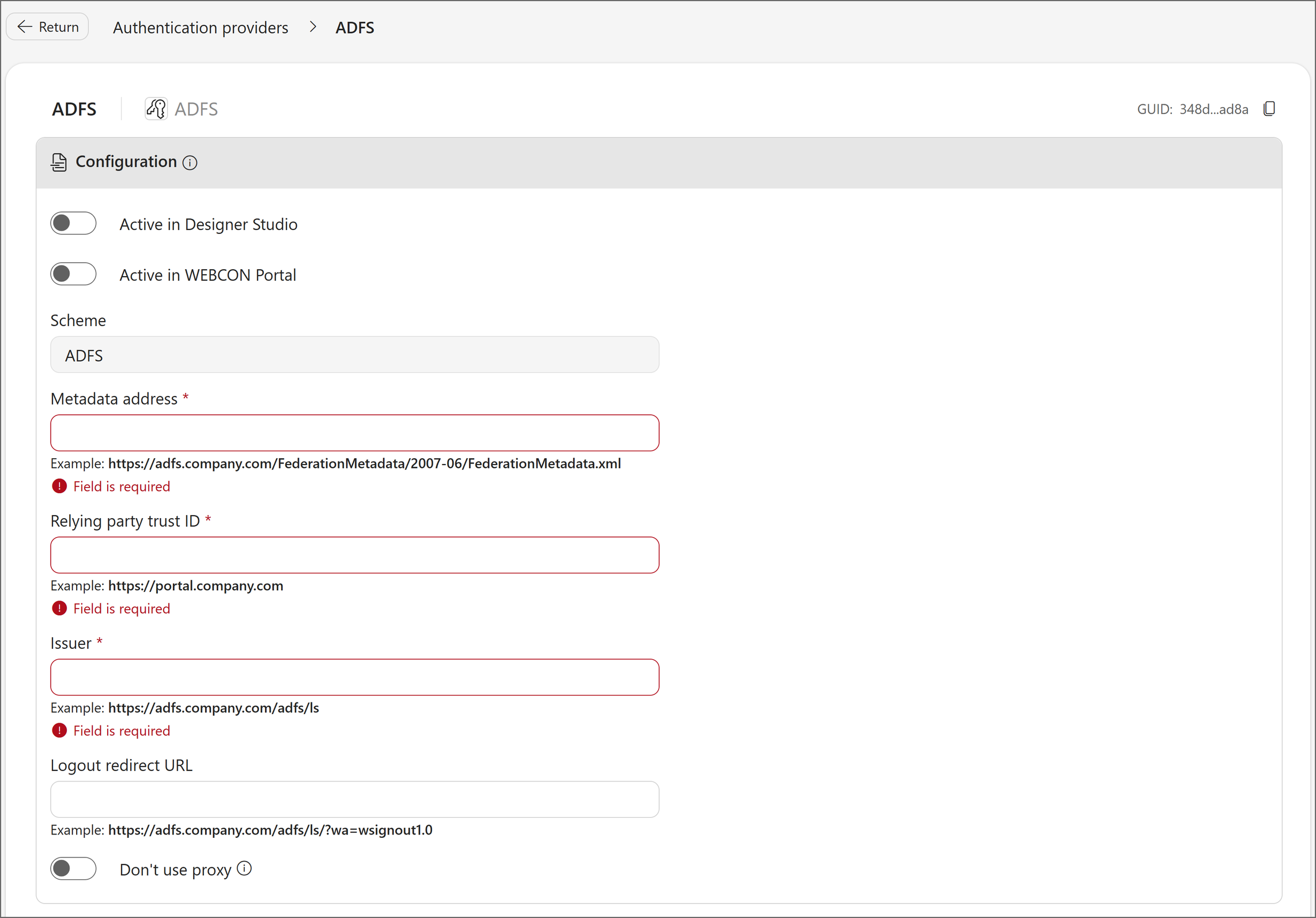
| Field | Description |
|---|---|
| Metadata address | The address of the ADFS server metadata file (e.g. https://adfs.company.com/FederationMetadata/2007-06/FederationMetadata.xml). It is available in the AD FS console in the Service › Endpoints section, as the Federation Metadata type. |
| Relying party trust ID | The identifier of the relying party trust in ADFS – it should be the Portal URL (e.g. https://portal.company.com). |
| Issuer | The issuer address, i.e. the active WS-Federation protocol endpoint in ADFS (e.g. https://adfs.company.com/adfs/ls). |
In the Logout redirect URL field, you can enter e.g. https://adfs.company.com/adfs/ls/?wa=wsignout1.0.
The relying party trust on the ADFS side should define the following claim issuance rules:
| LDAP attribute | Claim type |
|---|---|
| User-Principal-Name | Name ID |
| Display-Name | Given Name |
| User-Principal-Name | Name |
| E-Mail-Addresses | E-Mail Address |
Additional information on integrating Portal with ADFS can be found in the article Integration of WEBCON Portal with ADFS available on the technical blog.
SAML2
SAML 2.0 is an authentication standard based on exchanging messages between systems, enabling single sign-on (SSO) between an application and an external identity provider (e.g. Microsoft Entra ID). To configure SAML2 authentication, create a connection (application) in the identity provider system and exchange the configuration between the systems.
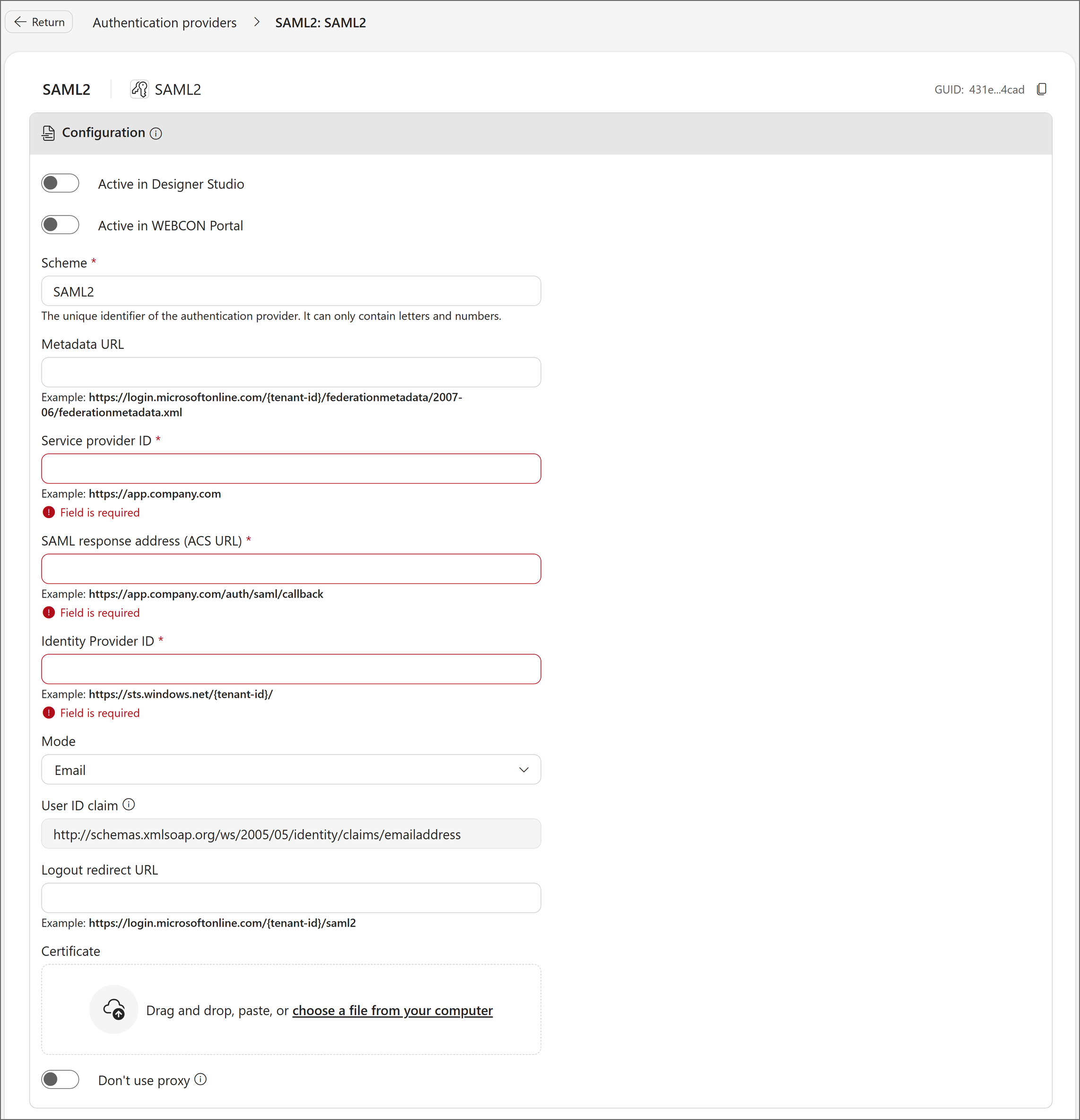
| Field | Description |
|---|---|
| Metadata URL | The address of the XML document published by the identity provider, which contains, among other things, endpoint addresses and the certificates used to sign SAML responses (e.g. https://login.microsoftonline.com/{tenant-id}/federationmetadata/2007-06/federationmetadata.xml). When the metadata URL is used, the system can retrieve current certificates on its own, which helps avoid problems related to certificate rotation. |
| Service provider ID | The unique identifier of the WEBCON system in the SAML configuration (Service Provider Entity ID), usually the application URL (e.g. https://app.company.com). It is used by the identity provider to recognize the application. |
| SAML response address (ACS URL) | The address of the system endpoint to which the identity provider redirects the user with the response after successful authentication (e.g. https://app.company.com/auth/saml/callback). This address must also be configured on the identity provider side. |
| Identity Provider ID | The unique identifier of the sign-in system (Identity Provider Entity ID, e.g. https://sts.windows.net/{tenant-id}/), used to verify the source of the received SAML response. |
| Mode | The claim from which the user identifier is retrieved – see Mode and User ID claim. |
| User ID claim | The claim that contains the user identifier. |
| Certificate | Lets you load the identity provider certificate (by dragging and dropping, pasting, or choosing the file from your computer). If a certificate is provided, it is used to validate responses instead of the certificate retrieved from the metadata URL, which ensures the integration works correctly in environments with restricted network access. |
In the Logout redirect URL field, you can enter the sign-out address on the identity provider side, e.g. https://login.microsoftonline.com/{tenant-id}/saml2.
In the configuration on the identity provider side, you also need to define the mapping of claims passed in the SAML response. Typically used claims are: Name ID (a unique user identifier, e.g. an e-mail address or UPN), Name (user name), Given Name (first name), Surname (last name), and E-Mail Address (e-mail address).
OpenID Connect
The OpenID Connect authentication provider lets you authenticate WEBCON users with external identity providers that support the OpenID Connect protocol. Authentication is based on the Authorization Code Flow.
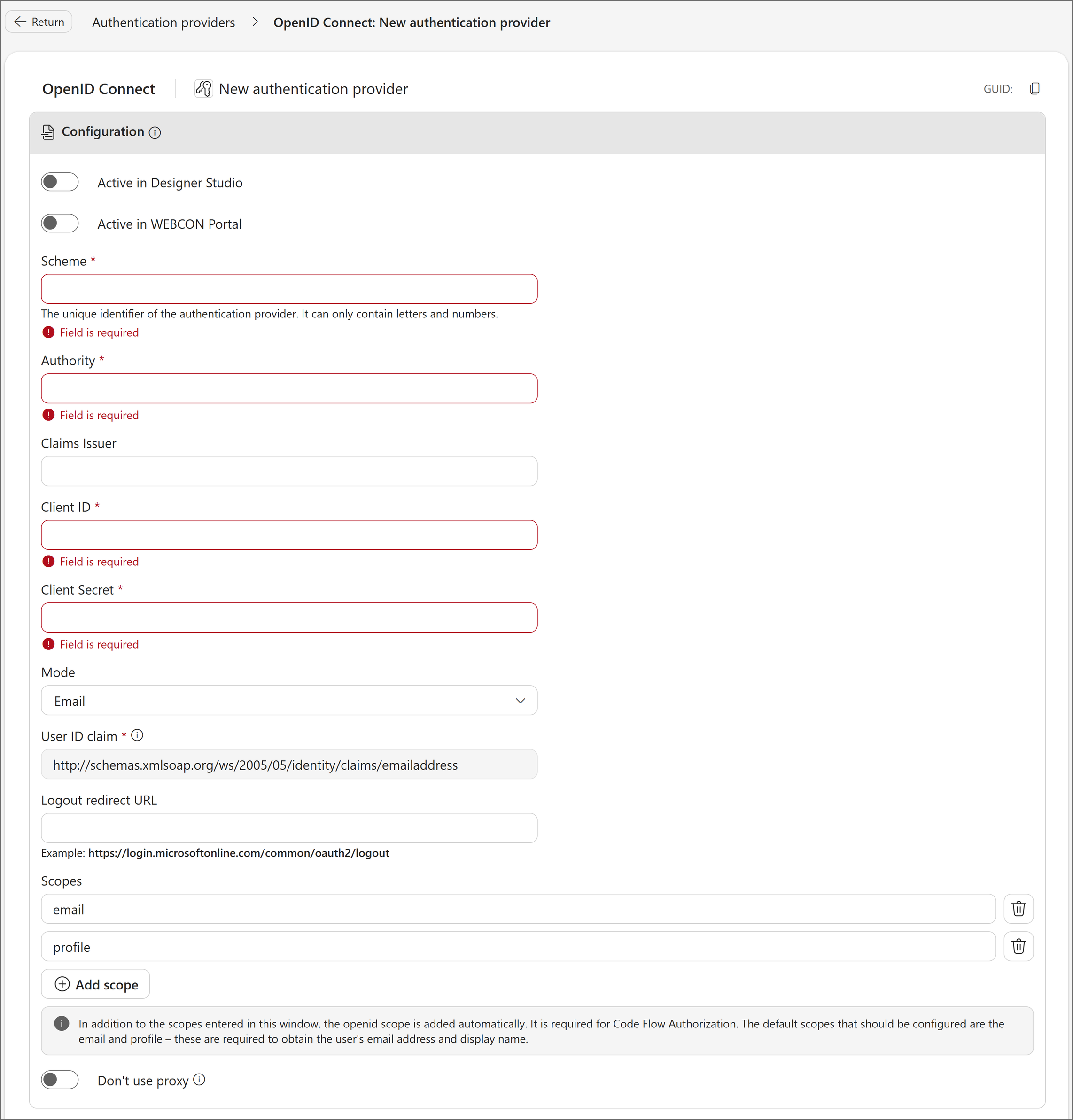
| Field | Description |
|---|---|
| Scheme | A unique scheme that identifies the provider in the WEBCON system. It is visible next to the signed-in user's login in Portal and is used to generate the callback address (see below). |
| Authority | The identity provider address, e.g. https://accounts.google.com/. |
| Claims Issuer | The token issuer, as provided by the identity provider. |
| Client ID | The identifier of the application registered with the identity provider. |
| Client Secret | The secret of the application registered with the identity provider. |
| Mode | The claim from which the user identifier is retrieved – see Mode and User ID claim. |
| User ID claim | The claim that contains the user identifier. |
| Scopes | The list of data scopes required to identify the user. The email scope is configured by default; you can add further scopes (e.g. profile, which lets you retrieve the user's display name) with the Add scope button. Some identity providers may require adding other scopes. |
Fill in the remaining fields according to the recommendations of the identity provider. The identity provider may require registering the exact callback address to which the user's ID token is sent. This address is generated based on the scheme and has the form https://<portal_address>/signin-<scheme>, e.g. for the Auth0 scheme: https://testportal.webconapps.com/signin-auth0.
Additional information on OpenID Connect authentication can be found in the article Configuring the OpenID Connect authentication provider using Google as an example available on the technical blog.
Mode and User ID claim
The SAML2 and OpenID Connect providers let you specify which claim contains the user identifier. This identifier is used as the BPS ID in the system (the unique user login) – by default, it should be the UPN or, for external users, the e-mail address. The value of the User ID claim field depends on the selected mode:
| Mode | User ID claim |
|---|---|
http://schemas.xmlsoap.org/ws/2005/05/identity/claims/emailaddress | |
| UPN | http://schemas.xmlsoap.org/ws/2005/05/identity/claims/upn |
| NameIdentifier | http://schemas.xmlsoap.org/ws/2005/05/identity/claims/nameidentifier |
| Custom | Any claim entered manually in the User ID claim field. |
In the Email, UPN, and NameIdentifier modes, the User ID claim field is filled in automatically and cannot be edited.