Interface language packs
The Interface language packs node lets you specify the system language and the notification language for new users, and manage the language packs in which the Portal interface can be displayed.
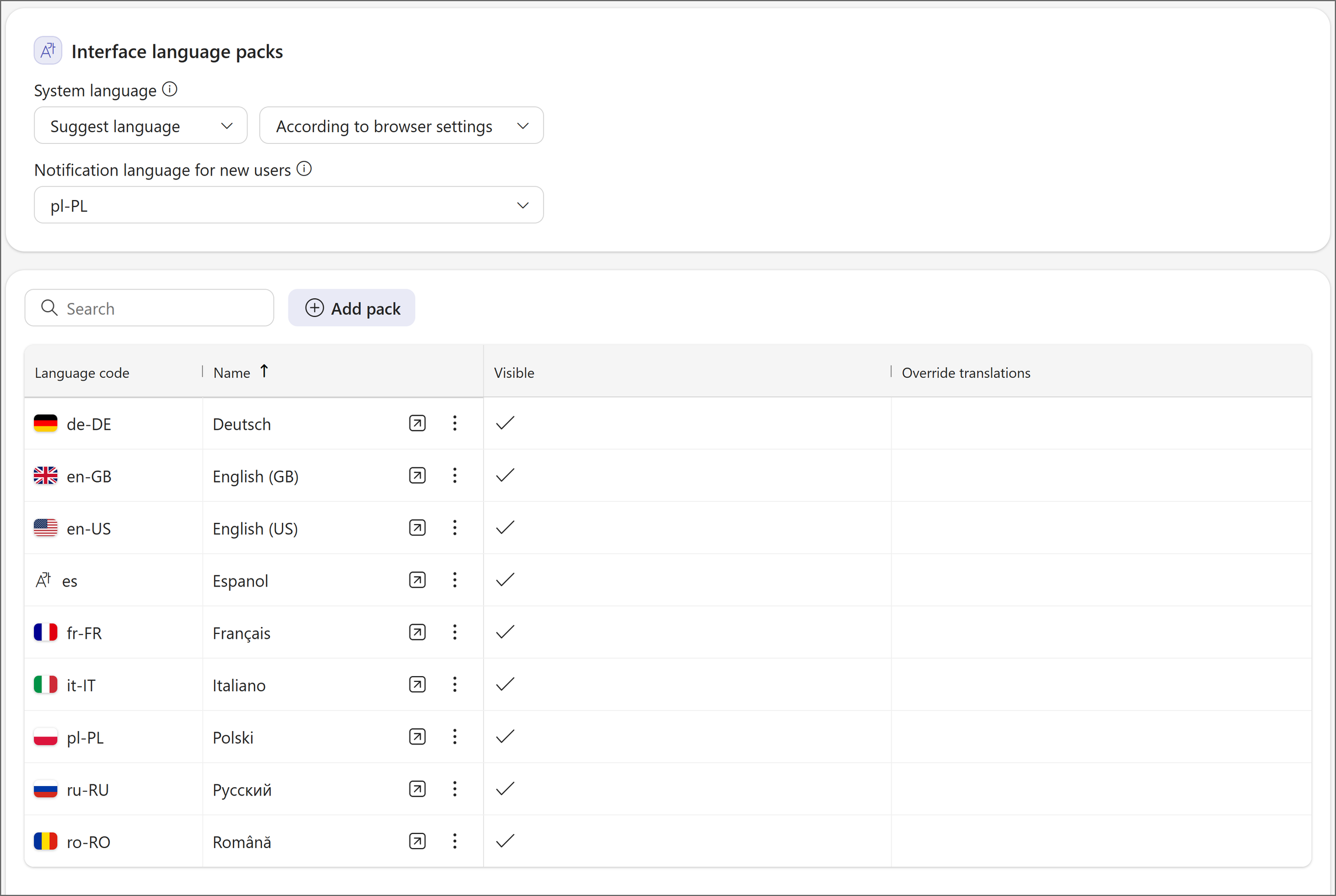
System language
The setting specifies the language in which application content is displayed and e-mail notifications are sent when the According to global settings option is selected in the application language configuration. It consists of two drop-down lists – the mode and the language.
| Mode | Description |
|---|---|
| Suggest language | The selected language is set in the user profile when the user signs in to the system for the first time. The profile language is taken into account when displaying application content and sending e-mail notifications. The user can change the display language, and the new setting is saved in their profile. |
| Force language | The selected language is forced as the display language of application elements, regardless of the browser language settings and the user profile settings. The user cannot change the display language. |
The second list lets you select a language from the language packs defined in the system. The According to browser settings option means that the display language is the language set in the user's browser.
If no translations are defined for the set language, untranslated content is displayed in English (for fixed system and application elements) or in the default language in which the configuration was entered (for configurable process elements, e.g. form field names).
Notification language for new users
The setting specifies the language of e-mail notification content when According to global settings is selected as the Notification language for new users in the application configuration. You can choose from the languages of the packs defined in the system.
Language pack list
The list shows the language packs available in the system. The Search field above the list lets you filter the packs, and clicking a column header sorts the list.
| Column | Description |
|---|---|
| Language code | The language code together with the flag of the corresponding country. |
| Name | The name of the language. |
| Visible | Indicates that the language is available for selection in Portal. |
| Override translations | Indicates that the pack overrides the translations of a language from the same family. |
The following buttons are available next to the pack name:
- Open configuration in full view – opens the pack configuration,
- Options (⋮) – expands a menu with the Open configuration in full view and Delete (deletes the language pack from the system) commands.
Adding and editing a language pack
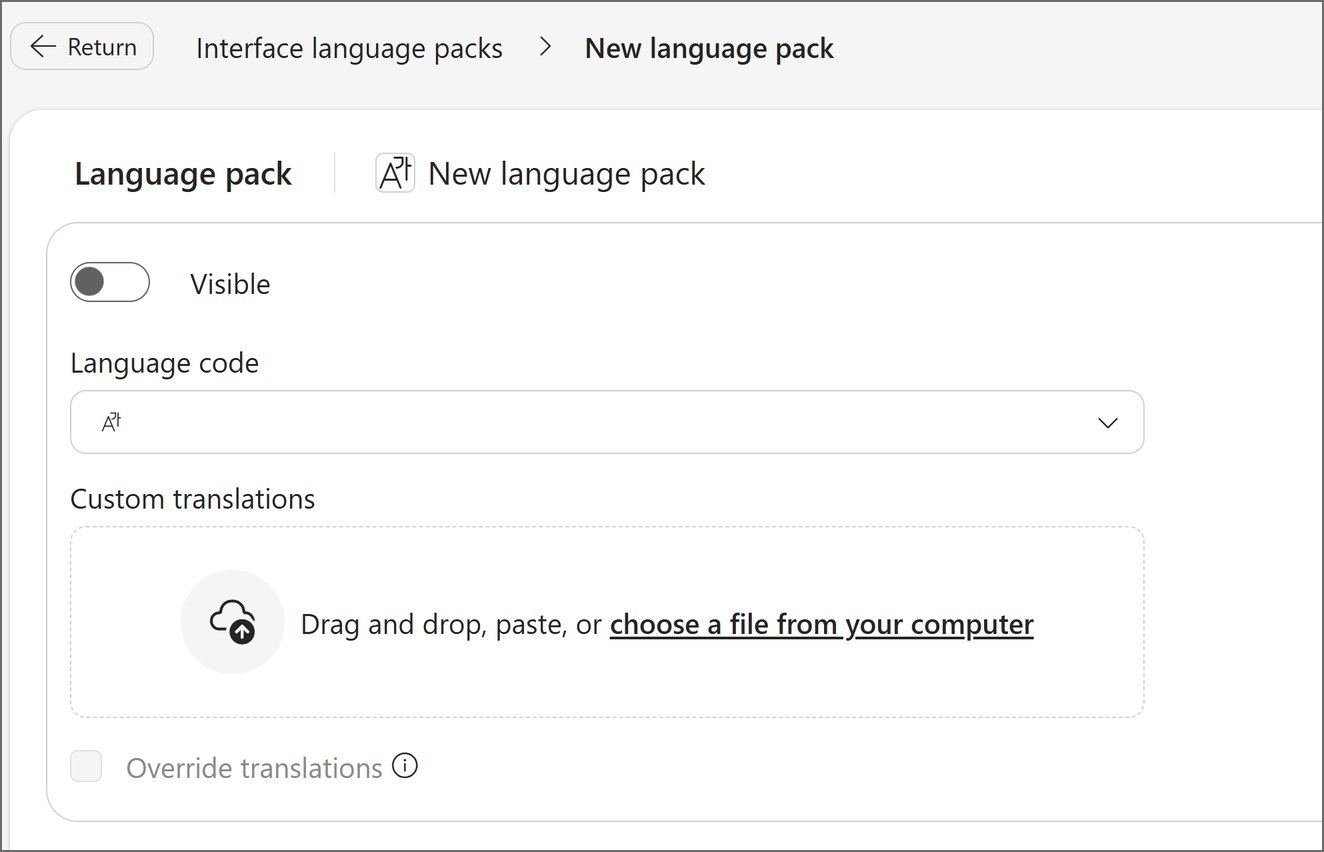
To add a language pack, click the Add pack button above the list. The New language pack view opens, with a breadcrumb and a Return button above it that takes you back to the pack list. The configuration of an existing pack opens in the same view.
| Field | Description |
|---|---|
| Visible | Turning the switch on makes the language available for selection in Portal. |
| Language code | A language code compliant with the ISO 639 and ISO 3166 standards used in .NET – in the language format (e.g. de) or the language and region format (e.g. de-CH, Swiss German). The code is selected from the list when adding a pack; in the configuration of an existing pack, it is read-only. |
| Custom translations | Lets you load a translation package in the .zip format, prepared according to the template. You can drag and drop, paste, or choose the file from your computer. |
| Override translations | When selected, the translations from the pack override the translations of a language from the same family (e.g. de and de-CH). The option is available after Portal translations and business logic translations have been imported to the pack. |
Save the changes to the pack with the Save button on the You have unsaved changes. bar.
For an imported pack to be used as the system language, select it in the System language setting.