Generating process documentation
Designer Studio lets you generate documentation of a selected process as a Microsoft Word document. The documentation is created automatically from the process configuration, so you don't have to prepare it by hand – it can serve, among other things, as material for the administrators and designers who maintain the solution, as an attachment to an implementation acceptance, or as a starting point for analyzing changes. The documentation is generated separately for each process.
Documentation content
The generated document includes, among other things:
- basic information about the document (e.g. version, author, modification date),
- basic information about WEBCON Portal, working with applications, workflow elements, and reports,
- information about the process permissions,
- a graphical presentation of the workflow,
- a summary of form fields,
- form types and their acronyms,
- workflow steps.
The documentation content comes partly from the process configuration itself, i.e. the document includes, among other things, the names of process elements and the descriptions entered in the Documentation fields available in the configuration of workflows, steps, paths, form fields, and rules. Therefore, the more precise the descriptions in these fields, the more complete and useful the generated documentation is.
It's worth keeping the descriptions in the Documentation fields up to date – both while designing the process and with every later change to its configuration. Make sure that the description briefly explains the purpose of an element and how it works (e.g. where a form field value comes from or what happens after a path is selected). Form field names and types are included in the documentation automatically, so there is no need to repeat them in the description.
Document template and content language
The look and language of the documentation are determined by two settings selected before it is generated:
-
Document template – determines the language of the fixed parts of the document, such as titles, headings, and chapter names. Three built-in templates are available: Polish, English, and German. By default, the template matching the Designer Studio interface language is selected (marked with the (default) suffix), or the English template if there is no match.
Instead of a built-in template, you can use your own, loaded from disk with the Load template from disk
 button – the loaded file will then appear under its own name on the Document template drop-down list. A custom template must meet the following requirements:
- it is a Word file in the .docx or .dotx format,
- it does not exceed 20 MB,
- it contains no macros,
- it contains no references to external resources,
- it contains a table style named WebconTable.
If the file does not meet any of the above requirements, an error message indicating the cause is displayed in the window after you click Generate and download (e.g. “The template contains macros. Macros are not allowed.”).
-
Content language – determines the language in which the names of process elements are presented in the documentation, e.g. workflows, steps, and form fields. The list contains the translation languages defined in the system (by default, the language matching the Designer Studio interface language is selected). If no translation in the selected language has been entered for an element, its default name is used in the documentation.
Generating documentation step by step
To generate process documentation:
- Open the process page.
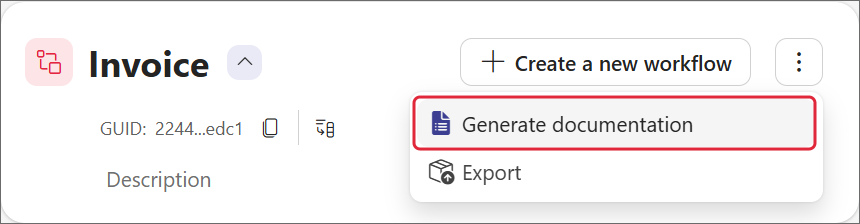
- Click the ⋮ menu in the top-right corner of the process page header and select Generate documentation.
- In the Generate process documentation window that opens, select one of the built-in templates from the Document template list, or click Load template from disk and choose your own template file.
- From the Content language list, select the language in which the names of process elements should be presented.
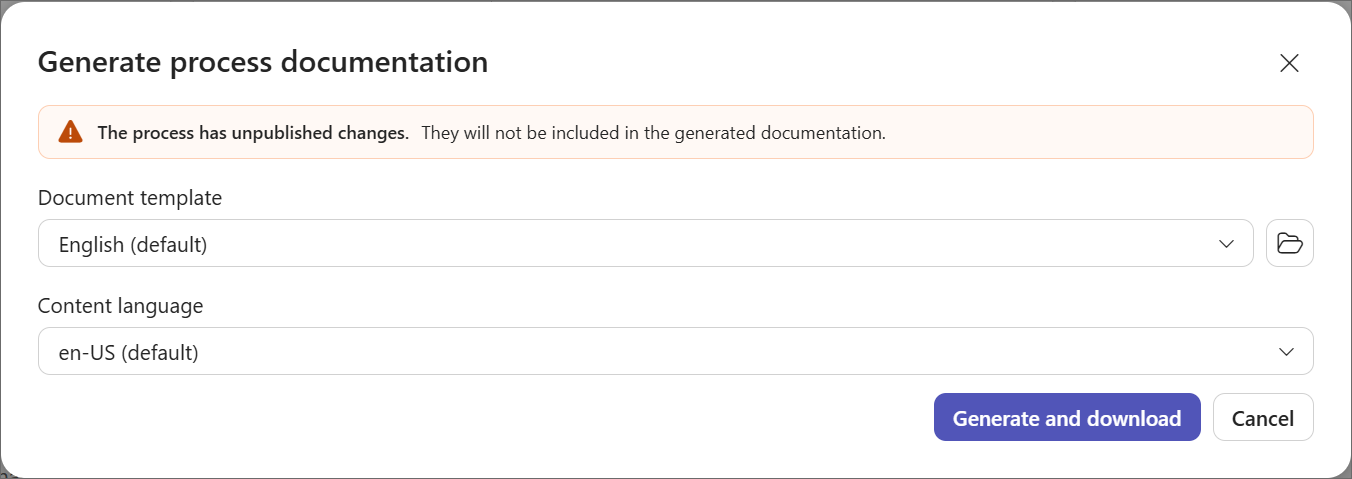
- Click Generate and download.
The documentation is generated on the server, which can take a few minutes for complex processes. During this time, the window displays the “Generating documentation...” message and its fields are locked. Keep the window open – once generation is complete, the documentation file is downloaded to your drive automatically and the window is closed.
If generation fails, the window displays the “The documentation could not be generated.” message, followed by a Correlation ID, which is worth providing when reporting the problem to your administrator or technical support. If the generation result is no longer available (the “The generation result is no longer available.” message), generate the documentation again.
Documentation is generated from the published process configuration. If the process has unpublished changes, the Generate process documentation window displays the “The process has unpublished changes.” warning – these changes will not be included in the documentation. To include them, click Publish changes in the Designer Studio top bar before generating the documentation.
Documentation generation is a licensed feature and requires an additional Documentation generation license. Without it, the window displays the “Licensed feature” message and the Generate and download button is disabled.