Message templates
Message templates are reusable definitions of e-mail notification content (both standard and custom) that can be assigned in a workflow or in a message-sending action's configuration. Each template controls the sender, subject, header content, and the tags visible in the resulting e-mail. The panel is located in the process's Definitions section, under the Message templates tab.
List of message templates

- Search field – filters the template list by name.
- Add message template – creates a new template. The template is created immediately and its configuration opens right away.
- Grid with Name and Task e-mail subject columns – lists all defined templates.
Unlike the other Definitions tabs (Constants, Business rules, API definitions), the message template list does not offer grouping – there is no Add group button here; templates are always shown as a flat list.
Options menu
Each template has an icon that opens its configuration in full view, as well as an Options menu with the following commands:
- Open configuration in full view,
- Open configuration in the side panel,
- Add message template,
- Delete message template.
Template configuration
Opening or creating a template goes to its configuration. The editor header shows an editable template Name and its GUID with a copy button.
The configuration is split into two nodes: General and Template.
Sender field
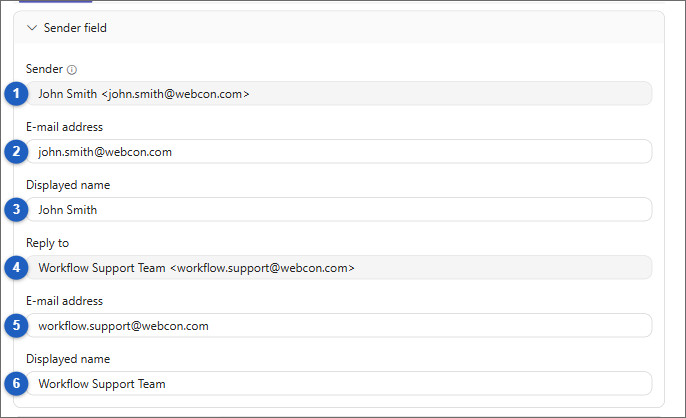
- Sender – read-only field – shows a live-composed "Displayed name <E-mail address>" value based on the fields below. Its tooltip explains the sending rules: if Allow 'Send As' is enabled under System configuration → E-mail notifications → E-mail sending configuration, the account entered in E-mail address below is used to send the message. If that option is enabled but the field is left empty, the account from the global e-mail sending configuration is used instead. The account address must be entered as a plain e-mail address (e.g.
tom.green@webcon.com) – any value typed as Displayed name here is ignored when sending. The account used for sending requires "Send as" permission. - E-mail address – the sender account's e-mail address.
- Displayed name – the sender name shown to the recipient.
- Reply to – read-only field – like the Sender field, shows a live-composed reply-to address built from the fields below.
- E-mail address (Reply to) – the e-mail address that replies to the notification are sent to.
- Displayed name (Reply to) – the display name shown next to the reply-to address.
Message
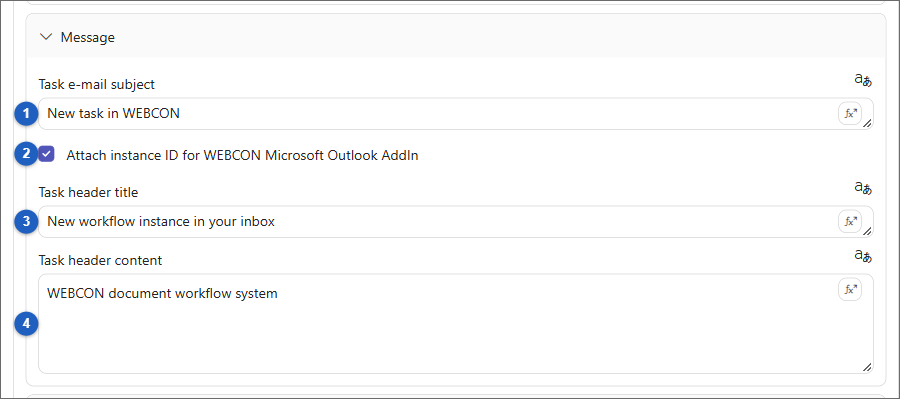
- Task e-mail subject – the e-mail's subject line.
- Attach instance ID for WEBCON Microsoft Outlook AddIn – checkbox (checked by default) – attaches the workflow instance identifier used by the WEBCON Microsoft Outlook AddIn.
- Task header title – the title shown in the message header; the value inserted in the template in place of the
[|HeaderMain|]tag. - Task header content – the text shown below the header title; the value inserted in the template in place of the
[|HeaderSub|]tag.
CC message
The CC message section defines the notification sent to people who are copied (CC'd) on a task, independently of the task's main recipients.
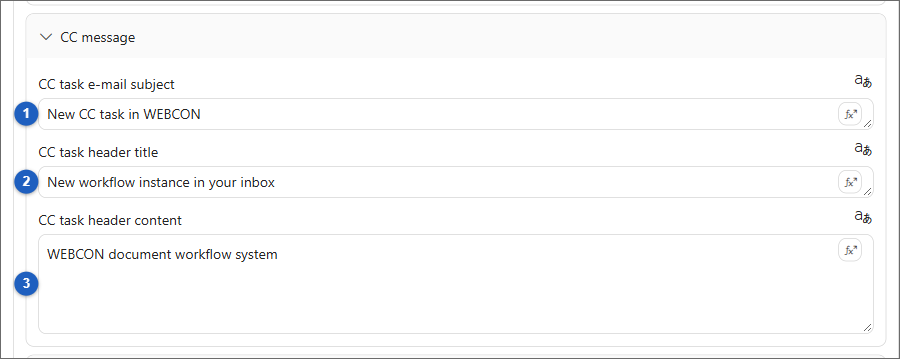
- CC task e-mail subject
- CC task header title
- CC task header content
Part of MessageBody and Visibility
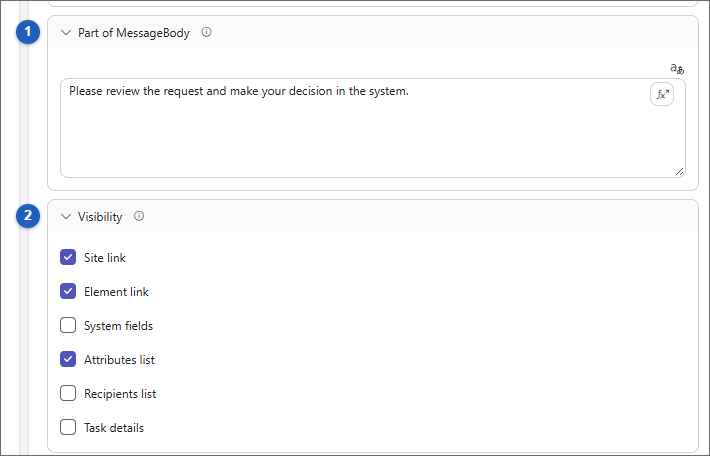
- Part of MessageBody – content inserted in place of the
[|MessageBody|]tag in a message using this template. The content must be formatted as HTML. - Visibility – controls whether the remaining tags are shown in the message, provided the tag can be included at all – for example, task details, regardless of the checkbox state, are only available in the context where a task actually exists (an e-mail sent as a notification on a path that creates a task). Available checkboxes:
- Site link – checked by default; controls the
[|WebAddress|]tag (link to the WEBCON portal). - Element link – checked by default; controls the
[|ElementAddress|]tag (link to the workflow instance the message is sent for). - System fields – unchecked by default; controls the
[|SystemFields|]tag (signature, author, creation date). - Attributes list – checked by default; controls the
[|FormFields|]tag (list of the form's attributes). - Recipients list – unchecked by default; controls the
[|Recipients|]tag (list of the message's original recipients). - Task details – unchecked by default; controls the
[|TaskDetails|]tag – content set in the configuration of the path that creates the task.
- Site link – checked by default; controls the
The Site link and Element link checkboxes are both checked by default, so a message using the standard (non-overridden) message template contains both links. If a single link is sufficient, one of these checkboxes can be cleared. Similarly, one piece of information from the System fields and Attributes list pair is usually enough – only Attributes list is checked by default.
Template — overriding the default message body
The Template node shows a short description ("Message template. Advanced message template configuration is available in fullscreen mode.") and an Open fullscreen mode link that opens the advanced message body editor.
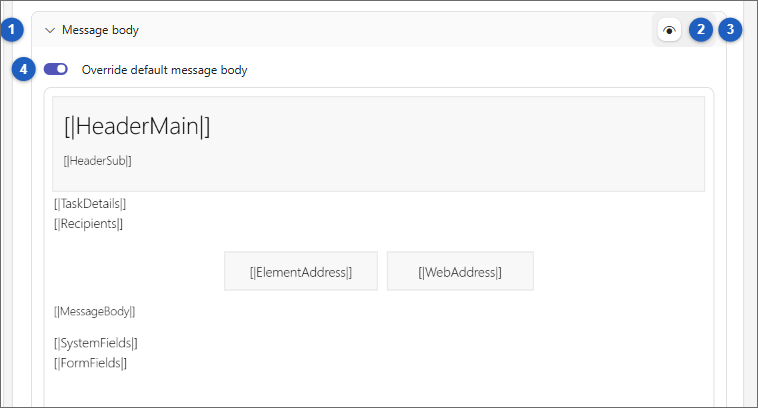
- Message body section header.
- and 3. Two EditMode buttons – switch the content view between a WYSIWYG preview (a rendered table with the [|HeaderMain|], [|HeaderSub|], [|TaskDetails|], [|Recipients|], [|ElementAddress|], [|WebAddress|], [|MessageBody|], [|SystemFields|], [|FormFields|] tags) and the raw HTML source.
- Override default message body switch – off by default, in which state only a read-only preview of the default global HTML template is shown as a reference. Turning it on makes the content editable and replaces the global template for this particular message template.
In the HTML source view, a More options button is also available – it shows or hides the Properties side panel.
When the Override default message body switch is off, the message uses the default global e-mail template defined in the system configuration – see Global e-mail template.
Additional resources on the WEBCON Community knowledge base: