REST Web Service data source
A REST Web Service data source calls a method of a web service based on the REST architecture and makes the returned values available as the data of the source — for example in choice fields on a form, including choice fields with search. The service address, the authentication method, and the credentials come from a REST Web Service connection; the data source defines the request (URL suffix, HTTP method, headers, and body) and the structure of the response.
This type of data source can also be used to retrieve data from OData interfaces exposed by WEBCON or external systems. In that case the Request URL suffix field contains the OData query (supported only with the GET method), which allows data to be filtered, sorted, and selected.
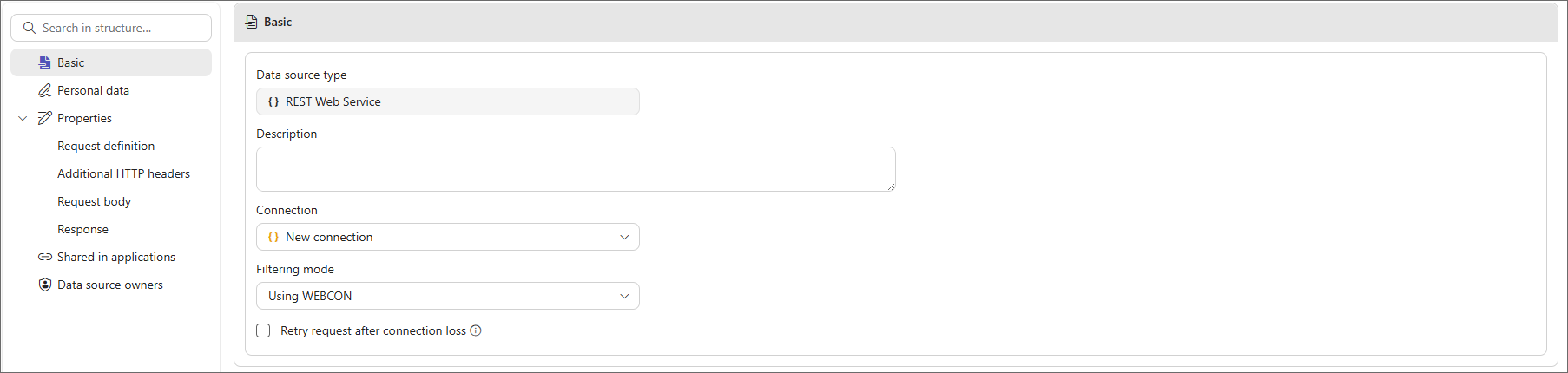
The structure tree on the left lets you jump to each section: Basic, Personal data, Properties (with the Request definition, Additional HTTP headers, Request body, and Response subsections), Shared in applications, and Data source owners.
Basic
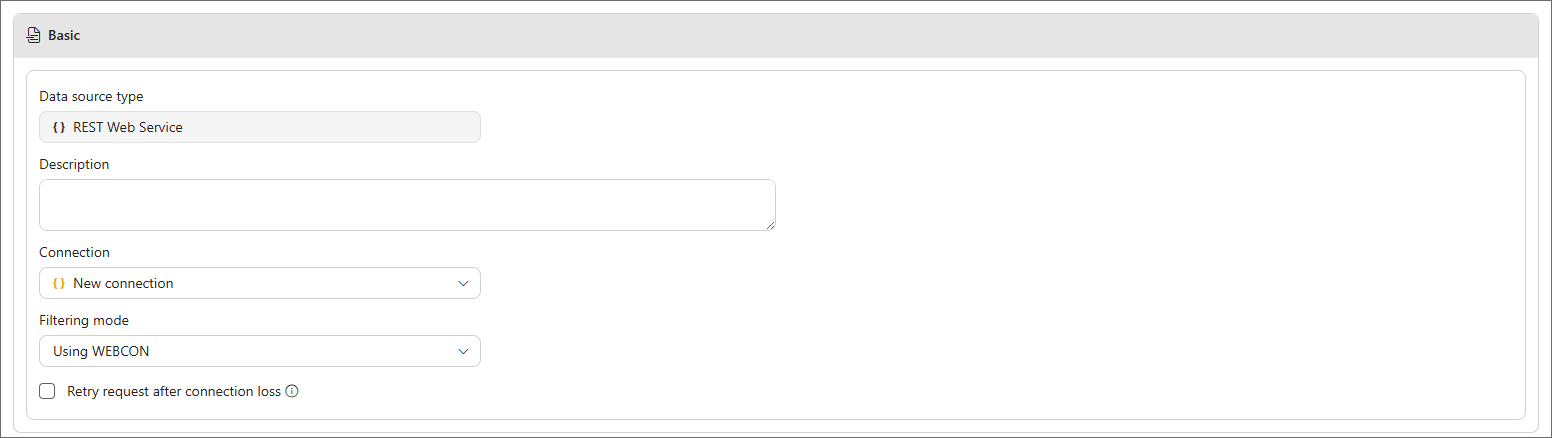
The Basic section contains:
- Data source type — the data source type, chosen once when the data source is first created (in this case REST Web Service). Once the data source exists, this field becomes read-only — its type cannot be changed afterwards.
- Description — a free-text description entered by the user, making the data source easier to recognize in the data source list.
- Connection — the REST Web Service connection that provides the base service address and the authentication method. The list contains REST Web Service connections.
- Filtering mode — determines where the data of the source is filtered (see the table below).
- Retry request after connection loss — when selected, the request to the REST service is automatically retried after a connection error.
Filtering mode accepts one of two values:
| Value | Meaning |
|---|---|
| Using WEBCON | All data is retrieved from the source, and filtering is then applied in WEBCON |
| Using web service | The filter value is sent to the REST service, which returns only the filtered data |
Personal data

The Personal data section lets you designate the data source as a source of personal data for other processes:
- Data source contains personal data — a switch that marks the current source as a source of personal data.
- Personal data identifier column — a field displayed once the switch is turned on, and required to complete the configuration; until a value is selected, the Field is required message is shown below the field. It lets you choose the column of the source that will serve as the unique identifier of a person.
These settings work the same way as for the MSSQL data source.
Properties
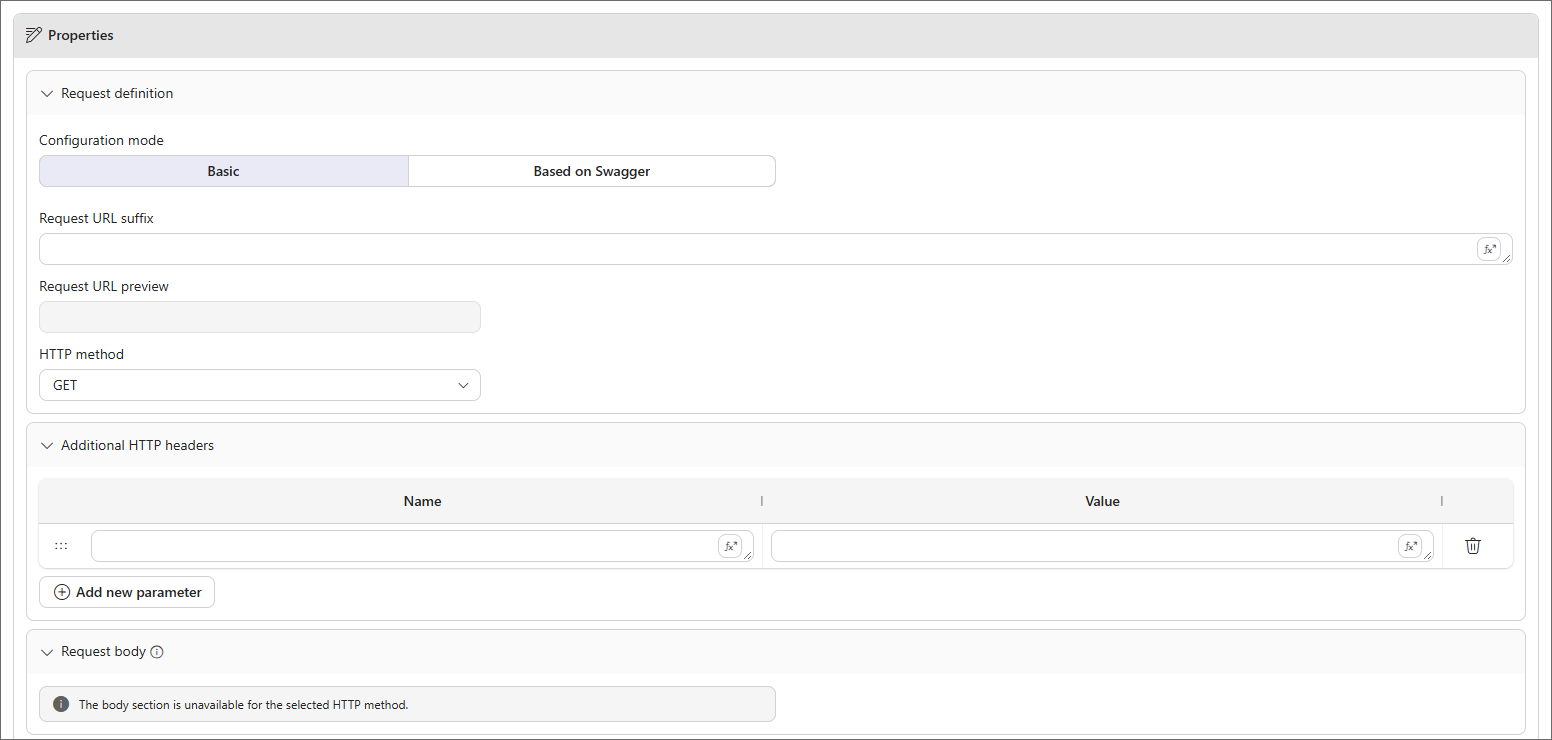
The Properties section describes the request sent to the REST service and the structure of the returned response. It consists of four subsections.
Request definition
Configuration mode determines how the request is defined:
| Value | Meaning |
|---|---|
| Basic | The request is defined manually — URL suffix and HTTP method |
| Based on Swagger | The request is selected from API documentation in the OpenAPI (Swagger) format, with automatically loaded parameters |
In Basic mode, the following fields are available:
- Request URL suffix — a suffix added to the base service address defined in the connection. It lets you modify the request address dynamically, e.g. by adding a path or query parameters. The fx icon opens the expression editor, where you can insert dynamic values into the suffix.
- Request URL preview — a read-only field showing the full request address.
- HTTP method — the type of operation performed on the specified service resource.
HTTP method accepts one of seven values:
| Value | Meaning |
|---|---|
| GET | Retrieves data — no request body |
| POST | Sends data in the request body |
| PUT | Sends data in the request body (replaces the resource) |
| PATCH | Sends data in the request body (partially changes the resource) |
| DELETE | Requests deletion of the resource |
| GET_WITH_BODY | A GET method sent with a request body |
| DELETE_WITH_BODY | A DELETE method sent with a request body |
In Based on Swagger mode, the following are shown instead of the suffix and method:
- Load — opens the Swagger definition window, where you provide the OpenAPI document URL (e.g.
https://.../openapi.json) or drag and drop, paste, or choose a file from your computer, and then click Apply. - Request — a list of operations loaded from the document (Select operation).
- Request parameters — a table with the Name, Value, Location, Type, and Required columns. Parameters are loaded automatically from the documentation; the Add new parameter button lets you add more manually. Parameters without a value are skipped when the request is sent.
The Location column determines where in the request the parameter is passed:
| Value | Meaning |
|---|---|
| Query | The parameter is appended to the address as a query parameter, e.g. /users?role=admin |
| Header | The parameter is passed in a request header |
| Path | The parameter is inserted into the address path, e.g. /users/{id} |
Additional HTTP headers
The table with the Name and Value columns lets you add custom HTTP headers to the request — e.g. information about the data format or credentials required by the service. Further headers are added with the Add new parameter button, and the fx icon next to each field lets you use dynamic values. The trash icon removes a row.
Request body
For the GET method no request body is sent — the subsection shows the message The body section is unavailable for the selected HTTP method. For methods that send a body (e.g. POST), the Body type field is available:
| Value | Meaning |
|---|---|
| JSON | The request body is entered as text in the JSON format (dynamic values can be used through the fx icon). The request is sent with the application/json header |
| JSON Grid | The request body is built in a table with the Name, Type, Value, and Required columns and then converted to JSON. The table is filled in with the Add new parameter, Add collection, Load, and Clear all buttons |
Parametrization of the call is based on dynamic values used in the JSON request body or in parameters appended to the URL.
Response
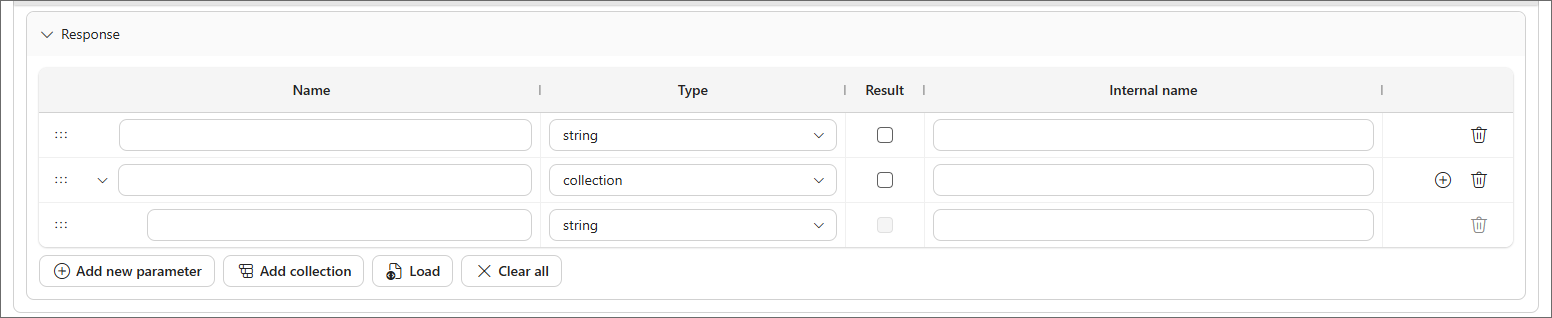
The Response subsection describes the structure of the data returned by the service. Each row of the table corresponds to one element of the response:
- Name — the name of the element in the service response.
- Type — the type of the element (see the table below).
- Result — indicates the response element whose data is returned by the data source. For elements nested in a collection, the field is unavailable.
- Internal name — the name under which the element is available in WEBCON as a column of the data source.
Collection rows can be expanded with the arrow; the + icon in a collection row lets you add an element inside the collection, and the trash icon removes a row. Rows can be reordered by dragging them by the handle on the left.
The Type list shows the technical names of the types:
| Value | Meaning |
|---|---|
| string | Text |
| int | Integer |
| decimal | Decimal number |
| boolean | Boolean value |
| date | Date |
| datetime | Date and time |
| object | An object containing other elements (available for rows added as a collection) |
| collection | A collection of objects |
| valuesCollection | A collection of simple values |
The following buttons are available below the table:
- Add new parameter — adds a row for a single element.
- Add collection — adds a collection row together with the first element inside it.
- Load — opens the Load mapping from JSON window, where you paste a sample service response into the Sample JSON field (or use the Load from file button) and click Generate — the table structure is created from the sample.
- Clear all — removes all rows from the table.
Shared in applications
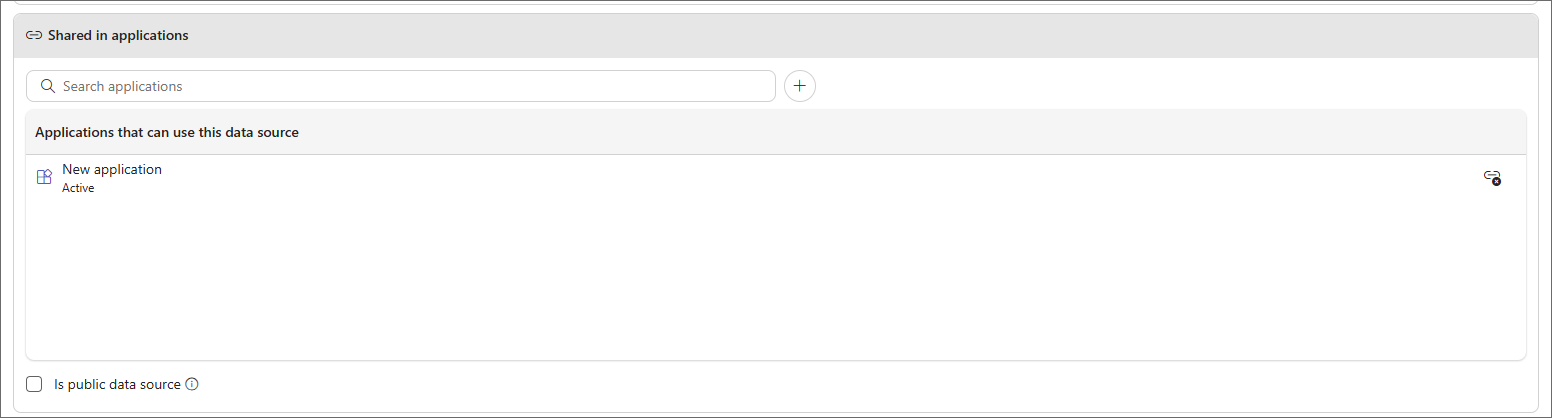
The Shared in applications section shows which applications currently use this data source. The Search applications field together with the Attach to application button lets you link the data source to another application; the Applications that can use this data source table lists the applications already linked to it (in the example above, New application), along with their status and an icon for detaching the link.
The Is public data source checkbox at the bottom of this section makes the data source available to every application in the system, so it can be used by processes running in any application — without having to link it to each one individually.
Data source owners

The Data source owners field defines which users are allowed to edit the data source's configuration and share it with further applications. Other Designer Studio users — who are neither owners of the data source nor system administrators — can still use the data source in applications it's shared with, but cannot edit its configuration.