Start workflow
The action starts a new workflow within the same WEBCON instance. It can only be used to start a single new workflow instance.
Basic configuration
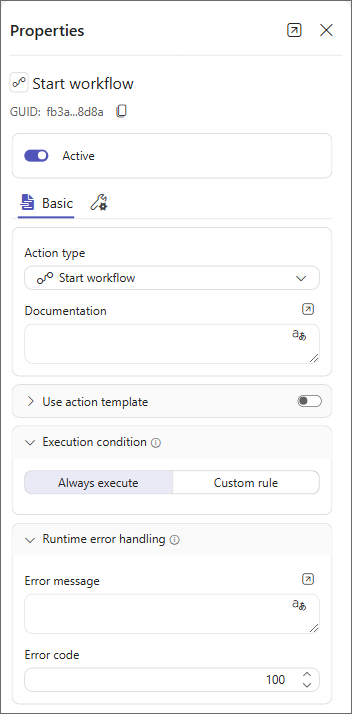
The Basic tab of the Properties panel contains settings shared by every action in an automation: the Active toggle, the Action type field, the Documentation field, the Use action template toggle (when enabled, the action takes its configuration from the selected action template defined in the process), the Execution condition section (decides whether the action always runs or only when a custom rule is met), and the Runtime error handling section (the message and numeric error code returned when the action fails to execute). Since these settings are not unique to the Start workflow action, they are described in detail in the Actions chapter.
Advanced configuration
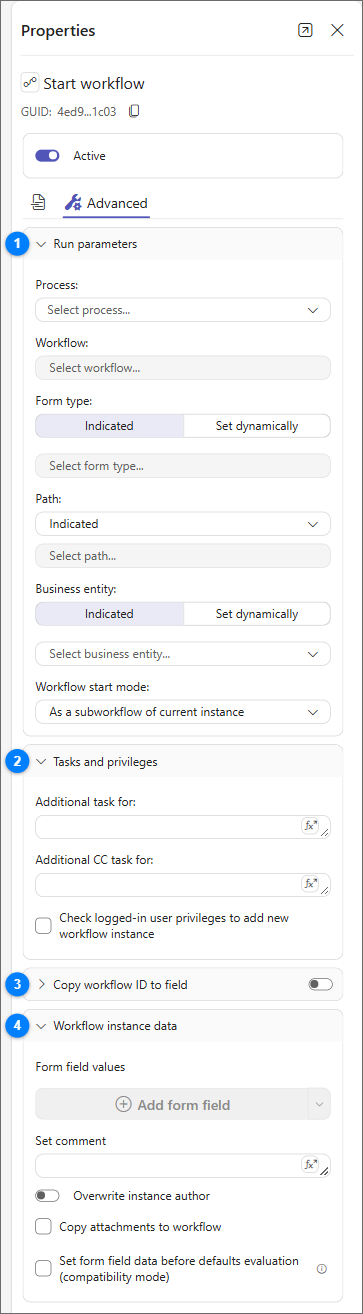
The Advanced tab contains all the fields specific to the Start workflow action, grouped into four sections: Run parameters, Tasks and privileges, Copy workflow ID to field, and Workflow instance data.
1. Run parameters
Determine which instance is created and how it is linked to the current workflow.
- Process — the process in which the new workflow will be started.
- Workflow — the workflow of the selected process in which the new instance will be created.
- Form type — a toggle: Indicated / Set dynamically. With Indicated, the form type is chosen from a drop-down list. With Set dynamically, a Form type ID field appears, letting you set the form type's identifier with a variable.
- Path — a drop-down list with the options Indicated, Default path, and Set dynamically. With Indicated, the path along which the new instance is created is chosen from a drop-down list. With Set dynamically, a Path ID field appears, letting you set the path's identifier with a variable.
- Business entity — a toggle: Indicated / Set dynamically. With Indicated, the business entity is chosen from a drop-down list. With Set dynamically, a Business entity ID field appears, letting you set the business entity's identifier with a variable.
- Workflow start mode — determines how the new workflow is linked to the current one:
| Option | Description |
|---|---|
| As a subworkflow of current instance | the new workflow is created as a sub-workflow of the current instance |
| Parallel to current workflow | if the current workflow is itself a sub-workflow of another workflow, the new workflow is created as a sub-workflow of that same parent workflow; otherwise it is created as a parent workflow, unrelated to the current instance |
| As a parent workflow, unrelated to current instance | the new workflow is created independently of the current instance, with no parent/child relationship |
The Form type, Path, and Business entity fields can each be set dynamically by inserting a single variable in the corresponding field — an SQL query cannot be used here.
2. Tasks and privileges
- Additional task for — lets you indicate additional people who will be assigned a task on the newly created instance, regardless of the standard assignment resulting from the starting step's configuration. You can enter the data of persons in two ways: using variables or manually in the format: user_login#displayed _name.
- Additional CC task for — similar to the field above, lets you indicate additional people who will receive the task for information (CC), without having to complete it.
- Check logged-in user privileges to add new workflow instance — when checked, the privileges of the logged-in user in whose context the action runs are checked before a new instance is added. If the user lacks the required privileges, the action fails.
3. Copy workflow ID to field
When enabled, a Field appears, letting you choose a form field (from those available in the workflow and form type indicated in the Run parameters section) to which the ID of the newly started workflow will be copied.
4. Workflow instance data
- Form field values — a table letting you indicate form fields of the new instance (Add form field button) and set their values already at workflow startup, e.g. by copying values from the parent instance. Only form fields resulting from the workflow and form type indicated in the Run parameters section are available on the list.
- Set comment — lets you set the text of a comment added on the newly created instance, e.g. information about the reason it was created.
- Overwrite instance author — by default, the author of the new instance is the currently logged-in user, which means they will have read access to the instance throughout its entire lifecycle. When this option is enabled, the field that appears lets you indicate a different user, who will gain read access to the new instance as its author.
- Copy attachments to workflow — when checked, all attachments from the parent workflow are copied to the newly created workflow.
- Set form field data before defaults evaluation (compatibility mode) — controls the order in which form field values are set on the instance of the started workflow. When checked, the values passed by the action are set on the form fields before their default value rules run — as a result, default value rules do not run for form fields that already have a value set, while rules for the remaining form fields still run and take into account references to the already-set form fields. When unchecked, the values passed by the action are set only after the default value rules run, overwriting the calculated values.
More information about this action can be found in the article Starting workflows in WEBCON – actions.