Update dependent workflow instance
The action changes form field values in a workflow instance related to the current instance, by default its parent instance. The instance to update can also be indicated by an identifier stored in a form field or by an SQL query, which can return multiple instances at once.
Basic configuration
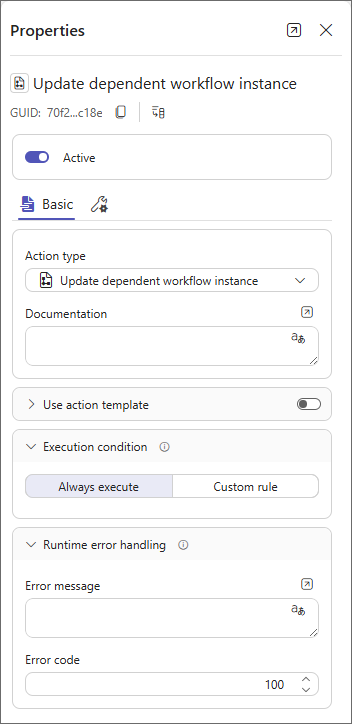
The Basic tab of the Properties panel contains settings shared by every action in an automation: the Active toggle, the Action type field, the Documentation field, the Use action template toggle (when enabled, the action takes its configuration from the selected action template defined in the process), the Execution condition section (decides whether the action always runs or only when a custom rule is met), and the Runtime error handling section (the message and numeric error code returned when the action fails to execute). Since these settings are not unique to the Update dependent workflow instance action, they are described in detail in the Actions chapter.
Advanced configuration
The Advanced tab contains all fields specific to the Update dependent workflow instance action, grouped into three sections: Instance selection, Data, and Additional configuration.
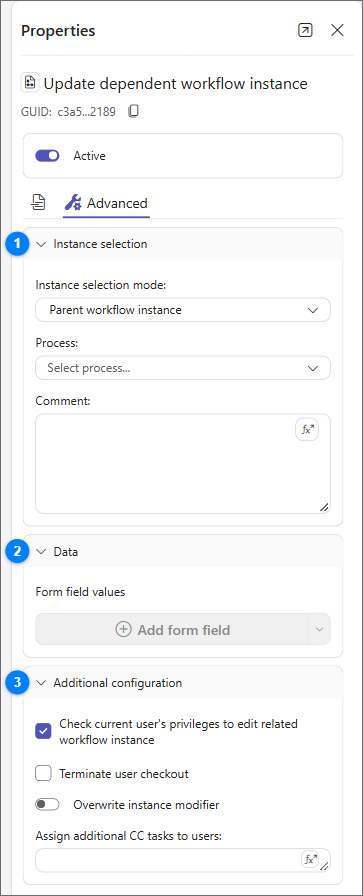
1. Instance selection
The section determines which workflow instance is updated and the process whose form fields are set in the Data section.
The Instance selection mode field determines how the instance to update is indicated. Available options:
- Parent workflow instance — the default option. The parent of the instance from which the action was invoked is updated.
- Form field value — the instance whose identifier is indicated in the Instance identifier field is updated.
- SQL query — the instances returned by the query entered in the SQL query field are updated. The query can return multiple instances, all of which are updated in a single run of the action.
Other fields in the section:
- Process — the process in which the updated instance runs. The process is chosen from a tree of folders, applications and processes, with search by name. Indicating the process is required to set form field values in the Data section, since the list of available form fields comes from this process.
- Instance identifier — available only in the Form field value mode. Use a business rule (the fx button) to point to the form field that contains the identifier (ID) of the instance to update.
- Data source — available only in the SQL query mode. Indicates the data source in whose context the query is executed. You can choose the default data source or one of the defined connections.
- SQL query — available only in the SQL query mode. The query should return one column with the ID of the workflow instance to update. The query can return many rows. The query is entered directly in the action; it can be filled in dynamically with a business rule (the fx button).
- Comment — the text of the comment added to the updated instance, e.g. with the reason for the update. The value can be filled in dynamically with a business rule (the fx button).
Dynamic values are indicated directly next to the field, using the fx button. The button is available next to the Instance identifier, SQL query, Comment, Modifier, and Assign additional CC tasks to users fields.
2. Data
The section allows you to set form field values of the updated instance. Form fields are added to the Form field values table with the Add form field button. The button becomes active only after a process is indicated in the Process field of the Instance selection section — the list contains only form fields of that process.
Each table row contains the following columns:
- Form field — the form field of the updated instance whose value will be set.
- Value — the new value of the form field, entered manually or indicated dynamically with a business rule.
- Overwrite value — when checked, the form field value in the updated instance is replaced with the value from the Value column. When unchecked, the value is set only if the form field in the updated instance is empty.
3. Additional configuration
- Check current user's privileges to edit related workflow instance — checked by default. The privileges of the user in whose context the action is executed to edit the updated instance are checked. If the user does not have such privileges, the action fails with an error.
- Terminate user checkout — applies when the updated instance is currently being edited (checked out) by another user. When checked, that user loses the ability to edit the instance and the action is executed. When unchecked, the action is not executed because the instance is being edited.
- Overwrite instance modifier — by default, the logged-in user in whose context the action is executed becomes the person who last modified the instance. That person has read access to the instance throughout its entire life cycle, which is not always desirable. When the toggle is switched on, the Modifier field appears, where you can indicate another user — that user is recorded as the modifier and gains read access to the updated instance.
- Assign additional CC tasks to users — lets you indicate additional people who will be assigned a CC (carbon copy) task on the updated instance. People can be indicated with a business rule (the fx button), e.g. with the
{ASSIGNEDPERSONFULL}variable, which stands for the people assigned a task in the current step, or manually, in theuser_login#display_nameformat.
For more information about this action see The Update related workflow instance action.