Generate/Update a Word file
The action generates a new .docx file from a previously prepared template, or updates an existing attachment of the workflow instance. The generated file can be downloaded, opened in the browser, or saved directly as an attachment of the instance.
Template
The template is a .docx file in which dedicated add-ins for MS Word (Word Classic and Word Modern) let you place variables and add image fields — also in the template's headers and footers. For the New file for item list rows mode, the file name template, file description template, and the .docx template itself can additionally use variables referring to the row of the selected Item list. A template prepared this way should be placed in the Document Templates Process or added as an attachment of the selected workflow instance. The next step is to configure an action in a selected step. This is done in the same way as for the Generate an HTML printout and Generate a PDF file actions.
Basic configuration
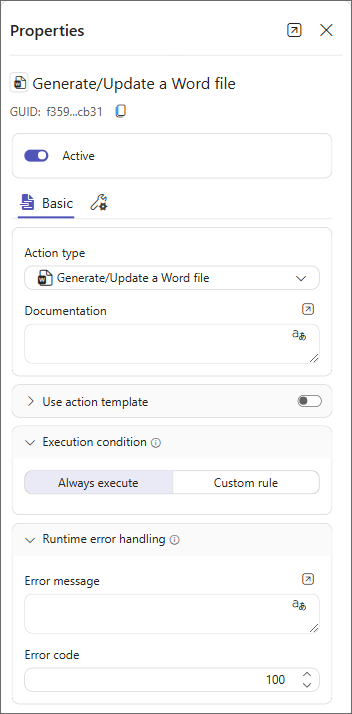
The Basic tab of the Properties panel contains settings common to every action in an automation: the Active toggle, the Action type selection field, the Documentation field, the Use action template toggle (when enabled, the action takes its configuration from the selected action template defined in the process), the Execution condition section (determines whether the action always runs or only when a custom rule is met), and the Runtime error handling section (the message and numeric error code returned when the action fails to execute). These settings are not unique to the Generate/Update a Word file action, so they are described in detail in the Actions chapter.
Advanced configuration
The Advanced tab contains fields specific to this action, grouped into sections: Action mode, Template selection, and Output. The selected Action mode determines which additional fields and sections are available.
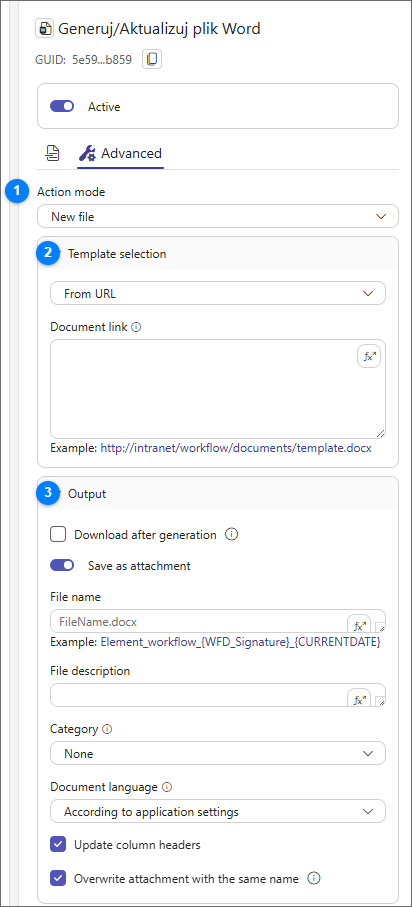
1. Action mode
The field determines what the result of the action will be:
- New file - a single new .docx file is created from the template.
- Files for item list - a separate .docx file is generated for each row of the selected Item list.
- Update existing file - the indicated attachment of the workflow instance is updated instead of creating a new file.
Selecting Files for item list makes an additional Item list field available, where an Item list form field of the current process must be selected — a file is then generated for each of its rows. The file name template, file description template, and the .docx template itself can then use variables referring to the item list row.
Selecting Update existing file replaces the Template selection section with a Choose attachment section — see the description below.
2. Template selection
This section is active for the New file and Files for item list modes. It determines where the document template is taken from:
- From attachment - an existing attachment of the workflow instance is used as the template.
- From URL - the template is downloaded from the specified URL address.
- From document templates process - the template is taken from a dedicated process that stores document templates.
From attachment
Makes an Attachments to be processed section available, where Based on determines how the attachment acting as the template is selected:
- Category - the attachment is selected based on its assigned category.
- Regular expression - the attachment is selected using a regular expression matched against the file name.
- Data source - the attachment is selected using an SQL query that returns a list of identifiers.
For the Category mode, two fields are available:
-
Category — the category of attachments to take into account:
- All - attachments belonging to any category are taken into account.
- Dynamic - once selected, the Dynamic expression field becomes available, where the category is built dynamically (using the rule editor) or entered manually, in
ID#Nameformat or as a plainID. - None - attachments that do not belong to any category are taken into account.
-
Select — which of the matching attachments will be used:
- All attachments - all matching attachments will be processed.
- The oldest attachment - only the earliest added attachment will be used.
- The newest attachment - only the most recently added attachment will be used.
For the Regular expression mode, the Regular expression field is available, built on your own or with the help of the Variables editor:
- File1 or File2, example:
(criterion1|criterion2) - File1 and not File2, example:
^(criterion1|(?!criterion2))
- The simplest selection of only files with an extension, e.g. ".pdf":
- Expression:
.pdf - Accepted:
Attachment1_File.pdf - Not accepted:
Attachment1_File.docx
- Expression:
- All .docx and .pdf files — only the file extension is checked, the name is ignored:
- Expression:
^.*(docx|DOCX|pdf|PDF)$ - Accepted:
Attachment1_FileName007.docx - Not accepted:
Attachment1_FileName007.txt
- Expression:
- The file name should start with an explicitly defined word (here: WEBCON), then a
__or-character, any number of alphanumeric characters, and end with a .docx or .pdf extension:- Expression:
WEBCON(_|-)[a-zA-Z0-9]*\.(docx|pdf)$ - Accepted:
WEBCON_FileName007.docx,WEBCON-FileName007.pdf - Not accepted:
WEBCON FileName With spaces.pdf,SharePoint_FileName123.pdf
- Expression:
- The file name should start with a date in YYYY-MM-DD format, then a
__or-character, any number of alphanumeric characters, and end with a .docx or .pdf extension:- Expression:
^\d{4}\-(0?[1-9]|1[012])\-(0?[1-9]|[12][0-9]|3[01])(_|-).*\.(docx|pdf)$ - Accepted:
2015-07-09_FileName007.docx,2015-07-09-File123_New.pdf - Not accepted:
2015/07/09-NotGonnaWork.docx,WEBCON_2015-07-09_File.pdf
- Expression:
- Words in the file name should be separated with a
-character and end with a .docx or .pdf extension:- Expression:
^[a-zA-Z0-9]+(?:-[A-Za-z0-9]+)*\.(docx|pdf)$ - Accepted:
WEBCON-File-New.pdf - Not accepted:
WEBCON_File_Old.docx
- Expression:
For the Data source mode, the SQL query field is available, in which a query returning a list of attachment identifiers must be provided.
Select [ATT_ID] from [WFDataAttachmets] Where [ATT_Name] = 'template.docx'
From URL
Makes a Document link field available, where the URL address at which the template is available must be provided (e.g. http://intranet/workflow/documents/template.docx).
From document templates process
Makes a Document template section available, with two methods of indicating the template:
- Template source - the template is selected by choosing a data source, then a specific template from the list.
- Dynamically calculated - the template is indicated by an identifier built dynamically (using the rule editor), in the format
/DOCTEMP/<template_identifier>/<instance_identifier>.
/DOCTEMP/def/08b44dba-1099-4ec8-afbb-686f3671596b/element/96c751ed-bbca-451a-99ef-8b7d2be40d47
Choose attachment
This section is visible only for the Update existing file mode — it replaces the Template selection section. It has the same structure as Attachments to be processed, described above (Based on: Category / Regular expression / Data source, along with the Category and Select fields, and the same regular expression schemas), the difference being that it indicates the attachment to be updated rather than the template.
3. Output
The tab lets you configure the parameters of the resulting file. The availability of individual fields depends on the selected Action mode:
-
Download after generation - available for the New file mode. When enabled, the generated file is presented to the user in a dialog window (preview or save to disk).
-
Save as attachment - available for the New file mode. Determines whether the generated document is attached to the workflow instance as an attachment.
-
File name - visible when the result is saved as an attachment (the New file mode with Save as attachment enabled, or the Files for item list mode) — the name of the resulting file, built dynamically using the rule editor.
ExampleElement_workflow_{WFD_Signature}_{CURRENTDATE} -
File description - an optional description of the resulting file, built dynamically using the rule editor. Not available in the Update existing file mode.
-
Category - the category the resulting file will be saved to:
- None - the resulting file will be saved without a category.
- Dynamic - once selected, the Dynamic expression field becomes available, where the category is built dynamically (using the rule editor) or entered manually, in
ID#Nameformat or as a plainID.
-
Document language - the language in which date and number values in the document will be formatted — According to application settings, or one of the listed language cultures (e.g. pl-PL, en-GB, de-DE). Not available in the Update existing file mode.
-
Update column headers - when enabled, the generated document includes translations of table and Item list column headers. Not available in the Update existing file mode.
-
Overwrite attachment with the same name - available for every action mode. If enabled, a file with the same name is overwritten and its existing category preserved — a new historical version of the file is created.
Fields marked with the fx icon open the rule editor, where a dynamically built tree of variables available at the given Designer Studio location can be used (including form fields and system data, and — for the Files for item list mode — also the columns of the Item list row).
For more information on generating documents, see the WEBCON technical blog articles: