Generate a PDF file
The action generates a .pdf file based on a template (an .html file) previously prepared by the user. The generated file can be shown on screen or saved directly as an attachment of the workflow instance.
Basic configuration
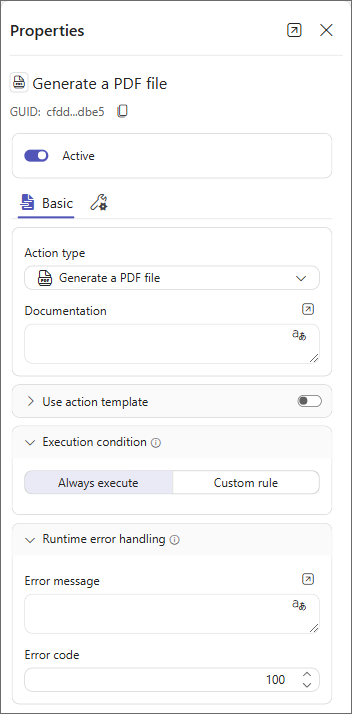
The Basic tab of the Properties panel contains settings common to every action in an automation: the Active toggle, the Action type selection field, the Documentation field, the Use action template toggle (when enabled, the action takes its configuration from the selected action template defined in the process), the Execution condition section (determines whether the action always runs or only when a custom rule is met), and the Runtime error handling section (the message and numeric error code returned when the action fails to execute). These settings are not unique to the Generate a PDF file action, so they are described in detail in the Actions chapter.
Advanced configuration
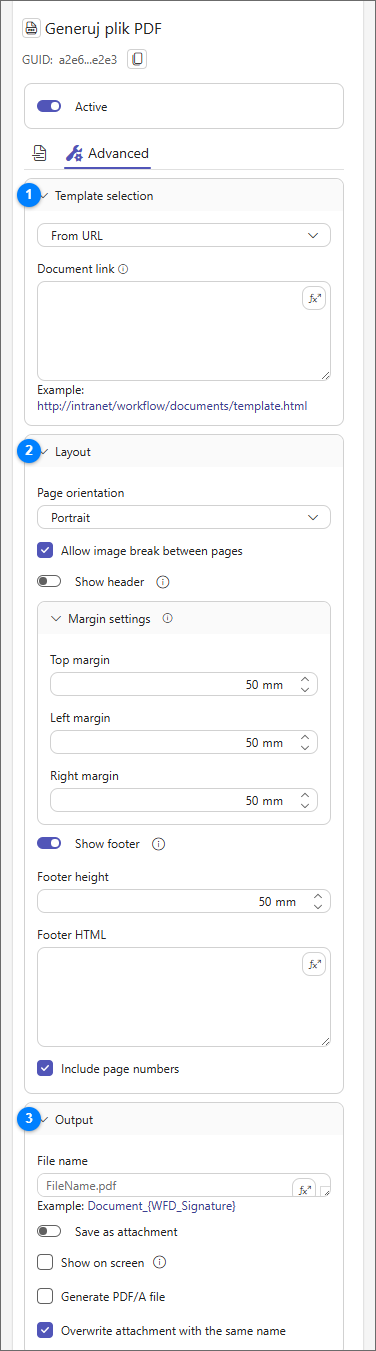
The Advanced tab contains fields specific to this action, grouped into sections: Template selection, Layout, and Output.
1. Template selection
The field determines where the document template is retrieved from:
- From attachment - an existing attachment of the workflow instance is used as the template.
- From URL - the template is downloaded from the indicated URL address.
- From document templates process - the template is retrieved from a dedicated process that stores document templates.
From attachment
Exposes the Attachments to be processed section, in which Based on determines how the attachment acting as the template is selected:
- Category - the attachment is selected based on its assigned category.
- Regular expression - the attachment is selected with a regular expression matching the file name.
- Data source - the attachment is selected with an SQL query returning a list of identifiers.
For the Category mode, two fields are available:
-
Category — the category of attachments taken into account:
- All - attachments belonging to any category are taken into account.
- Dynamic - once selected, the Dynamic expression field becomes available, where the category is built dynamically (using the rule editor) or entered manually, in the format
ID#Nameor justID. - None - attachments not assigned to any category are taken into account.
-
Select — which of the matching attachments will be used:
- All attachments - all matching attachments are processed.
- Only the oldest attachment - only the earliest added attachment is used.
- Only the newest attachment - only the most recently added attachment is used.
For the Regular expression mode, the Regular expression field is available, built manually or with the help of the variable editor:
- File1 or File2, example:
(criterion1|criterion2) - File1 and not File2, example:
^(criterion1|(?!criterion2))
- The simplest selection — only files with a given extension, e.g. ".pdf":
- Expression:
.pdf - Accepted:
Attachment1_File.pdf - Rejected:
Attachment1_File.docx
- Expression:
- All .docx and .pdf files — only the file extension is checked, the name is ignored:
- Expression:
^.*(docx|DOCX|pdf|PDF)$ - Accepted:
Attachment1_FileName007.docx - Rejected:
Attachment1_FileName007.txt
- Expression:
- The file name should start with an explicitly defined word (here: WEBCON), followed by an
__or-character, any number of alphanumeric characters, and end with the .docx or .pdf extension:- Expression:
WEBCON(_|-)[a-zA-Z0-9]*\.(docx|pdf)$ - Accepted:
WEBCON_FileName007.docx,WEBCON-FileName007.pdf - Rejected:
WEBCON FileName With spaces.pdf,SharePoint_FileName123.pdf
- Expression:
- The file name should start with a date in YYYY-MM-DD format, followed by an
__or-character, any number of alphanumeric characters, and end with the .docx or .pdf extension:- Expression:
^\d{4}\-(0?[1-9]|1[012])\-(0?[1-9]|[12][0-9]|3[01])(_|-).*\.(docx|pdf)$ - Accepted:
2015-07-09_FileName007.docx,2015-07-09-File123_New.pdf - Rejected:
2015/07/09-NotGonnaWork.docx,WEBCON_2015-07-09_File.pdf
- Expression:
- Words in the file name should be separated by a
-character and end with the .docx or .pdf extension:- Expression:
^[a-zA-Z0-9]+(?:-[A-Za-z0-9]+)*\.(docx|pdf)$ - Accepted:
WEBCON-File-New.pdf - Rejected:
WEBCON_File_Old.docx
- Expression:
For the Data source mode, the SQL query field is available, in which a query returning a list of attachment identifiers should be provided.
Select [ATT_ID] from [WFDataAttachmets] Where [ATT_Name] = 'template.html'
Regardless of the mode, the section also exposes the Template encoding field — the character encoding the template file is saved in.
From URL
Exposes the Document link field, in which the URL address where the template is available should be provided (e.g. http://intranet/workflow/documents/template.html). It can be any link allowing to download a document with anonymous access.
From document templates process
Exposes the Document template section with two methods of indicating the template:
- Template source - the template is indicated by selecting a data source, then a specific template from a list.
- Dynamically calculated - the template is indicated by an identifier built dynamically (using the rule editor) in the format
/DOCTEMP/<template_identifier>/<instance_identifier>. The ID is a value in the following format:/DOCTEMP/GUID/filename, where:- DOCTEMP – a fixed name specifying document templates process,
- GUID – a template ID from an ID field available in the process form,
- filename – an optional file name.
/DOCTEMP/ec3b6447-417c-4250-ba7b-0534fdacdd2c/template.html
/DOCTEMP/ec3b6447-417c-4250-ba7b-0534fdacdd2c
2. Layout
The section allows configuring additional appearance settings of the resulting .pdf file:
- Page orientation - Portrait or Landscape.
- Allow image break between pages - when checked, the system may split an image across pages if it does not fit on a single page due to its size or position.
- Show header - lets you define a header using CSS or HTML. When enabled, the Header height and Header HTML fields become active and the Top margin field is hidden.
- Margin settings - lets you set custom Top margin, Left margin, and Right margin for the generated file. Values are expressed in points (1 point is 1/72 of an inch), 50 points by default. The Top margin field is available only when Show header is disabled. When Show footer is disabled, the Bottom margin field is also available.
- Show footer - lets you define a footer using CSS or HTML. When enabled, the Footer height and Footer HTML fields become active.
- Include page numbers - enables automatic page numbering in the document footer.
3. Output
The section allows configuring the parameters of the resulting .pdf file:
-
File name - the name of the resulting file, built dynamically with the rule editor.
ExampleDocument_{WFD_Signature} -
Save as attachment - determines whether the generated document is attached to the workflow instance. When checked, the File description and Category fields become available.
-
File description - the description of the resulting file.
-
Category - the category the resulting file will be saved to. In addition to the categories defined in the process, the following options are available:
- None - the resulting file will be saved without a category.
- Dynamic - reveals the Dynamic expression field, used to specify the category dynamically.
-
Show on screen - if the document is not saved as an attachment, checking this option opens a dialog box allowing the document to be previewed or saved to disk. The option is not available if the action is set to save to the workflow instance or to open in the browser.
-
Generate PDF/A file - when checked, the document is generated in the special PDF/A format, intended for long-term archival storage of documents, independent of the operating system and software used.
-
Overwrite attachment with the same name - if checked, a file with the same name is overwritten while its existing category is kept — a new historical version of the file is created.
An example use of the action is provided in the article Certificate generation on the WEBCON technical blog.