Merge attachments into a Word/PDF file
The action merges the attachments added to the workflow instance into a single file, in a format chosen by the user (PDF, PDF/A, or DOCX).
Basic configuration
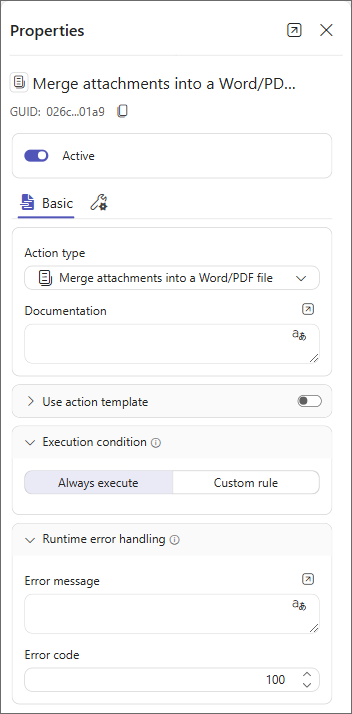
The Basic tab of the Properties panel contains settings shared by every action in an automation: the Active toggle, the Action type field, the Documentation field, the Use action template toggle (when enabled, the action takes its configuration from the selected action template defined in the process), the Execution condition section (determines whether the action always runs or only when a custom rule is met), and the Runtime error handling section (the message and numeric error code returned when the action fails to execute). Since these settings are not unique to the Merge attachments into a Word/PDF file action, they are described in detail in the Actions chapter.
Advanced configuration
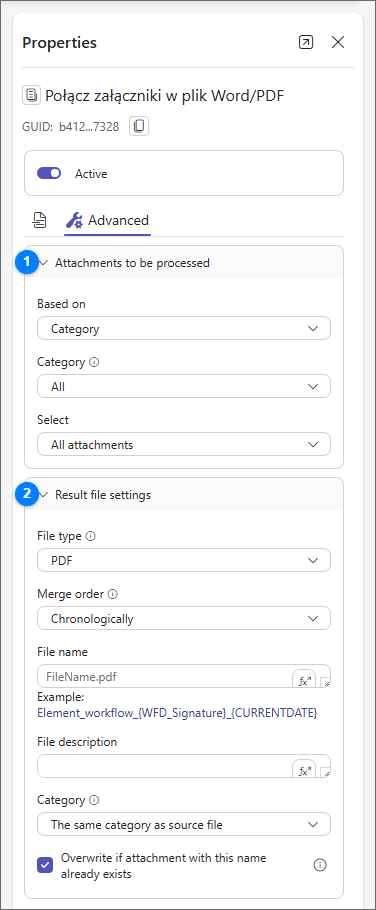
The Advanced tab contains fields specific to this action, grouped into sections: Attachments to be processed and Result file settings.
When merging signed PDF attachments, the electronic signatures are intentionally removed from the resulting file. A digital signature applies to one specific version of a document, and any change to the file's content invalidates it.
1. Attachments to be processed
The Based on field determines how the attachments to be merged are selected:
- Category - attachments are selected based on their assigned category.
- Regular expression - attachments are selected using a regular expression matching the file name.
- Data source - attachments are selected using an SQL query that returns a list of identifiers.
For the Category mode, two additional fields are available:
- Category — the category of attachments taken into account:
- All - attachments belonging to any category are taken into account.
- Dynamic - once selected, the Dynamic expression field becomes available, where the category is built dynamically (using the rule editor) or entered manually, in the format
ID#Nameor justID. Attachments belonging to the specified category are selected based onID. If the search byIDreturns no results, the entered phrase is treated as the name of a custom attachment category (a category outside the source), and attachments belonging to that category are returned. - None - attachments that do not belong to any category are taken into account.
- Select — which attachments among the matching ones are processed:
- All attachments - all attachments with a supported extension are processed.
- PDF - only attachments with the .pdf extension are processed (including PDF/A files).
- DOCX - only attachments with the .docx extension are processed.
For the Regular expression mode, a Regular expression field is available, which can be built manually or with the help of the variable editor.
For the Data source mode, an SQL query field is available, where a query returning a list of attachment identifiers from the „WFDataAttachmets" table must be provided.
The following source attachment extensions can be merged into a PDF or PDF/A file: .pdf, .jpg, .jpeg, .jpe, .jfif, .tif, .tiff, .docx, .dotx, .docm, .dotm, .doc, .dot, .xml, .odt, .txt, .htm, .html, .mhtml, .mht, .xhtml, .rtf, .xls, .xlw, .xlt, .xlm, .xlc, .xla, .xlsx, .xltx, .xlsm, .xltm, .xlsb, .ods, .gif, .png, .bmp, .dib, .ico, .csv, .sql, .json, .webp.
The following source attachment extensions can be merged into a DOCX file: .pdf, .jpg, .jpeg, .jpe, .jfif, .tif, .tiff, .docx, .dotx, .docm, .dotm, .doc, .dot, .xml, .odt, .txt, .htm, .html, .mhtml, .mht, .xhtml, .rtf, .gif, .png, .bmp, .dib, .ico, .sql, .json, .webp.
2. Result file settings
This section allows configuring the parameters of the resulting file:
-
File type — the format in which the file containing the merged attachments will be saved:
- PDF/A
- DOCX
-
Merge order — the order in which the attachments are merged:
- Chronologically - the order is determined by the attachment's last modification time.
- According to name - the order of attachments is determined lexicographically.
- According to SQL - the order of attachments is determined by the results returned by the query specified in the SQL query field above.
-
File name - the name of the resulting file, built dynamically using the rule editor.
ExampleElement_workflow_{WFD_Signature}_{CURRENTDATE} -
File description - the description of the resulting file, built dynamically using the rule editor.
-
Category — the category the resulting file will be assigned to:
- The same category as source file - the resulting file will be assigned to the same category as the source file.
- Dynamic - once selected, the Dynamic field becomes available, where the category is built dynamically (using the rule editor) or entered manually, in the format
ID#Nameor justID— both a category from the source and a category outside the source can be entered. If the category is entered in theID#Nameformat, a category with the givenIDmust exist in the source — otherwise the action will fail with an error. If the category is entered as just anIDand no category with thatIDis found in the source, the entered phrase is treated as the name of a category outside the source. - None - the resulting file will not be assigned to any category.
-
Overwrite if attachment with this name already exists - if checked, a file with the same name will be overwritten while keeping its existing category — a new historical version of the file will be created.