Add attachment to other workflow instance
The action attaches a file from the current workflow instance to another, indicated instance - including one belonging to a different workflow or process.
Basic configuration
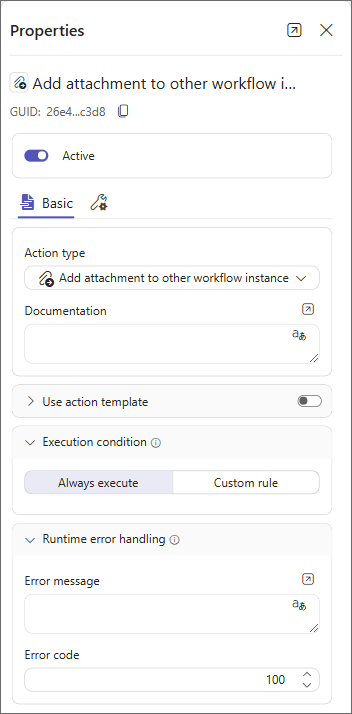
The Basic tab of the Properties panel contains settings common to every action in an automation: the Active toggle, the Action type field, the Documentation field, the Use action template toggle (when enabled, the action takes its configuration from the selected action template defined in the process), the Execution condition section (decides whether the action runs always or only when a custom rule is met), and the Runtime error handling section (the message and numeric error code returned when the action fails). Because these settings are not unique to the Add attachment to other workflow instance action, they are described in detail in the Actions chapter.
Advanced configuration
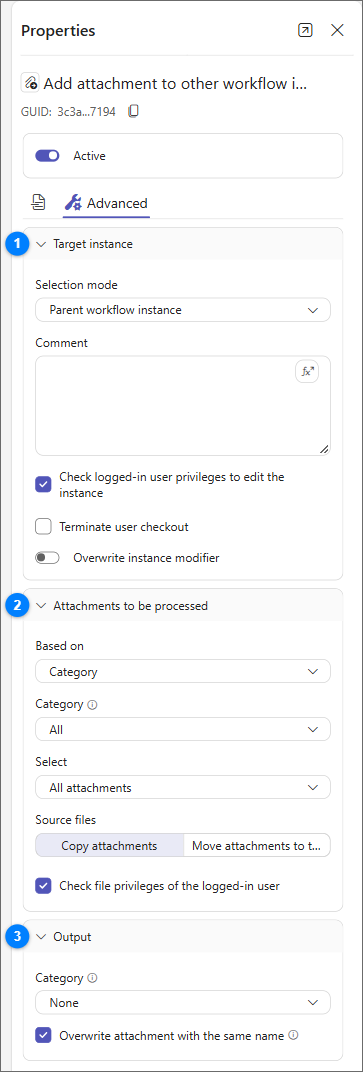
The Advanced tab contains fields specific to this action, grouped into sections: Target instance, Attachments to be processed, and Output.
1. Target instance
The section allows you to indicate the workflow instance the attachment will be added to.
Selection mode determines how the target instance is indicated:
- Parent workflow instance - the attachment is added to the instance that is the parent of the instance from which the action is invoked.
- Form field value - selecting this option activates the Form field containing the instance ID field, where you indicate (built dynamically with the rule editor) a variable that refers to the form field holding the target instance's ID.
- SQL query - the target instance is selected based on an SQL query. Selecting this option activates the Data source field, where a navigation tree allows you to pick a data source, after which you can define an SQL query that returns a column with the IDs of the target instances (the query can return multiple rows).
The section also contains the following fields and toggles:
- Comment - an optional comment (built with the rule editor) that will be added to the target instance.
- Check logged-in user privileges to edit the instance - if checked, the system checks the privileges of the user in whose context the action is running against the target instance. If the user does not have the required privileges, the action is not executed and an error is logged in the event log. Checked by default.
- Terminate user checkout - if the target instance has been checked out by another user, checking this option takes over the checkout and runs the action. If left unchecked and the target instance is being edited by another user, the action is not executed.
- Overwrite instance modifier - turning on this switch activates the Modifier field, where you can indicate (built with the rule editor) a person or group to be shown in the instance's History as responsible for the modification, or enter any text. If a comment is defined, the person indicated in the Modifier field will be displayed as its author.
2. Attachments to be processed
The section allows you to indicate the source attachments to be processed by the action.
The Based on field determines how attachments are searched for:
- Category - attachments are searched for based on their assigned category. Selecting this option makes the following additional fields available:
- Category - the category attachments are searched in. In addition to categories defined in the process configuration, built-in options are available:
- All - attachments in all categories are searched.
- Dynamic - once selected, the Dynamic expression field becomes available, where the category is built dynamically with the rule editor or entered manually, in the
ID#Nameor plainIDformat. If the ID-based search returns no results, the entered phrase is treated as the name of a custom attachment category. - None - attachments without an assigned category are searched.
- Select - indicates which of the matching attachments are processed:
- All attachments - all matching attachments are processed.
- The oldest attachment - only the earliest added attachment is processed.
- The newest attachment - only the most recently added attachment is processed.
- Category - the category attachments are searched in. In addition to categories defined in the process configuration, built-in options are available:
- Regular expression - attachments are selected based on file name, matched with a regular expression built manually or with the RegExLib wizard.
- Data source - attachments to be processed are selected based on an SQL query that returns a list of attachment IDs from the source instance.
The section also contains:
- Source files - determines what happens to the source attachments after they are added to the target instance:
- Copy attachments - the attachments are added to the target instance while remaining on the source instance as well.
- Move attachments to the current instance - the attachments are added to the target instance and removed from the source instance.
- Check file privileges of the logged-in user - if checked, the attachment is not added to the target instance if the logged-in user does not have privileges to the source file. Checked by default.
3. Output
The section determines the behavior of the files after they are added to the target instance.
- Category - the category the added files will be assigned to:
- None - the added attachment will not belong to any category.
- Dynamic - once selected, the Dynamic expression field becomes available, where the category is built dynamically with the rule editor or entered manually.
- Overwrite attachment with the same name - if the target instance already has an attachment with the same name, it will be overwritten and the category selected in the Category field will be ignored - the overwritten file keeps the category assigned to its previous version. Overwriting creates a new historical version of the file. Checked by default.