Create tasks
The action assigns a task to selected people during the event where it is placed in the automation — for example on step entry, on step exit, or on a path. It lets you combine several independent ways of determining the task recipients within a single configuration.
Basic configuration
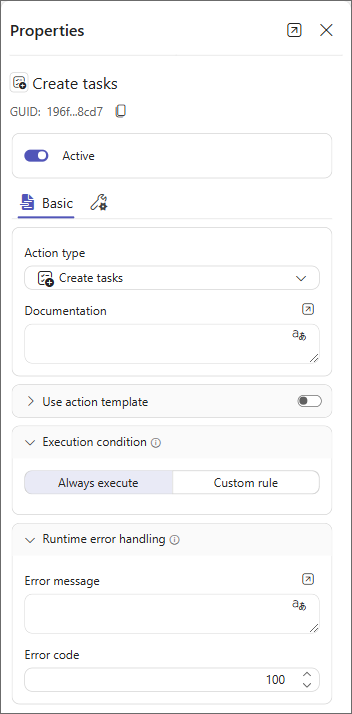
The Basic tab of the Properties panel contains settings shared by every action in an automation: the Active toggle, the Action type selector, the Documentation field, the Use action template toggle (when enabled, the action takes its configuration from the selected action template defined in the process), the Execution condition section (decides whether the action always runs or only when a custom rule is met), and the Runtime error handling section (the message and numeric error code returned when the action fails). Because these settings are not specific to the Create tasks action, they are described in detail in the Actions article.
Advanced configuration
The Advanced tab contains the fields specific to this action — the task type and content, the form on which the task is displayed, and the ways of determining who receives the task.
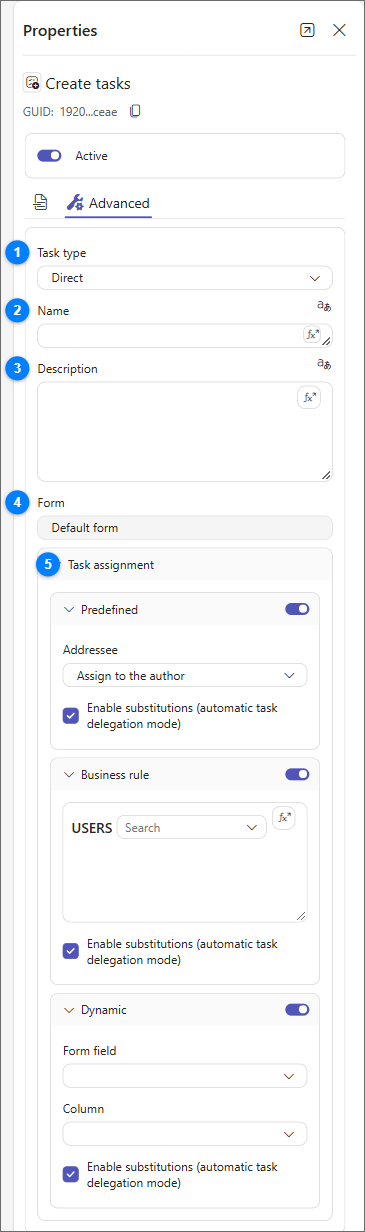
1. Task type
Determines whether the task is assigned as Direct or as CC:
- Direct — the task is assigned to a user or group at the moment a path is taken, so only when a transition context occurs (e.g. the user clicks a path button, or a path action is triggered automatically). This task type is not available in On workflow instance save automations, which provide no transition context — it can be used in On entry, On exit, and On path automations. Tasks of this type appear on the user's task list and block the process — the instance waits for the assigned person to perform the action.
- CC — the task acts as an informational notification, requires no interaction from the user, and does not block the process. It is visible to the assigned people but requires no action from them. It can be assigned in any context — including without a path transition, such as in On workflow instance save automations.
When creating an action template, any task type can be selected. Using a template with a Direct task in the wrong context (e.g. in an On workflow instance save automation) will not assign the task, because the system will not have the context required to create it.
2. Name
The task name shown to the assigned person on the form and on the task list. The field is translatable (the Translations button) and can hold a business rule (the fx button).
3. Description
Instructions telling the assigned person what to do for the task to be completed correctly. The field is translatable and can hold a business rule, just like Name.
4. Form
Lets you choose the form on which the assigned person receives the task. This makes it possible to split a step into several tasks and show the user only the form fields needed to complete their particular task.
5. Task assignment
This section offers three independent ways of determining the task recipients. Each one is turned on with its own switch, and more than one can be enabled at the same time — in that case the task is assigned to the combined set of people determined by all enabled methods.
-
Predefined — the recipient is picked from a list of ready-made options in the Addressee field:
Option Description Tasks from previous step The task is additionally assigned to people who had tasks on the previous step before entering the current step Assign to superior The task is assigned to the superior of the person whose task is being completed Assign to the author The task is assigned to the person who created the current workflow instance Assign to current user The task is assigned to the currently logged-in user Assign to currently assigned users The task is assigned to people who have tasks on the current step Assign to users who completed tasks in previous step The task is assigned to people who completed tasks on the previous step Assign to a user whose task has been completed The task is assigned to the person whose task is currently being completed on the current step The Enable substitutions (automatic task delegation mode) option lets substitutions configured for the people determined by this method be taken into account.
-
Business rule — the recipient is determined by a business rule defined in the rule editor (the fx button); the rule should return the login or identifier of the person or group the task is to be assigned to. As with the Predefined method, an Enable substitutions option is available here.
-
Dynamic — the recipient is chosen dynamically based on a form field. The Form field selector lets you pick a Person or group or Choice form field the people are taken from; for a Choice form field you also need to select the correct Column. As with the other methods, an Enable substitutions option is available.
More information on how the action works, along with usage examples, is available in the article Akcja "Utwórz zadania" on our technical blog.