AI Create transcription
The action uses artificial intelligence to create a transcription of an audio recording attached to the workflow instance. The resulting transcription can be saved as a form field value (or a comment), or as an attachment file.
Availability of this action depends on having an additional, dedicated license.
Basic configuration
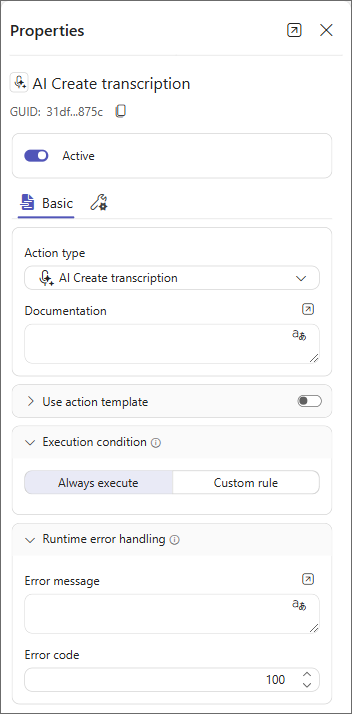
The Basic tab of the Properties panel contains settings common to every action in an automation: the Active toggle, the Action type selection field, the Documentation field, the Use action template toggle (when enabled, the action takes its configuration from the selected action template defined in the process), the Execution condition section (determines whether the action always runs or only when a custom rule is met), and the Runtime error handling section (the message and numeric error code returned when the action fails to execute). These settings are not unique to the AI Create transcription action, so they are described in detail in the Actions chapter.
Advanced configuration
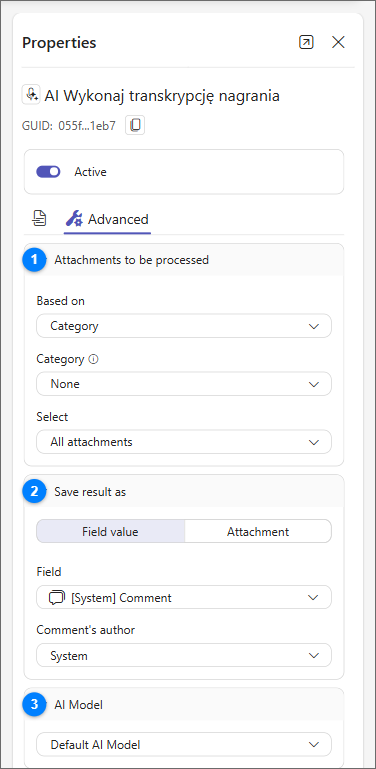
The Advanced tab contains fields specific to this action, grouped into sections: Attachments to be processed, Save result as, and AI Model.
1. Attachments to be processed
Based on determines how the attachment (or attachments) to process is selected:
- Category - attachments are selected based on their assigned category.
- Regular expression - attachments are selected using a regular expression matched against the file name.
- Data source - attachments are selected using a query that returns a list of identifiers.
The selected option affects the availability of the remaining fields in the section.
For the Category mode, two fields are available:
-
Category — the category of attachments to take into account:
- All - attachments belonging to any category are taken into account.
- Dynamic - once selected, the Dynamic expression field becomes available, where the category is built dynamically (using the rule editor) or entered manually, in
ID#Nameformat or as a plainID. Attachments belonging to the category will be selected based on their ID. If searching by ID returns no results, the entered phrase will be treated as a name of a custom category (a category from outside the data source), and attachments belonging to this category will be returned. - None - attachments that do not belong to any category are taken into account.
-
Select — which of the matching attachments will be processed:
- All attachments - all matching attachments with a supported extension will be processed (.wav, .mp3, .aac, .ogg vorbis, .flac).
- The oldest attachment - only the earliest added attachment will be processed.
- The newest attachment - only the most recently added attachment will be processed.
For the Regular expression mode, the Regular expression field is available, built using the rule editor, which selects attachments based on a match against the file name.
For the Data source mode, the SQL query field is available, in which a query returning a list of attachment identifiers to process must be provided.
Select [ATT_ID] from [WFDataAttachmets] Where [ATT_Name] = 'file.docx'
2. Save result as
The Save result as toggle determines the form in which the transcription result is saved:
-
Field value — the transcription result will be saved as a form field value or as a comment. The Field lets you select a Multiple lines of text form field, or the system [System] Comment field. If [System] Comment is selected, an additional Comment's author field appears:
Value Description System the comment will be added on behalf of the system Current user the comment will be added on behalf of the user executing the action -
Attachment — the transcription result will be saved as an attachment file. The following fields are then available:
-
File type — the format of the resulting file: TXT, DOCX, PDF, or PDF/A.
-
File name — the name of the resulting file, built dynamically using the rule editor.
ExampleElement_workflow_{WFD_Signature}_{CURRENTDATE} -
File description — an optional description of the resulting file, built dynamically using the rule editor.
-
Category — the category the resulting file will be saved to:
- The same category as source file - the resulting file will be saved with the same category as the processed attachment.
- None - the resulting file will be saved without a category.
- Dynamic - once selected, the Dynamic expression field becomes available, where the category is built dynamically (using the rule editor) or entered manually, in
ID#Nameformat or as a plainID. In this mode, it is possible to enter a category from within or outside the data source.
-
If the category is provided in ID#Name format, the source must contain a category with the provided ID. If such a category is not found, the action will result in an error.
If the category is provided as the ID only, and it is not found in the source, the entered phrase will be treated as a name of a custom category (a category from outside the data source).
- Overwrite if attachment with this name already exists — if enabled, a file with the same name will be overwritten and its existing category preserved. A new historical version of the file is created.
3. AI Model
The AI Model field lets you select the artificial intelligence model used to perform the transcription. The default value, Default AI Model, uses the model configured globally for the organization. A different model available in the given environment can be selected if needed.
For more information on the AI solutions available in WEBCON, see the article on the WEBCON technical blog.