Run an SDK action
The action is used to run SDK add-ons, which provide functionality not available in WEBCON as standard. Add-ons are created by developers and made available as a package, which must be uploaded to Designer Studio. Default add-ons can also be used.
The events on which the action can be embedded are listed in the table in the Actions chapter. The selected add-on can additionally restrict how the action is invoked — the restriction is defined in the add-on code.
The action can be executed in one of three modes:
- Standard behavior — the action is executed precisely where it was embedded in the automation,
- Pending in transaction — execution of the action is postponed until the end of the transaction,
- Pending after transaction — execution of the action is postponed until after the end of the transaction.
The action execution modes are described in the Sequence of action execution chapter. For more information on the "Pending in transaction" and "Pending after transaction" modes, see this article on our technical blog.
To use an SDK add-on in an automation:
- Register the add-on package in the Plugin packages section — registration is described in the SDK plugin packages chapter.
- Add the Run an SDK action action to the automation as described in the Adding an action section.
- On the Advanced tab of the Properties panel, select the add-on in the SDK add-on field.
- Fill in the add-on parameters displayed below the SDK add-on field.
Basic configuration
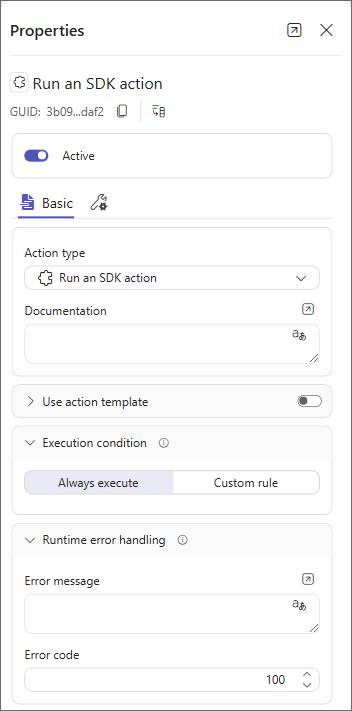
The Basic tab of the Properties panel contains settings shared by every action in an automation: the Active toggle, the Action type field, the Documentation field, the Use action template toggle (when enabled, the action takes its configuration from the selected action template defined in the process), the Execution condition section (decides whether the action always runs or only when a custom rule is met), and the Runtime error handling section (the message and numeric error code returned when the action fails to execute). Since these settings are not unique to Run an SDK action, they are described in detail in the Actions chapter.
Advanced configuration
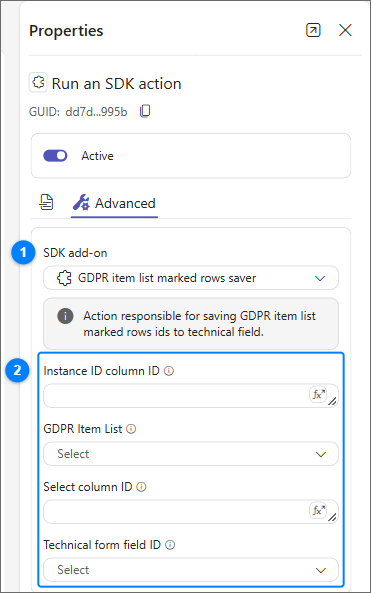
The Advanced tab contains the SDK add-on field and — once an add-on is selected — the parameters defined by the add-on developer.
1. SDK add-on
The SDK add-on whose code the action runs. The selection list contains a search field and the registered add-on packages — expanding a package displays the add-ons it contains. Once an add-on is selected, a gray information box with the add-on description (the description text comes from the add-on) is displayed directly below the field, followed by the add-on parameters.
By default, the field is empty and shows the Select add-on placeholder. The field is required — until an add-on is selected, the Field is required message is displayed.
2. Add-on parameters
The add-on parameters are defined by the add-on developer. The number of parameters, their type (e.g. a text field or a selection list), labels, and the hints displayed when hovering over the information icon depend on the selected add-on. Labels and hints are displayed in the Designer Studio interface language, provided that the add-on includes the relevant translations.
For detailed information on SDK add-ons, see the SDK plugin packages chapter and the SDK actions article on our technical blog.