Update item list values
This action changes data stored in an Item list — it updates existing rows, adds new ones, or removes rows that no longer exist in the source — based on rows retrieved from a Data source. The change modes can be combined.
Basic configuration
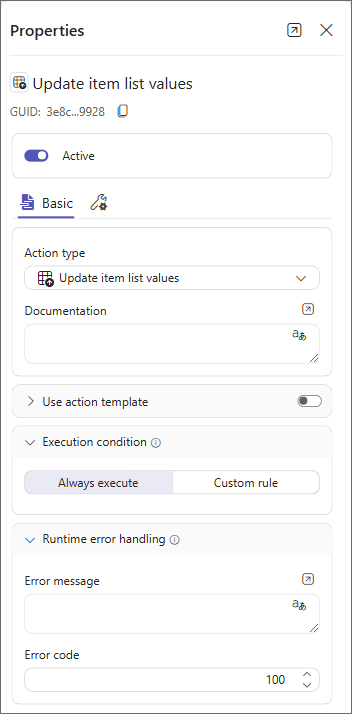
The Basic tab of the Properties panel holds settings shared by every action in an automation: the Active switch, the Action type field, the Documentation field, the Use action template switch (when enabled, the action takes its configuration from the selected action template defined in the process), the Execution condition section (decides whether the action always runs or only when a custom rule is met), and the Runtime error handling section (the message and numeric error code returned when the action fails). Since these settings are not unique to the Update item list values action, they are described in detail in the Actions chapter.
Advanced configuration
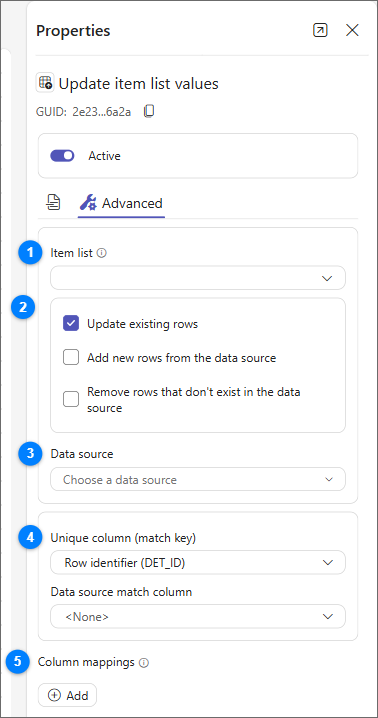
The Advanced tab holds fields specific to this action: Item list, the checkboxes that determine the change type, Data source, the unique-column pair of fields, and Column mappings.
1. Item list
The Item list whose rows will be changed when the action runs. The field lets you pick one of the Item lists defined in the process.
2. Change type
Three independent checkboxes that determine which operations are performed on the Item list rows. More than one option can be selected at once — the modes combine. The Update existing rows checkbox is selected by default.
- Update existing rows — overwrites values in Item list rows whose Unique column (match key) value matches the Data source match column value. Which cells get overwritten is determined by Column mappings.
- Add new rows from the data source — adds rows to the Item list that exist in the Data source but have no matching row (by the match key) among the existing Item list rows. Values in the added rows are set according to Column mappings.
- Remove rows that don't exist in the data source — removes Item list rows whose match-key value is not present in the current Data source result.
3. Data source
The data source that rows used to update, add, or remove Item list rows are retrieved from. Either a data source or a connection can be selected in this field. When a data source is selected, the Filter switch is available, allowing the retrieved rows to be narrowed down with a business rule; when a connection is selected, the Query field appears, in which the query retrieving the data is defined.
4. Unique column (match key) and Data source match column
A pair of fields that define how an Item list row is matched to a Data source row. Unique column (match key) points to the Item list row's built-in identifier (shown as Row identifier (DET_ID)), while Data source match column is the Data source column whose value should correspond to that identifier — the list of available columns loads automatically once a Data source is selected.
5. Column mappings
A table linking Item list columns to Data source columns. Each mapping row consists of an Item list column field (the cell whose value will be set) and a Data source column field (the column the new value is taken from). The Add button adds another mapping row, and the trash icon removes an existing one. If an Item list column is not mapped, it is skipped when values are set.
For more information, see: Actions on the item list on our technical blog.