Hyperlink
This action navigates to a page at a given address, or opens a page at a given address in a new window.
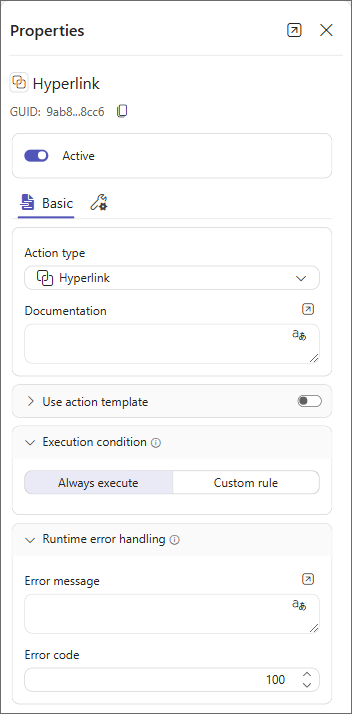
Basic configuration
The Basic tab of the Properties panel holds settings shared by every action in an automation: the Active switch, the Action type field, the Documentation field, the Use action template switch (when enabled, the action takes its configuration from the selected action template defined in the process), the Execution condition section (decides whether the action always runs or only when a custom rule is met), and the Runtime error handling section (the message and numeric error code returned when the action fails). Since these settings are not unique to the Hyperlink action, they are described in detail in the Actions chapter.
Advanced configuration
The Advanced tab holds fields specific to this action: Hyperlink (URL), Open in new window, Encode special characters in variables, and the Use "Send e-mail" template button.
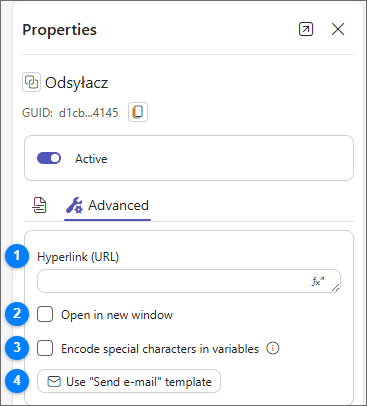
1. Hyperlink (URL)
The address of the page to redirect to. The address is defined using a rule — clicking the fx icon opens a full-screen rule designer. The Functions tab includes a Hyperlinks category with helper functions for building addresses, including the Portal address and functions that open or start a specific instance.
2. Open in new window
Turning this option on makes the target page open in a new browser window instead of the one currently shown to the user.
3. Encode special characters in variables
Turning this option on converts special characters found in the variable values used to build the URL into their ASCII code, for example:
User Name -> User%20Name
User#Name -> User%23Name
(See: https://msdn.microsoft.com/pl-pl/library/4fkewx0t(v=vs.110).aspx)
4. Use "Send e-mail" template
Fills the Hyperlink (URL) field with the default parameters of the "mailto:" protocol, so running the action opens a predefined e-mail message template in the default e-mail client.
If a menu-button automation has been created in the Global actions tab, which embeds another automation configured in System settings with the Hyperlink action, the associated button is visible only when the form is in edit mode. In contrast, when this action is inserted directly into the menu-button automation, the button is visible in both edit and read-only modes of the form.
For more information, see: The Hyperlink action on our technical blog.