Manage WEBCON user licenses
The action assigns a license of the selected type to the specified WEBCON user or removes it from that user. It can be embedded on any automation event — e.g. on entering a step, on leaving it, on a transition path, or on a menu button.
Basic configuration
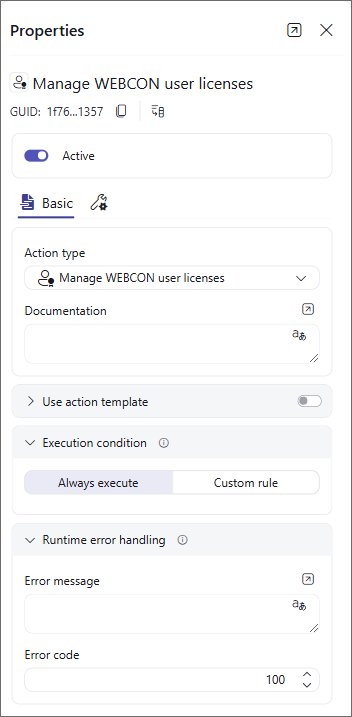
The Basic tab of the Properties panel contains settings shared by every action in an automation: the Active toggle, the Action type field, the Documentation field, the Use action template toggle (when enabled, the action takes its configuration from the selected action template defined in the process), the Execution condition section (decides whether the action always runs or only when a custom rule is met), and the Runtime error handling section (the message and numeric error code returned when the action fails). Since these settings are not unique to the Manage WEBCON user licenses action, they are described in detail in the Actions chapter.
Advanced configuration
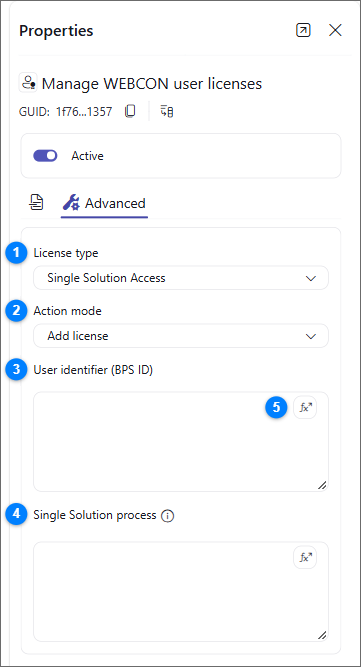
The Advanced tab contains fields specific to this action. The screenshot shows the tab with the Single Solution Access license type selected, in which all fields are visible.
1. License type
The License type field specifies the type of license that the action assigns or removes. The field has no default value. 7 license types are available:
- Designer Studio Access,
- Designer Desk Access,
- Single Solution Access,
- Single-Use Access,
- Core CAL,
- Lite CAL,
- Premium CAL.
Selecting the Single Solution Access type displays an additional field on the tab, Single Solution process (point 4).
The license will not be assigned if the user already has an assigned Unlimited Solutions Access license; however, in this case the action will not return an error.
A description of the license types can be found in the Licenses chapter, and information on the new licensing model and license assignment – in the article New WEBCON licenses 2026 — what is changing and how to migrate without downtime on the technical blog.
2. Action mode
The Action mode field specifies the operation performed by the action:
- Add license – assigns the selected license to the specified WEBCON user (default option),
- Remove license – removes the selected license from the specified WEBCON user.
3. User identifier (BPS ID)
The User identifier (BPS ID) field specifies the user to whom the license is assigned or from whom it is removed as a result of the action. The identifier is entered in UPN format (e.g. j.smith@webcon.com) – manually or dynamically, using the expression editor (point 5). The field is required.
4. Single Solution process
The Single Solution process field is visible only after selecting the Single Solution Access license type and is required for this type. The field should contain the process ID (or a collection of process IDs) for which the license is to be assigned or removed. The value can be entered manually or dynamically, using the expression editor (point 5).
5. Expression editor
The fx button in the User identifier (BPS ID) and Single Solution process fields opens the expression editor, in which the field value can be supplemented with dynamic values.
Information on how variables work and a list of variables can be found in the Variables chapter.