Teach OCR AI
An action from the OCR and scanning category used when field values have been recognized unsatisfactorily or incorrectly. It is used to correct and improve the accuracy of the recognition performed by the OCR AI recognition action.
Basic configuration
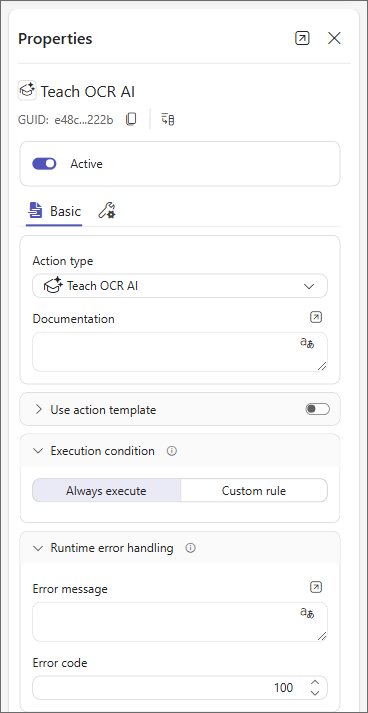
The Basic tab of the Properties panel contains settings shared by every action in an automation: the Active toggle, the Action type field, the Documentation field, the Use action template toggle (when enabled, the action takes its configuration from the selected action template defined in the process), the Execution condition section (determines whether the action always runs or only when a custom rule is met), and the Runtime error handling section (the message and numeric error code returned when the action fails). Because these settings are not unique to the Teach OCR AI action, they are described in detail in the Actions chapter.
Advanced configuration
The Advanced tab contains fields specific to this action, grouped into the Basic settings, Custom networks settings and Attachments selection criteria sections.
Basic settings
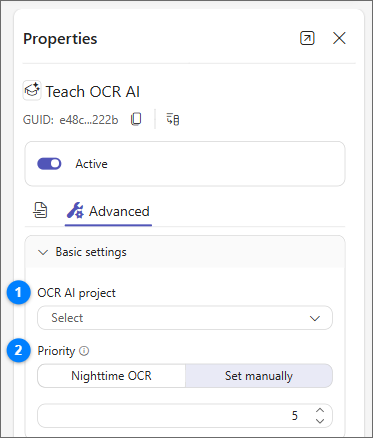
- OCR AI project – a list of the OCR AI projects defined in the system, used to select the project whose recognition results are to be improved. New projects are added in desktop Studio, in the OCR AI Projects node of System settings.
- Priority – a toggle between Nighttime OCR and Set manually, determining the order in which attachments are processed.
- Selecting Set manually enables a numeric field ranging from 1 to 10 (5 by default) – files with priority 1 are processed first, in ascending order. This option is selected by default.
- Selecting Nighttime OCR hides the numeric field and automatically sets the priority to 11 – files with this priority are processed only during night hours, configurable in desktop Studio (System settings → Services configuration → Schedules).
- The current state of the queue elements can be checked in the attachment processing reports.
Custom networks settings

- Use custom networks – a toggle that enables teaching custom networks. A custom network is bound to a value of the Distinguisher, while the Distinguisher is a form field. Similarly to projects, custom networks have versions that can be accessed and managed. The toggle is off by default; turning it on reveals the Distinguisher field.
- Distinguisher – a field visible when custom networks are enabled. It indicates the form field whose value will be used to choose the custom network. If no custom network exists yet for a given Distinguisher value, a new network is created – the details are described in the Work scenarios section.
Example
The contractor's VAT identification number can be set as the Distinguisher. In that case, if a VAT identification number for which a custom network exists is read from a document (e.g. an invoice), the action will re-teach that custom network.
Attachments selection criteria

- Attachment selection mode – determines how the attachments used for teaching are indicated:
- Predefined – attachments for teaching are selected automatically, as described in the Work scenarios section. With custom networks disabled, the current document is used. With custom networks enabled – up to 100 of the most recent documents with the same Distinguisher value and of the same document type, previously registered in the system, that are or have been in the OCR AI verification step. This option is selected by default.
- Using SQL – attachments are indicated by the query entered in the SQL query field.
- SQL query – a field visible when Using SQL is selected. The first column of the query result should return the identifiers (
ATT_ID) of the attachments to be used for teaching. The query is executed on the default database. The selected attachments should have valid values in the fields used for teaching and should be recognized by the project that will undergo teaching. It is recommended to verify the teaching data in the OCR AI verification step.
Work scenarios
When the Use custom networks toggle is off, the selected project is further trained with one document – a new version of the universal network is created.
When the toggle is on and the Distinguisher is specified, the teaching path depends on the Distinguisher value:
- If a custom network already exists for the Distinguisher value, the network is created again using up to 100 documents previously registered in the system.
- If no custom network exists for the Distinguisher value, a new network is created using up to 100 documents previously registered in the system.
- If the Distinguisher value is empty, teaching is interrupted and an appropriate message is displayed.
The action ignores documents older than 1 year.
For more information on teaching OCR AI, see the article OCR AI Learn on our technical blog.