OCR AI recognition
An action from the OCR and scanning category that adds the attachments of a workflow instance to the OCR AI recognition queue. The action reads the relevant fields from the file and then enters their values into the corresponding form fields.
Basic configuration
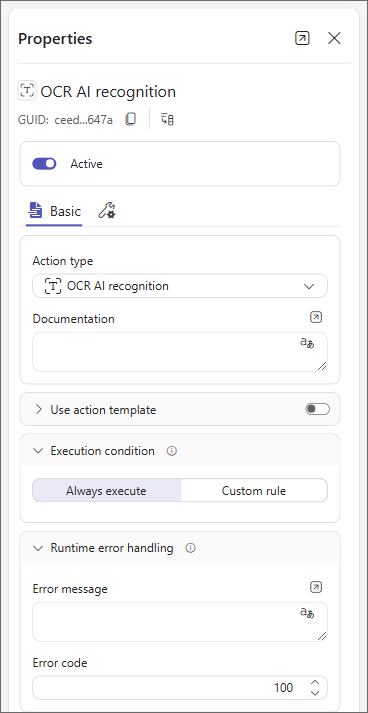
The Basic tab of the Properties panel contains settings shared by every action in an automation: the Active toggle, the Action type field, the Documentation field, the Use action template toggle (when enabled, the action takes its configuration from the selected action template defined in the process), the Execution condition section (determines whether the action always runs or only when a custom rule is met), and the Runtime error handling section (the message and numeric error code returned when the action fails). Because these settings are not unique to the OCR AI recognition action, they are described in detail in the Actions chapter.
Advanced configuration
The Advanced tab contains fields specific to this action, grouped into the Basic settings, Form fields mapping settings and Attachments selection criteria sections.
Basic settings
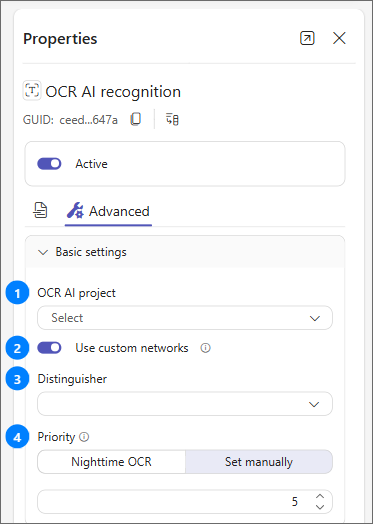
- OCR AI project – a list of the OCR AI projects defined in the system, from which the project used by the action is selected. New projects are added in desktop Studio, in the OCR AI Projects node of System settings.
- Use custom networks – a toggle that enables the selection of a custom network. A custom network is bound to a value of the Distinguisher, while the Distinguisher is a form field. Similarly to projects, custom networks have versions that can be accessed and managed. The toggle is off by default; turning it on reveals the Distinguisher field.
- Distinguisher – a field visible when custom networks are enabled. It indicates the form field whose value will be used to choose the custom network. If a custom network does not exist for the given Distinguisher, the global template will be improved/taught instead.
Example
The contractor's VAT identification number can be set as the Distinguisher. In that case, if a VAT identification number for which a custom network exists is read from the invoice, the action will use the corresponding OCR AI project.
- Priority – a toggle between Nighttime OCR and Set manually, determining the order in which attachments are processed.
- Selecting Set manually enables a numeric field ranging from 1 to 10 (5 by default) — files with priority 1 are processed first, in ascending order. This option is selected by default.
- Selecting Nighttime OCR hides the numeric field and automatically sets the priority to 11 — files with this priority are processed only during night hours, configurable in desktop Studio (System settings → Service configuration → Schedules).
- The current state of the queue elements can be checked in the attachment processing reports.
Form fields mapping settings

This section defines which fields of the OCR AI project are entered into the corresponding form fields. A new mapping row is added with the Add mapping button, available once a project is selected in the OCR AI project field. Each mapping consists of the following columns:
- OCR AI Field – the OCR AI project field whose recognized value is transferred to the form.
- Form field – the form field the recognized value is entered into. Valid target fields for mapping are text, decimal, integer, boolean and choice fields.
- Data source and Data source column – validate the value recognized by OCR AI. If one of the recognized values is found in the specified data source column, it is considered valid.
- Mask – the way the recognized value is processed. Using a number mask clears all separators and characters other than digits, which makes it easier to enter these values into choice fields. Using a currency amount mask greatly improves the success rate of recognizing monetary values with two decimal places.
Attachments selection criteria

- Input files types – determines which files the action processes:
- All files – files of the types specified in the
TextLayerSupportedFileExtensionsglobal parameter are processed. - PDF only – only PDF files are processed. This option is selected by default.
- Files filtered by regular expression – files selected by the regular expression entered in the Filter by regular expression field are processed.
- All files – files of the types specified in the
- Filter by regular expression – a field visible when Files filtered by regular expression is selected. It contains the expression used to select the files to be processed.
Example
Entering
.*_ocr\.pdf$will select files with the suffix "_ocr.pdf" in their name, such as "invoice_ocr.pdf" or "importantDocument_ocr.pdf". - Category – the category in which attachments are searched. In addition to categories defined in the process configuration by a process designer, the following built-in options are available:
- All – attachments belonging to all categories are searched. This option is selected by default.
- Dynamic – reveals the Dynamic expression field, in which the category is specified dynamically or manually.
- None – attachments not belonging to any category are searched.
- Dynamic expression – a field visible when Dynamic is selected. It allows constructing the category dynamically (using variables inserted with the fx button) or entering it manually, in
ID#Nameformat or as anIDalone. Attachments belonging to the indicated category are selected based on ID. If a search by ID returns no results, the entered phrase is treated as the name of a custom attachment category (a category from outside the data source), and attachments belonging to this category are returned. Information on how variables work, as well as a list of variables, can be found in the Variables chapter.
For more information on text recognition, see the article The OCR verification view for the Modern form on our technical blog.