Add a barcode
This action adds a barcode to attachments added to a workflow instance. Barcodes can be added to files in the pdf, jpg/jpeg, or tiff format. In order to work properly, the action requires you to enter connection parameters with WEBCON Workflow Service.
Basic configuration
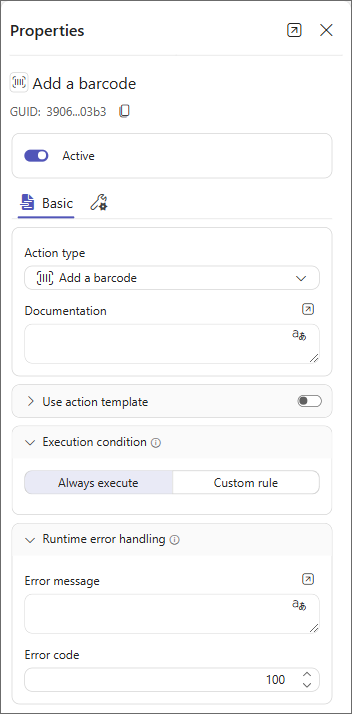
The Basic tab of the Properties panel holds settings shared by every action in an automation: the Active switch, the Action type field, the Documentation field, the Use action template switch (when enabled, the action takes its configuration from the selected action template defined in the process), the Execution condition section (decides whether the action always runs or only when a custom rule is met), and the Runtime error handling section (the message and numeric error code returned when the action fails). Since these settings are not unique to the Add a barcode action, they are described in detail in the Actions chapter.
Advanced configuration
The Advanced tab holds fields specific to this action: Document corner, Barcode type, Add instance ID, Add instance number, Add registration date, Add custom text, Search all attachments, and Archive file before adding barcode.
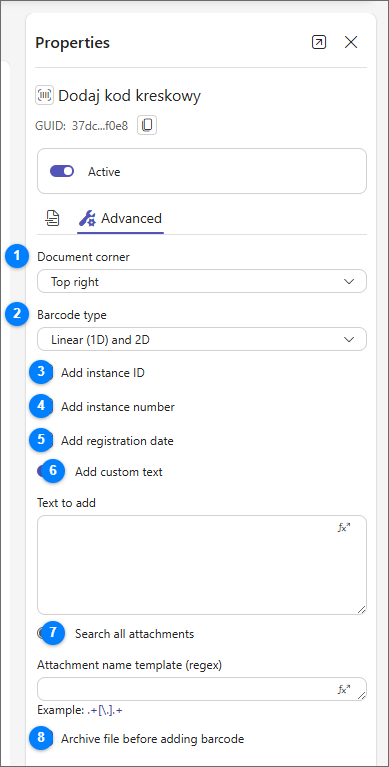
1. Document corner
The document corner where the barcodes will be added.
2. Barcode type
The barcode symbology added to the document:
- Linear (1D) and 2D - both a linear (1D) code and a two-dimensional code are added.
- Linear (1D) - only a linear (1D) code is added.
- 2D - only a two-dimensional code is added (e.g. a QR code or DataMatrix).
3. Add instance ID
Specifies whether the barcode should include the workflow instance ID.
4. Add instance number
Specifies whether the barcode should include the workflow instance number.
5. Add registration date
Specifies whether the barcode should include the workflow instance's registration date.
6. Add custom text
When this switch is enabled, the text entered in the Text to add field is included in the barcode. The content of Text to add can be built dynamically using the rule designer available under the fx icon — a visual formula editor that provides a tree of all variables available in the current Designer Studio location. More information on variables is available here.
7. Search all attachments
Specifies whether the barcode should be added to all attachments of the instance. When this switch is disabled, the Attachment name template (regex) field appears — a regular expression that determines which attachments of the instance are marked with the barcode; only attachments whose name matches the given pattern are included.
.+[\.].+ – all attachments containing a "." character in their name
8. Archive file before adding barcode
Specifies whether a copy of the original file, without the barcodes applied, should be kept in the database.
The action is executed in "Pending in transaction" mode, i.e. its execution is postponed until the transaction is completed. For more information, see this article on our technical blog.
More information on this action is available in the article on the "Add a barcode" action on our technical blog.