Exchange tasks
The action adds or deletes a task in a user's calendar on an Exchange server.
Basic configuration
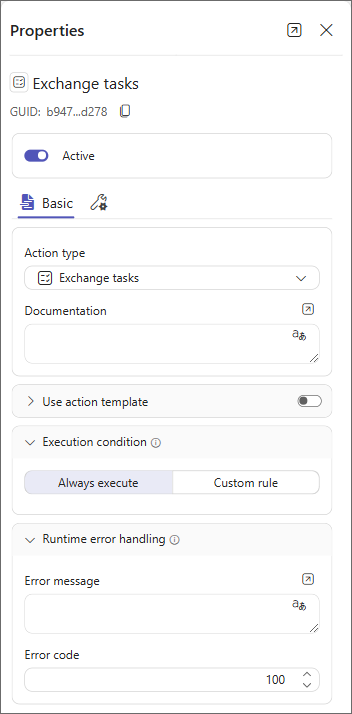
The Basic tab of the Properties panel contains settings shared by every action in an automation: the Active toggle, the Action type field, the Documentation field, the Use action template toggle (when enabled, the action takes its configuration from the selected action template defined in the process), the Execution condition section (decides whether the action always runs or only when a custom rule is met), and the Runtime error handling section (the message and numeric error code returned when the action fails to execute). Since these settings are not unique to the Exchange tasks action, they are described in detail in the Actions chapter.
Advanced configuration
The Advanced tab contains fields specific to this action, grouped into sections: general fields, Task settings, and Assignees.
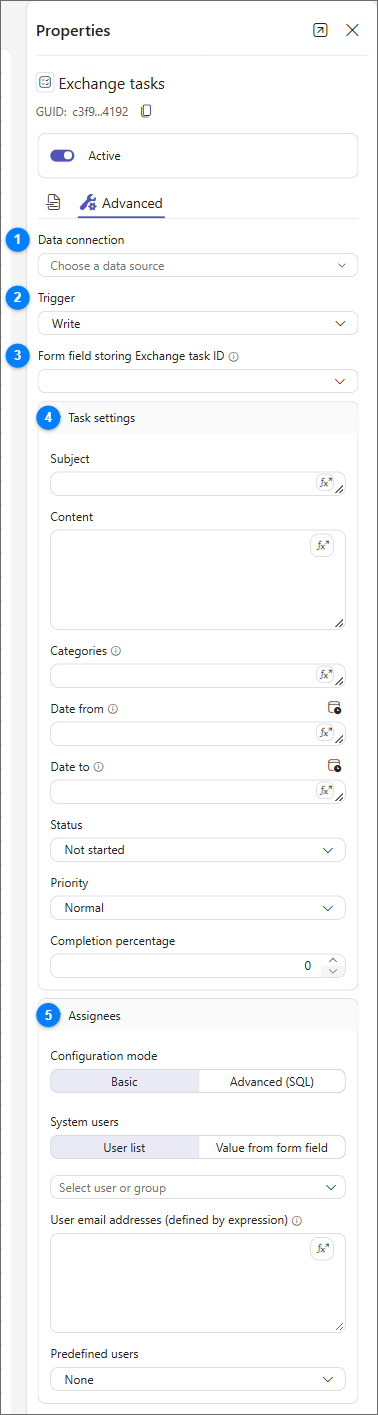
1. Data connection
The Exchange Server data source the action is directed to.
2. Trigger
The action's behavior once triggered:
- Write - adds a new task to the calendar.
- Delete - removes the task from the calendar.
The option selected here affects the availability of other fields of the tab.
3. Form field storing Exchange task ID
The form field the Exchange task identifier is written to (when adding a task) or read from (when deleting a task).
4. Task settings
The section holds the detailed parameters of the task itself:
-
Subject and Content — basic information about the task; each field can be built dynamically using the rule editor available under the fx icon.
-
Categories — the categories assigned to the task.
tipSeparate individual categories with semicolons, e.g.
Category1;Category2. -
Date from and Date to — the task's start and end date/time.
tipFormat dates as
yyyy-MM-dd HH:mm:ss, or reference a form field value, e.g.field({123}). -
Status — the task's progress state.
-
Priority — the task's priority: low, normal, high.
-
Completion percentage — a numeric value from 0 to 100 indicating how much of the task has been completed.
5. Assignees
The section lets you specify the users the task will be assigned to.
Configuration mode determines how assignees are decided:
-
Basic — assignees are selected from a user list or based on a form field value. The following fields are then available:
- System users — a User list / Value from form field toggle: either a static pick of a user or group (with an Active Directory search), or a dynamic pick based on a form field value.
- User email addresses (defined by expression) — the assignees' email addresses, built dynamically using the rule editor.
- Predefined users — an additional source of assignees. You can select the author, people assigned a task or a CC task on the workflow instance, or all assigned people.
-
Advanced (SQL) — assignees are determined by the Query (SQL or CAML) field — a query returning the assignees' logins or email addresses. The additional Data source field lets you specify which database the query is directed to; by default, the query runs against the database Designer Studio is currently running on.