Remove privileges
The action lowers privileges on an instance, e.g. on a sub-workflow.
The action executes in Pending in transaction mode — its execution is deferred until the end of the transaction. More information on the Pending in transaction and Pending after transaction modes is available in this article on the WEBCON technical blog.
Basic configuration
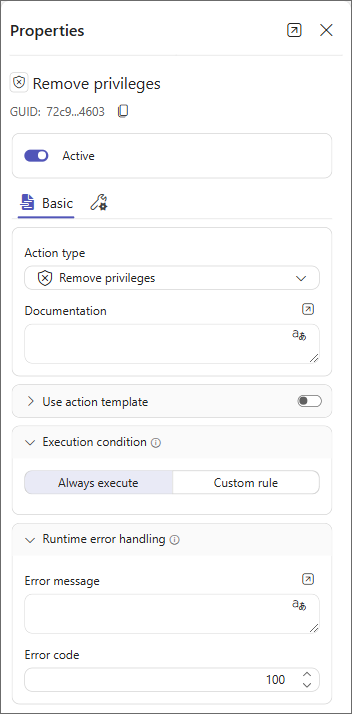
The Basic tab of the Properties panel contains settings shared by every action in an automation: the Active toggle, the Action type field, the Documentation field, the Use action template toggle (when enabled, the action takes its configuration from the selected action template defined in the process), the Execution condition section (decides whether the action always runs or only when a custom rule is met), and the Runtime error handling section (the message and numeric error code returned when the action fails to execute). Since these settings are not unique to the Remove privileges action, they are described in detail in the Actions chapter.
Advanced configuration
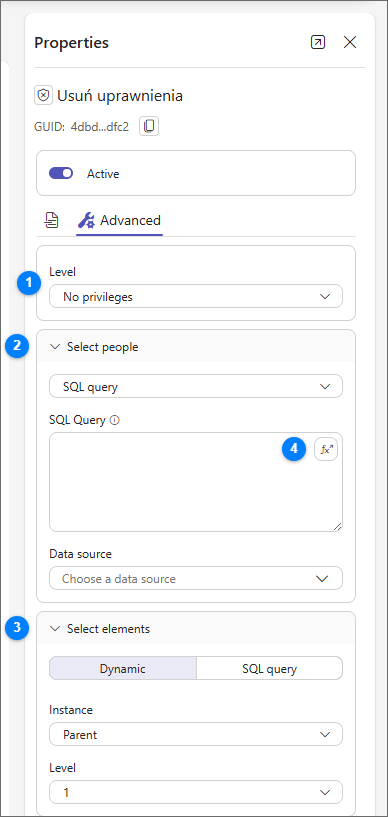
The Advanced tab contains fields specific to this action: Level, Select people, Select elements, and — available in SQL query mode — the variables editor.
1. Level
The drop-down list allows you to choose the level to which privileges will be lowered for the selected users.
| Level | Description |
|---|---|
| No privileges | all privileges to the instance are revoked |
| Modification without deletion | the instance can be modified but not deleted |
| Read-only | the instance can be read but not modified |
| Read-only without attachment preview | the instance can be read but not modified, and its attachments cannot be previewed |
| Access to element history | privileges that determine the visibility of the history of the instance or its parent/child instances are revoked |
2. Select people
Determines whose privileges on the instance will be lowered. Three selection modes are available:
- Always to — statically pick specific users or groups in the Users field, with an Active Directory search.
- Dynamic — people are selected based on the value provided in a form field. Allowed form field types are Choice field, Person or group, and Item list (in which case the form field must have a column of type Person or group or Choice field).
- SQL query — the people whose privileges are to be lowered are determined by a SQL query returning a list of their logins (if no column name is specified, the first column of the result is used). You can also specify the Data source the query is directed to — by default, the query runs against the database Designer Studio is currently running on.
The query
select distinct WFD_AttPeople1 from WFElements where WFD_Signature like 'NEW%'
and DATALENGTH (WFD_AttPeople1) > 0
will return all people entered in the first (by order of addition) Person or group form field on every form whose signature starts with "NEW". Additionally, the user name must contain at least one character. Each user is returned only once (the "distinct" modifier).
3. Select elements
Determines which instance the privileges will be lowered for. Two selection modes are available:
- Dynamic — the Instance field lets you pick the Current, Parent, or Child instance. When Parent or Child is selected, an additional Level field appears, specifying how many instance levels are covered (e.g. 2 sub-workflows).
- SQL query — the instances whose privileges are to be lowered are determined by a SQL query returning a list of their IDs (if no column name is specified, the first column of the result is used). As with people selection, you can specify the Data source the query is directed to.
select 123 as WFD_ID
4. Variables editor
In SQL query mode (in both the Select people and Select elements sections), an fx icon is available next to the query field. It opens the variables editor — a dynamically generated tree of all variables available at the current Designer Studio location, letting you insert a reference to the selected variable directly into the SQL query.