Add a user to a group
The action adds a user to an Active Directory group or removes them from it — handling multiple users and multiple groups at once, in a single call. It can be embedded on any automation event — e.g. on step entry, on step exit, on a transition path, or on a menu button.
For the action to run, Active Directory configuration in the system settings must have object modification enabled and the connection parameters configured, under which the action will be authorized.
Basic configuration
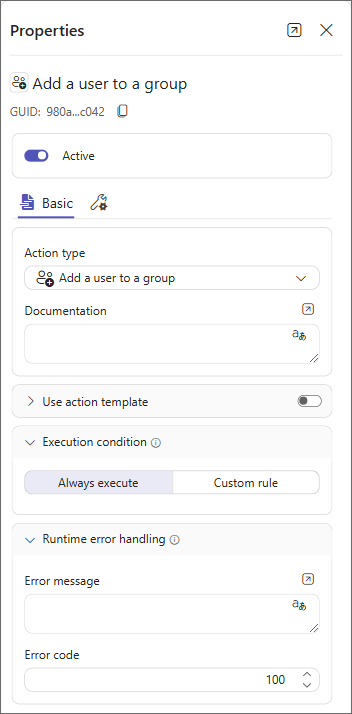
The Basic tab of the Properties panel contains settings common to every action in an automation: the Active switch, the Action type selector, the Documentation field, the Use action template switch (when enabled, the action takes its configuration from the selected action template defined in the process), the Execution condition section (decides whether the action always runs, or only when a custom rule is met), and the Runtime error handling section (the message and numeric error code returned when the action fails). Since these settings aren't unique to the Add a user to a group action, they're described in detail in the Actions chapter.
Advanced configuration
The Advanced tab contains fields specific to this action. The selected action mode doesn't affect the availability of any other field — the set of fields is identical whether the action adds or removes a user from a group.
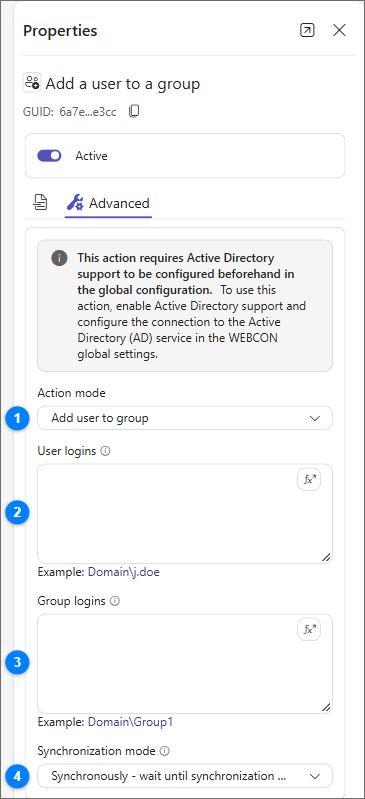
1. Action mode
Determines which operation will be performed:
- Add user to group
- Remove user from group
2. User logins
The User logins field points to the domain accounts the action operates on. Provide the login in the format domain\username, e.g. WEBCON\j.doe. The value can be filled in dynamically by pointing to it with a business rule (the fx button). To point to multiple users at once, separate the individual logins with a semicolon, e.g. WEBCON\j.doe;WEBCON\p.smith.
3. Group logins
The Group logins field points to the groups the action operates on. A group can be identified by its login (in the format domain\groupname, e.g. WEBCON\Marketing) or by its domain SID. As with the User logins field, the value can be filled in with a business rule (the fx button), and multiple groups are pointed to by separating the individual logins or identifiers with a semicolon, e.g. WEBCON\Marketing;WEBCON\Sales.
4. Synchronization mode
After a user is added to or removed from a group, an independent synchronization operation must run. Synchronization can take a few seconds — until it finishes, the membership change isn't available in the system. The Synchronization mode field offers three options:
- Synchronously - wait until synchronization finished — the action finishes only after synchronization completes. Use it when subsequent actions in the sequence rely on the newly made change. In this mode, saving the membership change happens outside the transaction in which the sequence of actions runs — if a later action in the sequence returns an error, rolling back the transaction won't roll back the change already made.
- Asynchronously - do not wait until synchronization finished — the action starts synchronization but doesn't wait for it to finish; synchronization runs as the last operation after the transaction completes successfully. If a later action in the sequence returns an error, the membership change won't be entered into the system either.
- No synchronization - changes will be visible after the next user synchronization — the action doesn't trigger synchronization. The membership change becomes visible after the scheduled user synchronization runs or after the Synchronize users list action is executed. This mode is recommended when many consecutive changes are made, followed by a single synchronization.
The User logins and Group logins fields both accept multiple values at once, so a single action can add (or remove) several users to several groups at the same time, without having to duplicate the action in the automation.