Conditions
The Conditions section contains rules that determine the column's default value, its behavior when the value changes, and its visibility, editability, and requiredness. Rules are turned on with switches – once a rule is on, a field is shown where you define it. The rules work in the same way as in the Conditions section of the form field configuration.
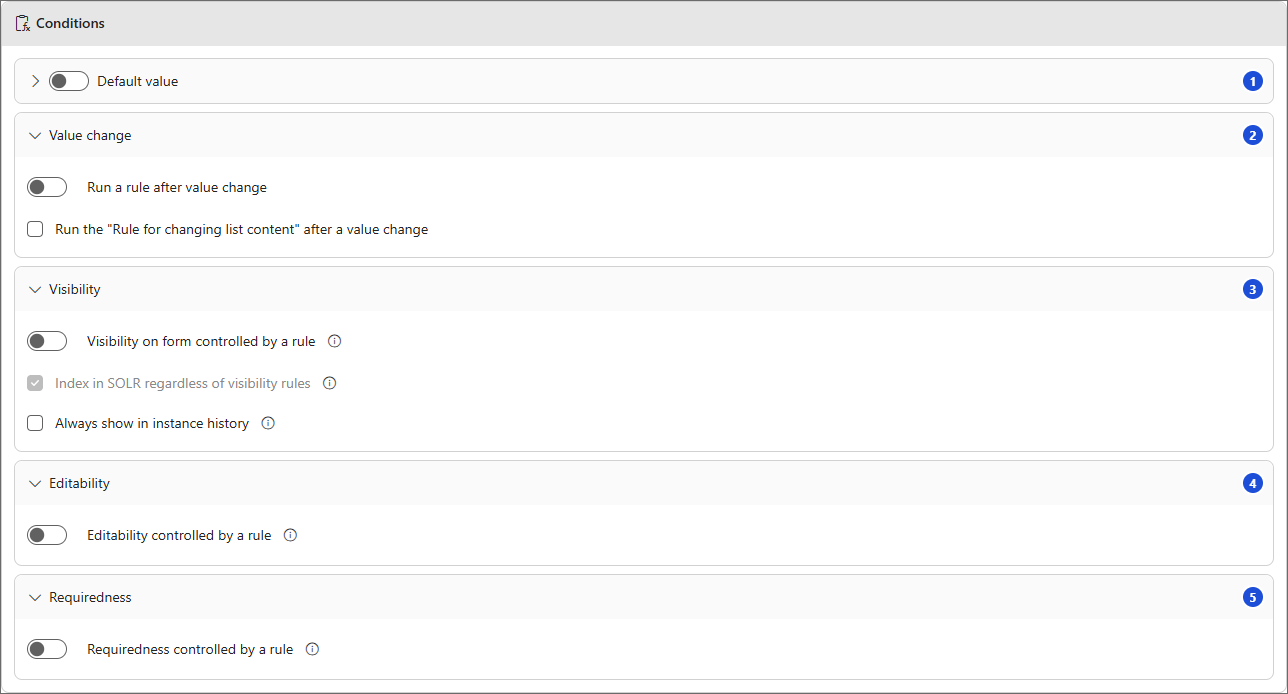
Not all subsections are available for every column type:
| Column type | Available subsections |
|---|---|
| Calculated decimal value | Value change (only the Run a rule after value change switch), Visibility |
| Hyperlink, Data row, Calculated text value | Default value, Visibility |
| Other column types | All subsections |
1. Default value
The switch in the subsection header turns on a business rule that defines the column's default value for new items.
2. Value change
- Run a rule after value change – the switch turns on a form rule that is executed after the column's value changes.
- Run the "Rule for changing list content" after a value change – selecting this option means that changing a value in the column runs the rule defined in the Rule for changing list content subsection of the item list Properties.
3. Visibility
- Visibility on form controlled by a rule – if this option is turned off, the column's visibility follows the Form Field Matrix settings. Turning it on lets you define a rule that controls visibility: the column is visible if the rule returns POSITIVE, TRUE, or 1, and hidden if it returns any other value.
- Index in SOLR regardless of visibility rules – selecting this option means the column's values are added to the SOLR index on every modification, despite the defined visibility rule. The option is available once Visibility on form controlled by a rule is turned on.
- Always show in instance history – selecting this option means the column is always shown in the instance history, regardless of the visibility rule on the form.
4. Editability
- Editability controlled by a rule – if this option is turned off, the column's editability follows the Form Field Matrix settings. Turning it on lets you define a rule that controls editability: if the rule returns POSITIVE, TRUE, or 1, the column is editable; if it returns any other value, the column is set as Read-only (editable via form rules).
5. Requiredness
- Requiredness controlled by a rule – if this option is turned off, the column's requiredness follows the Form Field Matrix settings. Turning it on lets you define a rule that controls requiredness: if the rule returns POSITIVE, TRUE, or 1, the column is required; if it returns any other value, the column is not required.