Basic
The Basic section contains the basic configuration options of an Item list attribute column – column type, documentation, description, width, and marking the column as technical.
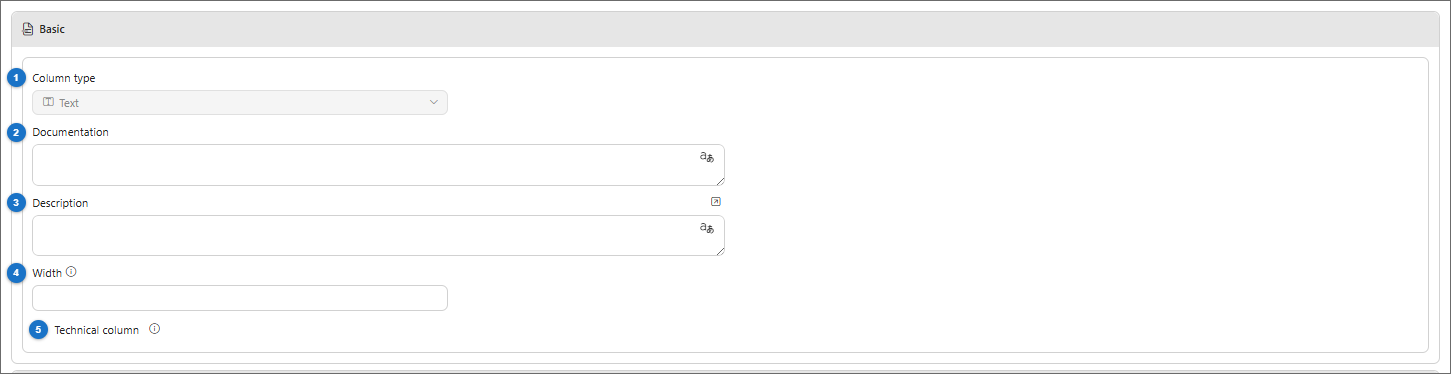
1. Column type
A read-only field showing the column type selected when the column was created – the type cannot be changed after the column has been created.
2. Documentation
The Documentation field lets you add an internal note describing the purpose of the column – the text is not visible to the user on the form.
3. Description
The Description field lets you add text displayed to the user on the form, below the column control. The icon above the top-right corner of the field opens it in full view, which makes editing longer text easier.
4. Width
The column width can be set in three ways:
- Fixed width (in pixels), e.g. 100px.
- Relative width (in percent), e.g. 10%. Relative width refers to the width of the item list reduced by the system columns (the No. column and the action column) and any columns with a defined fixed width.
- Automatic width (empty value) – the column adjusts to its content and the amount of free space in the item list table.
Width is applied as the column's style in the item list table in the generated HTML code. The actual width depends on how the browser interprets the given value. If every column has its width given in pixels, these values will be treated as defining the proportion between column widths. Decimal values must be separated with a "." character. Automatic width is used as the default value.
5. Technical column
Selecting the Technical column checkbox means the column is not displayed to users on the form, however its values can still be read and used in rules, actions, and other process logic components. A technical column is visible on the form and in the instance history only in Admin mode.