Conditions section
The Conditions section is visible after opening the form field configuration and contains rules that determine how the field behaves on the form and in reports. Depending on the selected form field, some fields may not be visible.
Fields of the Conditions section
The section is divided into five collapsible subsections. Rules are turned on with switches – once a rule is on, a field is shown where you define it. Press Ctrl+Space for suggestions, or type @ to search for objects. The button in the top-right corner of the field opens the rule formula editor. All rules in the section work the same way; in the screenshot below, Default value and Custom visibility on reports are turned on as an example.
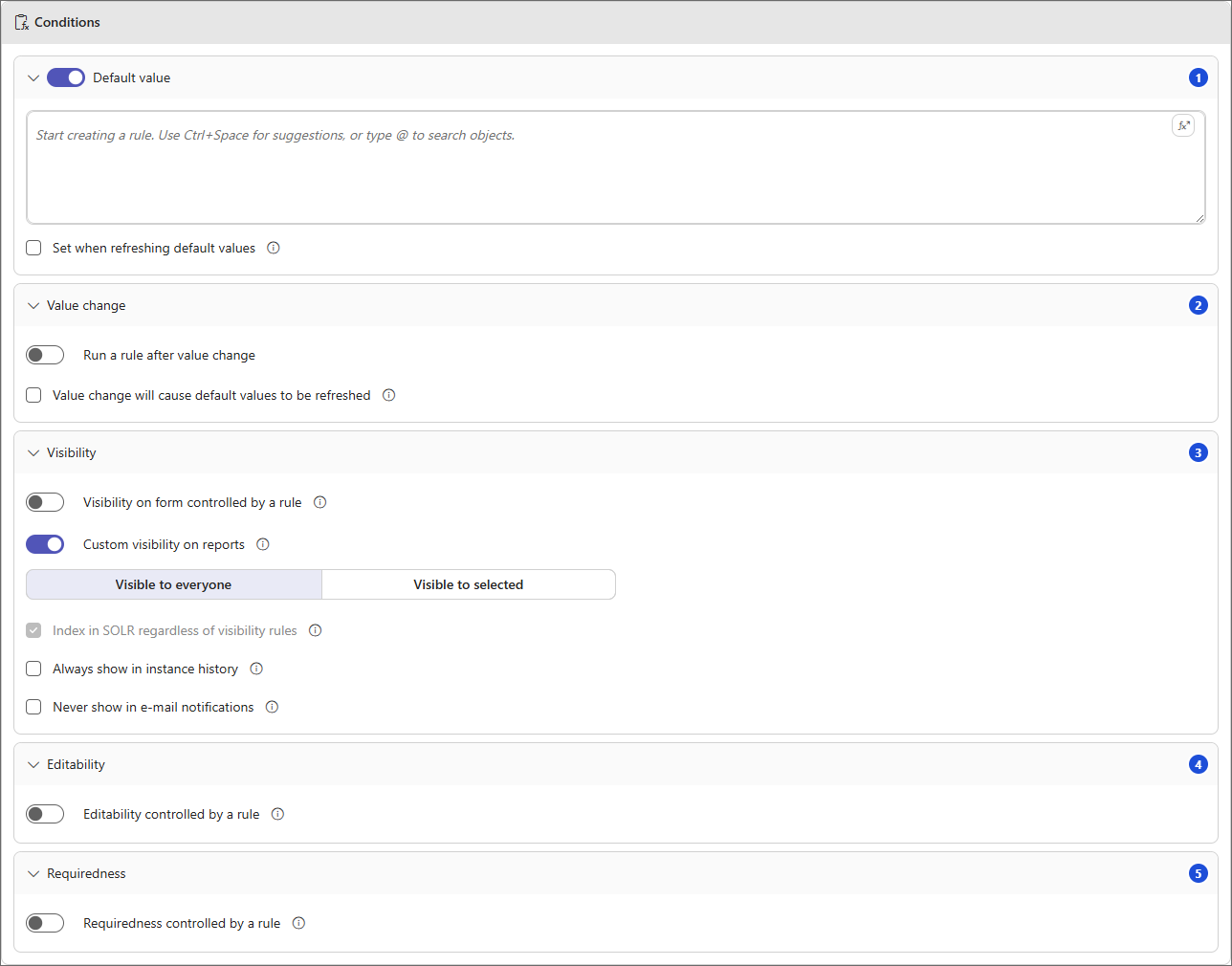
1. Default value
The switch in the subsection header turns on a business rule that defines the field's default value.
- Set when refreshing default values – selecting this option sets the default value again when another form field forces a refresh of default values (has the Value change will cause default values to be refreshed option selected). The default value is only set if the field did not previously have any value and is configured on the Form Field Matrix as Editable or Read-only (editable via form rules).
To learn more about configuring default values, read the ARTICLE available in the WEBCON Community website.
2. Value change
- Run a rule after value change – the switch turns on form rules that are executed after the field's value changes, provided it is configured as visible. The rule is not used for the Data grid and Data row form fields nor for user controls.
- Value change will cause default values to be refreshed – selecting this option means that changing the field's value triggers a recalculation of default values for all fields that have the Set when refreshing default values option selected.
3. Visibility
-
Visibility on form controlled by a rule – if this option is turned off, the field's visibility on the form follows the Form Field Matrix settings. Turning it on lets you define a rule that controls visibility: the field is visible if the rule returns POSITIVE, TRUE, or 1, and hidden if it returns any other value. The rule is only taken into account when the field is marked as Visible on the Form Field Matrix.
-
Custom visibility on reports – determines the field's visibility on reports:
- if this option is turned off and Visibility on form controlled by a rule is not turned on, the field's visibility on the report follows the Form Field Matrix settings,
- if this option is turned off and Visibility on form controlled by a rule is turned on, the field is not visible on the report,
- once the option is turned on, you can choose who the field is visible to on reports:
Option Description Visible to everyone The field is visible on reports to all users, regardless of the visibility rule on the form. Visible to selected The field is visible on reports only to the users or groups specified in the user or group picker below the option. -
Index in SOLR regardless of visibility rules – values of fields with a visibility rule defined on the form are not added to the SOLR index by default. Selecting this option means the field's values are added to the index on every modification – they can be searched and are shown in the search results list. The option is available once Visibility on form controlled by a rule is turned on. If the process already contains instances when the option is selected, run SOLR reindexing for the process to include them in search. Archival and technical fields are never indexed.
-
Always show in instance history – selecting this option means the field is always shown in the instance history, regardless of the visibility rule on the form. If the option is not selected and a visibility rule is defined on the form, the field is not visible in the instance history.
-
Never show in e-mail notifications – selecting this option means the field is not shown in e-mail notifications. If the option is not selected, the field's visibility in notifications depends on the visibility rule on the form.
Enabling Access authorization in the Advanced section overrides the settings of the three checkboxes above.
4. Editability
- Editability controlled by a rule – if this option is turned off, the field's editability on the form follows the Form Field Matrix settings. Turning it on lets you define a rule that controls editability: if the rule returns POSITIVE, TRUE, or 1, the field is editable; if it returns any other value, the field is set as Read-only (editable via form rules). The rule is only executed when the field is marked as Editable on the Form Field Matrix – if it is marked as Read-only or Read-only (editable via form rules), the field behaves according to the Form Field Matrix settings.
5. Requiredness
- Requiredness controlled by a rule – if this option is turned off, the field's requiredness on the form follows the Form Field Matrix settings. Turning it on lets you define a rule that controls requiredness: if the rule returns POSITIVE, TRUE, or 1, the field is required; if it returns any other value, the field is not required. The rule is only taken into account when the field is marked as Required on the Form Field Matrix.
To learn more about configuring visibility and restrictions, read the ARTICLE available in the WEBCON Community website.